7.6 Scheduling Recurring Tasks with cron and Timer Units
There are two ways to run programs on a repeating schedule: cron, and systemd timer units. This ability is vital to automating system maintenance tasks. One example is logfile rotation utilities to ensure that your hard drive doesn’t fill up with old logfiles (as discussed earlier in the chapter). The cron service has long been the de facto standard for doing this, and we’ll cover it in detail. However, systemd’s timer units are an alternative to cron with advantages in certain cases, so we’ll see how to use them as well.
You can run any program with cron at whatever times suit you. The program running through cron is called a cron job. To install a cron job, you’ll create an entry line in your crontab file, usually by running the crontab command. For example, the following crontab file entry schedules the /home/juser/bin/spmake command daily at 9:15 AM (in the local time zone):
15 09 * * * /home/juser/bin/spmake
The five fields at the beginning of this line, delimited by whitespace, specify the scheduled time (see also Figure 7-3). The fields are as follows, in order:
- Minute (0 through 59). This cron job is set for minute 15.
- Hour (0 through 23). This job is set for the ninth hour.
- Day of month (1 through 31).
- Month (1 through 12).
- Day of week (0 through 7). The numbers 0 and 7 are Sunday.
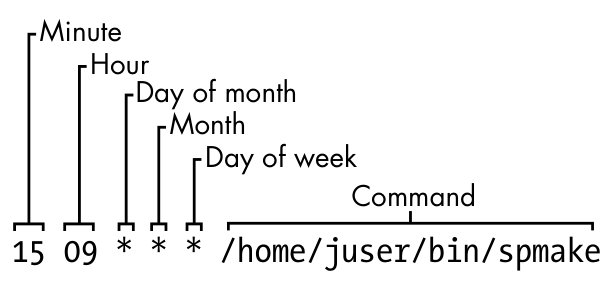
A star (*) in any field means to match every value. The preceding example runs spmake daily because the day of month, month, and day of week fields are all filled with stars, which cron reads as “run this job every day, of every month, of every day of the week.”
To run spmake only on the 14th day of each month, you would use this crontab line:
15 09 14 * * /home/juser/bin/spmake
You can select more than one time for each field. For example, to run the program on the 5th and the 14th day of each month, you could enter 5,14 in the third field:
15 09 5,14 * * /home/juser/bin/spmake
If the cron job generates standard output or an error or exits abnormally, cron should email this information to the owner of the cron job (assuming that email works on your system). Redirect the output to /dev/null or some other logfile if you find the email annoying.
The crontab(5) manual page provides complete information on the crontab format.
7.6.1 Installing Crontab Files
Each user can have their own crontab file, which means that every system may have multiple crontabs, usually found in /var/spool/cron/crontabs. Normal users can’t write to this directory; the crontab command installs, lists, edits, and removes a user’s crontab.
The easiest way to install a crontab is to put your crontab entries into a file and then use crontab file to install file as your current crontab. The crontab command checks the file format to make sure that you haven’t made any mistakes. To list your cron jobs, run crontab -l. To remove the crontab, use crontab -r.
After you’ve created your initial crontab, it can be a bit messy to use temporary files to make further edits. Instead, you can edit and install your p. 185 crontab in one step with the crontab -e command. If you make a mistake, crontab should tell you where the mistake is and ask if you want to try editing again.
7.6.2 System Crontab Files
Many common cron-activated system tasks are run as the superuser. However, rather than editing and maintaining a superuser’s crontab to schedule these, Linux distributions normally have an /etc/crontab file for the entire system. You won’t use crontab to edit this file, and in any case, it’s slightly different in format: before the command to run, there’s an additional field specifying the user that should run the job. (This gives you the opportunity to group system tasks together even if they aren’t all run by the same user.) For example, this cron job defined in /etc/crontab runs at 6:42 AM as the superuser (root ❶):
42 6 * * * root❶ /usr/local/bin/cleansystem > /dev/null 2>&1
Some distributions store additional system crontab files in the /etc/cron.d directory. These files may have any name, but they have the same format as /etc/crontab. There may also be some directories such as /etc/cron.daily, but the files here are usually scripts run by a specific cron job in /etc/crontab or /etc/cron.d. It can sometimes be confusing to track down where the jobs are and when they run.
7.6.3 Timer Units
An alternative to creating a cron job for a periodic task is to build a systemd timer unit. For an entirely new task, you must create two units: a timer unit and a service unit. The reason for two units is that a timer unit doesn’t contain any specifics about the task to perform; it’s just an activation mechanism to run a service unit (or conceptually, another kind of unit, but the most common usage is for service units).
Let’s look at a typical timer/service unit pair, starting with the timer unit. Let’s call this loggertest.timer; as with other custom unit files, we’ll put it in /etc/systemd/system (see Listing 7-3).
[Unit]
Description=Example timer unit

[Timer]
OnCalendar=*-*-* *:00,20,40
Unit=loggertest.service

[Install]
WantedBy=timers.target
Listing 7-3: loggertest.timer
This timer runs every 20 minutes, with the OnCalendar option resembling the cron syntax. In this example, it’s at the top of each hour, as well as 20 and 40 minutes past each hour.
The OnCalendar time format is year-month-day hour:minute:second. The field for seconds is optional. As with cron, a * represents a sort of wildcard, and commas allow for multiple values. The periodic / syntax is also valid; in the preceding example, you could change the *:00,20,40 to *:00/20 (every 20 minutes) for the same effect.
The syntax for times in the OnCalendar field has many shortcuts and variations. See the Calendar Events section of the systemd.time(7) manual page for the full list.
The associated service unit is named loggertest.service (see Listing 7-4). We explicitly named it in the timer with the Unit option, but this isn’t strictly necessary because systemd looks for a .service file with the same base name as the timer unit file. This service unit also goes in /etc/systemd/system, and looks quite similar to the service units that you saw back in Chapter 6.
[Unit]
Description=Example Test Service

[Service]
Type=oneshot
ExecStart=/usr/bin/logger -p local3.debug I\'m a logger
Listing 7-4: loggertest.service
The meat of this is the ExecStart line, which is the command that the service runs when activated. This particular example sends a message to the system log.
Note the use of oneshot as the service type, indicating that the service is expected to run and exit, and that systemd won’t consider the service started until the command specified by ExecStart completes. This has a few advantages for timers:
- You can specify multiple
ExecStartcommands in the unit file. The other service unit styles that we saw in Chapter 6 do not allow this. - It’s easier to control strict dependency order when activating other units using
WantsandBeforedependency directives. - You have better records of start and end times of the unit in the journal.
In this unit example, we’re using logger to send an entry to syslog and the journal. You read in Section 7.1.2 that you can view log messages by unit. However, the unit could finish up before journald has a chance to receive the message. This is a race condition, and in the case that the unit completes too quickly, journald won’t be able to look up the unit associated with the syslog message (this is done by process ID). p. 187 Consequently, the message that gets written in the journal may not include a unit field, rendering a filtering command such as journalctl -f -u loggertest.service incapable of showing the syslog message. This isn’t normally a problem in longer-running services.
7.6.4 cron vs. Timer Units
The cron utility is one of the oldest components of a Linux system; it’s been around for decades (predating Linux itself), and its configuration format hasn’t changed much for many years. When something gets to be this old, it becomes fodder for replacement.
The systemd timer units that you just saw may seem like a logical replacement, and indeed, many distributions have now moved system-level periodic maintenance tasks to timer units. But it turns out that cron has some advantages:
- Simpler configuration
- Compatibility with many third-party services
- Easier for users to install their own tasks
Timer units offer these advantages:
- Superior tracking of processes associated with tasks/units with cgroups
- Excellent tracking of diagnostic information in the journal
- Additional options for activation times and frequencies
- Ability to use systemd dependencies and activation mechanisms
Perhaps someday there will be a compatibility layer for cron jobs in much the same manner as mount units and /etc/fstab. However, configuration alone is a reason why it’s unlikely that the cron format will go away any time soon. As you’ll see in the next section, a utility called systemd-run does allow for creating timer units and associated services without creating unit files, but the management and implementation differ enough that many users would likely prefer cron. You’ll see some of this shortly when we discuss at.