Chapter 10: Network Applications and Services
This chapter explores basic network applications—the clients and servers running in user space that reside at the application layer. Because this layer is at the top of the stack, close to end users, you may find this material more accessible than the material in Chapter 9. Indeed, you interact with network client applications such as web browsers every day.
To do their work, network clients connect to corresponding network servers. Unix network servers come in many forms. A server program can listen to a port on its own or through a secondary server. We’ll look at some common servers as well as tools that will help you understand and debug server operation.
Network clients use the operating system’s transport layer protocols and interfaces, so it’s important to understand the basics of the TCP and UDP transport layers. Let’s start looking at network applications by experimenting with a network client that uses TCP.
10.1 The Basics of Services
TCP services are among the easiest to understand because they are built upon simple, uninterrupted two-way data streams. Perhaps the best way to see how they work is to talk directly to an unencrypted web server on TCP port 80 to get an idea of how data moves across the connection. For example, run the following command to connect to the IANA documentation example web server:
$ telnet example.org 80
You should get a response like this, indicating a successful connection to the server:
Trying some address...
Connected to example.org.
Escape character is '^]'.
Now enter these two lines:
GET / HTTP/1.1
Host: example.org
HTTP 1.1, like its predecessor HTTP 1.0, shows its age; there are newer protocols in use such as HTTP/2, QUIC, and the emerging HTTP/3.
Press ENTER twice after the last line. The server should send a bunch of HTML text as a response. To terminate the connection, press CTRL-D.
This exercise demonstrates that:
- The remote host has a web server process listening on TCP port 80.
telnetwas the client that initiated the connection.
The reason you have to terminate the connection with CTRL-D is that, because most web pages need several requests to load, it makes sense to keep the connection open. If you explore web servers at the protocol level, you may find that this behavior varies. For example, many servers disconnect quickly if they do not receive a request soon after a connection opens.
telnet was originally meant to enable logins to remote hosts. The client program may not be installed on your distribution by default, but is easily installed as an extra package. Although the telnet remote login server is completely insecure (as you will learn later), the telnet client can be useful for debugging remote services. telnet does not work with UDP or any transport layer other than TCP. If you’re looking for a general-purpose network client, consider netcat, described in Section 10.5.3.
10.2 A Closer Look
In the previous example, you manually interacted with a web server on the network with telnet, using the HTTP application layer protocol. Although you’d normally use a web browser to make this sort of connection, let’s take just one step up from telnet and use a command-line program that knows how to speak to the HTTP application layer. We’ll use the curl utility with a special option to record details about its communication:
$ curl --trace-ascii trace_file http://www.example.org/
Your distribution may not have the curl package preinstalled, but you should have no trouble installing it if necessary.
You’ll get a lot of HTML output. Ignore it (or redirect it to /dev/null) and instead look at the newly created file trace_file. If the connection was successful, the first part of the file should look something like the following, at the point where curl attempts to establish the TCP connection to the server:
== Info:   Trying 93.184.216.34...
== Info: TCP_NODELAY set
== Info: Connected to www.example.org (93.184.216.34) port 80 (#0)
Everything you’ve seen so far happens in the transport layer or below. However, if this connection succeeds, curl then tries to send the request (the “header”); this is where the application layer starts:
❶ => Send header, 79 bytes (0x4f)
❷ 0000: GET / HTTP/1.1
0010: Host: www.example.org
0027: User-Agent: curl/7.58.0
0040: Accept: */*
004d:
Line ❶ is curl debugging output telling you what it will do next. The remaining lines show what curl sends to the server. The text in bold is what goes to the server; the hexadecimal numbers at the beginning are just debugging offsets curl adds to help you keep track of how much data was sent or received.
At ❷, you can see that curl starts by issuing a GET command to the server (as you did with telnet), followed by some extra information for the server and an empty line. Next, the server sends a reply, first with its own header, shown here in bold:
<= Recv header, 17 bytes (0x11)
0000: HTTP/1.1 200 OK
<= Recv header, 22 bytes (0x16)
0000: Accept-Ranges: bytes
<= Recv header, 12 bytes (0xc)
0000: Age: 17629
--snip--
Much like the previous output, the <= lines are debugging output, and 0000: precedes the lines of output to tell you the offsets (in curl, the header won’t count toward the offset; that’s why all of these lines begin with 0).
The header in the server’s reply can be fairly long, but at some point the server transitions from transmitting headers to sending the actual requested document, like this:
<= Recv header, 22 bytes (0x16)
0000: Content-Length: 1256
<= Recv header, 2 bytes (0x2)
❶ 0000:
<= Recv data, 1256 bytes (0x4e8)
0000: <!doctype html>.<html>.<head>.    <title>Example Domain</title>.
0040: .    <meta charset="utf-8" />.    <meta http-equiv="Content-type
--snip--
This output also illustrates an important property of the application layer. Even though the debugging output says Recv header and Recv data, implying that those are two different kinds of messages from the server, there’s no difference in how curl talked to the operating system to retrieve the two messages, in how the operating system handled them, or in how the network handled the packets underneath. The difference is entirely within the user-space curl application. curl knew that until this point it had been getting headers, but when it received a blank line ❶, which signifies the end of headers in HTTP, it knew to interpret anything that followed as the requested document.
The same is true of the server sending this data. When sending the reply, the server’s operating system didn’t differentiate between header and document data; the distinctions happen inside the user-space server program.
10.3 Network Servers
Most network servers are like other server daemons on your system such as cron, except that they interact with network ports. In fact, syslogd, discussed in Chapter 7, accepts UDP packets on port 514 when started with the -r option.
Here are some other common network servers that you might find running on your system:
httpd, apache, apache2, nginx Web servers
sshd Secure shell daemon
postfix, qmail, sendmail Mail servers
cupsd Print server
nfsd, mountd Network filesystem (file-sharing) daemons
smbd, nmbd Windows file-sharing daemons (see Chapter 12)
rpcbind Remote procedure call (RPC) portmap service daemon
One feature common to most network servers is that they usually operate as multiple processes. At least one process listens on a network port, and upon receiving a new incoming connection, the listening process uses fork() to create a child process, which is then responsible for the new connection. The child, often called a worker process, terminates when the connection is closed. Meanwhile, the original listening process continues to listen on the network port. This process allows a server to easily handle many connections without much trouble.
There are some exceptions to this model, however. Calling fork() adds a significant amount of system overhead. To avoid this, high-performance TCP servers such as the Apache web server may create a number of worker processes upon startup so they’re available to handle connections as needed. Servers that accept UDP packets don’t need to fork at all, as they don’t have connections to listen for; they simply receive data and react to it.
10.3.1 Secure Shell
Every network server program works a bit differently. To get hands-on experience with a server’s configuration and operation, let’s take a close look at the standalone secure shell (SSH) server. One of the most common network service applications, SSH is the de facto standard for remote access to a Unix machine. SSH is designed to allow secure shell logins, remote program execution, simple file sharing, and more—replacing the old, insecure telnet and rlogin remote-access systems with public-key cryptography for authentication and simpler ciphers for session data. Most ISPs and cloud providers require SSH for shell access to their services, and many Linux-based network appliances (such as network attached storage, or NAS, devices) provide access via SSH as well. OpenSSH (http://www.openssh.com/) is a popular free SSH implementation for Unix, and nearly all Linux distributions come with it preinstalled. The OpenSSH client program is ssh, and the server is sshd. There are two main SSH protocol versions: 1 and 2. OpenSSH supports only version 2, having dropped version 1 support due to vulnerabilities and lack of use.
Among its many useful capabilities and features, SSH does the following:
- Encrypts your password and all other session data, protecting you from snoopers.
- Tunnels other network connections, including those from X Window System clients. (You’ll learn more about X in Chapter 14.)
- Offers clients for nearly any operating system.
- Uses keys for host authentication.
Tunneling is the process of packaging and transporting one network connection within another. The advantages of using SSH to tunnel X Window System connections are that SSH sets up the display environment for you, and it encrypts the X data inside the tunnel.
SSH does have a few disadvantages. For one, in order to set up an SSH connection, you need the remote host’s public key, and you don’t necessarily get it in a secure way (though you can check it manually to make sure you’re not being spoofed). For an overview of how several methods of cryptography work, get your hands on the book Serious Cryptography: A Practical Introduction to Modern Encryption (No Starch Press, 2017), by Jean-Philippe Aumasson. Two in-depth books on SSH are SSH Mastery: OpenSSH, PuTTY, Tunnels, and Keys, 2nd edition, by Michael W. Lucas (Tilted Windmill Press, 2018) and SSH, The Secure Shell: The Definitive Guide, 2nd edition, by Daniel J. Barrett, Richard E. Silverman, and Robert G. Byrnes (O’Reilly, 2005).
We’ve been using the term public key without much context, so let’s step back and briefly discuss it in case you aren’t familiar with it. Until the 1970s, encryption algorithms were symmetric, requiring a message’s sender and recipient to have the same key. Breaking the code was a matter of stealing the key, and the more people who had it, the more opportunities there were for it to be compromised. But with public key cryptography, there are two keys: public and private. The public key can encrypt a message but not decrypt it; therefore, it doesn’t matter who has access to this key. Only the private key can decrypt a message from the public key. In most cases, it’s easier to protect the private key because there need only be one copy, and it doesn’t have to be transmitted.
Another application beyond encryption is authentication; there are ways to verify that someone holds a private key for a given public key without transmitting any keys.
10.3.2 The sshd Server
Running the sshd server to allow remote connections to your system requires a configuration file and host keys. Most distributions keep configurations in the /etc/ssh configuration directory and try to configure everything properly for you if you install their sshd package. (The server configuration filename sshd_config is easy to confuse with the client’s ssh_config setup file, so be careful.)
You shouldn’t need to change anything in sshd_config, but it never hurts to check. The file consists of key-value pairs, as shown in this fragment.
Port 22
#AddressFamily any

#ListenAddress 0.0.0.0
#ListenAddress ::
#HostKey /etc/ssh/ssh_host_rsa_key
#HostKey /etc/ssh/ssh_host_ecdsa_key
#HostKey /etc/ssh/ssh_host_ed25519_key
Lines beginning with # are comments, and many comments in your sshd_config indicate default values for various parameters, as you can see from this excerpt. The sshd_config(5) manual page contains descriptions of the parameters and possible values, but these are among the most important:
HostKey file Uses file as a host key. (Host keys are described next.)
PermitRootLogin value Permits the superuser to log in with SSH if value is set to yes. Set value to no to prevent this.
LogLevel level Logs messages with syslog level level (defaults to INFO).
SyslogFacility name Logs messages with syslog facility name (defaults to AUTH).
X11Forwarding value Enables X Window System client tunneling if value is set to yes.
XAuthLocation path Specifies the location of the xauth utility on your system. X tunneling will not work without this path. If xauth isn’t in /usr/bin, set path to the full pathname for xauth.
Creating Host Keys
OpenSSH has several host key sets. Each set has a public key (with a .pub file extension) and a private key (with no extension).
Do not let anyone see a private key, even on your own system, because if someone obtains it, you’re at risk from intruders.
SSH version 2 has RSA and DSA keys. RSA and DSA are public key cryptography algorithms. The key filenames are given in Table 10-1.
Table 10-1: OpenSSH Key Files
| Filename | Key type |
|---|---|
| ssh_host_rsa_key | Private RSA key |
| ssh_host_rsa_key.pub | Public RSA key |
| ssh_host_dsa_key | Private DSA key |
| ssh_host_dsa_key.pub | Public DSA key |
Creating a key involves a numerical computation that generates both public and private keys. Normally you won’t need to create the keys because the OpenSSH installation program or your distribution’s installation script will do it for you, but you need to know how to do so if you plan to use programs like ssh-agent that provide authentication services without a password. To create SSH protocol version 2 keys, use the ssh-keygen program that comes with OpenSSH:
# ssh-keygen -t rsa -N '' -f /etc/ssh/ssh_host_rsa_key
# ssh-keygen -t dsa -N '' -f /etc/ssh/ssh_host_dsa_key
The SSH server and clients also use a key file, called ssh_known_hosts, to store public keys from other hosts. If you intend to use authentication based on a remote client’s identity, the server’s ssh_known_hosts file must contain the public host keys of all trusted clients. Knowing about the key files is handy if you’re replacing a machine. When installing a new machine from scratch, you can import the key files from the old machine to ensure that users don’t get key mismatches when connecting to the new one.
Starting the SSH Server
Although most distributions ship with SSH, they usually don’t start the sshd server by default. On Ubuntu and Debian, the SSH server is not installed on a new system; installing its package creates the keys, starts the server, and adds the server startup to the bootup configuration.
On Fedora, sshd is installed by default but turned off. To start sshd at boot, use systemctl like this:
# systemctl enable sshd
If you want to start the server immediately without rebooting, use:
# systemctl start sshd
Fedora normally creates any missing host key files upon the first sshd startup.
If you’re running another distribution, you likely won’t need to manually configure the sshd startup. However, you should know that there are two startup modes: standalone and on-demand. The standalone server is by far more common, and it’s just a matter of running sshd as root. The sshd server process writes its PID to /var/run/sshd.pid (of course, when run by systemd, it’s also tracked by its cgroup, as you saw in Chapter 6).
As an alternative, systemd can start sshd on demand through a socket unit. This usually isn’t a good idea, because the server occasionally needs to generate key files, and that process can take a long time.
10.3.3 fail2ban
If you set up an SSH server on your machine and open it up to the internet, you’ll quickly discover constant intrusion attempts. These brute-force p. 277 attacks won’t succeed if your system is properly configured and you haven’t chosen stupid passwords. However, they will be annoying, consume CPU time, and unnecessarily clutter your logs.
To prevent this, you want to set up a mechanism to block repeated login attempts. As of this writing, the fail2ban package is the most popular way to do this; it’s simply a script that watches log messages. Upon seeing a certain number of failed requests from one host within a certain time frame, fail2ban uses iptables to create a rule to deny traffic from that host. After a specified period, during which the host has probably given up trying to connect, fail2ban removes the rule.
Most Linux distributions offer a fail2ban package with preconfigured defaults for SSH.
10.3.4 The SSH Client
To log in to a remote host, run:
$ ssh remote_username@remote_host
You may omit remote_username@ if your local username is the same as on remote_host. You can also run pipelines to and from an ssh command as shown in the following example, which copies a directory dir to another host:
$ tar zcvf - dir | ssh remote_host tar zxvf -
The global SSH client configuration file ssh_config should be in /etc/ssh, the same location as your sshd_config file. As with the server configuration file, the client configuration file has key-value pairs, but you shouldn’t need to change them.
The most frequent problem with using SSH clients occurs when an SSH public key in your local ssh_known_hosts or .ssh/known_hosts file does not match the key on the remote host. Bad keys cause errors or warnings like this:
@@@@@@@@@@@@@@@@@@@@@@@@@@@@@@@@@@@@@@@@@@@@@@@@@@@@@@@@@@@
@    WARNING: REMOTE HOST IDENTIFICATION HAS CHANGED!     @
@@@@@@@@@@@@@@@@@@@@@@@@@@@@@@@@@@@@@@@@@@@@@@@@@@@@@@@@@@@
IT IS POSSIBLE THAT SOMEONE IS DOING SOMETHING NASTY!
Someone could be eavesdropping on you right now (man-in-the-middle attack)!
It is also possible that the RSA host key has just been changed.
The fingerprint for the RSA key sent by the remote host is
38:c2:f6:0d:0d:49:d4:05:55:68:54:2a:2f:83:06:11.
Please contact your system administrator.
Add correct host key in /home/user/.ssh/known_hosts to get rid of this
message.
❶ Offending key in /home/user/.ssh/known_hosts:12
RSA host key for host has changed and you have requested
strict checking.
Host key verification failed.
This usually just means that the remote host’s administrator changed the keys (which often happens upon a hardware or cloud server upgrade), but it never hurts to check with the administrator if you’re not sure. In any case, the preceding message tells you that the bad key is in line 12 of a user’s known_hosts file ❶.
If you don’t suspect foul play, just remove the offending line or replace it with the correct public key.
SSH File Transfer Clients
OpenSSH includes the file transfer programs scp and sftp, which are intended as replacements for the older, insecure programs rcp and ftp. You can use scp to transfer files to or from a remote machine to your machine or from one host to another. It works like the cp command. Here are a few examples.
Copy a file from a remote host to the current directory:
$ scp user@host:file .
Copy a file from the local machine to a remote host:
$ scp file user@host:dir
Copy a file from one remote host to a second remote host:
$ scp user1@host1:file user2@host2:dir
The sftp program works like the obsolete command-line ftp client, using get and put commands. The remote host must have an sftp-server program installed, which you can expect if the remote host also uses OpenSSH.
If you need more features and flexibility than what scp and sftp offer (for example, if you frequently transfer large numbers of files), have a look at rsync, described in Chapter 12.
SSH Clients for Non-Unix Platforms
There are SSH clients for all popular operating systems. Which one should you choose? PuTTY is a good, basic Windows client that includes a secure file-copy program. macOS is based on Unix and includes OpenSSH.
10.4 Pre-systemd Network Connection Servers: inetd/xinetd
Before the widespread use of systemd and the socket units that you saw in Section 6.3.7, there were a handful of servers that provided a standard means of building a network service. Many minor network services are very similar in their connection requirements, so implementing standalone servers for every service can be inefficient. Each server must be separately configured to handle port listening, access control, and port configuration. p. 279 These actions are performed in the same way for most services; only when a server accepts a connection is communication handled any differently.
One traditional way to simplify the use of servers is with the inetd daemon, a kind of superserver designed to standardize network port access and interfaces between server programs and network ports. After you start inetd, it reads its configuration file and then listens on the network ports defined in that file. As new network connections come in, inetd attaches a newly started process to the connection.
A newer version of inetd called xinetd offers easier configuration and better access control, but xinetd has almost entirely been phased out in favor of systemd. However, you might see it on an older system or one that does not use systemd.
Before lower-level firewalls such as iptables became popular, many administrators used the TCP wrapper library and daemon to control access to network services. In these implementations, inetd runs the tcpd program, which first looks at the incoming connection as well as the access control lists in the /etc/hosts.allow and /etc/hosts.deny files. The tcpd program logs the connection, and if it decides that the incoming connection is okay, it hands it to the final service program. You might encounter systems that still use the TCP wrapper system, but we won’t cover it in detail because it has largely fallen out of use.
10.5 Diagnostic Tools
Let’s look at a few diagnostic tools that are useful for poking around the application layer. Some dig into the transport and network layers, because everything in the application layer eventually maps down to something in those lower layers.
As discussed in Chapter 9, netstat is a basic network service debugging tool that can display a number of transport and network layer statistics. Table 10-2 reviews a few useful options for viewing connections.
Table 10-2: Useful Connection-Reporting Options for netstat
| Option | Description |
|---|---|
-t | Prints TCP port information |
-u | Prints UDP port information |
-l | Prints listening ports |
-a | Prints every active port |
-n | Disables name lookups (speeds things up; also useful if DNS isn’t working) |
-4, -6 | Limits the output to IP version 4 or 6 |
10.5.1 lsof
In Chapter 8, you learned that lsof not only can track open files, but can also list the programs currently using or listening to ports. For a complete list of such programs, run:
# lsof -i
When you run this command as a regular user, it shows only that user’s processes. When you run it as root, the output should look something like this, displaying a variety of processes and users:
COMMAND     PID     USER   FD   TYPE   DEVICE SIZE/OFF NODE NAME
rpcbind     700     root    6u  IPv4    10492      0t0  UDP *:sunrpc ❶
rpcbind     700     root    8u  IPv4    10508      0t0  TCP *:sunrpc (LISTEN)
avahi-dae   872    avahi   13u  IPv4 21736375      0t0  UDP *:mdns ❷
cupsd      1010     root    9u  IPv6 42321174      0t0  TCP ip6-localhost:ipp (LISTEN) ❸
ssh       14366    juser    3u  IPv4 38995911      0t0  TCP thishost.local:55457-> ❹
    somehost.example.com:ssh (ESTABLISHED)
chromium- 26534    juser    8r  IPv4 42525253      0t0  TCP thishost.local:41551-> ❺
    anotherhost.example.com:https (ESTABLISHED)
This example output shows users and process IDs for server and client programs, from the old-style RPC services at the top ❶, to the multicast DNS service provided by avahi ❷, to even an IPv6-ready printer service, cupsd ❸. The last two entries show client connections: an SSH connection ❹ and a secure web connection from the Chromium web browser ❺. Because the output can be extensive, it’s usually best to apply a filter (as discussed in the following section).
The lsof program is like netstat in that it tries to reverse-resolve every IP address that it finds into a hostname, which slows down the output. Use the -n option to disable name resolution:
# lsof -n -i
You can also specify -P to disable /etc/services port name lookups.
Filtering by Protocol and Port
If you’re looking for a particular port (say, you know that a process is using a particular port and you want to know what that process is), use this command:
# lsof -i:port
The full syntax is as follows:
# lsof -iprotocol@host:port
The protocol, @host, and :port parameters are all optional and will filter the lsof output accordingly. As with most network utilities, host and port can be either names or numbers. For example, if you want to see connections only on TCP port 443 (the HTTPS port), use:
# lsof -iTCP:443
To filter based on IP version, use -i4 (IPv4) or -i6 (IPv6). You can add this as a separate option or just add the number in with more complex filters (for example, -i6TCP:443).
You can specify service names from /etc/services (as in -iTCP:ssh) instead of numbers.
Filtering by Connection Status
One particularly handy lsof filter is connection status. For example, to show only the processes listening on TCP ports, enter:
# lsof -iTCP -sTCP:LISTEN
This command gives you a good overview of the network server processes currently running on your system. However, because UDP servers don’t listen and don’t have connections, you’ll have to use -iUDP to view running clients as well as servers. This usually isn’t a problem, because you probably won’t have many UDP servers on your system.
10.5.2 tcpdump
Your system normally doesn’t bother with network traffic that isn’t addressed to one of its MAC addresses. If you need to see exactly what’s crossing your network, tcpdump puts your network interface card into promiscuous mode and reports on every packet that comes across. Entering tcpdump with no arguments produces output like the following, which includes an ARP request and web connection:
# tcpdump
tcpdump: listening on eth0
20:36:25.771304 arp who-has mikado.example.com tell duplex.example.com
20:36:25.774729 arp reply mikado.example.com is-at 0:2:2d:b:ee:4e
20:36:25.774796 duplex.example.com.48455 > mikado.example.com.www: S
3200063165:3200063165(0) win 5840 <mss 1460,sackOK,timestamp 38815804[|tcp]>
(DF)
20:36:25.779283 mikado.example.com.www > duplex.example.com.48455: S
3494716463:3494716463(0) ack 3200063166 win 5792 <mss 1460,sackOK,timestamp
4620[|tcp]> (DF)
20:36:25.779409 duplex.example.com.48455 > mikado.example.com.www: . ack 1 win
5840 <nop,nop,timestamp 38815805 4620> (DF)
20:36:25.779787 duplex.example.com.48455 > mikado.example.com.www: P
1:427(426) ack 1 win 5840 <nop,nop,timestamp 38815805 4620> (DF)
20:36:25.784012 mikado.example.com.www > duplex.example.com.48455: . ack 427
win 6432 <nop,nop,timestamp 4620 38815805> (DF)
20:36:25.845645 mikado.example.com.www > duplex.example.com.48455: P
1:773(772) ack 427 win 6432 <nop,nop,timestamp 4626 38815805> (DF)
20:36:25.845732 duplex.example.com.48455 > mikado.example.com.www: . ack 773
win 6948 <nop,nop,timestamp 38815812 4626> (DF)

9 packets received by filter
0 packets dropped by kernel
You can tell tcpdump to be more specific by adding filters. You can filter based on source and destination hosts, networks, Ethernet addresses, protocols at many different layers in the network model, and much more. Among the many packet protocols that tcpdump recognizes are ARP, RARP, ICMP, TCP, UDP, IP, IPv6, AppleTalk, and IPX packets. For example, to tell tcpdump to output only TCP packets, run:
# tcpdump tcp
To see web packets and UDP packets, enter:
# tcpdump udp or port 80 or port 443
The keyword or specifies that the condition on either the left or right can be true to pass the filter. Similarly, the and keyword requires both conditions to be true.
If you need to do a lot of packet sniffing, consider using a GUI alternative to tcpdump such as Wireshark.
Primitives
In the preceding examples, tcp, udp, and port 80 are basic elements of filters called primitives. The most important primitives are listed in Table 10-3.
Table 10-3: tcpdump Primitives
| Primitive | Packet specification |
|---|---|
tcp | TCP packets |
udp | UDP packets |
ip | IPv4 packets |
ip6 | IPv6 packets |
port port | TCP and/or UDP packets to/from port port |
host host | Packets to or from host |
net network | Packets to or from network |
Operators
The or used earlier is an operator. tcpdump can use multiple operators (such as and and !), and you can group operators in parentheses. If you plan to do any serious work with tcpdump, make sure to read the pcap-filter(7) manual page, especially the section that describes the primitives.
Be careful when using tcpdump. The tcpdump output shown earlier in this section includes only packet TCP (transport layer) and IP (internet layer) header information, but you can also make tcpdumpprint the entire packet contents. Even though most important network traffic is now encrypted over TLS, you shouldn’t snoop around on networks unless you own them or otherwise have permission.
10.5.3 netcat
If you need more flexibility in connecting to a remote host than a command like telnet host port allows, use netcat (or nc). netcat can connect to remote TCP/UDP ports, specify a local port, listen on ports, scan ports, redirect standard I/O to and from network connections, and more. To open a TCP connection to a port with netcat, run:
$ netcat host port
netcat terminates when the other side ends the connection, which can be confusing if you redirect standard input to netcat, because you might not get your prompt back after sending data (as opposed to almost any other command pipeline). You can end the connection at any time by pressing CTRL-C. (If you’d like the program and network connection to terminate based on the standard input stream, try the sock program instead.)
To listen on a particular port, run:
$ netcat -l port_number
If netcat is successful at listening on the port, it will wait for a connection, and upon establishing a connection, prints the output from that connection, and sends any standard input to the connection.
Here are some additional notes on netcat:
- There isn’t much debugging output by default. If something fails,
netcatfails silently, but it does set an appropriate exit code. If you’d like some more information, add the-v(“verbose”) option. - By default, the
netcatclient tries to connect with IPv4 and IPv6. However, in server mode,netcatdefaults to IPv4. To force the protocol, use-4for IPv4 and-6for IPv6. - The
-uoption specifies UDP instead of TCP.
10.5.4 Port Scanning
Sometimes you don’t even know what services the machines on your networks are offering or even which IP addresses are in use. The Network Mapper (Nmap) program scans all ports on a machine or network of machines looking for open ports, and it lists the ports it finds. Most distributions have an Nmap package, or you can get it at http://www.insecure.org/. (See the Nmap manual page and online resources for all that Nmap can do.)
When listing ports on your own machine, it often helps to run the Nmap scan from at least two points: from your own machine and from another one (possibly outside your local network). Doing so will give you an overview of what your firewall is blocking.
If someone else controls the network that you want to scan with Nmap, ask for permission. Network administrators watch for port scans and usually disable access to machines that run them.
Run nmap host to run a generic scan on a host. For example:
$ nmap 10.1.2.2
Starting Nmap 5.21 ( http://nmap.org ) at 2015-09-21 16:51 PST
Nmap scan report for 10.1.2.2
Host is up (0.00027s latency).
Not shown: 993 closed ports
PORT     STATE SERVICE
22/tcp   open  ssh
25/tcp   open  smtp
80/tcp   open  http
111/tcp  open  rpcbind
8800/tcp open  unknown
9000/tcp open  cslistener
9090/tcp open  zeus-admin

Nmap done: 1 IP address (1 host up) scanned in 0.12 seconds
As you can see here, a number of services are open, many of which are not enabled by default on most distributions. In fact, the only one here that’s usually on by default is port 111, the rpcbind port.
Nmap is also capable of scanning ports over IPv6 if you add the -6 option. This can be a handy way of identifying services that do not support IPv6.
10.6 Remote Procedure Calls
What about the rpcbind service from the scan in the preceding section? RPC stands for remote procedure call (RPC), a system residing in the lower parts of the application layer. It’s designed to make it easier for programmers to build client/server network applications, where a client program calls functions that execute on a remote server. Each type of remote server program is identified by an assigned program number.
RPC implementations use transport protocols such as TCP and UDP, and they require a special intermediary service to map program numbers to TCP and UDP ports. The server is called rpcbind, and it must be running on any machine that wants to use RPC services.
To see what RPC services your computer has, run:
$ rpcinfo -p localhost
RPC is one of those protocols that just doesn’t want to die. The Network File System (NFS) and Network Information Service (NIS) systems use RPC, but they are completely unnecessary on standalone machines. But whenever you think that you’ve eliminated all need for rpcbind, something else comes up, such as File Access Monitor (FAM) support in GNOME.
10.7 Network Security
Because Linux is a very popular Unix flavor on the PC platform, and especially because it is widely used for web servers, it attracts many unpleasant characters who try to break into computer systems. Section 9.25 discussed firewalls, but that’s not really the whole story on security.
Network security attracts extremists—those who really like to break into systems (whether for fun or money) and those who come up with elaborate protection schemes and really like to swat away people trying to break into their systems. (This, too, can be very profitable.) Fortunately, you don’t need to know very much to keep your system safe. Here are a few basic rules of thumb:
Run as few services as possible Intruders can’t break into services that don’t exist on your system. If you know what a service is and you’re not using it, don’t turn it on for the sole reason that you might want to use it “at some later point.”
Block as much as possible with a firewall Unix systems have a number of internal services that you may not know about (such as TCP port 111 for the RPC port-mapping server), and no other system in the world should know about them. It can be very difficult to track and regulate the services on your system because many different kinds of programs listen on various ports. To keep intruders from discovering internal services on your system, use effective firewall rules and install a firewall at your router.
Track the services that you offer to the internet If you run an SSH server, Postfix, or similar services, keep your software up to date and get appropriate security alerts. (See Section 10.7.2 for some online resources.)
Use “long-term support” distribution releases for servers Security teams normally concentrate their work on stable, supported distribution releases. Development and testing releases such Debian Unstable and Fedora Rawhide receive much less attention.
Don’t give an account on your system to anyone who doesn’t need one It’s much easier to gain superuser access from a local account than it is to break in remotely. In fact, given the huge base of software (and the resulting bugs and design flaws) available on most systems, it can be easy to gain superuser access to a system after you get to a shell prompt. Don’t assume that your friends know how to protect their passwords (or choose good passwords in the first place).
Avoid installing dubious binary packages They can contain Trojan horses.
That’s the practical end of protecting yourself. But why is it important to do so? There are three basic kinds of network attacks that can be directed at a Linux machine:
Full compromise This means getting superuser access (full control) of a machine. An intruder can accomplish this by trying a service attack, such as a buffer overflow exploit, or by taking over a poorly protected user account and then trying to exploit a poorly written setuid program.
Denial-of-service (DoS) attack This prevents a machine from carrying out its network services or forces a computer to malfunction in some other way without the use of any special access. Normally, a DoS attack is just a flood of network requests, but it can also be an exploit of a flaw in a server program that causes a crash. These attacks are harder to prevent, but they are easier to respond to.
Malware Linux users are mostly immune to malware such as email worms and viruses, simply because their email clients aren’t stupid enough to actually run programs sent in message attachments. But Linux malware does exist. Avoid downloading and installing executable software from places that you’ve never heard of.
10.7.1 Typical Vulnerabilities
There are two basic types of vulnerabilities to worry about: direct attacks and cleartext password sniffing. Direct attacks try to take over a machine without being terribly subtle. One of the most common is locating an unprotected or otherwise vulnerable service on your system. This can be as simple as a service that isn’t authenticated by default, such as an administrator account without a password. Once an intruder has access to one service on a system, they can use it to try to compromise the whole system. In the past, a common direct attack was the buffer overflow exploit, where a careless programmer doesn’t check the bounds of a buffer array. This has been mitigated somewhat by Address Space Layout Randomization (ASLR) techniques in the kernel and protective measures elsewhere.
A cleartext password sniffing attack captures passwords sent across the wire as clear text, or uses a password database populated from one of many data breaches. As soon as an attacker gets your password, it’s game over. From there, the assailant will inevitably try to gain superuser access locally (which, as mentioned before, is much easier than making a remote attack), try to use the machine as an intermediary for attacking other hosts, or both.
If you need to run a service that offers no native support for encryption, try Stunnel (http://www.stunnel.org/), an encryption wrapper package much like TCP wrappers. Stunnel is especially good at wrapping services that you’d normally activate with systemd socket units or inetd.
Some services are chronic attack targets due to poor implementation and design. You should always deactivate the following services (they’re all quite dated at this point, and rarely activated by default on most systems):
ftpd For whatever reason, all FTP servers seem plagued with vulnerabilities. In addition, most FTP servers use cleartext passwords. If you have to move files from one machine to another, consider an SSH-based solution or an rsync server.
telnetd, rlogind, rexecd All of these services pass remote session data (including passwords) in cleartext form. Avoid them unless you have a Kerberos-enabled version.
10.7.2 Security Resources
Here are three good security resources:
- The SANS Institute (http://www.sans.org/) offers training, services, a free weekly newsletter listing the top current vulnerabilities, sample security policies, and more.
- The CERT Division of Carnegie Mellon University’s Software Engineering Institute (http://www.cert.org/) is a good place to look for the most severe problems.
- Insecure.org, a project from hacker and Nmap creator Gordon “Fyodor” Lyon (http://www.insecure.org/), is the place to go for Nmap and pointers to all sorts of network exploit-testing tools. It’s much more open and specific about exploits than are many other sites.
If you’re interested in network security, you should learn all about Transport Layer Security (TLS) and its predecessor, Secure Socket Layer (SSL). These user-space network levels are typically added to networking clients and servers to support network transactions through the use of public-key encryption and certificates. A good guide is Davies’ Implementing SSL/TLS Using Cryptography and PKI (Wiley, 2011) or Jean-Philippe Aumasson’s Serious Cryptography: A Practical Introduction to Modern Encryption (No Starch Press, 2017).
10.8 Looking Forward
If you’re interested in getting your hands dirty with some complicated network servers, some very common ones are the Apache or nginx web servers and the Postfix email server. In particular, web servers are easy to install and most distributions supply packages. If your machine is behind a firewall or NAT-enabled router, you can experiment with the configuration as much as you’d like without worrying about security.
Throughout the last few chapters, we’ve been gradually moving from kernel space into user space. Only a few utilities discussed in this chapter, such as tcpdump, interact with the kernel. The remainder of this chapter describes how sockets bridge the gap between the kernel’s transport layer and the user-space application layer. It’s more advanced material, of particular interest to programmers, so feel free to skip to the next chapter if you like.
10.9 Network Sockets
We’re now going to shift gears and look at how processes do the work of reading data from and writing data to the network. It’s easy enough for processes to read from and write to network connections that are already set up: all you need are some system calls, which you can read about in the recv(2) and send(2) manual pages. From the point of view of a process, perhaps the most important thing to know is how to access the network when using these system calls. On Unix systems, a process uses a socket to identify when and how it’s talking to the network. Sockets are the interface that processes use to access the network through the kernel; they represent the boundary between user space and kernel space. They’re often also used for interprocess communication (IPC).
There are different types of sockets because processes need to access the network in different ways. For example, TCP connections are represented by stream sockets (SOCK_STREAM, from a programmer’s point of view), and UDP connections are represented by datagram sockets (SOCK_DGRAM).
Setting up a network socket can be somewhat complicated because you need to account for socket type, IP addresses, ports, and transport protocol at particular times. However, after all of the initial details are sorted out, servers use certain standard methods to deal with incoming traffic from the network. The flowchart in Figure 10-1 shows how many servers handle connections for incoming stream sockets.
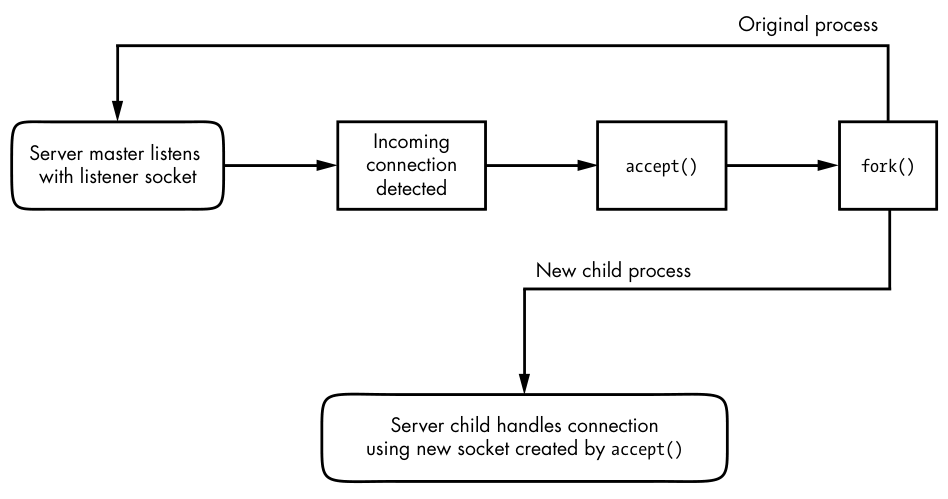
Notice that this type of server involves two kinds of sockets: one for listening and one for reading and writing. The master process uses the listening socket to look for connections from the network. When a new connection comes in, the master process uses the accept() system call to accept the connection, which creates the read/write socket dedicated to that connection. Next, the master process uses fork() to create a new child process to deal with the connection. Finally, the original socket remains the listener and continues to look for more connections on behalf of the master process.
After a process has set up a socket of a particular type, it can interact with it in a way that fits the socket type. This is what makes sockets flexible: if you need to change the underlying transport layer, you don’t have to rewrite all of the parts that send and receive data; you mostly need to modify the initialization code.
If you’re a programmer and you’d like to learn how to use the socket interface, Unix Network Programming, Volume 1, 3rd edition, by W. Richard Stevens, Bill Fenner, and Andrew M. Rudoff (Addison-Wesley Professional, 2003), is the classic guide. Volume 2 also covers interprocess communication.
10.10 Unix Domain Sockets
Applications that use network facilities don’t have to involve two separate hosts. Many applications are built as client-server or peer-to-peer mechanisms, where processes running on the same machine use interprocess communication to negotiate what work needs to be done and who does it. For example, recall that daemons such as systemd and NetworkManager use D-Bus to monitor and react to system events.
Processes are capable of using regular IP networking over localhost (127.0.0.1 or ::1) to communicate with each other, but they typically use a special kind of socket called a Unix domain socket as an alternative. When a process connects to a Unix domain socket, it behaves almost exactly like it does with a network socket: it can listen for and accept connections on the socket, and you can even choose between different socket types to make it behave like TCP or UDP.
Keep in mind that a Unix domain socket is not a network socket, and there’s no network behind one. You don’t even need networking to be configured to use one. Unix domain sockets don’t have to be bound to socket files, either. A process can create an unnamed Unix domain socket and share the address with another process.
Developers like Unix domain sockets for IPC for two reasons. First, they allow the option to use special socket files in the filesystem to control access, so any process that doesn’t have access to a socket file can’t use it. And because there’s no interaction with the network, it’s simpler and less prone to conventional network intrusion. For example, you’ll usually find the socket file for D-Bus in /var/run/dbus:
$ ls -l /var/run/dbus/system_bus_socket
srwxrwxrwx 1 root root 0 Nov  9 08:52 /var/run/dbus/system_bus_socket
Second, because the Linux kernel doesn’t have to go through the many layers of its networking subsystem when working with Unix domain sockets, performance tends to be much better.
Writing code for Unix domain sockets isn’t much different from supporting normal network sockets. Because the benefits can be significant, some network servers offer communication through both network and Unix domain sockets. For example, the MySQL database server mysqld can accept client connections from remote hosts, but it usually also offers a Unix domain socket at /var/run/mysqld/mysqld.sock.
You can view a list of Unix domain sockets currently in use on your system with lsof -U:
# lsof -U
COMMAND     PID       USER   FD   TYPE     DEVICE SIZE/OFF     NODE NAME
mysqld    19701      mysql   12u  unix 0xe4defcc0      0t0 35201227 /var/run/mysqld/mysqld.sock
chromium- 26534      juser    5u  unix 0xeeac9b00      0t0 42445141 socket
tlsmgr    30480    postfix    5u  unix 0xc3384240      0t0 17009106 socket
tlsmgr    30480    postfix    6u  unix 0xe20161c0      0t0    10965 private/tlsmgr
--snip--
The listing will be quite long because many applications make extensive use of unnamed sockets, which are indicated by socket in the NAME output column.