Chapter 3: Devices
This chapter is a basic tour of the kernel-provided device infrastructure in a functioning Linux system. Throughout the history of Linux, there have been many changes to how the kernel presents devices to the user. We’ll begin by looking at the traditional system of device files to see how the kernel provides device configuration information through sysfs. Our goal is to be able to extract information about the devices on a system in order to understand a few rudimentary operations. Later chapters will cover interacting with specific kinds of devices in greater detail.
It’s important to understand how the kernel interacts with user space when presented with new devices. The udev system enables user-space programs to automatically configure and use new devices. You’ll see the basic workings of how the kernel sends a message to a user-space process through udev, as well as what the process does with it.
3.1 Device Files
It’s easy to manipulate most devices on a Unix system because the kernel presents many of the device I/O interfaces to user processes as files. These device files are sometimes called device nodes. Aside from programmers using regular file operations to work with devices, some devices are also accessible to standard programs like cat, so you don’t have to be a programmer to use a device. However, there is a limit to what you can do with a file interface, so not all devices or device capabilities are accessible with standard file I/O.
Linux uses the same design for device files as do other Unix flavors. Device files are in the /dev directory, and running ls /dev reveals quite a few files in /dev. So how do you work with devices?
To get started, consider this command:
$ echo blah blah > /dev/null
Like any other command with redirected output, this sends some stuff from the standard output to a file. However, the file is /dev/null, a device, so the kernel bypasses its usual file operations and uses a device driver on data written to this device. In the case of /dev/null, the kernel simply accepts the input data and throws it away.
To identify a device and view its permissions, use ls -l. Here are some examples:
$ ls -l
brw-rw----   1 root disk 8, 1 Sep  6 08:37 sda1
crw-rw-rw-   1 root root 1, 3 Sep  6 08:37 null
prw-r--r--   1 root root    0 Mar  3 19:17 fdata
srw-rw-rw-   1 root root    0 Dec 18 07:43 log
Note the first character of each line (the first character of the file’s mode). If this character is b, c, p, or s, the file is a device. These letters stand for block, character, pipe, and socket, respectively:
Block device
Programs access data from a block device in fixed chunks. The sda1 in the preceding example is a disk device, a type of block device. Disks can be easily split up into blocks of data. Because a block device’s total size is fixed and easy to index, processes have quick random access to any block in the device with the help of the kernel.
Character device
Character devices work with data streams. You can only read characters from or write characters to character devices, as previously demonstrated with /dev/null. Character devices don’t have a size; when you read from or write to one, the kernel usually performs a read or write operation on it. Printers directly attached to your computer are represented by character devices. It’s important to note that during character device interaction, the kernel cannot back up and reexamine the data stream after it has passed data to a device or process.
Pipe device
Named pipes are like character devices, with another process at the other end of the I/O stream instead of a kernel driver.
Socket device
Sockets are special-purpose interfaces that are frequently used for interprocess communication. They’re often found outside of the /dev directory. Socket files represent Unix domain sockets; you’ll learn more about those in Chapter 10.
In file listings from ls -l of block and character devices, the numbers before the dates are the major and minor device numbers that the kernel uses to identify the device. Similar devices usually have the same major number, such as sda3 and sdb1 (both of which are hard disk partitions).
Not all devices have device files, because the block and character device I/O interfaces are not appropriate in all cases. For example, network interfaces don’t have device files. It is theoretically possible to interact with a network interface using a single character device, but because it would be difficult, the kernel offers other I/O interfaces.
3.2 The sysfs Device Path
The traditional Unix /dev directory is a convenient way for user processes to reference and interface with devices supported by the kernel, but it’s also a very simplistic scheme. The name of the device in /dev tells you a little about the device, but usually not enough to be helpful. Another problem is that the kernel assigns devices in the order in which they are found, so a device may have a different name between reboots.
To provide a uniform view for attached devices based on their actual hardware attributes, the Linux kernel offers the sysfs interface through a system of files and directories. The base path for devices is /sys/devices. For example, the SATA hard disk at /dev/sda might have the following path in sysfs:
/sys/devices/pci0000:00/0000:00:17.0/ata3/host0/target0:0:0/0:0:0:0/block/sda
As you can see, this path is quite long compared with the /dev/sda filename, which is also a directory. But you can’t really compare the two paths because they have different purposes. The /dev file enables user processes to use the device, whereas the /sys/devices path is used to view information and manage the device. If you list the contents of a device path such as the preceding one, you’ll see something like the following:
alignment_offset  discard_alignment  holders   removable  size       uevent
bdi               events             inflight  ro         slaves
capability        events_async       power     sda1       stat
dev               events_poll_msecs  queue     sda2       subsystem
device            ext_range          range     sda5       trace
The files and subdirectories here are meant to be read primarily by programs rather than humans, but you can get an idea of what they contain and represent by looking at an example such as the /dev file. Running cat dev in this directory displays the numbers 8:0, which happen to be the major and minor device numbers of /dev/sda.
There are a few shortcuts in the /sys directory. For example, /sys/block should contain all of the block devices available on a system. However, those are just symbolic links; you’d run ls -l /sys/block to reveal the true sysfs paths.
It can be difficult to find the sysfs location of a device in /dev. Use the udevadm command as follows to show the path and several other interesting attributes:
$ udevadm info --query=all --name=/dev/sda
You’ll find more details about udevadm and the entire udev system in Section 3.5.
3.3 dd and Devices
The program dd is extremely useful when you are working with block and character devices. Its sole function is to read from an input file or stream and write to an output file or stream, possibly doing some encoding conversion on the way. One particularly useful dd feature with respect to block devices is that you can process a chunk of data in the middle of a file, ignoring what comes before or after.
dd is very powerful, so make sure you know what you’re doing when you run it. It’s very easy to corrupt files and data on devices by making a careless mistake. It often helps to write the output to a new file if you’re not sure what it will do.
dd copies data in blocks of a fixed size. Here’s how to use dd with a character device, utilizing a few common options:
$ dd if=/dev/zero of=new_file bs=1024 count=1
As you can see, the dd option format differs from the option formats of most other Unix commands; it’s based on an old IBM Job Control Language (JCL) style. Rather than use the dash (-) character to signal an option, you name an option and set its value with the equal (=) sign. The preceding example copies a single 1,024-byte block from /dev/zero (a continuous stream of zero bytes) to new_file.
These are the important dd options:
if=file The input file. The default is the standard input.
of=file The output file. The default is the standard output.
bs=size The block size. dd reads and writes this many bytes of data at a time. To abbreviate large chunks of data, you can use b and k to signify 512 and 1,024 bytes, respectively. Therefore, the preceding example could read bs=1k instead of bs=1024.
ibs=size, obs=size The input and output block sizes. If you can use the same block size for both input and output, use the bs option; if not, use ibs and obs for input and output, respectively.
count=num The total number of blocks to copy. When working with a huge file—or with a device that supplies an endless stream of data, such as /dev/zero—you want dd to stop at a fixed point; otherwise, you could waste a lot of disk space, CPU time, or both. Use count with the skip parameter to copy a small piece from a large file or device.
skip=num Skip past the first num blocks in the input file or stream, and do not copy them to the output.
3.4 Device Name Summary
It can sometimes be difficult to find the name of a device (for example, when partitioning a disk). Here are a few ways to find out what it is:
- Query udevd using
udevadm(see Section 3.5). - Look for the device in the /sys directory.
- Guess the name from the output of the
journalctl -kcommand (which prints the kernel messages) or the kernel system log (see Section 7.1). This output might contain a description of the devices on your system. - For a disk device that is already visible to the system, you can check the output of the
mountcommand. - Run
cat /proc/devicesto see the block and character devices for which your system currently has drivers. Each line consists of a number and name. The number is the major number of the device as described in Section 3.1. If you can guess the device from the name, look in /dev for the character or block devices with the corresponding major number, and you’ve found the device files.
Among these methods, only the first is reliable, but it does require udev. If you get into a situation where udev is not available, try the other methods but keep in mind that the kernel might not have a device file for your hardware.
The following sections list the most common Linux devices and their naming conventions.
3.4.1 Hard Disks: /dev/sd*
Most hard disks attached to current Linux systems correspond to device names with an sd prefix, such as /dev/sda, /dev/sdb, and so on. These devices represent entire disks; the kernel makes separate device files, such as /dev/sda1 and /dev/sda2, for the partitions on a disk.
The naming convention requires a little explanation. The sd portion of the name stands for SCSI disk. Small Computer System Interface (SCSI) was originally developed as a hardware and protocol standard for communication between devices such as disks and other peripherals. Although traditional SCSI hardware isn’t used in most modern machines, the SCSI protocol is everywhere due to its adaptability. For example, USB storage devices use it to communicate. The story on SATA (Serial ATA, a common storage bus on PCs) disks is a little more complicated, but the Linux kernel still uses SCSI commands at a certain point when talking to them.
To list the SCSI devices on your system, use a utility that walks the device paths provided by sysfs. One of the most succinct tools is lsscsi. Here’s what you can expect when you run it:
$ lsscsi
[0:0:0:0]❶  disk❷  ATA     WDC WD3200AAJS-2  01.0  /dev/sda❸
[2:0:0:0]    disk    FLASH   Drive UT_USB20    0.00  /dev/sdb
The first column ❶ identifies the address of the device on the system, the second ❷ describes what kind of device it is, and the last ❸ indicates where to find the device file. Everything else is vendor information.
Linux assigns devices to device files in the order in which its drivers encounter the devices. So, in the previous example, the kernel found the disk first and the flash drive second.
Unfortunately, this device assignment scheme has traditionally caused problems when you are reconfiguring hardware. Say, for example, that you have a system with three disks: /dev/sda, /dev/sdb, and /dev/sdc. If /dev/sdb explodes and you must remove it so that the machine can work again, the former /dev/sdc moves to /dev/sdb, and there’s no longer a /dev/sdc. If you were referring to the device names directly in the fstab file (see Section 4.2.8), you’d have to make some changes to that file in order to get things (mostly) back to normal. To solve this problem, many Linux systems use the Universally Unique Identifier (UUID; see Section 4.2.4) and/or the Logical Volume Manager (LVM) stable disk device mapping.
This discussion has barely scratched the surface of how to use disks and other storage devices on Linux systems. See Chapter 4 for more information about using disks. Later in this chapter, we’ll examine how SCSI support works in the Linux kernel.
3.4.2 Virtual Disks: /dev/xvd*, /dev/vd*
Some disk devices are optimized for virtual machines such as AWS instances and VirtualBox. The Xen virtualization system uses the /dev/xvd prefix, and /dev/vd is a similar type.
3.4.3 Non-Volatile Memory Devices: /dev/nvme*
Some systems now use the Non-Volatile Memory Express (NVMe) interface to talk to some kinds of solid-state storage. In Linux, these devices show up at /dev/nvme*. You can use the nvme list command to get a listing of these devices on your system.
3.4.4 Device Mapper: /dev/dm-*, /dev/mapper/*
A level up from disks and other direct block storage on some systems is the LVM, which uses a kernel system called the device mapper. If you see block devices starting with /dev/dm- and symbolic links in /dev/mapper, your system probably uses it. You’ll learn all about this in Chapter 4.
3.4.5 CD and DVD Drives: /dev/sr*
Linux recognizes most optical storage drives as the SCSI devices /dev/sr0, /dev/sr1, and so on. However, if the drive uses an older interface, it might show up as a PATA device, as discussed next. The /dev/sr* devices are read only, and they are used only for reading from discs. For the write and rewrite capabilities of optical devices, you’ll use the “generic” SCSI devices such as /dev/sg0.
3.4.6 PATA Hard Disks: /dev/hd*
PATA (Parallel ATA) is an older type of storage bus. The Linux block devices /dev/hda, /dev/hdb, /dev/hdc, and /dev/hdd are common on older versions of the Linux kernel and with older hardware. These are fixed assignments based on the device pairs on interfaces 0 and 1. At times, you might find a SATA drive recognized as one of these disks. This means that the SATA drive is running in a compatibility mode, which hinders performance. Check your BIOS settings to see if you can switch the SATA controller to its native mode.
3.4.7 Terminals: /dev/tty*, /dev/pts/*, and /dev/tty
Terminals are devices for moving characters between a user process and an I/O device, usually for text output to a terminal screen. The terminal p. 54 device interface goes back a long way, to the days when terminals were typewriter-based devices and many were attached to a single machine.
Most terminals are pseudoterminal devices, emulated terminals that understand the I/O features of real terminals. Rather than talk to a real piece of hardware, the kernel presents the I/O interface to a piece of software, such as the shell terminal window that you probably type most of your commands into.
Two common terminal devices are /dev/tty1 (the first virtual console) and /dev/pts/0 (the first pseudoterminal device). The /dev/pts directory itself is a dedicated filesystem.
The /dev/tty device is the controlling terminal of the current process. If a program is currently reading from and writing to a terminal, this device is a synonym for that terminal. A process does not need to be attached to a terminal.
Display Modes and Virtual Consoles
Linux has two primary display modes: text mode and a graphical mode (Chapter 14 introduces the windowing systems that use this mode). Although Linux systems traditionally booted in text mode, most distributions now use kernel parameters and interim graphical display mechanisms (bootsplashes such as plymouth) to completely hide text mode as the system is booting. In such cases, the system switches over to full graphics mode near the end of the boot process.
Linux supports virtual consoles to multiplex the display. Each virtual console may run in graphics or text mode. When in text mode, you can switch between consoles with an ALT–function key combination—for example, ALT-F1 takes you to /dev/tty1, ALT-F2 goes to /dev/tty2, and so on. Many of these virtual consoles may be occupied by a getty process running a login prompt, as described in Section 7.4.
A virtual console used in graphics mode is slightly different. Rather than getting a virtual console assignment from the init configuration, a graphical environment takes over a free virtual console unless directed to use a specific one. For example, if you have getty processes running on tty1 and tty2, a new graphical environment takes over tty3. In addition, once in graphics mode, you must normally press a CTRL-ALT–function key combination to switch to another virtual console instead of the simpler ALT–function key combination.
The upshot of all of this is that if you want to see your text console after your system boots, press CTRL-ALT-F1. To return to the graphical environment, press ALT-F2, ALT-F3, and so on, until you get to the graphical environment.
Some distributions use tty1 in graphics mode. In this case, you will need to try other consoles.
If you run into trouble switching consoles due to a malfunctioning input mechanism or some other circumstance, you can try to force the system to change consoles with the chvt command. For example, to switch to tty1, run the following as root:
# chvt 1
3.4.8 Serial Ports: /dev/ttyS*, /dev/ttyUSB*, /dev/ttyACM*
Older RS-232 type and similar serial ports are represented as true terminal devices. You can’t do much on the command line with serial port devices because there are too many settings to worry about, such as baud rate and flow control, but you can use the screen command to connect to a terminal by adding the device path as an argument. You may need read and write permission to the device; sometimes you can do this by adding yourself to a particular group such as dialout.
The port known as COM1 on Windows is /dev/ttyS0; COM2 is /dev/ttyS1; and so on. Plug-in USB serial adapters show up with USB and ACM with the names /dev/ttyUSB0, /dev/ttyACM0, /dev/ttyUSB1, /dev/ttyACM1, and so on.
Some of the most interesting applications involving serial ports are microcontroller-based boards that you can plug into your Linux system for development and testing. For example, you can access the console and read-eval-print loop of CircuitPython boards through a USB serial interface. All you need to do is plug one in, look for the device (it’s usually /dev/ttyACM0), and connect to it with screen.
3.4.9 Parallel Ports: /dev/lp0 and /dev/lp1
Representing an interface type that has largely been replaced by USB and networks, the unidirectional parallel port devices /dev/lp0 and /dev/lp1 correspond to LPT1: and LPT2: in Windows. You can send files (such as a file to be printed) directly to a parallel port with the cat command, but you might need to give the printer an extra form feed or reset afterward. A print server such as CUPS is much better at handling interaction with a printer.
The bidirectional parallel ports are /dev/parport0 and /dev/parport1.
3.4.10 Audio Devices: /dev/snd/*, /dev/dsp, /dev/audio, and More
Linux has two sets of audio devices. There are separate devices for the Advanced Linux Sound Architecture (ALSA) system interface and the older Open Sound System (OSS). The ALSA devices are in the /dev/snd directory, but it’s difficult to work with them directly. Linux systems that use ALSA support OSS backward-compatible devices if the OSS kernel support is currently loaded.
Some rudimentary operations are possible with the OSS dsp and audio devices. For example, the computer plays any WAV file that you send to /dev/dsp. However, the hardware may not do what you expect due to frequency mismatches. Furthermore, on most systems, the device is often busy as soon as you log in.
Linux sound is a messy subject due to the many layers involved. We’ve just talked about the kernel-level devices, but typically there are user-space servers such as pulseaudio that manage audio from different sources and act as intermediaries between the sound devices and other user-space processes.
3.4.11 Device File Creation
On any reasonably recent Linux system, you do not create your own device files; they’re created by devtmpfs and udev (see Section 3.5). However, it is instructive to see how to do so, and on a rare occasion, you might need to create a named pipe or a socket file.
The mknod command creates one device. You must know the device name as well as its major and minor numbers. For example, creating /dev/sda1 is a matter of using the following command:
# mknod /dev/sda1 b 8 1
The b 8 1 specifies a block device with a major number 8 and a minor number 1. For character or named pipe devices, use c or p instead of b (omit the major and minor numbers for named pipes).
In older versions of Unix and Linux, maintaining the /dev directory was a challenge. With every significant kernel upgrade or driver addition, the kernel could support more kinds of devices, meaning that there would be a new set of major and minor numbers to be assigned to device filenames. To tackle this maintenance challenge, each system had a MAKEDEV program in /dev to create groups of devices. When you upgraded your system, you would try to find an update to MAKEDEV and then run it in order to create new devices.
This static system became ungainly, so a replacement was in order. The first attempt to fix it was devfs, a kernel-space implementation of /dev that contained all of the devices that the current kernel supported. However, there were a number of limitations, which led to the development of udev and devtmpfs.
3.5 udev
We’ve already talked about how unnecessary complexity in the kernel is dangerous because you can too easily introduce system instability. Device file management is an example: you can create device files in user space, so why would you do this in the kernel? The Linux kernel can send notifications to a user-space process called udevd upon detecting a new device on p. 57 the system (for example, when someone attaches a USB flash drive). This udevd process could examine the new device’s characteristics, create a device file, and then perform any device initialization.
You’ll almost certainly see udevd running on your system as systemd-udevd because it’s a part of the startup mechanism you’ll see in Chapter 6.
That was the theory. Unfortunately, there is a problem with this approach—device files are necessary early in the boot procedure, so udevd must also start early. But to create device files, udevd cannot depend on any devices that it is supposed to create, and it needs to perform its initial startup very quickly so that the rest of the system doesn’t get held up waiting for udevd to start.
3.5.1 devtmpfs
The devtmpfs filesystem was developed in response to the problem of device availability during boot (see Section 4.2 for more details on filesystems). This filesystem is similar to the older devfs support, but simplified. The kernel creates device files as necessary, but it also notifies udevd that a new device is available. Upon receiving this signal, udevd does not create the device files, but it does perform device initialization along with setting permissions and notifying other processes that new devices are available. Additionally, it creates a number of symbolic links in /dev to further identify devices. You can find examples in the directory /dev/disk/by-id, where each attached disk has one or more entries.
For example, consider the links for a typical disk (attached at /dev/sda) and its partitions in /dev/disk/by-id:
$ ls -l /dev/disk/by-id
lrwxrwxrwx 1 root root  9 Jul 26 10:23 scsi-SATA_WDC_WD3200AAJS-_WD-WMAV2FU80671 -> ../../sda
lrwxrwxrwx 1 root root 10 Jul 26 10:23 scsi-SATA_WDC_WD3200AAJS-_WD-WMAV2FU80671-part1 ->
../../sda1
lrwxrwxrwx 1 root root 10 Jul 26 10:23 scsi-SATA_WDC_WD3200AAJS-_WD-WMAV2FU80671-part2 ->
../../sda2
lrwxrwxrwx 1 root root 10 Jul 26 10:23 scsi-SATA_WDC_WD3200AAJS-_WD-WMAV2FU80671-part5 ->
../../sda5
The udevd process names the links by interface type, and then by manufacturer and model information, serial number, and partition (if applicable).
The “tmp” in devtmpfs indicates that the filesystem resides in main memory with read/write capability by user-space processes; this characteristic enables udevd to create these symbolic links. We’ll see some more details in Section 4.2.12.
But how does udevd know which symbolic links to create, and how does it create them? The next section describes how udevd does its work. However, you don’t need to know any of this or any of the other remaining p. 58 material in this chapter to continue on with the book. In fact, if this is your first time looking at Linux devices, you’re highly encouraged to skip to the next chapter to start learning about how to use disks.
3.5.2 udevd Operation and Configuration
The udevd daemon operates as follows:
- The kernel sends udevd a notification event, called a uevent, through an internal network link.
- udevd loads all of the attributes in the uevent.
- udevd parses its rules, filters and updates the uevent based on those rules, and takes actions or sets more attributes accordingly.
An incoming uevent that udevd receives from the kernel might look like this (you’ll learn how to get this output with the udevadm monitor --property command in Section 3.5.4):
ACTION=change
DEVNAME=sde
DEVPATH=/devices/pci0000:00/0000:00:1a.0/usb1/1-1/1-1.2/1-1.2:1.0/host4/
target4:0:0/4:0:0:3/block/sde
DEVTYPE=disk
DISK_MEDIA_CHANGE=1
MAJOR=8
MINOR=64
SEQNUM=2752
SUBSYSTEM=block
UDEV_LOG=3
This particular event is a change to a device. After receiving the uevent, udevd knows the name of the device, the sysfs device path, and a number of other attributes associated with the properties; it is now ready to start processing rules.
The rules files are in the /lib/udev/rules.d and /etc/udev/rules.d directories. The rules in /lib are the defaults, and the rules in /etc are overrides. A full explanation of the rules would be tedious, and you can learn much more from the udev(7) manual page, but here is some basic information about how udevd reads them:
- udevd reads rules from start to finish of a rules file.
- After reading a rule and possibly executing its action, udevd continues reading the current rules file for more applicable rules.
- There are directives (such as
GOTO) to skip over parts of rules files if necessary. These are usually placed at the top of a rules file to skip over the entire file if it’s irrelevant to a particular device that udevd is configuring.
Let’s look at the symbolic links from the /dev/sda example in Section 3.5.1. Those links were defined by rules in /lib/udev/rules.d/60-persistent-storage.rules. Inside, you’ll see the following lines:
# ATA
KERNEL=="sd*[!0-9]|sr*", ENV{ID_SERIAL}!="?*", SUBSYSTEMS=="scsi", ATTRS{vendor}=="ATA",
IMPORT{program}="ata_id --export $devnode"

# ATAPI devices (SPC-3 or later)
KERNEL=="sd*[!0-9]|sr*", ENV{ID_SERIAL}!="?*", SUBSYSTEMS=="scsi", ATTRS{type}=="5",ATTRS{scsi_
level}=="[6-9]*", IMPORT{program}="ata_id --export $devnode"
These rules match ATA disks and optical media presented through the kernel’s SCSI subsystem (see Section 3.6). You can see that there are a few rules to catch different ways the devices may be represented, but the idea is that udevd will try to match a device starting with sd or sr but without a number (with the KERNEL=="sd*[!0-9]|sr*" expression), as well as a subsystem (SUBSYSTEMS=="scsi"), and, finally, some other attributes, depending on the type of device. If all of those conditional expressions are true in either of the rules, udevd moves to the next and final expression:
IMPORT{program}="ata_id --export $tempnode"
This is not a conditional. Instead, it’s a directive to import variables from the /lib/udev/ata_id command. If you have such a disk, try it yourself on the command line. It will look like this:
# /lib/udev/ata_id --export /dev/sda
ID_ATA=1
ID_TYPE=disk
ID_BUS=ata
ID_MODEL=WDC_WD3200AAJS-22L7A0
ID_MODEL_ENC=WDC\x20WD3200AAJS22L7A0\x20\x20\x20\x20\x20\x20\x20\x20\x20\x20
\x20\x20\x20\x20\x20\x20\x20\x20\x20
ID_REVISION=01.03E10
ID_SERIAL=WDC_WD3200AAJS-22L7A0_WD-WMAV2FU80671
--snip--
The import now sets the environment so that all of the variable names in this output are set to the values shown. For example, any rule that follows will now recognize ENV{ID_TYPE} as disk.
In the two rules we’ve seen so far, of particular note is ID_SERIAL. In each rule, this conditional appears second:
ENV{ID_SERIAL}!="?*"
This expression evaluates to true if ID_SERIAL is not set. Therefore, if ID_SERIAL is set, the conditional is false, the entire current rule does not apply, and udevd moves to the next rule.
Why is this here? The purpose of these two rules is to run ata_id to find the serial number of the disk device and then add these attributes to the current working copy of the uevent. You’ll find this general pattern in many udev rules.
With ENV{ID_SERIAL} set, udevd can now evaluate this rule later on in the rules file, which looks for any attached SCSI disks:
KERNEL=="sd*|sr*|cciss*", ENV{DEVTYPE}=="disk", ENV{ID_
SERIAL}=="?*",SYMLINK+="disk/by-id/$env{ID_BUS}-$env{ID_SERIAL}"
You can see that this rule requires ENV{ID_SERIAL} to be set, and it has one directive:
SYMLINK+="disk/by-id/$env{ID_BUS}-$env{ID_SERIAL}"
This directive tells udevd to add a symbolic link for the incoming device. So now you know where the device symbolic links came from!
You may be wondering how to tell a conditional expression from a directive. Conditionals are denoted by two equal signs (==) or a bang equal (!=), and directives by a single equal sign (=), a plus equal (+=), or a colon equal (:=).
3.5.3 udevadm
The udevadm program is an administration tool for udevd. You can reload udevd rules and trigger events, but perhaps the most powerful features of udevadm are the ability to search for and explore system devices and the ability to monitor uevents as udevd receives them from the kernel. The command syntax can be somewhat complicated, though. There are long and short forms for most options; we’ll use the long ones here.
Let’s start by examining a system device. Returning to the example in Section 3.5.2, in order to look at all of the udev attributes used and generated in conjunction with the rules for a device such as /dev/sda, run the following command:
$ udevadm info --query=all --name=/dev/sda
The output looks like this:
P: /devices/pci0000:00/0000:00:1f.2/host0/target0:0:0/0:0:0:0/block/sda
N: sda
S: disk/by-id/ata-WDC_WD3200AAJS-22L7A0_WD-WMAV2FU80671
S: disk/by-id/scsi-SATA_WDC_WD3200AAJS-_WD-WMAV2FU80671
S: disk/by-id/wwn-0x50014ee057faef84
S: disk/by-path/pci-0000:00:1f.2-scsi-0:0:0:0
E: DEVLINKS=/dev/disk/by-id/ata-WDC_WD3200AAJS-22L7A0_WD-WMAV2FU80671 /dev/
disk/by-id/scsi
-SATA_WDC_WD3200AAJS-_WD-WMAV2FU80671 /dev/disk/by-id/wwn-0x50014ee057faef84 /
dev/disk/by
-path/pci-0000:00:1f.2-scsi-0:0:0:0
E: DEVNAME=/dev/sda
E: DEVPATH=/devices/pci0000:00/0000:00:1f.2/host0/target0:0:0/0:0:0:0/block/
sda
E: DEVTYPE=disk
E: ID_ATA=1
E: ID_ATA_DOWNLOAD_MICROCODE=1
E: ID_ATA_FEATURE_SET_AAM=1
--snip--
The prefix in each line indicates an attribute or other characteristic of the device. In this case, the P: at the top is the sysfs device path, the N: is the device node (that is, the name given to the /dev file), S: indicates a symbolic link to the device node that udevd placed in /dev according to its rules, and E: is additional device information extracted in the udevd rules. (There was far more output in this example than was necessary to show here; try the command for yourself to get a feel for what it does.)
3.5.4 Device Monitoring
To monitor uevents with udevadm, use the monitor command:
$ udevadm monitor
Output (for example, when you insert a flash media device) looks like this abbreviated sample:
KERNEL[658299.569485] add /devices/pci0000:00/0000:00:1d.0/usb2/2-1/2-1.2 (usb)
KERNEL[658299.569667] add /devices/pci0000:00/0000:00:1d.0/usb2/2-1/2-1.2/2-1.2:1.0 (usb)
KERNEL[658299.570614] add /devices/pci0000:00/0000:00:1d.0/usb2/2-1/2-1.2/2-1.2:1.0/host15
(scsi)
KERNEL[658299.570645] add /devices/pci0000:00/0000:00:1d.0/usb2/2-1/2-1.2/2-1.2:1.0/
host15/scsi_host/host15 (scsi_host)
UDEV [658299.622579] add /devices/pci0000:00/0000:00:1d.0/usb2/2-1/2-1.2 (usb)
UDEV [658299.623014] add /devices/pci0000:00/0000:00:1d.0/usb2/2-1/2-1.2/2-1.2:1.0 (usb)
UDEV [658299.623673] add /devices/pci0000:00/0000:00:1d.0/usb2/2-1/2-1.2/2-1.2:1.0/host15
(scsi)
UDEV [658299.623690] add /devices/pci0000:00/0000:00:1d.0/usb2/2-1/2-1.2/2-1.2:1.0/
host15/scsi_host/host15 (scsi_host)
--snip--
There are two copies of each message in this output because the default behavior is to print both the incoming message from the kernel (marked with KERNEL) and the processing messages from udevd. To see only kernel events, add the --kernel option, and to see only udevd processing events, use --udev. To see the whole incoming uevent, including the attributes as shown in Section 3.5.2, use the --property option. The --udev and --property options together show the uevent after processing.
You can also filter events by subsystem. For example, to see only kernel messages pertaining to changes in the SCSI subsystem, use this command:
$ udevadm monitor --kernel --subsystem-match=scsi
For more on udevadm, see the udevadm(8) manual page.
There’s much more to udev. For example, there’s a daemon called udisksd that listens for events in order to automatically attach disks and to notify other processes that new disks are available.
3.6 In-Depth: SCSI and the Linux Kernel
In this section, we’ll take a look at the SCSI support in the Linux kernel as a way to explore part of the Linux kernel architecture. You don’t need to know any of this information in order to use disks, so if you’re in a hurry to use one, move on to Chapter 4. In addition, the material here is more advanced and theoretical in nature that what you’ve seen so far, so if you want to stay hands-on, you should definitely skip to the next chapter.
Let’s begin with a little background. The traditional SCSI hardware setup is a host adapter linked with a chain of devices over an SCSI bus, as shown in Figure 3-1. The host adapter is attached to a computer. The host adapter and devices each have an SCSI ID, and there can be 8 or 16 IDs per bus, depending on the SCSI version. Some administrators might use the term SCSI target to refer to a device and its SCSI ID because one end of a session in the SCSI protocol is called the target.
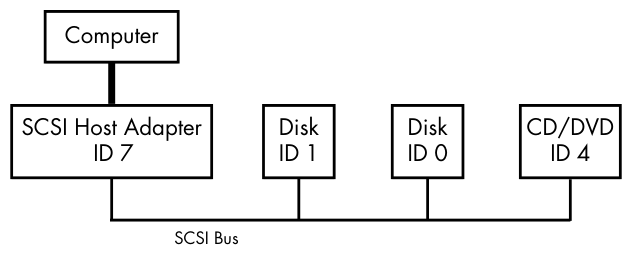
Any device can communicate with another through the SCSI command set in a peer-to-peer relationship. The computer is not directly attached to the device chain, so it must go through the host adapter in order to communicate with disks and other devices. Typically, the computer sends SCSI commands to the host adapter to relay to the devices, and the devices relay responses back through the host adapter.
Newer versions of SCSI, such as Serial Attached SCSI (SAS), offer exceptional performance, but you probably won’t find true SCSI devices in most machines. You’ll more often encounter USB storage devices that use SCSI commands. In addition, devices supporting ATAPI (such as CD/DVD-ROM drives) use a version of the SCSI command set.
SATA disks also appear on your system as SCSI devices, but they are slightly different because most of them communicate through a translation layer in the libata library (see Section 3.6.2). Some SATA controllers (especially high-performance RAID controllers) perform this translation in hardware.
How does this all fit together? Consider the devices shown on the following system:
$ lsscsi
[0:0:0:0]   disk    ATA       WDC WD3200AAJS-2  01.0  /dev/sda
[1:0:0:0]   cd/dvd  Slimtype  DVD A DS8A5SH     XA15  /dev/sr0
[2:0:0:0]   disk    USB2.0    CardReader CF     0100  /dev/sdb
[2:0:0:1]   disk    USB2.0    CardReader SM XD  0100  /dev/sdc
[2:0:0:2]   disk    USB2.0    CardReader MS     0100  /dev/sdd
[2:0:0:3]   disk    USB2.0    CardReader SD     0100  /dev/sde
[3:0:0:0]   disk    FLASH     Drive UT_USB20    0.00  /dev/sdf
The numbers in square brackets are, from left to right, the SCSI host adapter number, the SCSI bus number, the device SCSI ID, and the LUN (logical unit number, a further subdivision of a device). In this example, there are four attached adapters (scsi0, scsi1, scsi2, and scsi3), each of which has a single bus (all with bus number 0), and just one device on each bus (all with target 0). The USB card reader at 2:0:0 has four logical units, though—one for each kind of flash card that can be inserted. The kernel has assigned a different device file to each logical unit.
Despite not being SCSI devices, NVMe devices can sometimes show up in the lsscsi output with an N as the adapter number.
If you want to try lsscsi for yourself, you may need to install it as an additional package.
Figure 3-2 illustrates the driver and interface hierarchy inside the kernel for this particular system configuration, from the individual device drivers up to the block drivers. It does not include the SCSI generic (sg) drivers.
Although this is a large structure and may look overwhelming at first, the data flow in the figure is very linear. Let’s begin dissecting it by looking at the SCSI subsystem and its three layers of drivers:
- The top layer handles operations for a class of device. For example, the sd (SCSI disk) driver is at this layer; it knows how to translate requests from the kernel block device interface into disk-specific commands in the SCSI protocol, and vice versa.
- The middle layer moderates and routes the SCSI messages between the top and bottom layers, and keeps track of all of the SCSI buses and devices attached to the system.
- The bottom layer handles hardware-specific actions. The drivers here send outgoing SCSI protocol messages to specific host adapters or hardware, and they extract incoming messages from the hardware. The reason for this separation from the top layer is that although SCSI messages are uniform for a device class (such as the disk class), different kinds of host adapters have varying procedures for sending the same messages.
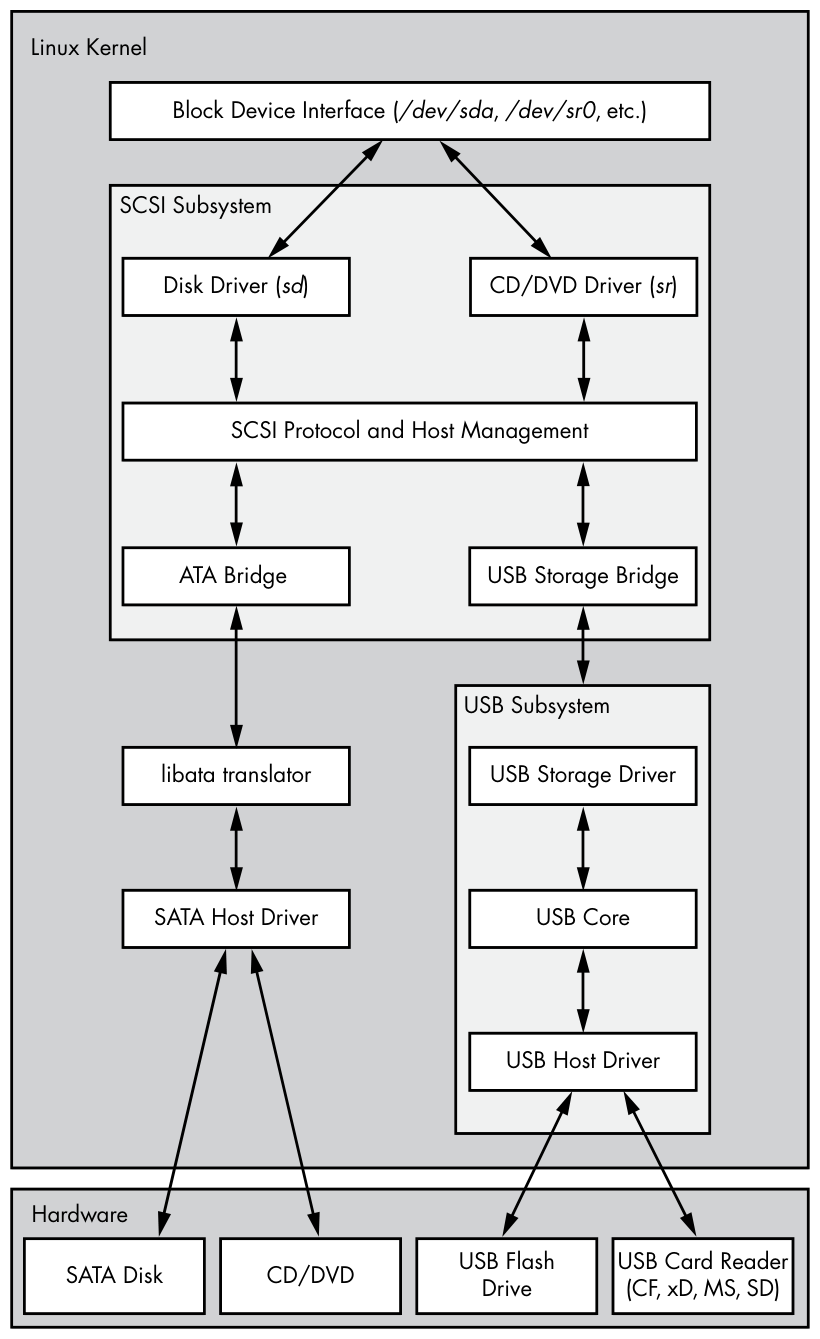
The top and bottom layers contain many different drivers, but it’s important to remember that, for any given device file on your system, the kernel (nearly always) uses one top-layer driver and one lower-layer driver. For the disk at /dev/sda in our example, the kernel uses the sd top-layer driver and the ATA bridge lower-layer driver.
There are times when you might use more than one upper-layer driver for one hardware device (see Section 3.6.3). For true hardware SCSI devices, such as a disk attached to an SCSI host adapter or a hardware RAID controller, the lower-layer drivers talk directly to the hardware below. However, for most hardware that you find attached to the SCSI subsystem, it’s a different story.
3.6.1 USB Storage and SCSI
In order for the SCSI subsystem to talk to common USB storage hardware, as shown in Figure 3-2, the kernel needs more than just a lower-layer SCSI driver. A USB flash drive represented by /dev/sdf understands SCSI commands, but to actually communicate with the drive, the kernel needs to know how to talk through the USB system.
In the abstract, USB is quite similar to SCSI—it has device classes, buses, and host controllers. Therefore, it should be no surprise that the Linux kernel includes a three-layer USB subsystem that closely resembles the SCSI subsystem, with device-class drivers at the top, a bus management core in the middle, and host controller drivers at the bottom. Much as the SCSI subsystem passes SCSI commands between its components, the USB subsystem passes USB messages between its components. There’s even an lsusb command that is similar to lsscsi.
The part we’re really interested in here is the USB storage driver at the top. This driver acts as a translator. On one end, the driver speaks SCSI, and on the other, it speaks USB. Because the storage hardware includes SCSI commands inside its USB messages, the driver has a relatively easy job: it mostly repackages data.
With both the SCSI and USB subsystems in place, you have almost everything you need to talk to the flash drive. The final missing link is the lower-layer driver in the SCSI subsystem because the USB storage driver is a part of the USB subsystem, not the SCSI subsystem. (For organizational reasons, the two subsystems should not share a driver.) To get the subsystems to talk to one another, a simple, lower-layer SCSI bridge driver connects to the USB subsystem’s storage driver.
3.6.2 SCSI and ATA
The SATA hard disk and optical drive shown in Figure 3-2 both use the same SATA interface. To connect the SATA-specific drivers of the kernel to the SCSI subsystem, the kernel employs a bridge driver, as with the USB drives, but with a different mechanism and additional complications. The optical drive speaks ATAPI, a version of SCSI commands encoded in the ATA protocol. However, the hard disk does not use ATAPI and does not encode any SCSI commands!
The Linux kernel uses part of a library called libata to reconcile SATA (and ATA) drives with the SCSI subsystem. For the ATAPI-speaking optical drives, this is a relatively simple task of packaging and extracting SCSI p. 66 commands into and from the ATA protocol. But for the hard disk, the task is much more complicated because the library must do a full command translation.
The job of the optical drive is similar to typing an English book into a computer. You don’t need to understand what the book is about in order to do this job, nor do you even need to understand English. But the task for the hard disk is more like reading a German book and typing it into the computer as an English translation. In this case, you need to understand both languages as well as the book’s content.
Despite this difficulty, libata performs this task and makes it possible to attach ATA/SATA interfaces and devices to the SCSI subsystem. (There are typically more drivers involved than just the one SATA host driver shown in Figure 3-2, but they’re not shown for the sake of simplicity.)
3.6.3 Generic SCSI Devices
When a user-space process communicates with the SCSI subsystem, it normally does so through the block device layer and/or another other kernel service that sits on top of an SCSI device class driver (like sd or sr). In other words, most user processes never need to know anything about SCSI devices or their commands.
However, user processes can bypass device class drivers and give SCSI protocol commands directly to devices through their generic devices. For example, consider the system described in Section 3.6, but this time, take a look at what happens when you add the -g option to lsscsi in order to show the generic devices:
$ lsscsi -g
[0:0:0:0]   disk    ATA       WDC WD3200AAJS-2  01.0  /dev/sda ❶/dev/sg0
[1:0:0:0]   cd/dvd  Slimtype  DVD A DS8A5SH     XA15  /dev/sr0   /dev/sg1
[2:0:0:0]   disk    USB2.0    CardReader CF     0100  /dev/sdb   /dev/sg2
[2:0:0:1]   disk    USB2.0    CardReader SM XD  0100  /dev/sdc   /dev/sg3
[2:0:0:2]   disk    USB2.0    CardReader MS     0100  /dev/sdd   /dev/sg4
[2:0:0:3]   disk    USB2.0    CardReader SD     0100  /dev/sde   /dev/sg5
[3:0:0:0]   disk    FLASH     Drive UT_USB20    0.00  /dev/sdf   /dev/sg6
In addition to the usual block device file, each entry lists an SCSI generic device file in the last column ❶. For example, the generic device for the optical drive at /dev/sr0 is /dev/sg1.
Why would you want to use a generic device? The answer has to do with the complexity of code in the kernel. As tasks get more complicated, it’s better to leave them out of the kernel. Consider CD/DVD writing and reading. Reading an optical disc is a fairly simple operation, and there’s a specialized kernel driver for it.
However, writing an optical disc is significantly more difficult than reading, and no critical system services depend on the action of writing. There’s no reason to threaten kernel space with this activity. Therefore, to write to an optical disc in Linux, you run a user-space program that talks to a generic SCSI device, such as /dev/sg1. This program might be a little more inefficient than a kernel driver, but it’s far easier to build and maintain.
3.6.4 Multiple Access Methods for a Single Device
The two points of access (sr and sg) for an optical drive from user space are illustrated for the Linux SCSI subsystem in Figure 3-3 (any drivers below the SCSI lower layer have been omitted). Process A reads from the drive using the sr driver, and process B writes to the drive with the sg driver. However, processes like these would not normally run simultaneously to access the same device.
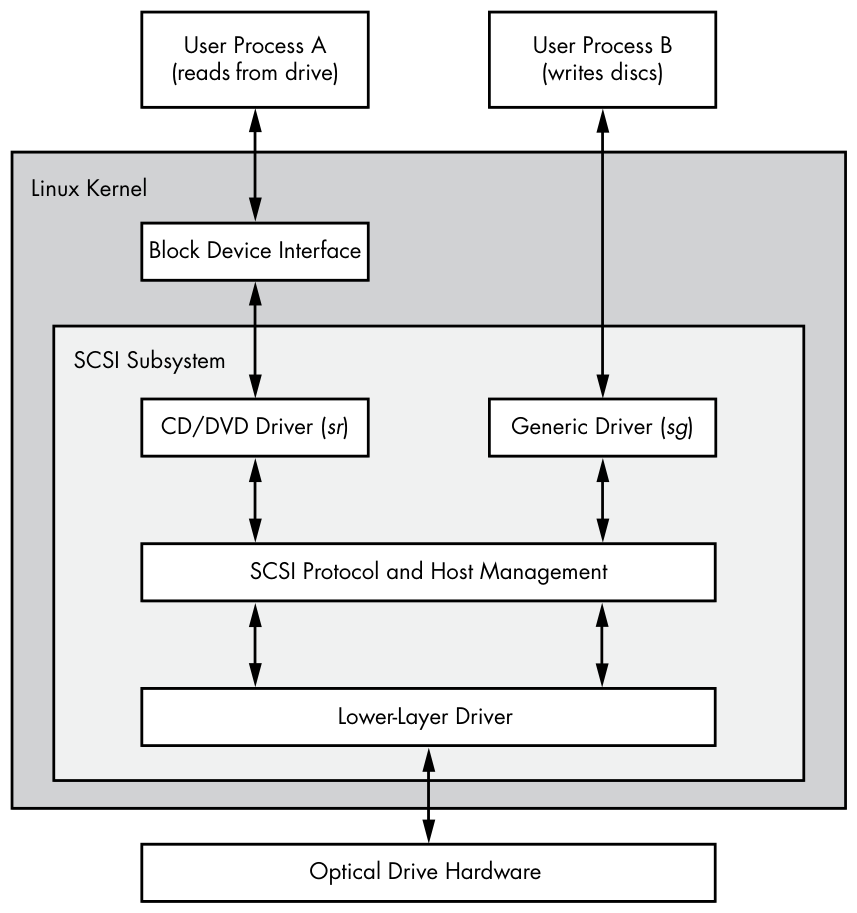
In Figure 3-3, process A reads from the block device. But do user processes really read data this way? Normally, the answer is no, not directly. There are more layers on top of the block devices and even more points of access for hard disks, as you’ll learn in the next chapter.