Chapter 15: Development Tools
Linux is very popular with programmers, not just due to the overwhelming array of tools and environments available but also because the system is exceptionally well documented and transparent. On a Linux machine, you don’t have to be a programmer to take advantage of development tools, which is good news, because they play a larger role in managing Linux systems than in other operating systems. At the very least, you should be able to identify development utilities and have some idea of how to run them.
This chapter packs a lot of information into a small space, but you don’t need to master everything here. The examples will be very simple; you don’t need to know how to write code to follow along. You can also easily skim the material and come back later. The discussion of shared libraries is likely the most important thing that you need to know, but to understand where shared libraries come from, you first need some background on how to build programs.
15.1 The C Compiler
Knowing how to use the C programming language compiler can give you a great deal of insight into the origin of the programs that you see on your Linux system. Most Linux utilities and many applications on Linux systems are written in C or C++. This chapter will primarily use examples in C, but you’ll be able to carry the information over to C++.
C programs follow a traditional development process: you write programs, you compile them, and they run. That is, when you write C program code and want to run it, you must compile human-readable code into a binary low-level form that the computer’s processor understands. The code that you write is called source code, and can encompass many files. You can compare this to the scripting languages that we’ll discuss later, where you don’t need to compile anything.
Most distributions do not include the tools necessary to compile C code by default. If you don’t see some of the tools described here, you can install the build-essential package for Debian/Ubuntu or the “Development Tools” yum groupinstall for Fedora/CentOS. Failing that, try a package search for “gcc” or “C compiler.”
The C compiler executable on most Unix systems is the GNU C compiler, gcc (often referred to by the traditional name cc), though the newer clang compiler from the LLVM project is gaining popularity. C source code files end with .c. Take a look at this single, self-contained C source code file, hello.c, from The C Programming Language, 2nd edition, by Brian W. Kernighan and Dennis M. Ritchie (Prentice Hall, 1988):
#include <stdio.h>

int main() {
    printf("Hello, World.\n");
}
Save this source code in a file called hello.c and then run the compiler with this command:
$ cc hello.c
The result is an executable named a.out, which you can run like any other executable on the system. However, you should probably give the executable another name (such as hello). To do this, use the compiler’s -o option:
$ cc -o hello hello.c
For small programs, there isn’t much more to compiling than that. You might need to add an extra library or include directory, but let’s look at slightly larger programs before getting into those topics.
15.1.1 Compiling Multiple Source Files
Most C programs are too large to reasonably fit within a single source code file. Mammoth files become too disorganized for the programmer to manage, and compilers sometimes even have trouble processing large files. Therefore, developers typically separate the source code into component pieces, giving each piece its own file.
When compiling most .c files, you don’t create an executable right away. Instead, use the compiler’s -c option on each file to create object files containing binary object code that will eventually go into the final executable. To see how this works, let’s say you have two files, main.c (which gets the program started) and aux.c (which does the actual work), that appear as follows:
main.c:
void hello_call();

int main() {
    hello_call();
}
aux.c:
#include <stdio.h>

void hello_call() {
    printf("Hello, World.\n");
}
The following two compiler commands do most of the work of building the program: creating the object files.
$ cc -c main.c
$ cc -c aux.c
After these commands complete, you’ll have two object files: main.o and aux.o.
An object file is a binary file that a processor can almost understand, except that there are still a few loose ends. First, the operating system doesn’t know how to start up an object file, and second, you likely need to combine several object files and some system libraries to make a complete program.
To build a fully functioning executable program from one or more object files, you must run the linker, the ld command in Unix. Programmers rarely use ld on the command line, however, because the C compiler knows how to run the linker program. To create an executable called myprog from these two object files, run this command to link them:
$ cc -o myprog main.o aux.o
Although you can compile each source file with a separate command, the preceding example already hints that it can be hard to keep track of them all during the compiling process; this challenge gets much worse as the number of source files multiplies. The make system described in Section 15.2 is the traditional Unix standard for managing and automating compiles. You’ll see how important having a system like make is as we deal with managing the files described in the next two sections.
Turn your attention back to the file aux.c. As mentioned, its code does the actual work of the program, and there can be many files like its resultant aux.o object file that are necessary to build the program. Now imagine that other programs might be able to make use of the routines we wrote. Could we reuse these object files? That’s where we’re headed next.
15.1.2 Linking with Libraries
Running the compiler on source code usually doesn’t result in enough object code to create a useful executable program all by itself. You need libraries to build complete programs. A C library is a collection of common precompiled components that you can build into your program, and it’s really not much more than a bundle of object files (along with some header files, which we’ll talk about in Section 15.1.4). For example, there’s a standard math library that many executables draw from because it provides trigonometric functions and the like.
Libraries come into play primarily at link time, when the linker program (ld) creates an executable from object files. Linking using a library is often called linking against a library. This is where you’re most likely to have a problem. For example, if you have a program that uses the curses library but you forget to tell the compiler to link against that library, you’ll see linker errors like this:
badobject.o(.text+0x28): undefined reference to 'initscr'
The most important parts of these error messages are in bold. When the linker program examined the badobject.o object file, it couldn’t find the function that appears in bold, and thus it couldn’t create the executable. p. 367 In this particular case, you might suspect that you forgot the curses library because the missing function is initscr(); if you do a web search for the function name, you’ll nearly always find a manual page or some other reference to the library.
Undefined references don’t always mean that you’re missing a library. One of the program’s object files could be missing in the link command. It’s usually easy to differentiate between library functions and functions in your object files, because you’ll likely recognize the ones you wrote, or at least be able to search for them.
To fix this problem, you must first find the curses library and then use the compiler’s -l option to link against the library. Libraries are scattered throughout the system, though most libraries reside in a subdirectory named lib (/usr/lib is the system default location). For the preceding example, the basic curses library file is libcurses.a, so the library name is curses. Putting it all together, you would link the program like this:
$ cc -o badobject badobject.o -lcurses
You must tell the linker about nonstandard library locations; the parameter for this is -L. Let’s say that the badobject program requires libcrud.a in /usr/junk/lib. To compile and create the executable, use a command like this:
$ cc -o badobject badobject.o -lcurses -L/usr/junk/lib -lcrud
If you want to search a library for a particular function, use the nm command with the --defined-only symbol filter. Be prepared for a lot of output. For example, try this: nm --defined-only libcurses.a. On many distributions, you can also use the less command to view the contents of a library. (You might need to use the locate command to find libcurses.a; many distributions now put libraries in architecture-specific subdirectories in /usr/lib, such as /usr/lib/x86_64-linux-gnu/.)
There’s a library on your system called the C standard library, containing fundamental components considered a part of the C programming language. Its basic file is libc.a. When you compile a program, this library is always included unless you specifically exclude it. Most programs on your system use the shared version, so let’s talk about how that works.
15.1.3 Working with Shared Libraries
A library file ending with .a (such as libcurses.a) is called a static library. When you link a program against a static library, the linker copies the necessary machine code from the library file into your executable. Once it does this, the final executable no longer needs the original library file when it runs, and because your executable has its own copy of the library code, the executable’s behavior is not subject to change if the .a file changes.
However, library sizes are always increasing, as is the number of libraries in use, and this makes static libraries wasteful in terms of disk space p. 368 and memory. In addition, if a static library is later found to be inadequate or insecure, there’s no way to change the executables that had been linked against it, short of finding and recompiling every executable.
Shared libraries counter these problems. Linking a program against a shared library doesn’t copy the code into the final executable; it just adds references to names in the code of the library file. When you run the program, the system loads the library’s code into the process memory space only when necessary. Many processes can share the same shared library code in memory. And if you need to slightly modify the library code, you can generally do so without recompiling any programs. When updating software on your Linux distribution, the packages that you’re updating can include shared libraries. When your update manager asks you to reboot your machine, sometimes it’s doing so to be sure that every part of your system is using new versions of shared libraries.
Shared libraries do have their own costs: difficult management and a somewhat complicated linking procedure. However, you can bring shared libraries under control if you know four things:
- How to list the shared libraries that an executable needs
- How an executable looks for shared libraries
- How to link a program against a shared library
- How to avoid the common shared library pitfalls
The following sections tell you how to use and maintain your system’s shared libraries. If you’re interested in how shared libraries work or if you want to know about linkers in general, you can check out Linkers and Loaders by John R. Levine (Morgan Kaufmann, 1999); “The Inside Story on Shared Libraries and Dynamic Loading” by David M. Beazley, Brian D. Ward, and Ian R. Cooke (Computing in Science & Engineering, September/October 2001); or online resources such as the Program Library HOWTO (https://bit.ly/3q3MbS6). The ld.so(8) manual page is also worth a read.
How to List Shared Library Dependencies
Shared library files usually reside in the same places as static libraries. The two standard library directories on a Linux system are /lib and /usr/lib, though many more can be scattered throughout your system. The /lib directory should not contain static libraries.
A shared library has a suffix that contains .so (shared object), as in libc-2.15.so and libc.so.6. To see what shared libraries a program uses, run ldd prog, where prog is the executable name. Here’s an example for the shell:
$ ldd /bin/bash
    linux-vdso.so.1 (0x00007ffff31cc000)
    libgtk3-nocsd.so.0 => /usr/lib/x86_64-linux-gnu/libgtk3-nocsd.so.0
(0x00007f72bf3a4000)
    libtinfo.so.5 => /lib/x86_64-linux-gnu/libtinfo.so.5 (0x00007f72bf17a000)
    libdl.so.2 => /lib/x86_64-linux-gnu/libdl.so.2 (0x00007f72bef76000)
    libc.so.6 => /lib/x86_64-linux-gnu/libc.so.6 (0x00007f72beb85000)
    libpthread.so.0 => /lib/x86_64-linux-gnu/libpthread.so.0
(0x00007f72be966000)
    /lib64/ld-linux-x86-64.so.2 (0x00007f72bf8c5000)
In the interest of optimal performance and flexibility, executables alone don’t usually know the locations of their shared libraries; they know only the names of the libraries, and perhaps a little hint about where to find them. A small program named ld.so (the runtime dynamic linker/loader) finds and loads shared libraries for a program at runtime. The preceding ldd output shows the library names on the left side of the =>; that’s what the executable knows. The right side of the => shows where ld.so finds the library.
The final line of output shows the actual location of ld.so: /lib/ld-linux.so.2.
How ld.so Finds Shared Libraries
One of the common trouble points for shared libraries is the dynamic linker being unable to find a library. The first place the dynamic linker should normally look for shared libraries is an executable’s preconfigured runtime library search path (rpath), if it exists. You’ll see how to create this path shortly.
Next, the dynamic linker looks in a system cache, /etc/ld.so.cache, to see if the library is in a standard location. This is a fast cache of the names of library files found in directories listed in the cache configuration file /etc/ld.so.conf.
As is typical of many of the Linux configuration files that you’ve seen, ld.so.conf may in turn include a number of files from a directory such as /etc/ld.so.conf.d.
Each line in ld.so.conf (or in the files it includes) is the name of a directory that you want to include in the cache. The list of directories is usually short, containing something like this:
/lib/i686-linux-gnu
/usr/lib/i686-linux-gnu
The standard library directories /lib and /usr/lib are implicit, which means that you don’t need to include them in /etc/ld.so.conf.
If you alter ld.so.conf or make a change to one of the shared library directories, you must rebuild the /etc/ld.so.cache file by hand with the following command:
# ldconfig -v
The -v option provides detailed information on libraries that ldconfig adds to the cache and any changes that it detects.
There is one more place that ld.so looks for shared libraries: the environment variable LD_LIBRARY_PATH. We’ll talk about this soon.
Don’t get into the habit of adding stuff to /etc/ld.so.conf. You should know what shared libraries are in the system cache, and if you put every bizarre little shared library directory into the cache, you risk conflicts p. 370 and an extremely disorganized system. When you compile software that needs an obscure library path, give your executable a built-in runtime library search path. Let’s see how to do that.
How to Link Programs Against Shared Libraries
Say you have a shared library named libweird.so.1 in /opt/obscure/lib that you need to link myprog against. You shouldn’t have this strange path in /etc/ld.so .conf, so you need to convey that path to the linker. Link the program as follows:
$ cc -o myprog myprog.o -Wl,-rpath=/opt/obscure/lib -L/opt/obscure/lib -lweird
The -Wl,-rpath option tells the linker to include the specified directory into the executable’s runtime library search path. However, even if you use -Wl,-rpath, you still need the -L flag.
If you need to change the runtime library search path of an existing binary, you can use the patchelf program, but it’s generally better to do this at compile time. (ELF, the Executable and Linkable Format, is the standard format used for executables and libraries on Linux systems.)
How to Avoid Problems with Shared Libraries
Shared libraries provide remarkable flexibility, not to mention some really incredible hacks, but you can abuse them to the point where your system becomes an utter and complete mess. Three particularly bad things can happen:
- Missing libraries
- Terrible performance
- Mismatched libraries
The number one cause of all shared library problems is the environment variable LD_LIBRARY_PATH. Setting this variable to a colon-delimited set of directory names makes ld.so search the given directories before anything else when looking for a shared library. This is a cheap way to make programs work when you move a library around, if you don’t have the program’s source code and can’t use patchelf, or if you’re just too lazy to recompile the executables. Unfortunately, you get what you pay for.
Never set LD_LIBRARY_PATH in shell startup files or when compiling software. When the dynamic runtime linker encounters this variable, it often must search through the entire contents of each specified directory more times than you’d care to know. This causes a big performance hit, but more importantly, you can get conflicts and mismatched libraries because the runtime linker looks in these directories for every program.
If you must use LD_LIBRARY_PATH to run some crummy program for which you don’t have the source (or an application that you’d rather not p. 371 recompile, like Firefox or some other beast), use a wrapper script. Let’s say your executable is /opt/crummy/bin/crummy.bin and needs some shared libraries in /opt/crummy/lib. Write a wrapper script called crummy that looks like this:
#!/bin/sh
LD_LIBRARY_PATH=/opt/crummy/lib
export LD_LIBRARY_PATH
exec /opt/crummy/bin/crummy.bin $@
Avoiding LD_LIBRARY_PATH prevents most shared library problems. But one other significant problem that occasionally comes up with developers is that a library’s API may change slightly from one minor version to another, breaking installed software. The best solutions here are preventive: either use a consistent methodology to install shared libraries with -Wl,-rpath to create a runtime link path, or simply use the static versions of obscure libraries.
15.1.4 Working with Header (Include) Files and Directories
C header files are additional source code files that usually contain type and library function declarations, often for the libraries that you just saw. For example, stdio.h is a header file (see the simple program in Section 15.1).
A great number of compilation problems are related to header files. Most such glitches occur when the compiler can’t find header files and libraries. There are even some cases where a programmer forgets to add the #include directive to code that includes a required header file, causing a failure to compile some of the source code.
Include File Problems
Tracking down the correct header files isn’t always easy. Sometimes you’ll get lucky and find them with locate, but in other instances, there are several include files with the same names in different directories, and it’s not clear which is the correct one. When the compiler can’t find an include file, the error message looks like this:
badinclude.c:1:22: fatal error: notfound.h: No such file or directory
This message reports that the compiler can’t find the notfound.h header file that the badinclude.c file references. If we look at badinclude.c (on line 1, as the error indicates), we’ll find a line that looks like this:
#include <notfound.h>
Include directives like this do not specify where a header file should reside, only that it should be either in the default location or in one specified on the compiler command line. Most of these locations have include in their names. The default include directory in Unix is /usr/include; the p. 372 compiler always looks there unless you explicitly tell it not to. Of course, you’re unlikely to see the preceding error if the include file is in the default location, so let’s see how to make the compiler look in other include directories.
For example, say that you find notfound.h in /usr/junk/include. To tell the compiler to add this directory to its search path, use the -I option:
$ cc -c -I/usr/junk/include badinclude.c
Now the compiler should no longer stumble on the line of code in badinclude.c that references the header file.
You’ll learn more about how to find missing include files in Chapter 16.
You should also beware of includes that use double quotes (" ") instead of angle brackets (< >), like this:
#include "myheader.h"
Double quotes mean that the header file is not in a system include directory, and usually indicate that the include file is in the same directory as the source file. If you encounter a problem with double quotes, you’re probably trying to compile incomplete source code.
The C Preprocessor
It turns out that the C compiler doesn’t actually do the work of looking for these include files. That task falls to the C preprocessor, a program that the compiler runs on your source code before parsing the actual program. The preprocessor rewrites source code into a form that the compiler understands; it’s a tool for making source code easier to read (and for providing shortcuts).
Preprocessor commands in the source code are called directives, and they start with the # character. There are three basic types of directives:
Include files An #include directive instructs the preprocessor to include an entire file. Note that the compiler’s -I flag is actually an option that causes the preprocessor to search a specified directory for include files, as you saw in the previous section.
Macro definitions A line such as #define BLAH something tells the preprocessor to substitute something for all occurrences of BLAH in the source code. Convention dictates that macros appear in all uppercase, but it should come as no shock that programmers sometimes use macros whose names look like functions and variables. (Every now and then, this causes a world of headaches. Many programmers make a sport out of abusing the preprocessor.)
Instead of defining macros within your source code, you can also define them by passing parameters to the compiler: -DBLAH=something works like the preceding #define directive.
Conditionals You can mark out certain pieces of code with #ifdef, #if, and #endif. The #ifdef MACRO directive checks to see whether the preprocessor macro MACRO is defined, and #if condition tests to see whether con-dition is nonzero. For both directives, if the condition following the “if” statement is false, the preprocessor does not pass any of the program text between the #if and the next #endif to the compiler. If you plan to look at any C code, you’d better get used to this.
Let’s look at an example of a conditional directive. When the preprocessor sees the following code, it checks to see whether the macro DEBUG is defined and, if so, passes the line containing fprintf() on to the compiler. Otherwise, the preprocessor skips this line and continues to process the file after the #endif:
#ifdef DEBUG
  fprintf(stderr, "This is a debugging message.\n");
#endif
The C preprocessor doesn’t know anything about C syntax, variables, functions, and other elements. It understands only its own macros and directives.
On Unix, the C preprocessor’s name is cpp, but you can also run it with gcc -E. However, you’ll rarely need to run the preprocessor by itself.
15.2 make
A program that has more than one source code file or requires strange compiler options is too cumbersome to compile by hand. This problem has been around for years, and the traditional Unix compile management utility that addresses it is called make. You should know a little about make if you’re running a Unix system, because system utilities sometimes rely on make to operate. However, this chapter is only the tip of the iceberg. There are entire books on make, such as Managing Projects with GNU Make, 3rd edition, by Robert Mecklenburg (O’Reilly, 2005). In addition, most Linux packages are built using an additional layer around make or a similar tool. There are many build systems out there; we’ll look at one named autotools in Chapter 16.
make is a big system, but it’s not very difficult to get an idea of how it works. When you see a file named Makefile or makefile, you know that you’re dealing with make. (Try running make to see if you can build anything.)
The basic idea behind make is the target, a goal that you want to achieve. A target can be a file (a .o file, an executable, and so on) or a label. In addition, some targets depend on other targets; for instance, you need a complete set of .o files before you can link your executable. These requirements are called dependencies.
To build a target, make follows a rule, such as one specifying how to go from a .c source file to a .o object file. make already knows several rules, but you can customize them to create your own.
15.2.1 A Sample Makefile
Building on the example files in Section 15.1.1, the following very simple Makefile builds a program called myprog from aux.c and main.c:
❶ # object files
❷ OBJS=aux.o main.o

❸ all: ❹myprog

myprog: ❺$(OBJS)
        ❻$(CC) -o myprog $(OBJS)
The # in the first line of this Makefile ❶ denotes a comment.
The next line is just a macro definition that sets the OBJS variable to two object filenames ❷. This will be important later. For now, take note of how you define the macro and also how you reference it later ($(OBJS)).
The next item in the Makefile contains its first target, all ❸. The first target is always the default, the target that make wants to build when you run make by itself on the command line.
The rule for building a target comes after the colon. For all, this Makefile says that you need to satisfy something called myprog ❹. This is the first dependency in the file; all depends on myprog. Note that myprog can be an actual file or the target of another rule. In this case, it’s both (the rule for all and the target of OBJS).
To build myprog, this Makefile uses the macro $(OBJS) in the dependencies ❺. The macro expands to aux.o and main.o, indicating that myprog depends on these two files (they must be actual files, because there aren’t any targets with those names anywhere in the Makefile).
The whitespace before $(CC) ❻ is a tab. make is very strict about tabs.
This Makefile assumes that you have two C source files named aux.c and main.c in the same directory. Running make on the Makefile yields the following output, showing the commands that make is running:
$ make
cc    -c -o aux.o aux.c
cc    -c -o main.o main.c
cc -o myprog aux.o main.o
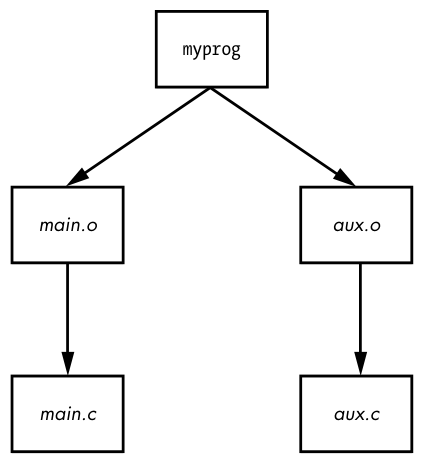
A diagram of the dependencies is shown in Figure 15-1.
15.2.2 Built-in Rules
How did make know how to go from aux.c to aux.o? After all, aux.c is not in the Makefile. The answer is that make has some built-in rules to follow. It knows to look for a .c file when you want a .o file, and furthermore, it knows how to run cc -c on that .c file to get to its goal of creating a .o file.
15.2.3 Final Program Build
The final step in getting to myprog is a little tricky, but the idea is clear enough. After you have the two object files in $(OBJS), you can run the C compiler according to the following line (where $(CC) expands to the compiler name):
$(CC) -o myprog $(OBJS)
As mentioned earlier, the whitespace before $(CC) is a tab. You must insert a tab before any system command, on its own line.
Watch out for this:
Makefile:7: *** missing separator. Stop.
An error like this means that the Makefile is broken. The tab is the separator, and if there is no separator or there’s some other interference, you’ll see this error.
15.2.4 Dependency Updates
One last make fundamental concept to know is that, in general, the goal is to bring targets up to date with their dependencies. Furthermore, it’s designed to take only the minimum steps necessary to do that, which can lead to considerable time savings. If you type make twice in a row for the preceding example, the first command builds myprog, but the second yields this output:
make: Nothing to be done for 'all'.
This second time through, make looked at its rules and noticed that myprog already exists, so it didn’t build myprog again because none of the dependencies had changed since the last time you built it. To experiment with this, do the following:
- Run
touch aux.c. - Run
makeagain. This time,makedetermines that aux.c is newer than the aux.o already in the directory, so it compiles aux.o again. myprogdepends on aux.o, and now aux.o is newer than the preexistingmyprog, somakemust createmyprogagain.
This type of chain reaction is very typical.
15.2.5 Command-Line Arguments and Options
You can get a great deal of mileage out of make if you know how its command-line arguments and options work.
One of the most useful options is to specify a single target on the command line. For the preceding Makefile, you can run make aux.o if you want only the aux.o file.
You can also define a macro on the command line. For example, to use the clang compiler, try:
$ make CC=clang
Here, make uses your definition of CC instead of its default compiler, cc. Command-line macros come in handy for testing preprocessor definitions and libraries, especially with the CFLAGS and LDFLAGS macros that we’ll discuss shortly.
In fact, you don’t even need a Makefile to run make. If built-in make rules match a target, you can just ask make to try to create the target. For example, if you have the source to a very simple program called blah.c, try make blah. The make run proceeds like this:
$ make blah
cc   blah.o   -o blah
This use of make works only for the most elementary C programs; if your program needs a library or special include directory, you should probably write a Makefile. Running make without a Makefile is actually most useful when you’re dealing with something like Fortran, Lex, or Yacc and don’t know how the compiler or utility works. Why not let make try to figure it out for you? Even if make fails to create the target, it will probably still give you a pretty good hint as to how to use the tool.
Two make options stand out from the rest:
-n Prints the commands necessary for a build but prevents make from actually running any commands
-f file Tells make to read from file instead of Makefile or makefile
15.2.6 Standard Macros and Variables
make has many special macros and variables. It’s difficult to tell the difference between a macro and a variable, but here the term macro is used to mean something that usually doesn’t change after make starts building targets.
As you saw earlier, you can set macros at the start of your Makefile. These are the most common macros:
CFLAGS C compiler options. When creating object code from a .c file, make passes this as an argument to the compiler.
LDFLAGS Like CFLAGS, but these options are for the linker when creating an executable from object code.
LDLIBS If you use LDFLAGS but don’t want to combine the library name options with the search path, put the library name options in this file.
CC The C compiler. The default is cc.
CPPFLAGS C preprocessor options. When make runs the C preprocessor in some way, it passes this macro’s expansion on as an argument.
CXXFLAGS GNU make uses this for C++ compiler flags.
A make variable changes as you build targets. Variables begin with a dollar sign ($). There are several ways to set variables, but some of the most common variables are automatically set inside target rules. Here’s what you might see:
$@ When inside a rule, this variable expands to the current target.
$< When inside a rule, this variable expands to the first dependency of the target.
$* This variable expands to the basename or stem of the current target. For example, if you’re building blah.o, this expands to blah.
Here’s an example illustrating a common pattern—a rule using myprog to generate a .out file from a .in file:
.SUFFIXES: .in
.in.out: $<
        myprog $< -o $*.out
You’ll encounter a rule such as .c.o: in many Makefiles defining a customized way of running the C compiler to create an object file.
The most comprehensive list of make variables on Linux is the make info manual.
Keep in mind that GNU make has many extensions, built-in rules, and features that other variants do not have. This is fine as long as you’re running Linux, but if you step off onto a Solaris or BSD machine and expect the same options to work, you might be in for a surprise. However, that’s the problem that a multiplatform build system such as GNU autotools is designed to solve.
15.2.7 Conventional Targets
Most developers include several additional common targets in their Makefiles that perform auxiliary tasks related to compiles:
clean The clean target is ubiquitous; a make clean usually instructs make to remove all of the object files and executables so that you can make a fresh start or pack up the software. Here’s an example rule for the myprog Makefile:
clean:
        rm -f $(OBJS) myprog
distclean A Makefile created by way of the GNU autotools system always has a distclean target to remove everything that wasn’t part of the original distribution, including the Makefile. You’ll see more of this in Chapter 16. On very rare occasions, you might find that a developer opts not to remove the executable with this target, preferring something like realclean instead.
install This target copies files and compiled programs to what the Makefile thinks is the proper place on the system. This can be dangerous, so always run a make -n install to see what will happen before you actually run any commands.
test or check Some developers provide test or check targets to make sure that everything works after performing a build.
depend This target creates dependencies by calling the compiler with -M to examine the source code. This is an unusual-looking target because it often changes the Makefile itself. This is no longer common practice, but if you come across some instructions telling you to use this rule, make sure to do so.
all As mentioned earlier, this is commonly the first target in the Makefile. You’ll often see references to this target instead of an actual executable.
15.2.8 Makefile Organization
Even though there are many different Makefile styles, most programmers adhere to some general rules of thumb. For one, in the first part of the Makefile (inside the macro definitions), you should see libraries and includes grouped according to package:
MYPACKAGE_INCLUDES=-I/usr/local/include/mypackage
MYPACKAGE_LIB=-L/usr/local/lib/mypackage -lmypackage

PNG_INCLUDES=-I/usr/local/include
PNG_LIB=-L/usr/local/lib -lpng
Each type of compiler and linker flag often gets a macro like this:
CFLAGS=$(CFLAGS) $(MYPACKAGE_INCLUDES) $(PNG_INCLUDES)
LDFLAGS=$(LDFLAGS) $(MYPACKAGE_LIB) $(PNG_LIB)
Object files are usually grouped according to executables. For example, say you have a package that creates executables called boring and trite. Each has its own .c source file and requires the code in util.c. You might see something like this:
UTIL_OBJS=util.o

BORING_OBJS=$(UTIL_OBJS) boring.o
TRITE_OBJS=$(UTIL_OBJS) trite.o

PROGS=boring trite
The rest of the Makefile might look like this:
all: $(PROGS)

boring: $(BORING_OBJS)
        $(CC) -o $@ $(BORING_OBJS) $(LDFLAGS)

trite: $(TRITE_OBJS)
        $(CC) -o $@ $(TRITE_OBJS) $(LDFLAGS)
You could combine the two executable targets into one rule, but it’s usually not a good idea to do so because you wouldn’t easily be able to move a rule to another Makefile, delete an executable, or group executables differently. Furthermore, the dependencies would be incorrect: if you had just one rule for boring and trite, trite would depend on boring.c, boring would depend on trite.c, and make would always try to rebuild both programs whenever you changed one of the two source files.
If you need to define a special rule for an object file, put the rule for the object file just above the rule that builds the executable. If several executables use the same object file, put the object rule above all of the executable rules.
15.3 Lex and Yacc
You might encounter Lex and Yacc in the course of compiling programs that read configuration files or commands. These tools are building blocks for programming languages.
- Lex is a tokenizer that transforms text into numbered tags with labels. The GNU/Linux version is named
flex. You may need a-llor-lfllinker flag in conjunction with Lex. - Yacc is a parser that attempts to read tokens according to a grammar. The GNU parser is
bison; to get Yacc compatibility, runbison -y. You may need the-lylinker flag.
15.4 Scripting Languages
A long time ago, the average Unix systems manager didn’t have to worry much about scripting languages other than the Bourne shell and awk. Shell scripts (discussed in Chapter 11) continue to be an important part of Unix, but awk has faded somewhat from the scripting arena. However, many powerful successors have emerged, and many systems programs have actually switched from C to scripting languages (such as the sensible version of the whois program). Let’s look at some scripting basics.
The first thing you need to know about any scripting language is that the first line of a script looks like the shebang of a Bourne shell script. For example, a Python script starts out like this:
#!/usr/bin/python
Or this version, which runs the first version of Python in the command path instead of always going to /usr/bin:
#!/usr/bin/env python
As you saw in Chapter 11, an executable text file that starts with a #! shebang is a script. The pathname following this prefix is the scripting language interpreter executable. When Unix tries to run an executable file that starts with #!, it runs the program following the #! with the rest of the file as the standard input. Therefore, even this is a script:
#!/usr/bin/tail -2
This program won't print this line,
but it will print this line...
and this line, too.
The first line of a shell script often contains one of the most common basic script problems: an invalid path to the scripting language interpreter. For example, say you named the previous script myscript. What if tail were actually in /bin instead of /usr/bin on your system? In that case, running myscript would produce this error:
bash: ./myscript: /usr/bin/tail: bad interpreter: No such file or directory
Don’t expect more than one argument in the script’s first line to work. That is, the -2 in the preceding example might work, but if you add another argument, the system could decide to treat the -2 and the new argument as one big argument, spaces and all. This can vary from system to system; don’t test your patience on something this insignificant.
Now, let’s look at a few of the languages out there.
15.4.1 Python
Python is a scripting language with a strong following and an array of powerful features, such as text processing, database access, networking, and multithreading. It has a powerful interactive mode and a very organized object model.
Python’s executable is python, and it’s usually in /usr/bin. However, Python isn’t used just from the command line for scripts. It’s found everywhere from data analysis to web applications. Python Distilled, by David M. Beazley (Addison-Wesley, 2021), is a great way to get started.
15.4.2 Perl
One of the older third-party Unix scripting languages is Perl. It’s the original “Swiss army chainsaw” of programming tools. Although Perl has lost a fair amount of ground to Python in recent years, it excels in particular at text processing, conversion, and file manipulation, and you may find many tools built with it. Learning Perl, 7th edition, by Randal L. Schwartz, brian d foy, and Tom Phoenix (O’Reilly, 2016) is a tutorial-style introduction; a larger reference is Modern Perl, 4th edition, by chromatic (Onyx Neon Press, 2016).
15.4.3 Other Scripting Languages
You might also encounter these scripting languages:
PHP This is a hypertext-processing language often found in dynamic web scripts. Some people use PHP for standalone scripts. The PHP website is at http://www.php.net/.
Ruby Object-oriented fanatics and many web developers enjoy programming in this language (http://www.ruby-lang.org/).
JavaScript This language is used inside web browsers primarily to manipulate dynamic content. Most experienced programmers shun it as a standalone scripting language due to its many flaws, but it’s nearly impossible to avoid when you’re doing web programming. In recent years, an implementation called Node.js has become more prevalent in server-side programming and scripting; its executable name is node.
Emacs Lisp This is a variety of the Lisp programming language used by the Emacs text editor.
MATLAB, Octave MATLAB is a commercial matrix and mathematical programming language and library. Octave is a very similar free software project.
R This is a popular free statistical analysis language. See http://www .r-project.org/ and The Art of R Programming by Norman Matloff (No Starch Press, 2011) for more information.
Mathematica This is another commercial mathematical programming language with libraries.
m4 This is a macro-processing language, usually found only in the GNU autotools.
Tcl Tcl (tool command language) is a simple scripting language usually associated with the Tk graphical user interface toolkit and Expect, an automation utility. Although Tcl does not enjoy the widespread use that it once did, don’t discount its power. Many veteran developers prefer Tk, especially for its embedded capabilities. See http://www.tcl.tk/ for more.
15.5 Java
Java is a compiled language like C, with a simpler syntax and powerful support for object-oriented programming. It has a few niches in Unix systems. For example, it’s often used as a web application environment, and it’s popular for specialized applications. Android applications are usually written in Java. Even though it’s not often seen on a typical Linux desktop, you should know how Java works, at least for standalone applications.
There are two kinds of Java compilers: native compilers for producing machine code for your system (like a C compiler) and bytecode compilers for use by a bytecode interpreter (sometimes called a virtual machine, which is different from the virtual machine offered by a hypervisor, as described in Chapter 17). You’ll practically always encounter bytecode on Linux.
Java bytecode files end in .class. The Java Runtime Environment (JRE) contains all of the programs you need to run Java bytecode. To run a bytecode file, use:
$ java file.class
You might also encounter bytecode files that end in .jar, which are collections of archived .class files. To run a .jar file, use this syntax:
$ java -jar file.jar
Sometimes you need to set the JAVA_HOME environment variable to your Java installation prefix. If you’re really unlucky, you might need to use CLASSPATH to include any directories containing classes that your program expects. This is a colon-delimited set of directories like the regular PATH variable for executables.
If you need to compile a .java file into bytecode, you need the Java Development Kit (JDK). You can run the javac compiler from JDK to create some .class files:
$ javac file.java
JDK also comes with jar, a program that can create and pick apart .jar files. It works like tar.
15.6 Looking Forward: Compiling Packages
The world of compilers and scripting languages is vast and constantly expanding. As of this writing, new compiled languages such as Go (golang) and Rust are gaining popularity in application and system programming.
The LLVM compiler infrastructure set (http://llvm.org/) has significantly eased compiler development. If you’re interested in how to design and implement a compiler, two good books are Compilers: Principles, Techniques, and Tools, 2nd edition, by Alfred V. Aho et al. (Addison-Wesley, 2006) and Modern Compiler Design, 2nd edition, by Dick Grune et al. (Springer, 2012). For scripting language development, it’s usually best to look for online resources, as the implementations vary widely.
Now that you know the basics of the programming tools on the system, you’re ready to see what they can do. The next chapter is all about how you can build packages on Linux from source code.