Chapter 8: A Closer Look at Processes and Resource Utilization
This chapter takes you deeper into the relationships between processes, the kernel, and system resources. There are three basic kinds of hardware resources: CPU, memory, and I/O. Processes vie for these resources, and the kernel’s job is to allocate resources fairly. The kernel itself is also a resource—a software resource that processes use to perform tasks such as creating new processes and communicating with other processes.
Many of the tools that you see in this chapter are considered performance-monitoring tools. They’re particularly helpful if your system is slowing to a crawl and you’re trying to figure out why. However, you shouldn’t get distracted by performance. Trying to optimize a system p. 200 that’s already working correctly is a waste of time. The default settings on most systems are well chosen, so you should change them only if you have very unusual needs. Instead, concentrate on understanding what the tools actually measure, and you’ll gain great insight into how the kernel works and how it interacts with processes.
8.1 Tracking Processes
You learned how to use ps in Section 2.16 to list processes running on your system at a particular time. The ps command lists current processes and their usage statistics, but it does little to tell you how processes change over time. Therefore, it won’t immediately help you to determine which process is using too much CPU time or memory.
The top program provides an interactive interface to the information that ps displays. It shows the current system status as well as the fields a ps listing shows, and it updates every second. Perhaps most important, top lists the most active processes (by default, those currently taking up the most CPU time) at the top of its display.
You can send commands to top with keystrokes. Its most frequently used commands deal with changing the sort order or filtering the process list:
Spacebar Updates the display immediately
M Sorts by current resident memory usage
T Sorts by total (cumulative) CPU usage
P Sorts by current CPU usage (the default)
u Displays only one user’s processes
f Selects different statistics to display
? Displays a usage summary for all top commands
The top keystroke commands are case-sensitive.
Two similar utilities, atop and htop, offer an enhanced set of views and features. Most of their extra features add functionality found in other tools. For example, htop shares many of the lsof command’s abilities described in the next section.
8.2 Finding Open Files with lsof
The lsof command lists open files and the processes using them. Because Unix places a lot of emphasis on files, lsof is among the most useful tools for finding trouble spots. But lsof doesn’t stop at regular files—it can list network resources, dynamic libraries, pipes, and more.
8.2.1 Reading the lsof Output
Running lsof on the command line usually produces a tremendous amount of output. The following is a fragment of what you might see. This output (slightly adjusted for readability) includes open files from the systemd (init) process as well as a running vi process:
# lsof

COMMAND  PID   USER   FD    TYPE    DEVICE  SIZE/OFF    NODE NAME
systemd    1   root  cwd     DIR    8,1      4096          2 /
systemd    1   root  rtd     DIR    8,1      4096          2 /
systemd    1   root  txt     REG    8,1   1595792    9961784 /lib/systemd/systemd
systemd    1   root  mem     REG    8,1   1700792    9961570 /lib/x86_64-linux-gnu/libm-2.27.so
systemd    1   root  mem     REG    8,1    121016    9961695 /lib/x86_64-linux-gnu/libudev.so.1

--snip--
vi      1994   juser  cwd    DIR    8,1      4096    4587522 /home/juser
vi      1994   juser   3u    REG    8,1     12288     786440 /tmp/.ff.swp

--snip--
The output lists the following fields in the top row:
COMMAND The command name for the process that holds the file descriptor.
PID The process ID.
USER The user running the process.
FD This field can contain two kinds of elements. In most of the preceding output, the FD column shows the purpose of the file. The FD field can also list the file descriptor of the open file—a number that a process uses together with the system libraries and kernel to identify and manipulate a file; the last line shows a file descriptor of 3.
TYPE The file type (regular file, directory, socket, and so on).
DEVICE The major and minor number of the device that holds the file.
SIZE/OFF The file’s size.
NODE The file’s inode number.
NAME The filename.
The lsof(1) manual page contains a full list of what you might see for each field, but the output should be self-explanatory. For example, look at the entries with cwd in the FD field. Those lines indicate the current working directories of the processes. Another example is the very last line, which shows a temporary file that a user’s vi process (PID 1994) is using.
You can run lsof as root or a regular user, but you’ll get more information as root.
8.2.2 Using lsof
There are two basic approaches to running lsof:
- List everything and pipe the output to a command like
less, and then search for what you’re looking for. This can take a while due to the amount of output generated. - Narrow down the list that
lsofprovides with command-line options.
You can use command-line options to provide a filename as an argument and have lsof list only the entries that match the argument. For example, the following command displays entries for open files in /usr and all of its subdirectories:
$ lsof +D /usr
To list the open files for a particular process ID, run:
$ lsof -p pid
For a brief summary of lsof’s many options, run lsof -h. Most options pertain to the output format. (See Chapter 10 for a discussion of the lsof network features.)
lsof is highly dependent on kernel information. If you perform a distribution update to both the kernel and lsof, the updated lsof might not work until you reboot with the new kernel.
8.3 Tracing Program Execution and System Calls
The tools we’ve seen so far examine active processes. However, if you have no idea why a program dies almost immediately after starting up, lsof won’t help you. In fact, you’d have a difficult time even running lsof concurrently with a failed command.
The strace (system call trace) and ltrace (library trace) commands can help you discover what a program attempts to do. Those tools produce extraordinarily large amounts of output, but once you know what to look for, you’ll have more information at your disposal for tracking down problems.
8.3.1 strace
Recall that a system call is a privileged operation that a user-space process asks the kernel to perform, such as opening and reading data from a file. The strace utility prints all the system calls that a process makes. To see it in action, run this command:
$ strace cat /dev/null
By default, strace sends its output to the standard error. If you want to save the output in a file, use the -o save_file option. You can also redirect by appending 2> save_file to your command line, but you’ll also capture any standard error from the command you’re examining.
In Chapter 1, you learned that when one process wants to start another process, it invokes the fork() system call to spawn a copy of itself, and then the copy uses a member of the exec() family of system calls to start running a new program. The strace command begins working on the new process (the copy of the original process) just after the fork() call. Therefore, the first lines of the output from this command should show execve() in action, followed by a memory initialization call, brk(), as follows:
execve("/bin/cat", ["cat", "/dev/null"], 0x7ffef0be0248 /* 59 vars */) = 0
brk(NULL)                               = 0x561e83127000
The next part of the output deals primarily with loading shared libraries. You can ignore this unless you really want to dig deep into the shared library system:
access("/etc/ld.so.nohwcap", F_OK)      = -1 ENOENT (No such file or
directory)
openat(AT_FDCWD, "/etc/ld.so.cache", O_RDONLY|O_CLOEXEC) = 3
fstat(3, {st_mode=S_IFREG|0644, st_size=119531, ...}) = 0
mmap(NULL, 119531, PROT_READ, MAP_PRIVATE, 3, 0) = 0x7fa9db241000
close(3)                                = 0

--snip--
openat(AT_FDCWD, "/lib/x86_64-linux-gnu/libc.so.6", O_RDONLY|O_CLOEXEC) = 3
read(3, "\177ELF\2\1\1\3\0\0\0\0\0\0\0\0\3\0>\0\1\0\0\0\260\34\2\0\0\0\0\0"..
., 832) = 832
In addition, skip past the mmap output until you get to the lines near the end of the output that look like this:
fstat(1, {st_mode=S_IFCHR|0620, st_rdev=makedev(0x88, 1), ...}) = 0
openat(AT_FDCWD, "/dev/null", O_RDONLY) = 3
fstat(3, {st_mode=S_IFCHR|0666, st_rdev=makedev(0x1, 3), ...}) = 0
fadvise64(3, 0, 0, POSIX_FADV_SEQUENTIAL) = 0
mmap(NULL, 139264, PROT_READ|PROT_WRITE, MAP_PRIVATE|MAP_ANONYMOUS, -1, 0) =
0x7fa9db21b000
read(3, "", 131072)                     = 0
munmap(0x7fa9db21b000, 139264)          = 0
close(3)                                = 0
close(1)                                = 0
close(2)                                = 0
exit_group(0)                           = ?
+++ exited with 0 +++
This part of the output shows the command at work. First, look at the openat() call (a slight variant of open()), which opens a file. The 3 is a result that means success (3 is the file descriptor that the kernel returns after opening p. 204 the file). Below that, you can see where cat reads from /dev/null (the read() call, which also has 3 as the file descriptor). Then there’s nothing more to read, so the program closes the file descriptor and exits with exit_group().
What happens when the command encounters an error? Try strace cat not_a_file instead and examine the open() call in the resulting output:
openat(AT_FDCWD, "not_a_file", O_RDONLY) = -1 ENOENT (No such file or
directory)
Because open() couldn’t open the file, it returned -1 to signal an error. You can see that strace reports the exact error and gives you a short description of the error.
Missing files are the most common problem with Unix programs, so if the system log and other log information aren’t very helpful and you have nowhere else to turn when you’re trying to track down a missing file, strace can be of great use. You can even use it on daemons that fork or detach themselves. For example, to track down the system calls of a fictitious daemon called crummyd, enter:
$ strace -o crummyd_strace -ff crummyd
In this example, the -o option to strace logs the action of any child process that crummyd spawns into crummyd_strace.pid, where pid is the process ID of the child process.
8.3.2 ltrace
The ltrace command tracks shared library calls. The output is similar to that of strace, which is why it’s being mentioned here, but it doesn’t track anything at the kernel level. Be warned that there are many more shared library calls than system calls. You’ll definitely need to filter the output, and ltrace itself has many built-in options to assist you.
See Section 15.1.3 for more on shared libraries. The ltrace command doesn’t work on statically linked binaries.
8.4 Threads
In Linux, some processes are divided into pieces called threads. A thread is very similar to a process—it has an identifier (thread ID, or TID), and the kernel schedules and runs threads just like processes. However, unlike separate processes, which usually don’t share system resources such as memory and I/O connections with other processes, all threads inside a single process share their system resources and some memory.
8.4.1 Single-Threaded and Multithreaded Processes
Many processes have only one thread. A process with one thread is single-threaded, and a process with more than one thread is multithreaded. All p. 205 processes start out single-threaded. This starting thread is usually called the main thread. The main thread may start new threads, making the process multithreaded, similar to the way a process can call fork() to start a new process.
It’s rare to refer to threads at all when a process is single-threaded. This book doesn’t mention threads unless multithreaded processes make a difference in what you see or experience.
The primary advantage of a multithreaded process is that when the process has a lot to do, threads can run simultaneously on multiple processors, potentially speeding up computation. Although you can also achieve simultaneous computation with multiple processes, threads start faster than processes, and it’s often easier or more efficient for threads to intercommunicate using their shared memory than it is for processes to communicate over a channel, such as a network connection or a pipe.
Some programs use threads to overcome problems managing multiple I/O resources. Traditionally, a process would sometimes use fork() to start a new subprocess in order to deal with a new input or output stream. Threads offer a similar mechanism without the overhead of starting a new process.
8.4.2 Viewing Threads
By default, the output from the ps and top commands shows only processes. To display the thread information in ps, add the m option. Listing 8-1 shows some sample output.
$ ps m
  PID TTY      STAT   TIME COMMAND
 3587 pts/3    -      0:00 bash❶
    - -        Ss     0:00 -
 3592 pts/4    -      0:00 bash❷
    - -        Ss     0:00 -
12534 tty7     -    668:30 /usr/lib/xorg/Xorg -core :0❸
    - -        Ssl+ 659:55 -
    - -        Ssl+   0:00 -
    - -        Ssl+   0:00 -
    - -        Ssl+   8:35 -
Listing 8-1: Viewing threads with ps m
This listing shows processes along with threads. Each line with a number in the PID column (at ❶, ❷, and ❸) represents a process, as in the normal ps output. The lines with dashes in the PID column represent the threads associated with the process. In this output, the processes at ❶ and ❷ have only one thread each, but process 12534 at ❸ is multithreaded, with four threads.
If you want to view the TIDs with ps, you can use a custom output format. Listing 8-2 shows only the PIDs, TIDs, and command:
$ ps m -o pid,tid,command
  PID   TID    COMMAND
 3587     -    bash
    -  3587    -
 3592     -    bash
    -  3592    -
 12534    -    /usr/lib/xorg/Xorg -core :0
    - 12534    -
    - 13227    -
    - 14443    -
    - 14448    -
Listing 8-2: Showing PIDs and TIDs with ps m
The sample output in this listing corresponds to the threads shown in Listing 8-1. Notice that the TIDs of the single-threaded processes are identical to the PIDs; this is the main thread. For the multithreaded process 12534, thread 12534 is also the main thread.
Normally, you won’t interact with individual threads as you would processes. You need to know a lot about how a multithreaded program was written in order to act on one thread at a time, and even then, doing so might not be a good idea.
Threads can confuse things when it comes to resource monitoring because individual threads in a multithreaded process can consume resources simultaneously. For example, top doesn’t show threads by default; you’ll need to press H to turn it on. For most of the resource monitoring tools that you’re about to see, you’ll have to do a little extra work to turn on the thread display.
8.5 Introduction to Resource Monitoring
Now we’ll discuss some topics in resource monitoring, including processor (CPU) time, memory, and disk I/O. We’ll examine utilization on a systemwide scale, as well as on a per-process basis.
Many people touch the inner workings of the Linux kernel in the interest of improving performance. However, most Linux systems perform well under a distribution’s default settings, and you can spend days trying to tune your machine’s performance without meaningful results, especially if you don’t know what to look for. So rather than think about performance as you experiment with the tools in this chapter, think about seeing the kernel in action as it divides resources among processes.
8.5.1 Measuring CPU Time
To monitor one or more specific processes over time, use the -p option to top, with this syntax:
$ top -p pid1 [-p pid2 ...]
To find out how much CPU time a command uses during its lifetime, use time. Unfortunately, there is some confusion here, because most shells have a built-in time command that doesn’t provide extensive statistics, and there’s a system utility at /usr/bin/time. You’ll probably encounter the bash shell built-in first, so try running time with the ls command:
$ time ls
After ls terminates, time should print output like the following:
real    0m0.442s
user    0m0.052s
sys     0m0.091s
User time (user) is the number of seconds that the CPU has spent running the program’s own code. Some commands run so quickly that the CPU time is close to 0. The system time (sys or system) is how much time the kernel spends doing the process’s work (for example, reading files and directories). Finally, real time (real) (also called elapsed time) is the total time it took to run the process from start to finish, including the time that the CPU spent doing other tasks. This number is normally not very useful for performance measurement, but subtracting the user and system time from elapsed time can give you a general idea of how long a process spends waiting for system and external resources. For example, the time spent waiting for a network server to respond to a request would show up in the elapsed time, but not in the user or system time.
8.5.2 Adjusting Process Priorities
You can change the way the kernel schedules a process in order to give the process more or less CPU time than other processes. The kernel runs each process according to its scheduling priority, which is a number between –20 and 20, with –20 being the foremost priority. (Yes, this can be confusing.)
The ps -l command lists the current priority of a process, but it’s a little easier to see the priorities in action with the top command, as shown here:
$ top
Tasks: 244 total,   2 running, 242 sleeping,   0 stopped,   0 zombie
Cpu(s): 31.7%us,  2.8%sy,  0.0%ni, 65.4%id,  0.2%wa,  0.0%hi,  0.0%si,  0.0%st
Mem:   6137216k total,  5583560k used,   553656k free,    72008k buffers
Swap:  4135932k total,   694192k used,  3441740k free,   767640k cached
  PID USER      PR  NI  VIRT  RES  SHR S %CPU %MEM    TIME+  COMMAND
28883 bri       20   0 1280m 763m  32m S   58 12.7 213:00.65 chromium-browse
 1175 root      20   0  210m  43m  28m R   44  0.7  14292:35 Xorg
 4022 bri       20   0  413m 201m  28m S   29  3.4   3640:13 chromium-browse
 4029 bri       20   0  378m 206m  19m S    2  3.5  32:50.86 chromium-browse
 3971 bri       20   0  881m 359m  32m S    2  6.0 563:06.88 chromium-browse
 5378 bri       20   0  152m  10m 7064 S    1  0.2  24:30.21 xfce4-session
 3821 bri       20   0  312m  37m  14m S    0  0.6  29:25.57 soffice.bin
 4117 bri       20   0  321m 105m  18m S    0  1.8  34:55.01 chromium-browse
 4138 bri       20   0  331m  99m  21m S    0  1.7 121:44.19 chromium-browse
 4274 bri       20   0  232m  60m  13m S    0  1.0  37:33.78 chromium-browse
 4267 bri       20   0 1102m 844m  11m S    0 14.1  29:59.27 chromium-browse
 2327 bri       20   0  301m  43m  16m S    0  0.7 109:55.65 xfce4-panel
In this top output, the PR (priority) column lists the kernel’s current schedule priority for the process. The higher the number, the less likely the kernel is to schedule the process if others need CPU time. The schedule priority alone doesn’t determine the kernel’s decision to give CPU time to a process, however, and the kernel may also change the priority during program execution according to the amount of CPU time the process consumes.
Next to the priority column is the NI (nice value) column, which gives a hint to the kernel’s scheduler. This is what you care about when trying to influence the kernel’s decision. The kernel adds the nice value to the current priority to determine the next time slot for the process. When you set the nice value higher, you’re being “nicer” to other processes because the kernel prioritizes them.
By default, the nice value is 0. Now, say you’re running a big computation in the background that you don’t want to bog down your interactive session. To make that process take a back seat to other processes and run only when the other tasks have nothing to do, you can change the nice value to 20 with the renice command (where pid is the process ID of the process that you want to change):
$ renice 20 pid
If you’re the superuser, you can set the nice value to a negative number, but doing so is almost always a bad idea because system processes may not get enough CPU time. In fact, you probably won’t need to alter nice values much because many Linux systems have only a single user, and that user doesn’t perform much real computation. (The nice value was much more important back when there were many users on a single machine.)
8.5.3 Measuring CPU Performance with Load Averages
Overall CPU performance is one of the easier metrics to measure. The load average is the average number of processes currently ready to run. That is, it is an estimate of the number of processes that are capable of using the CPU at any given time—this includes processes that are running and those that are waiting for a chance to use the CPU. When thinking about a load average, keep in mind that most processes on your system are usually waiting for input p. 209 (from the keyboard, mouse, or network, for example), meaning they’re not ready to run and shouldn’t contribute anything to the load average. Only processes that are actually doing something affect the load average.
Using uptime
The uptime command tells you three load averages in addition to how long the kernel has been running:
$ uptime
... up 91 days, ... load average: 0.08, 0.03, 0.01
The three bolded numbers are the load averages for the past 1 minute, 5 minutes, and 15 minutes, respectively. As you can see, this system isn’t very busy: an average of only 0.01 processes have been running across all processors for the past 15 minutes. In other words, if you had just one processor, it was running user-space applications for only 1 percent of the last 15 minutes.
Traditionally, most desktop systems would exhibit a load average of about 0 when you were doing anything except compiling a program or playing a game. A load average of 0 is usually a good sign, because it means that your processor isn’t being challenged and you’re saving power.
However, user interface components on current desktop systems tend to occupy more of the CPU than those in the past. In particular, certain websites (and especially their advertisements) cause web browsers to become resource hogs.
If a load average goes up to around 1, a single process is probably using the CPU nearly all of the time. To identify that process, use the top command; the process will usually rise to the top of the display.
Most modern systems have more than one processor core or CPU, so multiple processes can easily run simultaneously. If you have two cores, a load average of 1 means that only one of the cores is likely active at any given time, and a load average of 2 means that both cores have just enough to do all of the time.
Managing High Loads
A high load average doesn’t necessarily mean that your system is having trouble. A system with enough memory and I/O resources can easily handle many running processes. If your load average is high and your system still responds well, don’t panic; the system just has a lot of processes sharing the CPU. The processes have to compete with one another for processor time, and as a result, they’ll take longer to perform their computations than they would if they were each allowed to use the CPU all the time. Another case where a high load average might be normal is with a web or compute server, where processes can start and terminate so quickly that the load average measurement mechanism can’t function effectively.
However, if the load average is very high and you sense that the system is slowing down, you might be running into memory performance p. 210 problems. When the system is low on memory, the kernel can start to thrash, or rapidly swap memory to and from the disk. When this happens, many processes will become ready to run, but their memory might not be available, so they’ll remain in the ready-to-run state (contributing to the load average) for much longer than they normally would. Next we’ll look at why this can happen by exploring memory in more detail.
8.5.4 Monitoring Memory Status
One of the simplest ways to check your system’s memory status as a whole is to run the free command or view /proc/meminfo to see how much real memory is being used for caches and buffers. As just mentioned, performance problems can arise from memory shortages. If not much cache/buffer memory is being used (and the rest of the real memory is taken), you may need more memory. However, it’s too easy to blame a shortage of memory for every performance problem on your machine.
How Memory Works
As Chapter 1 explained, the CPU has a memory management unit (MMU) to add flexibility in memory access. The kernel assists the MMU by breaking down the memory used by processes into smaller chunks called pages. The kernel maintains a data structure, called a page table, that maps a process’s virtual page addresses to real page addresses in memory. As a process accesses memory, the MMU translates the virtual addresses used by the process into real addresses based on the kernel’s page table.
A user process doesn’t actually need all of its memory pages to be immediately available in order to run. The kernel generally loads and allocates pages as a process needs them; this system is known as on-demand paging or just demand paging. To see how this works, consider how a program starts and runs as a new process:
- The kernel loads the beginning of the program’s instruction code into memory pages.
- The kernel may allocate some working-memory pages to the new process.
- As the process runs, it might reach a point where the next instruction in its code isn’t in any of the pages that the kernel initially loaded. At this point, the kernel takes over, loads the necessary page into memory, and then lets the program resume execution.
- Similarly, if the program requires more working memory than was initially allocated, the kernel handles it by finding free pages (or by making room) and assigning them to the process.
You can get a system’s page size by looking at the kernel configuration:
$ getconf PAGE_SIZE
4096
This number is in bytes, and 4k is typical for most Linux systems.
The kernel does not arbitrarily map pages of real memory to virtual addresses; that is, it does not put all of the available pages into one big pool and allocate from there. Real memory has many divisions that depend on hardware limitations, kernel optimization of contiguous pages, and other factors. However, you shouldn’t worry about any of this when you’re just getting started.
Page Faults
If a memory page isn’t ready when a process wants to use it, the process triggers a page fault. In the event of a page fault, the kernel takes control of the CPU from the process in order to get the page ready. There are two kinds of page faults: minor and major.
Minor page faults
A minor page fault occurs when the desired page is actually in main memory, but the MMU doesn’t know where it is. This can happen when the process requests more memory or when the MMU doesn’t have enough space to store all of the page locations for a process (the MMU’s internal mapping table is usually quite small). In this case, the kernel tells the MMU about the page and permits the process to continue. Minor page faults are nothing to worry about, and many occur as a process runs.
Major page faults
A major page fault occurs when the desired memory page isn’t in main memory at all, which means that the kernel must load it from the disk or some other slow storage mechanism. A lot of major page faults will bog the system down, because the kernel must do a substantial amount of work to provide the pages, robbing normal processes of their chance to run.
Some major page faults are unavoidable, such as those that occur when you load the code from disk when running a program for the first time. The biggest problems happen when you start running out of memory, which forces the kernel to start swapping pages of working memory out to the disk in order to make room for new pages and can lead to thrashing.
You can drill down to the page faults for individual processes with the ps, top, and time commands. You’ll need to use the system version of time (/usr/bin/time) instead of the shell built-in. The following shows a simple example of how the time command displays page faults (the output of the cal command is irrelevant, so we’re discarding it by redirecting it to /dev/null):
$ /usr/bin/time cal > /dev/null
0.00user 0.00system 0:00.06elapsed 0%CPU (0avgtext+0avgdata 3328maxresident)k
648inputs+0outputs (2major+254minor)pagefaults 0swaps
As you can see from the bolded text, when this program ran, there were 2 major page faults and 254 minor ones. The major page faults occurred when the kernel needed to load the program from the disk for the first time. If you ran this command again, you probably wouldn’t get any major page faults because the kernel would have cached the pages from the disk.
If you’d rather see the page faults of processes as they’re running, use top or ps. When running top, use f to change the displayed fields and select nMaj as one of the columns to display the number of major page faults. Selecting vMj (the number of major page faults since the last update) can be helpful if you’re trying to track down a process that might be misbehaving.
When using ps, you can use a custom output format to view the page faults for a particular process. Here’s an example for PID 20365:
$ ps -o pid,min_flt,maj_flt 20365
  PID  MINFL  MAJFL
20365 834182     23
The MINFL and MAJFL columns show the numbers of minor and major page faults. Of course, you can combine this with any other process selection options, as described in the ps(1) manual page.
Viewing page faults by process can help you zero in on certain problematic components. However, if you’re interested in your system performance as a whole, you need a tool to summarize CPU and memory action across all processes.
8.5.5 Monitoring CPU and Memory Performance with vmstat
Among the many tools available to monitor system performance, the vmstat command is one of the oldest, with minimal overhead. You’ll find it handy for getting a high-level view of how often the kernel is swapping pages in and out, how busy the CPU is, and how I/O resources are being utilized.
The trick to unlocking the power of vmstat is to understand its output. For example, here’s some output from vmstat 2, which reports statistics every two seconds:
$ vmstat 2
procs -----------memory---------- ---swap-- -----io---- -system-- ----cpu----
 r  b   swpd   free   buff  cache   si   so    bi    bo   in   cs us sy id wa
 2  0 320416 3027696 198636 1072568    0    0     1     1    2    0 15  2 83  0
 2  0 320416 3027288 198636 1072564    0    0     0  1182  407  636  1  0 99  0
 1  0 320416 3026792 198640 1072572    0    0     0    58  281  537  1  0 99  0
 0  0 320416 3024932 198648 1074924    0    0     0   308  318  541  0  0 99  1
 0  0 320416 3024932 198648 1074968    0    0     0     0  208  416  0  0 99  0
 0  0 320416 3026800 198648 1072616    0    0     0     0  207  389  0  0 100  0
The output falls into categories: procs for processes, memory for memory usage, swap for the pages pulled in and out of swap, io for disk usage, system for the number of times the kernel switches into kernel code, and cpu for the time used by different parts of the system.
The preceding output is typical for a system that isn’t doing much. You’ll usually start looking at the second line of output—the first one is an average for the entire uptime of the system. For example, here the system has 320,416KB of memory swapped out to the disk (swpd) and around 3,027,000KB (3GB) of real memory free. Even though some swap space is in use, the zero-valued si (swap-in) and so (swap-out) columns report that the kernel is not currently swapping anything in or out from the disk. The buff column indicates the amount of memory that the kernel is using for disk buffers (see Section 4.2.5).
On the far right, under the CPU heading, you can see the distribution of CPU time in the us, sy, id, and wa columns. Respectively, these list the percentage of time the CPU is spending on user tasks, system (kernel) tasks, idle time, and waiting for I/O. In the preceding example, there aren’t too many user processes running (they’re using a maximum of 1 percent of the CPU); the kernel is doing practically nothing, and the CPU is sitting around doing nothing 99 percent of the time.
Listing 8-3 shows what happens when a big program starts up.
procs -----------memory---------- ---swap-- -----io---- -system-- ----cpu----
 r  b   swpd   free   buff  cache   si   so    bi    bo   in   cs us sy id wa
 1  0 320412 2861252 198920 1106804    0    0     0     0 2477 4481 25  2 72  0 ❶
 1  0 320412 2861748 198924 1105624    0    0     0    40 2206 3966 26  2 72  0
 1  0 320412 2860508 199320 1106504    0    0   210    18 2201 3904 26  2 71  1
 1  1 320412 2817860 199332 1146052    0    0 19912     0 2446 4223 26  3 63  8
 2  2 320284 2791608 200612 1157752  202    0  4960   854 3371 5714 27  3 51 18 ❷
 1  1 320252 2772076 201076 1166656   10    0  2142  1190 4188 7537 30  3 53 14
 0  3 320244 2727632 202104 1175420   20    0  1890   216 4631 8706 36  4 46 14
Listing 8-3: Memory activity
As you can see at ❶ in Listing 8-3, the CPU starts to see some usage for an extended period, especially from user processes. Because there is enough free memory, the amount of cache and buffer space used starts to increase as the kernel uses the disk more.
Later on, we see something interesting: notice at ❷ that the kernel pulls some pages into memory that were once swapped out (the si column). This means the program that just ran probably accessed some pages shared by another process, which is common—many processes use the code in certain shared libraries only when starting up.
Also notice from the b column that a few processes are blocked (prevented from running) while waiting for memory pages. Overall, the amount of free memory is decreasing, but it’s nowhere near being depleted. There’s also a fair amount of disk activity, as indicated by the increasing numbers in the bi (blocks in) and bo (blocks out) columns.
The output is quite different when you run out of memory. As the free space depletes, both the buffer and cache sizes decrease because the kernel increasingly needs the space for user processes. Once there is nothing left, you’ll see activity in the so (swapped out) column as the kernel starts moving pages onto the disk, at which point nearly all of the other output columns change to reflect the amount of work the kernel is doing. You see p. 214 more system time, more data going in and out of the disk, and more processes blocked because the memory they want to use isn’t available (it has been swapped out).
We haven’t explored all of the vmstat output columns. You can dig deeper into them in the vmstat(8) manual page, but you might need to learn more about kernel memory management first from a class or a book like Silberschatz, Gagne, and Galvin’s Operating System Concepts, 10th edition (Wiley, 2018), in order to understand them.
8.5.6 I/O Monitoring
By default, vmstat provides some general I/O statistics. Although you can get very detailed per-partition resource usage with vmstat -d, you might be overwhelmed by the amount of output resulting from this option. Instead, try a tool just for I/O called iostat.
Many of the I/O utilities we’ll discuss here aren’t built into most distributions by default, but they’re easily installed.
Using iostat
Like vmstat, when run without any options, iostat shows the statistics for your machine’s current uptime:
$ iostat
[kernel information]
avg-cpu:  %user   %nice %system %iowait  %steal   %idle
           4.46    0.01    0.67    0.31    0.00   94.55

Device:            tps    kB_read/s    kB_wrtn/s    kB_read    kB_wrtn
sda               4.67         7.28        49.86    9493727   65011716
sde               0.00         0.00         0.00       1230          0
The avg-cpu part at the top reports the same CPU utilization information as other utilities that you’ve seen in this chapter, so skip down to the bottom, which shows you the following for each device:
tps Average number of data transfers per second
kB_read/s Average number of kilobytes read per second
kB_wrtn/s Average number of kilobytes written per second
kB_read Total number of kilobytes read
kB_wrtn Total number of kilobytes written
Another similarity to vmstat is that you can provide an interval argument, such as iostat 2, to give an update every two seconds. When using an interval, you might want to display only the device report by using the -d option (such as iostat -d 2).
By default, the iostat output omits partition information. To show all of the partition information, use the -p ALL option. Because a typical system has many partitions, you’ll get a lot of output. Here’s part of what you might see:
$ iostat -p ALL
--snip--
Device:            tps    kB_read/s    kB_wrtn/s    kB_read    kB_wrtn
--snip--
sda               4.67         7.27        49.83    9496139   65051472
sda1              4.38         7.16        49.51    9352969   64635440
sda2              0.00         0.00         0.00          6          0
sda5              0.01         0.11         0.32     141884     416032
scd0              0.00         0.00         0.00          0          0
--snip--
sde               0.00         0.00         0.00       1230          0
In this example, sda1, sda2, and sda5 are all partitions of the sda disk, so the read and written columns will have some overlap. However, the sum of the partition columns won’t necessarily add up to the disk column. Although a read from sda1 also counts as a read from sda, keep in mind that you can read from sda directly, such as when reading the partition table.
Per-Process I/O Utilization and Monitoring: iotop
If you need to dig even deeper to see I/O resources used by individual processes, the iotop tool can help. Using iotop is similar to using top. It generates a continuously updating display that shows the processes using the most I/O, with a general summary at the top:
# iotop
Total DISK READ:       4.76 K/s | Total DISK WRITE:     333.31 K/s
  TID  PRIO  USER     DISK READ  DISK WRITE  SWAPIN     IO>    COMMAND
  260 be/3 root        0.00 B/s   38.09 K/s  0.00 %  6.98 % [jbd2/sda1-8]
 2611 be/4 juser       4.76 K/s   10.32 K/s  0.00 %  0.21 % zeitgeist-daemon
 2636 be/4 juser       0.00 B/s   84.12 K/s  0.00 %  0.20 % zeitgeist-fts
 1329 be/4 juser       0.00 B/s   65.87 K/s  0.00 %  0.03 % soffice.b~ash-
pipe=6
 6845 be/4 juser       0.00 B/s  812.63 B/s  0.00 %  0.00 % chromium-browser
19069 be/4 juser       0.00 B/s  812.63 B/s  0.00 %  0.00 % rhythmbox
Along with the user, command, and read/write columns, notice that there’s a TID column instead of a PID column. The iotop tool is one of the few utilities that displays threads instead of processes.
The PRIO (priority) column indicates the I/O priority. It’s similar to the CPU priority that you’ve already seen, but it affects how quickly the kernel schedules I/O reads and writes for the process. In a priority such as be/4, the be part is the scheduling class, and the number is the priority level. As with CPU priorities, lower numbers are more important; for example, the kernel allows more I/O time for a process with priority be/3 than one with priority be/4.
The kernel uses the scheduling class to add more control for I/O scheduling. You’ll see three scheduling classes from iotop:
be Best effort. The kernel does its best to schedule I/O fairly for this class. Most processes run under this I/O scheduling class.
rt Real time. The kernel schedules any real-time I/O before any other class of I/O, no matter what.
idle Idle. The kernel performs I/O for this class only when there is no other I/O to be done. The idle scheduling class has no priority level.
You can check and change the I/O priority for a process with the ionice utility; see the ionice(1) manual page for details. You’ll probably never need to worry about the I/O priority, though.
8.5.7 Per-Process Monitoring with pidstat
You’ve seen how you can monitor specific processes with utilities such as top and iotop. However, this display refreshes over time, and each update erases the previous output. The pidstat utility allows you to see the resource consumption of a process over time in the style of vmstat. Here’s a simple example for monitoring process 1329, updating every second:
$ pidstat -p 1329 1
Linux 5.4.0-48-generic (duplex)         11/09/2020      _x86_64_        (4 CPU)

09:26:55 PM   UID  PID    %usr %system  %guest    %CPU   CPU  Command
09:27:03 PM  1000  1329    8.00   0.00    0.00    8.00     1  myprocess
09:27:04 PM  1000  1329    0.00   0.00    0.00    0.00     3  myprocess
09:27:05 PM  1000  1329    3.00   0.00    0.00    3.00     1  myprocess
09:27:06 PM  1000  1329    8.00   0.00    0.00    8.00     3  myprocess
09:27:07 PM  1000  1329    2.00   0.00    0.00    2.00     3  myprocess
09:27:08 PM  1000  1329    6.00   0.00    0.00    6.00     2  myprocess
The default output shows the percentages of user and system time and the overall percentage of CPU time, and it even tells you on which CPU the process was running. (The %guest column here is somewhat odd—it’s the percentage of time that the process spent running something inside a virtual machine. Unless you’re running a virtual machine, don’t worry about this.)
Although pidstat shows CPU utilization by default, it can do much more. For example, you can use the -r option to monitor memory and -d to turn on disk monitoring. Try them out, and then look at the pidstat(1) manual page to see even more options for threads, context switching, or just about anything else that we’ve talked about in this chapter.
8.6 Control Groups (cgroups)
So far, you’ve seen how to view and monitor resource usage, but what if you’d like to limit what processes can consume beyond what you saw with the nice p. 217 command? There are several traditional systems for doing so, such as the POSIX rlimit interface, but the most flexible option for most types of resource limits on Linux systems is now the cgroup (control group) kernel feature.
The basic idea is that you place several processes into a cgroup, which allows you to manage the resources that they consume on a group-wide basis. For example, if you want to limit the amount of memory that a set of processes may cumulatively consume, a cgroup can do this.
After creating a cgroup, you can add processes to it, and then use a controller to change how those processes behave. For example, there is a cpu controller allowing you to limit the processor time, a memory controller, and so on.
Although systemd makes extensive use of the cgroup feature and most (if not all) of the cgroups on your system may be managed by systemd, cgroups are in kernel space and do not depend on systemd.
8.6.1 Differentiating Between cgroup Versions
There are two versions of cgroups, 1 and 2, and unfortunately, both are currently in use and can be configured simultaneously on a system, leading to potential confusion. Aside from a somewhat different feature set, the structural differences between the versions can be summed up as follows:
- In cgroups v1, each type of controller (
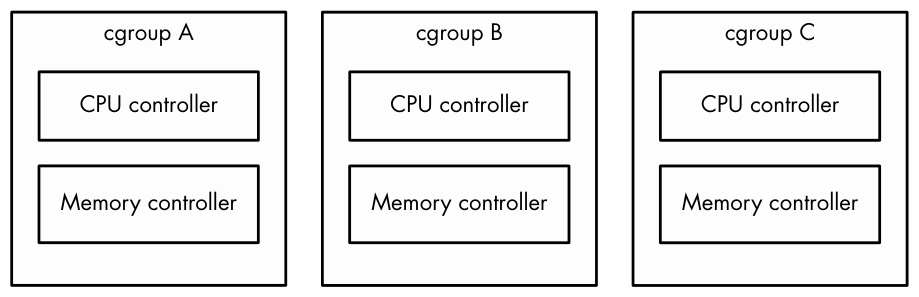
cpu,memory, and so on) has its own set of cgroups. A process can belong to one cgroup per controller, meaning that a process can belong to multiple cgroups. For example, in v1, a process can belong to acpucgroup and amemorycgroup. - In cgroups v2, a process can belong to only one cgroup. You can set up different types of controllers for each cgroup.
To visualize the difference, consider three sets of processes, A, B, and C. We want to use the cpu and memory controllers on each of them. Figure 8-1 shows the schematic for cgroups v1. We need six cgroups total, because each cgroup is limited to a single controller.
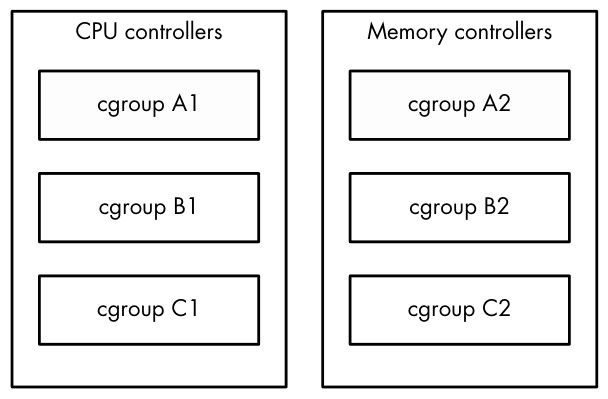
Figure 8-2 shows how to do it in cgroups v2. We need only three cgroups, because we can set up multiple controllers per cgroup.
You can list the v1 and v2 cgroups for any process by looking at its cgroup file in /proc/<pid>. You can start by looking at your shell’s cgroups with this command:
$ cat /proc/self/cgroup
12:rdma:/
11:net_cls,net_prio:/
10:perf_event:/
9:cpuset:/
8:cpu,cpuacct:/user.slice
7:blkio:/user.slice
6:memory:/user.slice
5:pids:/user.slice/user-1000.slice/session-2.scope
4:devices:/user.slice
3:freezer:/
2:hugetlb:/testcgroup ❶
1:name=systemd:/user.slice/user-1000.slice/session-2.scope
0::/user.slice/user-1000.slice/session-2.scope
Don’t be alarmed if the output is significantly shorter on your system; this just means that you probably have only cgroups v2. Every line of output here starts with a number and is a different cgroup. Here are some pointers on how to read it:
- Numbers 2–12 are for cgroups v1. The controllers for those are listed next to the number.
- Number 1 is also for version 1, but it does not have a controller. This cgroup is for management purposes only (in this case, systemd configured it).
- The last line, number 0, is for cgroups v2. No controllers are visible here. On a system that doesn’t have cgroups v1, this will be the only line of output.
- Names are hierarchical and look like parts of file paths. You can see in this example that some of the cgroups are named /user.slice and others /user.slice/user-1000.slice/session-2.scope. p. 219
- The name /testcgroup ❶ was created to show that in cgroups v1, the cgroups for a process can be completely independent.
- Names under user.slice that include session are login sessions, assigned by systemd. You’ll see them when you’re looking at a shell’s cgroups. The cgroups for your system services will be under system.slice.
You may have surmised that cgroups v1 has flexibility in one respect over v2 because you can assign different combinations of cgroups to processes. However, it turns out that no one actually used them this way, and this approach was more complicated to set up and implement than simply having one cgroup per process.
Because cgroups v1 is being phased out, our discussion will focus on cgroups v2 from this point forward. Be aware that if a controller is being used in cgroups v1, the controller cannot be used in v2 at the same time due to potential conflicts. This means that the controller-specific parts of what we’re about to discuss won’t work correctly if your system still uses v1, but you should still be able to follow along with the v1 equivalents if you look in the right place.
8.6.2 Viewing cgroups
Unlike the traditional Unix system call interface for interacting with the kernel, cgroups are accessed entirely through the filesystem, which is usually mounted as a cgroup2 filesystem under /sys/fs/cgroup. (If you’re also running cgroups v1, this will probably be under /sys/fs/cgroup/unified.)
Let’s explore the cgroup setup of a shell. Open a shell and find its cgroup from /proc/self/cgroup (as shown earlier). Then look in /sys/fs/cgroup (or /sys/fs/cgroup/unified). You’ll find a directory with that name; change to it and have a look around:
$ cat /proc/self/cgroup
0::/user.slice/user-1000.slice/session-2.scope
$ cd /sys/fs/cgroup/user.slice/user-1000.slice/session-2.scope/
$ ls
A cgroup name can be quite long on desktop environments that like to create a new cgroup for each new application launched.
Among the many files that can be here, the primary cgroup interface files begin with cgroup. Start by looking at cgroup.procs (using cat is fine), which lists the processes in the cgroup. A similar file, cgroup.threads, also includes threads.
To see the controllers currently in use for the cgroup, look at cgroup .controllers:
$ cat cgroup.controllers
memory pids
Most cgroups used for shells have these two controllers, which can control the amount of memory used and the total number of processes in the cgroup. To interact with a controller, look for the files that match the controller prefix. For example, if you want to see the number of threads running in the cgroup, consult pids.current:
$ cat pids.current
4
To see the maximum amount of memory that the cgroup can consume, take a look at memory.max:
$ cat memory.max
max
A value of max means that this cgroup has no specific limit, but because cgroups are hierarchical, a cgroup back down the subdirectory chain might limit it.
8.6.3 Manipulating and Creating cgroups
Although you probably won’t ever need to alter cgroups, it’s easy to do. To put a process into a cgroup, write its PID to its cgroup.procs file as root:
# echo pid > cgroup.procs
This is how many changes to cgroups work. For example, if you want to limit the maximum number of PIDs of a cgroup (to, say, 3,000 PIDs), do it as follows:
# echo 3000 > pids.max
Creating cgroups is trickier. Technically, it’s as easy as creating a subdirectory somewhere in the cgroup tree; when you do so, the kernel automatically creates the interface files. If a cgroup has no processes, you can remove the cgroup with rmdir even with the interface files present. What can trip you up are the rules governing cgroups, including:
- You can put processes only in outer-level (“leaf”) cgroups. For example, if you have cgroups named /my-cgroup and /my-cgroup/my-subgroup, you can’t put processes in /my-cgroup, but /my-cgroup/my-subgroup is okay. (An exception is if the cgroups have no controllers, but let’s not dig further.)
- A cgroup can’t have a controller that isn’t in its parent cgroup.
- You must explicitly specify controllers for child cgroups. You do this through the cgroup.subtree_control file; for example, if you want a child cgroup to have the
cpuandpidscontrollers, write+cpu +pidsto this file. p. 221 An exception to these rules is the root cgroup found at the bottom
of the hierarchy. You can place processes in this cgroup. One reason you might want to do this is to detach a process from systemd’s control.
8.6.4 Viewing Resource Utilization
In addition to being able to limit resources by cgroup, you can also see the current resource utilization of all processes across their cgroups. Even with no controllers enabled, you can see the CPU usage of a cgroup by looking at its cpu.stat file:
$ cat cpu.stat
usage_usec 4617481
user_usec 2170266
system_usec 2447215
Because this is the accumulated CPU usage over the entire lifespan of the cgroup, you can see how a service consumes processor time even if it spawns many subprocesses that eventually terminate.
You can view other types of utilization if the appropriate controllers are enabled. For example, the memory controller gives access to the memory.current file for current memory use and memory.stat file containing detailed memory data for the lifespan of the cgroup. These files are not available in the root cgroup.
You can get a lot more out of cgroups. The full details for how to use each individual controller, as well as all of the rules for creating cgroups, are available in the kernel documentation; just search online for “cgroups2 documentation” and you should find it.
For now, though, you should have a good idea of how cgroups work. Understanding the basics of their operation helps explain how systemd organizes processes. Later on, when you read about containers, you’ll see how they’re used for a much different purpose.
8.7 Further Topics
One reason there are so many tools to measure and manage resource utilization is that different types of resources are consumed in many different ways. In this chapter, you’ve seen CPU, memory, and I/O as system resources being consumed by processes, threads inside processes, and the kernel.
The other reason the tools exist is that the resources are limited, and for a system to perform well, its components must strive to consume fewer resources. In the past, many users shared a machine, so it was necessary to make sure that each user had a fair share of resources. Now, although a modern desktop computer may not have multiple users, it still has many processes competing for resources. Likewise, high-performance network servers require intense system resource monitoring because they run many processes to handle multiple requests simultaneously.
Further topics in resource monitoring and performance analysis you might want to explore include:
sar (System Activity Reporter) The sar package has many of the continuous monitoring capabilities of vmstat, but it also records resource utilization over time. With sar, you can look back at a particular time to see what your system was doing. This is handy when you want to analyze a past system event.
acct (process accounting) The acct package can record the processes and their resource utilization.
Quotas You can limit the amount of disk space that a user can use with the quota system.
If you’re interested in systems tuning and performance in particular, Systems Performance: Enterprise and the Cloud, 2nd edition, by Brendan Gregg (Addison-Wesley, 2020) goes into much more detail.
We also haven’t yet touched on the many, many tools you can use to monitor network resource utilization. To use those, though, you first need to understand how the network works. That’s where we’re headed next.