Chapter 4: Disks and Filesystems
In Chapter 3, we saw an overview of some of the top-level disk devices that the kernel makes available. In this chapter, we’ll discuss in detail how to work with disks on a Linux system. You’ll learn how to partition disks, create and maintain the filesystems that go inside disk partitions, and work with swap space.
Recall that disk devices have names like /dev/sda, the first SCSI subsystem disk. This kind of block device represents the entire disk, but there are many different components and layers inside a disk.
Figure 4-1 illustrates a schematic of a simple Linux disk (note that the figure is not to scale). As you progress through this chapter, you’ll learn where each piece fits in.
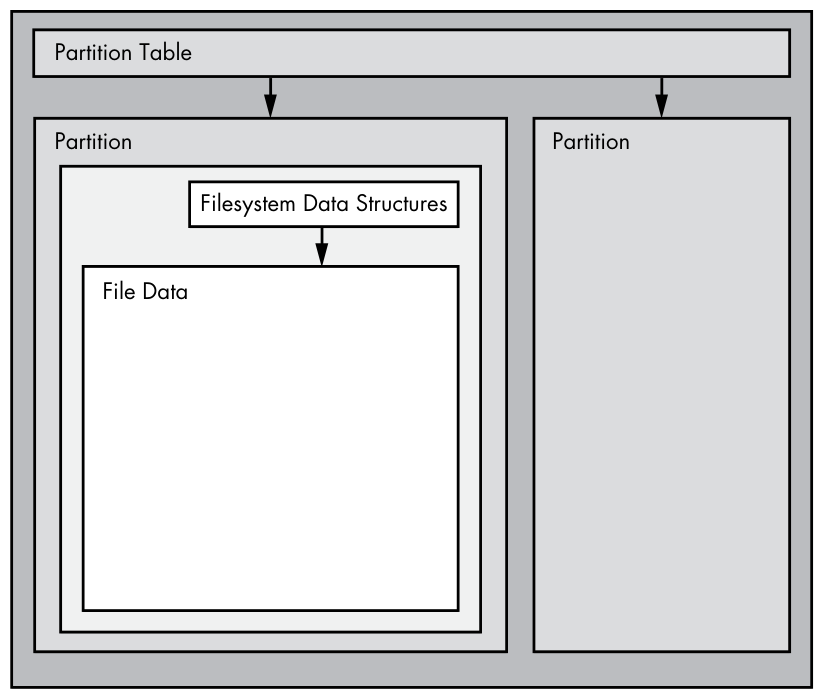
Partitions are subdivisions of the whole disk. On Linux, they’re denoted with a number after the whole block device, so they have names like /dev/sda1 and /dev/sdb3. The kernel presents each partition as a block device, just as it would an entire disk. Partitions are defined on a small area of the disk called a partition table (also called a disk label).
Multiple data partitions were once common on systems with large disks because older PCs could boot only from certain parts of the disk. Also, administrators used partitions to reserve a certain amount of space for operating system areas; for example, they didn’t want users to be able to fill up the entire system and prevent critical services from working. This practice is not unique to Unix; you’ll still find many new Windows systems with several partitions on a single disk. In addition, most systems have a separate swap partition.
The kernel makes it possible for you to access both an entire disk and one of its partitions at the same time, but you wouldn’t normally do so unless you were copying the entire disk.
The Linux Logical Volume Manager (LVM) adds more flexibility to traditional disk devices and partitions, and is now in use in many systems. We’ll cover LVM in Section 4.4.
The next layer up from the partition is the filesystem, the database of files and directories that you’re accustomed to interacting with in user space. We’ll explore filesystems in Section 4.2.
As you can see in Figure 4-1, if you want to access the data in a file, you need to use the appropriate partition location from the partition table and then search the filesystem database on that partition for the desired file data.
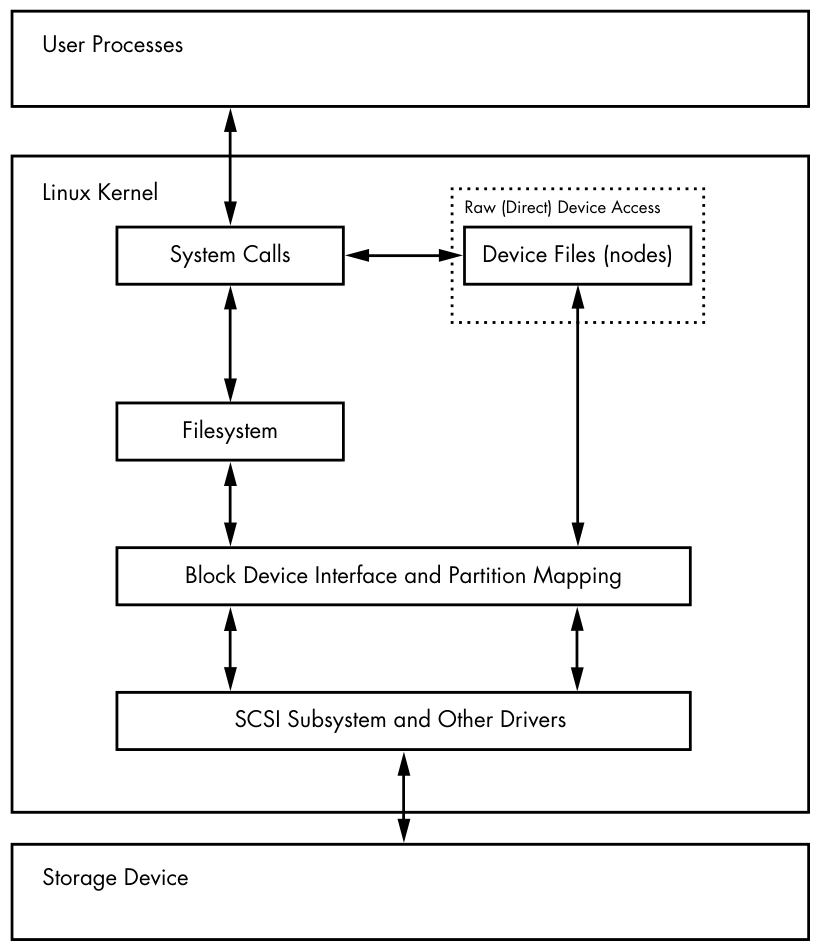
To access data on a disk, the Linux kernel uses the system of layers shown in Figure 4-2. The SCSI subsystem and everything else described in Section 3.6 are represented by a single box. Notice that you can work with the disk through the filesystem as well as directly through the disk devices. You’ll see how both methods work in this chapter. To make things simpler, LVM is not represented in Figure 4-2, but it has components in the block device interface and a few management components in user space.
To get a handle on how everything fits together, let’s start at the bottom with partitions.
4.1 Partitioning Disk Devices
There are many kinds of partition tables. There’s nothing special about a partition table—it’s just a bunch of data that says how the blocks on the disk are divided.
The traditional table, dating back to the PC days, is the one found inside the Master Boot Record (MBR), and it has many limitations. Most newer systems use the Globally Unique Identifier Partition Table (GPT).
Here are a few of the many Linux partitioning tools:
parted (“partition editor”) A text-based tool that supports both MBR and GPT.
gparted A graphical version of parted.
fdisk The traditional text-based Linux disk partitioning tool. Recent versions of fdisk support the MBR, GPT, and many other kinds of partition tables, but older versions were limited to MBR support.
Because it has supported both the MBR and GPT for some time, and it’s easy to run single commands to get partition labels, we’ll use parted to display partition tables. However, when creating and altering partition tables, we’ll use fdisk. This will illustrate both interfaces, and why many people prefer the fdisk interface due to its interactive nature and the fact that it doesn’t make any changes to the disk until you’ve had a chance to review them (we’ll discuss this shortly).
There’s a critical difference between partitioning and filesystem manipulation: the partition table defines simple boundaries on the disk, whereas a filesystem is a much more involved data system. For this reason, we’ll use separate tools for partitioning and creating filesystems (see Section 4.2.2).
4.1.1 Viewing a Partition Table
You can view your system’s partition table with parted -l. This sample output shows two disk devices with two different kinds of partition tables:
# parted -l
Model: ATA KINGSTON SM2280S (scsi)
❶ Disk /dev/sda: 240GB
Sector size (logical/physical): 512B/512B
Partition Table: msdos
Disk Flags:

Number  Start   End    Size    Type      File system     Flags
 1      1049kB  223GB  223GB   primary   ext4            boot
 2      223GB   240GB  17.0GB  extended
 5      223GB   240GB  17.0GB  logical   linux-swap(v1)

Model: Generic Flash Disk (scsi)
❷ Disk /dev/sdf: 4284MB
Sector size (logical/physical): 512B/512B
Partition Table: gpt
Disk Flags:

Number  Start   End     Size    File system  Name      Flags
 1      1049kB  1050MB  1049MB               myfirst
 2      1050MB  4284MB  3235MB               mysecond
The first device (/dev/sda) ❶ uses the traditional MBR partition table (which parted calls msdos), and the second (/dev/sdf) ❷ contains a GPT. Notice that the two table types store different sets of parameters. In particular, the MBR table has no Name column because names don’t exist under that scheme. (I arbitrarily chose the names myfirst and mysecond in the GPT.)
Watch out for the unit sizes when reading partition tables. The parted output shows an approximated size based on what parted thinks is easiest to read. On the other hand, fdisk -l shows an exact number, but in most cases, the units are 512-byte “sectors,” which can be confusing because it might look like you’ve doubled the actual sizes of your disk and partitions. A close look at the fdisk partition table view also reveals the sector size information.
MBR Basics
The MBR table in this example contains primary, extended, and logical partitions. A primary partition is a normal subdivision of the disk; partition 1 is an example. The basic MBR has a limit of four primary partitions, so if you want more than four, you must designate one as an extended partition. An extended partition breaks down into logical partitions, which the operating system can then use as it would any other partition. In this example, partition 2 is an extended partition that contains logical partition 5.
The filesystem type that parted lists is not necessarily the same as the system ID field in its MBR entries. The MBR system ID is just a number identifying the partition type; for example, 83 is a Linux partition and 82 is a Linux swap partition. However, parted attempts to be more informative by determining on its own what kind of filesystem is on that partition. If you absolutely must know the system ID for an MBR, use fdisk -l.
LVM Partitions: A Sneak Peek
When viewing your partition table, if you see partitions labeled as LVM (code 8e as the partition type), devices named /dev/dm-*, or references to the “device mapper,” then your system uses LVM. Our discussion will start with traditional direct disk partitioning, which will look slightly different from what’s on a system using LVM.
Just so you know what to expect, let’s take a quick look at some sample parted -l output on a system with LVM (a fresh installation of Ubuntu using LVM on VirtualBox). First, there’s a description of the actual partition table, which looks mostly as you’d expect, except for the lvm flag:
Model: ATA VBOX HARDDISK (scsi)
Disk /dev/sda: 10.7GB
Sector size (logical/physical): 512B/512B
Partition Table: msdos
Disk Flags:

Number  Start   End     Size    Type     File system  Flags
 1      1049kB  10.7GB  10.7GB  primary               boot, lvm
Then there are some devices that look like they should be partitions, but are called disks:
Model: Linux device-mapper (linear) (dm)
Disk /dev/mapper/ubuntu--vg-swap_1: 1023MB
Sector size (logical/physical): 512B/512B
Partition Table: loop
Disk Flags:

Number  Start  End     Size    File system     Flags
 1      0.00B  1023MB  1023MB  linux-swap(v1)

Model: Linux device-mapper (linear) (dm)
Disk /dev/mapper/ubuntu--vg-root: 9672MB
Sector size (logical/physical): 512B/512B
Partition Table: loop
Disk Flags:

Number  Start  End     Size    File system  Flags
 1      0.00B  9672MB  9672MB  ext4
A simple way to think about this is that the partitions have been somehow separated from the partition table. You’ll see what’s actually going on in Section 4.4.
You’ll get much less detailed output with fdisk -l; in the preceding case, you won’t see anything beyond one LVM-labeled physical partition.
Initial Kernel Read
When initially reading the MBR table, the Linux kernel produces debugging output like this (remember that you can view this with journalctl -k):
sda: sda1 sda2 < sda5 >
The sda2 < sda5 > portion of the output indicates that /dev/sda2 is an extended partition containing one logical partition, /dev/sda5. You’ll normally ignore the extended partition itself because you typically care only about accessing the logical partitions it contains.
4.1.2 Modifying Partition Tables
Viewing partition tables is a relatively simple and harmless operation. Altering partition tables is also relatively easy, but making this kind of change to the disk involves risks. Keep the following in mind:
- Changing the partition table makes it quite difficult to recover any data on partitions that you delete or redefine, because doing so can erase the location of the filesystems on those partitions. Make sure you have a backup if the disk you’re partitioning contains critical data.
- Ensure that no partitions on your target disk are currently in use. This is a concern because most Linux distributions automatically mount any detected filesystem. (See Section 4.2.3 for more on mounting and unmounting.)
When you’re ready, choose your partitioning program. If you’d like to use parted, you can use the command-line parted utility or a graphical interface, such as gparted; fdisk is fairly easy to work with on the command line. These utilities all have online help and are easy to learn. (Try using them on a flash device or something similar if you don’t have any spare disks.)
That said, there is a major difference in the way that fdisk and parted work. With fdisk, you design your new partition table before making the actual changes to the disk, and it makes the changes only when you exit the program. But with parted, partitions are created, modified, and removed as you issue the commands. You don’t get the chance to review the partition table before you change it.
These differences are also key to understanding how the two utilities interact with the kernel. Both fdisk and parted modify the partitions entirely in user space; there’s no need to provide kernel support for rewriting a partition table, because user space can read and modify all of a block device.
At some point, though, the kernel must read the partition table in order to present the partitions as block devices so you can use them. The fdisk utility uses a relatively simple method. After modifying the partition table, fdisk issues a single system call to tell the kernel that it should reread the disk’s partition table (you’ll see an example of how to interact with fdisk shortly). The kernel then generates debugging output, which you can view with journalctl -k. For example, if you create two partitions on /dev/sdf, you’ll see this:
sdf: sdf1 sdf2
The parted tools do not use this disk-wide system call; instead, they signal the kernel when individual partitions are altered. After processing a single partition change, the kernel does not produce the preceding debugging output.
There are a few ways to see the partition changes:
- Use
udevadmto watch the kernel event changes. For example, the commandudevadm monitor --kernelwill show the old partition devices being removed and the new ones being added. - Check /proc/partitions for full partition information.
- Check /sys/block/device/ for altered partition system interfaces or /dev for altered partition devices.
If you absolutely must confirm your modifications to a partition table, you can use the blockdev command to perform the old-style system call that fdisk issues. For example, to force the kernel to reload the partition table on /dev/sdf, run this:
# blockdev --rereadpt /dev/sdf
4.1.3 Creating a Partition Table
Let’s apply everything you just learned by creating a new partition table on a new, empty disk. This example shows the following scenario:
- 4GB disk (a small USB flash device, unused; if you want to follow this example, use any size device that you have at hand)
- MBR-style partition table
- Two partitions intended to be populated with an ext4 filesystem: 200MB and 3.8GB
- Disk device at /dev/sdd; you’ll need to find your own device location with
lsblk
You’ll use fdisk to do the work. Recall that this is an interactive command, so after ensuring that nothing on the disk is mounted, you’ll start at the command prompt with the device name:
# fdisk /dev/sdd
You’ll get an introductory message and then a command prompt like this:
Command (m for help):
First, print the current table with the p command (fdisk commands are rather terse). Your interaction will probably look something like this:
Command (m for help): p
Disk /dev/sdd: 4 GiB, 4284481536 bytes, 8368128 sectors
Units: sectors of 1 * 512 = 512 bytes
Sector size (logical/physical): 512 bytes / 512 bytes
I/O size (minimum/optimal): 512 bytes / 512 bytes
Disklabel type: dos
Disk identifier: 0x88f290cc

Device     Boot Start     End Sectors Size Id Type
/dev/sdd1        2048 8368127 8366080   4G  c W95 FAT32 (LBA)
Most devices already contain one FAT-style partition, like this one at /dev/sdd1. Because you want to create new partitions for Linux (and, of course, you’re sure you don’t need anything here), you can delete the existing ones like so:
Command (m for help): d
Selected partition 1
Partition 1 has been deleted.
Remember that fdisk doesn’t make changes until you explicitly write the partition table, so you haven’t yet modified the disk. If you make a mistake you can’t recover from, use the q command to quit fdisk without writing the changes.
Now you’ll create the first 200MB partition with the n command:
Command (m for help): n
Partition type
   p   primary (0 primary, 0 extended, 4 free)
   e   extended (container for logical partitions)
Select (default p): p
Partition number (1-4, default 1): 1
First sector (2048-8368127, default 2048): 2048
Last sector, +sectors or +size{K,M,G,T,P} (2048-8368127, default 8368127): +200M

Created a new partition 1 of type 'Linux' and of size 200 MiB.
Here, fdisk prompts you for the MBR partition style, the partition number, the start of the partition, and its end (or size). The default values are quite often what you want. The only thing changed here is the partition end/size with the + syntax to specify a size and unit.
Creating the second partition works the same way, except you’ll use all default values, so we won’t go over that. When you’re finished laying out the partitions, use the p (print) command to review:
Command (m for help): p
[--snip--]
Device     Boot  Start     End Sectors  Size Id Type
/dev/sdd1         2048  411647  409600  200M 83 Linux
/dev/sdd2       411648 8368127 7956480  3.8G 83 Linux
When you’re ready to write the partition table, use the w command:
Command (m for help): w
The partition table has been altered.
Calling ioctl() to re-read partition table.
Syncing disks.
Note that fdisk doesn’t ask you if you’re sure as a safety measure; it simply does its work and exits.
If you’re interested in additional diagnostic messages, use journalctl -k to see the kernel read messages mentioned earlier, but remember that you’ll get them only if you’re using fdisk.
At this point, you have all the basics to start partitioning disks, but if you’d like more details about disks, read on. Otherwise, skip ahead to Section 4.2 to learn about putting a filesystem on the disk.
4.1.4 Navigating Disk and Partition Geometry
Any device with moving parts introduces complexity into a software system because there are physical elements that resist abstraction. A hard disk is no exception; even though you can think of a hard disk as a block device with random access to any block, there can be serious performance consequences if the system isn’t careful about how it lays out data on the disk. Consider the physical properties of the simple single-platter disk illustrated in Figure 4-3.
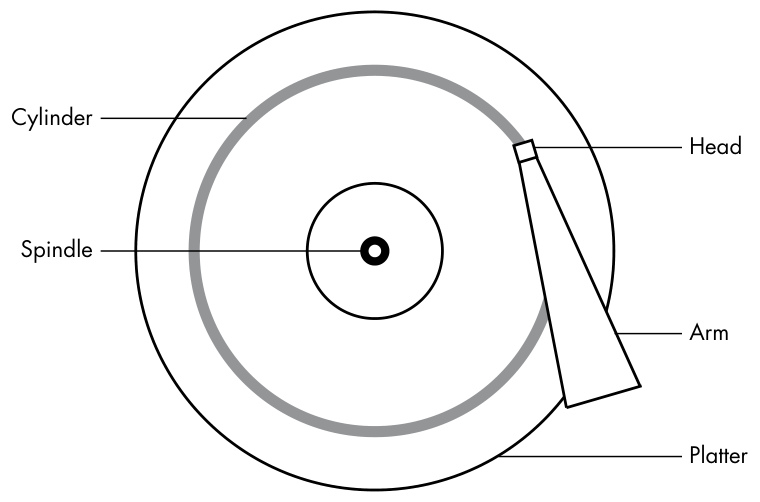
The disk consists of a spinning platter on a spindle, with a head attached to a moving arm that can sweep across the radius of the disk. As the disk spins underneath the head, the head reads data. When the arm is in one position, the head can read data only from a fixed circle. This circle is called a cylinder because larger disks have more than one p. 79 platter, all stacked and spinning around the same spindle. Each platter can have one or two heads, for the top and/or bottom of the platter, and all heads are attached to the same arm and move in concert. Because the arm moves, there are many cylinders on the disk, from small ones around the center to large ones around the periphery of the disk. Finally, you can divide a cylinder into slices called sectors. This way of thinking about the disk geometry is called CHS, for cylinder-head-sector; in older systems, you could find any part of the disk by addressing it with these three parameters.
A track is the part of a cylinder that a single head accesses, so in Figure 4-3, the cylinder is also a track. You don’t need to worry about tracks.
The kernel and the various partitioning programs can tell you what a disk reports as its number of cylinders. However, on any halfway recent hard disk, the reported values are fiction! The traditional addressing scheme that uses CHS doesn’t scale with modern disk hardware, nor does it account for the fact that you can put more data into outer cylinders than inner cylinders. Disk hardware supports Logical Block Addressing (LBA) to address a location on the disk by a block number (this is a much more straightforward interface), but remnants of CHS remain. For example, the MBR partition table contains CHS information as well as LBA equivalents, and some boot loaders are still dumb enough to believe the CHS values (don’t worry—most Linux boot loaders use the LBA values).
The word sector is confusing, because Linux partitioning programs can use it to mean a different value.
The idea of cylinders was once critical to partitioning because cylinders are ideal boundaries for partitions. Reading a data stream from a cylinder is very fast because the head can continuously pick up data as the disk spins. A partition arranged as a set of adjacent cylinders also allows for fast continuous data access because the head doesn’t need to move very far between cylinders.
Although disks look roughly the same as they always have, the notion of precise partition alignment has become obsolete. Some older partitioning programs complain if you don’t place your partitions precisely on cylinder boundaries. Ignore this; there’s little you can do, because the reported CHS values of modern disks simply aren’t true. The disk’s LBA scheme, along with better logic in newer partitioning utilities, ensures that your partitions are laid out in a reasonable manner.
4.1.5 Reading from Solid-State Disks
Storage devices with no moving parts, such as solid-state disks (SSDs), are radically different from spinning disks in terms of their access characteristics. For these, random access isn’t a problem because there’s no head to sweep across a platter, but certain characteristics can change how an SSD performs.
One of the most significant factors affecting the performance of SSDs is partition alignment. When you read data from an SSD, you read it in chunks (called pages, not to be confused with virtual memory pages)—such as 4,096 or 8,192 bytes at a time—and the read must begin at a multiple of that size. This means that if your partition and its data do not lie on a boundary, you may have to do two reads instead of one for small, common operations, such as reading the contents of a directory.
Reasonably new versions of partitioning utilities include logic to put newly created partitions at the proper offsets from the beginning of the disks, so you probably don’t need to worry about improper partition alignment. Partitioning tools currently don’t make any calculations; instead, they just align partitions on 1MB boundaries or, more precisely, 2,048 512-byte blocks. This is a rather conservative approach because the boundary aligns with page sizes of 4,096, 8,192, and so on, all the way up to 1,048,576.
However, if you’re curious or want to make sure that your partitions begin on a boundary, you can easily find this information in the /sys/block directory. Here’s an example for the partition /dev/sdf2:
$ cat /sys/block/sdf/sdf2/start
1953126
The output here is the partition’s offset from the start of the device, in units of 512 bytes (again, confusingly called sectors by the Linux system). If this SSD uses 4,096-byte pages, there are eight of these sectors in a page. All you need to do is see if you can evenly divide the partition offset by 8. In this case, you can’t, so the partition would not attain optimal performance.
4.2 Filesystems
The last link between the kernel and user space for disks is typically the filesystem; this is what you’re accustomed to interacting with when you run commands like ls and cd. As previously mentioned, the filesystem is a form of database; it supplies the structure to transform a simple block device into the sophisticated hierarchy of files and subdirectories that users can understand.
At one time, all filesystems resided on disks and other physical media that were intended exclusively for data storage. However, the tree-like directory structure and I/O interface of filesystems are quite versatile, so filesystems now perform a variety of tasks, such as the system interfaces that you see in /sys and /proc. Filesystems are traditionally implemented in the kernel, but p. 81 the innovation of 9P from Plan 9 (https://en.wikipedia.org/wiki/9P_(protocol)) has inspired the development of user-space filesystems. The File System in User Space (FUSE) feature allows user-space filesystems in Linux.
The Virtual File System (VFS) abstraction layer completes the filesystem implementation. Much as the SCSI subsystem standardizes communication between different device types and kernel control commands, VFS ensures that all filesystem implementations support a standard interface so that user-space applications access files and directories in the same manner. VFS support has enabled Linux to support an extraordinarily large number of filesystems.
4.2.1 Filesystem Types
Linux filesystem support includes native designs optimized for Linux; foreign types, such as the Windows FAT family; universal filesystems, like ISO 9660; and many others. The following list includes the most common types of filesystems for data storage. The type names as recognized by Linux are in parentheses next to the filesystem names.
-
The Fourth Extended filesystem (ext4) is the current iteration of a line of filesystems native to Linux. The Second Extended filesystem (ext2) was a longtime default for Linux systems inspired by traditional Unix filesystems, such as the Unix File System (UFS) and the Fast File System (FFS). The Third Extended filesystem (ext3) added a journal feature (a small cache outside the normal filesystem data structure) to enhance data integrity and hasten booting. The ext4 filesystem is an incremental improvement and supports larger files than ext2 or ext3 as well as a greater number of subdirectories.
There’s a certain amount of backward compatibility in the extended filesystem series. For example, you can mount ext2 and ext3 filesystems as each other, and you can mount ext2 and ext3 filesystems as ext4, but you cannot mount ext4 as ext2 or ext3.
-
Btrfs, or B-tree filesystem (btrfs), is a newer filesystem native to Linux designed to scale beyond the capabilities of ext4.
-
FAT filesystems (msdos, vfat, exfat) pertain to Microsoft systems. The simple msdos type supports the very primitive monocase variety in MS-DOS systems. Most removable flash media, such as SD cards and USB drives, contain vfat (up to 4GB) or exfat (4GB and up) partitions by default. Windows systems can use either a FAT-based filesystem or the more advanced NT File System (ntfs).
-
XFS is a high-performance filesystem used by default by some distributions, such as Red Hat Enterprise Linux 7.0 and beyond.
-
HFS+ (hfsplus) is an Apple standard used on most Macintosh systems.
-
ISO 9660 (iso9660) is a CD-ROM standard. Most CD-ROMs use some variety of the ISO 9660 standard.
The Extended filesystem series has long been perfectly acceptable to most users, and the fact that it has remained the de facto standard for so long is a testament to its utility, but also to its adaptability. The Linux development community has a tendency to completely replace components that don’t meet current needs, but every time the Extended filesystem has come up short, someone has upgraded it in response. Nonetheless, many advances have been made in filesystem technology that even ext4 cannot utilize due to the backward-compatibility requirement. These advances are primarily in scalability enhancements pertaining to very large numbers of files, large files, and similar scenarios.
At the time of this writing, Btrfs is the default for one major Linux distribution. If this proves a success, it’s likely that Btrfs will be poised to replace the Extended series.
4.2.2 Creating a Filesystem
If you’re preparing a new storage device, once you’re finished with the partitioning process described in Section 4.1, you’re ready to create a filesystem. As with partitioning, you’ll do this in user space because a user-space process can directly access and manipulate a block device.
The mkfs utility can create many kinds of filesystems. For example, you can create an ext4 partition on /dev/sdf2 with this command:
# mkfs -t ext4 /dev/sdf2
The mkfs program automatically determines the number of blocks in a device and sets some reasonable defaults. Unless you really know what you’re doing and feel like reading the documentation in detail, don’t change them.
When you create a filesystem, mkfs prints diagnostic output as it works, including output pertaining to the superblock. The superblock is a key component at the top level of the filesystem database, and it’s so important that mkfs creates a number of backups in case the original is destroyed. Consider recording a few of the superblock backup numbers when mkfs runs, in case you need to recover the superblock in the event of a disk failure (see Section 4.2.11).
Filesystem creation is a task that you should perform only after adding a new disk or repartitioning an old one. You should create a filesystem just once for each new partition that has no preexisting data (or that has data you want to remove). Creating a new filesystem on top of an existing filesystem will effectively destroy the old data.
It turns out that mkfs is only a frontend for a series of filesystem creation programs, mkfs.fs, where fs is a filesystem type. So when you run mkfs -t ext4, mkfs in turn runs mkfs.ext4.
And there’s even more indirection. Inspect the mkfs.* files behind the commands, and you’ll see the following:
$ ls -l /sbin/mkfs.*
-rwxr-xr-x 1 root root 17896 Mar 29 21:49 /sbin/mkfs.bfs
-rwxr-xr-x 1 root root 30280 Mar 29 21:49 /sbin/mkfs.cramfs
lrwxrwxrwx 1 root root     6 Mar 30 13:25 /sbin/mkfs.ext2 -> mke2fs
lrwxrwxrwx 1 root root     6 Mar 30 13:25 /sbin/mkfs.ext3 -> mke2fs
lrwxrwxrwx 1 root root     6 Mar 30 13:25 /sbin/mkfs.ext4 -> mke2fs
lrwxrwxrwx 1 root root     6 Mar 30 13:25 /sbin/mkfs.ext4dev -> mke2fs
-rwxr-xr-x 1 root root 26200 Mar 29 21:49 /sbin/mkfs.minix
lrwxrwxrwx 1 root root     7 Dec 19  2011 /sbin/mkfs.msdos -> mkdosfs
lrwxrwxrwx 1 root root     6 Mar  5  2012 /sbin/mkfs.ntfs -> mkntfs
lrwxrwxrwx 1 root root     7 Dec 19  2011 /sbin/mkfs.vfat -> mkdosfs
As you can see, mkfs.ext4 is just a symbolic link to mke2fs. This is important to remember if you run across a system without a specific mkfs command or when you’re looking up the documentation for a particular filesystem. Each filesystem’s creation utility has its own manual page, like mke2fs(8). This shouldn’t be a problem on most systems, because accessing the mkfs.ext4(8) manual page should redirect you to the mke2fs(8) manual page, but keep it in mind.
4.2.3 Mounting a Filesystem
On Unix, the process of attaching a filesystem to a running system is called mounting. When the system boots, the kernel reads some configuration data and mounts root (/) based on the configuration data.
In order to mount a filesystem, you must know the following:
- The filesystem’s device, location, or identifier (such as a disk partition—where the actual filesystem data resides). Some special-purpose filesystems, such as proc and sysfs, don’t have locations.
- The filesystem type.
- The mount point—the place in the current system’s directory hierarchy where the filesystem will be attached. The mount point is always a normal directory. For instance, you could use /music as a mount point for a filesystem containing music. The mount point need not be directly below /; it can be anywhere on the system.
The common terminology for mounting a filesystem is “mount a device on a mount point.” To learn the current filesystem status of your system, you run mount. The output (which can be quite lengthy) should look like this:
$ mount
/dev/sda1 on / type ext4 (rw,errors=remount-ro)
proc on /proc type proc (rw,noexec,nosuid,nodev)
sysfs on /sys type sysfs (rw,noexec,nosuid,nodev)
fusectl on /sys/fs/fuse/connections type fusectl (rw)
debugfs on /sys/kernel/debug type debugfs (rw)
securityfs on /sys/kernel/security type securityfs (rw)
udev on /dev type devtmpfs (rw,mode=0755)
devpts on /dev/pts type devpts (rw,noexec,nosuid,gid=5,mode=0620)
tmpfs on /run type tmpfs (rw,noexec,nosuid,size=10%,mode=0755)
--snip--
Each line corresponds to one currently mounted filesystem, with items in this order:
- The device, such as /dev/sda3. Notice that some of these aren’t real devices (
proc, for example) but are stand-ins for real device names because these special-purpose filesystems do not need devices. - The word
on. - The mount point.
- The word
type. - The filesystem type, usually in the form of a short identifier.
- Mount options (in parentheses). See Section 4.2.6 for more details.
To mount a filesystem manually, use the mount command as follows with the filesystem type, device, and desired mount point:
# mount -t type device mountpoint
For example, to mount the Fourth Extended filesystem found on the device /dev/sdf2 on /home/extra, use this command:
# mount -t ext4 /dev/sdf2 /home/extra
You normally don’t need to supply the -t type option because mount usually figures it out for you. However, sometimes it’s necessary to distinguish between two similar types, such as the various FAT-style filesystems.
To unmount (detach) a filesystem, use the umount command as follows:
# umount mountpoint
You can also unmount a filesystem with its device instead of its mount point.
Almost all Linux systems include a temporary mount point, /mnt, which is typically used for testing. Feel free to use it when experimenting with your system, but if you intend to mount a filesystem for extended use, find or make another spot.
4.2.4 Filesystem UUID
The method of mounting filesystems discussed in the preceding section depends on device names. However, device names can change because they depend on the order in which the kernel finds the devices. To solve this problem, you can identify and mount filesystems by their universally unique identifier (UUID), an industry standard for unique “serial numbers” to identify objects in a computer system. Filesystem creation programs like mke2fs generate a UUID when initializing the filesystem data structure.
To view a list of devices and the corresponding filesystems and UUIDs on your system, use the blkid (block ID) program:
# blkid
/dev/sdf2: UUID="b600fe63-d2e9-461c-a5cd-d3b373a5e1d2" TYPE="ext4"
/dev/sda1: UUID="17f12d53-c3d7-4ab3-943e-a0a72366c9fa" TYPE="ext4"
PARTUUID="c9a5ebb0-01"
/dev/sda5: UUID="b600fe63-d2e9-461c-a5cd-d3b373a5e1d2" TYPE="swap"
PARTUUID="c9a5ebb0-05"
/dev/sde1: UUID="4859-EFEA" TYPE="vfat"
In this example, blkid found four partitions with data: two with ext4 filesystems, one with a swap space signature (see Section 4.3), and one with a FAT-based filesystem. The Linux native partitions all have standard UUIDs, but the FAT partition doesn’t. You can reference the FAT partition with its FAT volume serial number (in this case, 4859-EFEA).
To mount a filesystem by its UUID, use the UUID mount option. For example, to mount the first filesystem from the preceding list on /home/extra, enter:
# mount UUID=b600fe63-d2e9-461c-a5cd-d3b373a5e1d2 /home/extra
Typically you won’t manually mount filesystems by UUID like this, because you normally know the device, and it’s much easier to mount a device by its name than by its crazy UUID. Still, it’s important to understand UUIDs. For one thing, they’re the preferred way to mount non-LVM filesystems in /etc/fstab automatically at boot time (see Section 4.2.8). In addition, many distributions use the UUID as a mount point when you insert removable media. In the preceding example, the FAT filesystem is on a flash media card. An Ubuntu system with someone logged in will mount this partition at /media/user/4859-EFEA upon insertion. The udevd daemon described in Chapter 3 handles the initial event for the device insertion.
You can change the UUID of a filesystem if necessary (for example, if you copied the complete filesystem from somewhere else and now need to distinguish it from the original). See the tune2fs(8) manual page for how to do this on an ext2/ext3/ext4 filesystem.
4.2.5 Disk Buffering, Caching, and Filesystems
Linux, like other Unix variants, buffers writes to the disk. This means the kernel usually doesn’t immediately write changes to filesystems when processes request changes. Instead, it stores those changes in RAM until the kernel determines a good time to actually write them to the disk. This buffering system is transparent to the user and provides a very significant performance gain.
When you unmount a filesystem with umount, the kernel automatically synchronizes with the disk, writing the changes in its buffer to the disk. You can also force the kernel to do this at any time by running the sync command, which by default synchronizes all the disks on the system. If for some reason you can’t unmount a filesystem before you turn off the system, be sure to run sync first.
In addition, the kernel uses RAM to cache blocks as they’re read from a disk. Therefore, if one or more processes repeatedly access a file, the kernel doesn’t have to go to the disk again and again—it can simply read from the cache and save time and resources.
4.2.6 Filesystem Mount Options
There are many ways to change the mount command behavior, which you’ll often need to do when working with removable media or performing system maintenance. In fact, the total number of mount options is staggering. The extensive mount(8) manual page is a good reference, but it’s hard to know where to start and what you can safely ignore. You’ll see the most useful options in this section.
Options fall into two rough categories: general and filesystem-specific. General options typically work for all filesystem types and include -t for specifying the filesystem type, as shown earlier. In contrast, a filesystem-specific option pertains only to certain filesystem types.
To activate a filesystem option, use the -o switch followed by the option. For example, -o remount,rw remounts a filesystem already mounted as read-only in read-write mode.
Short General Options
General options have a short syntax. The most important are:
-r The -r option mounts the filesystem in read-only mode. This has a number of uses, from write protection to bootstrapping. You don’t need to specify this option when accessing a read-only device, such as a CD-ROM; the system will do it for you (and will also tell you about the read-only status).
-n The -n option ensures that mount does not try to update the system runtime mount database, /etc/mtab. By default, the mount operation fails when it cannot write to this file, so this option is important at boot time because the root partition (including the system mount database) is p. 87 read-only at first. You’ll also find this option handy when trying to fix a system problem in single-user mode, because the system mount database may not be available at the time.
-t The -t type option specifies the filesystem type.
Long Options
Short options like -r are too limited for the ever-increasing number of mount options; there are too few letters in the alphabet to accommodate all possible options. Short options are also troublesome because it’s difficult to determine an option’s meaning based on a single letter. Many general options and all filesystem-specific options use a longer, more flexible option format.
To use long options with mount on the command line, start with -o followed by the appropriate keywords separated by commas. Here’s a complete example, with the long options following -o:
# mount -t vfat /dev/sde1 /dos -o ro,uid=1000
The two long options here are ro and uid=1000. The ro option specifies read-only mode and is the same as the -r short option. The uid=1000 option tells the kernel to treat all files on the filesystem as if user ID 1000 is the owner.
The most useful long options are these:
exec, noexec Enables or disables execution of programs on the filesystem.
suid, nosuid Enables or disables setuid programs.
ro Mounts the filesystem in read-only mode (as does the -r short option).
rw Mounts the filesystem in read-write mode.
There is a difference between Unix and DOS text files, principally in how lines end. In Unix, only a linefeed (\n, ASCII 0x0A) marks the end of a line, but DOS uses a carriage return (\r, ASCII 0x0D) followed by a linefeed. There have been many attempts at automatic conversion at the filesystem level, but these are always problematic. Text editors such as vim can automatically detect the newline style of a file and maintain it appropriately. It’s easier to keep the styles uniform this way.
4.2.7 Remounting a Filesystem
There will be times when you need to change the mount options for a currently mounted filesystem; the most common situation is when you need to make a read-only filesystem writable during crash recovery. In that case, you need to reattach the filesystem at the same mount point.
The following command remounts the root directory in read-write mode (you need the -n option because the mount command can’t write to the system mount database when the root is read-only):
# mount -n -o remount /
This command assumes that the correct device listing for / is in /etc/fstab (as discussed in the next section). If it isn’t, you must specify the device as an additional option.
4.2.8 The /etc/fstab Filesystem Table
To mount filesystems at boot time and take the drudgery out of the mount command, Linux systems keep a permanent list of filesystems and options in /etc/fstab. This is a plaintext file in a very simple format, as Listing 4-1 shows.
UUID=70ccd6e7-6ae6-44f6-812c-51aab8036d29 / ext4 errors=remount-ro 0 1
UUID=592dcfd1-58da-4769-9ea8-5f412a896980 none swap sw 0 0
/dev/sr0 /cdrom iso9660  ro,user,nosuid,noauto 0 0
Listing 4-1: List of filesystems and options in /etc/fstab
Each line corresponds to one filesystem and is broken into six fields. From left to right, these fields are:
The device or UUID Most current Linux systems no longer use the device in /etc/fstab, preferring the UUID.
The mount point Indicates where to attach the filesystem.
The filesystem type You may not recognize swap in this list; this is a swap partition (see Section 4.3).
Options Long options, separated by commas.
Backup information for use by the dump command The dump command is a long-obsolete backup utility; this field is no longer relevant. You should always set it to 0.
The filesystem integrity test order To ensure that fsck always runs on the root first, always set this to 1 for the root filesystem and 2 for any other locally attached filesystems on a hard disk or SSD. Use 0 to disable the bootup check for every other filesystem, including read-only devices, swap, and the /proc filesystem (see the fsck command in Section 4.2.11).
When using mount, you can take some shortcuts if the filesystem you want to work with is in /etc/fstab. For example, if you were using Listing 4-1 and mounting a CD-ROM, you would simply run mount /cdrom.
You can also try to simultaneously mount all entries in /etc/fstab that do not contain the noauto option with this command:
# mount -a
Listing 4-1 introduces some new options—namely, errors, noauto, and user, because they don’t apply outside the /etc/fstab file. In addition, you’ll often see the defaults option here. These options are defined as follows:
defaults This sets the mount defaults: read-write mode, enable device files, executables, the setuid bit, and so on. Use this when you don’t want to give the filesystem any special options but you do want to fill all fields in /etc/fstab.
errors This ext2/3/4-specific parameter sets the kernel behavior when the system has trouble mounting a filesystem. The default is normally errors=continue, meaning that the kernel should return an error code and keep running. To have the kernel try the mount again in read-only mode, use errors=remount-ro. The errors=panic setting tells the kernel (and your system) to halt when there’s a problem with the mount.
noauto This option tells a mount -a command to ignore the entry. Use this to prevent a boot-time mount of a removable-media device, such as a flash storage device.
user This option allows unprivileged users to run mount on a particular entry, which can be handy for allowing certain kinds of access to removable media. Because users can put a setuid-root file on removable media with another system, this option also sets nosuid, noexec, and nodev (to bar special device files). Keep in mind that for removable media and other general cases, this option is now of limited use, because most systems use ubus along with other mechanisms to automatically mount inserted media. However, this option can be useful in special cases when you want to grant control over mounting specific directories.
4.2.9 Alternatives to /etc/fstab
Although the /etc/fstab file has been the traditional way to represent filesystems and their mount points, there are two alternatives. The first is an /etc/fstab.d directory, which contains individual filesystem configuration files (one file for each filesystem). The idea is very similar to many other configuration directories that you’ll see throughout this book.
A second alternative is to configure systemd units for the filesystems. You’ll learn more about systemd and its units in Chapter 6. However, the systemd unit configuration is often generated from (or based on) the /etc/fstab file, so you may find some overlap on your system.
4.2.10 Filesystem Capacity
To view the size and utilization of your currently mounted filesystems, use the df command. The output can be very extensive (and it gets longer all the time, thanks to specialized filesystems), but it should include information on your actual storage devices.
$ df
Filesystem           1K-blocks      Used  Available Use% Mounted on
/dev/sda1            214234312 127989560   75339204  63% /
/dev/sdd2              3043836      4632    2864872   1% /media/user/uuid
Here’s a brief description of the fields in the df output:
Filesystem The filesystem device
1K-blocks The total capacity of the filesystem in blocks of 1,024 bytes
Used The number of occupied blocks
Available The number of free blocks
Use% The percentage of blocks in use
Mounted on The mount point
If you’re having trouble finding the correct line in the df output corresponding to a particular directory, run the df dir command, where dir is the directory you want to examine. This limits output to the filesystem for that directory. A very common use is df ., which limits the output to the device holding your current directory.
It should be easy to see that the two filesystems here are roughly 215GB and 3GB in size. However, the capacity numbers may look a little strange because 127,989,560 plus 75,339,204 does not equal 214,234,312, and 127,989,560 is not 63 percent of 214,234,312. In both cases, 5 percent of the total capacity is unaccounted for. In fact, the space is there, but it’s hidden in reserved blocks. Only the superuser can use the reserved blocks of the filesystem when it starts to fill up. This feature keeps system servers from immediately failing when they run out of disk space.
If your disk fills up and you need to know where all of those space-hogging media files are, use the du command. With no arguments, du prints the disk usage of every directory in the directory hierarchy, starting at the current working directory. (That can be a long listing; if you want to see an example, just run cd /; du to get the idea. Press CTRL-C when you get bored.) The du -s command turns on summary mode to print only the grand total. To evaluate everything (files and subdirectories) in a particular directory, change to that directory and run du -s *, keeping in mind that there can be some dot directories that this command won’t catch.
The POSIX standard defines a block size of 512 bytes. However, this size is harder to read, so by default, the df and du output in most Linux distributions is in 1,024-byte blocks. If you insist on displaying the numbers in 512-byte blocks, set the p. 91 POSIXLY_CORRECT environment variable. To explicitly specify 1,024-byte blocks, use the -k option (both utilities support this). The df and du programs also have a -m option to list capacities in 1MB blocks and a -h option to take a best guess at what’s easiest for a person to read, based on the overall sizes of the filesystems.
4.2.11 Checking and Repairing Filesystems
The optimizations that Unix filesystems offer are made possible by a sophisticated database mechanism. For filesystems to work seamlessly, the kernel has to trust that a mounted filesystem has no errors and also that the hardware stores data reliably. If errors exist, data loss and system crashes may result.
Aside from hardware problems, filesystem errors are usually due to a user shutting down the system in a rude way (for example, by pulling out the power cord). In such cases, the previous filesystem cache in memory may not match the data on the disk, and the system also may be in the process of altering the filesystem when you happen to give the computer a kick. Although many filesystems support journals to make filesystem corruption far less common, you should always shut down the system properly. Regardless of the filesystem in use, filesystem checks are still necessary every now and then to make sure that everything is still in order.
The tool to check a filesystem is fsck. As with the mkfs program, there’s a different version of fsck for each filesystem type that Linux supports. For example, when run on an Extended filesystem series (ext2/ext3/ext4), fsck recognizes the filesystem type and starts the e2fsck utility. Therefore, you generally don’t need to type e2fsck, unless fsck can’t figure out the filesystem type or you’re looking for the e2fsck manual page.
The information presented in this section is specific to the Extended filesystem series and e2fsck.
To run fsck in interactive manual mode, give the device or the mount point (as listed in /etc/fstab) as the argument. For example:
# fsck /dev/sdb1
Never use fsck on a mounted filesystem—the kernel may alter the disk data as you run the check, causing runtime mismatches that can crash your system and corrupt files. There is only one exception: if you mount the root partition read-only in single-user mode, you may use fsck on it.
In manual mode, fsck prints verbose status reports on its passes, which should look something like this when there are no problems:
Pass 1: Checking inodes, blocks, and sizes
Pass 2: Checking directory structure
Pass 3: Checking directory connectivity
Pass 4: Checking reference counts
Pass 5: Checking group summary information
/dev/sdb1: 11/1976 files (0.0% non-contiguous), 265/7891 blocks
If fsck finds a problem in manual mode, it stops and asks a question relevant to fixing the problem. These questions deal with the internal structure of the filesystem, such as reconnecting loose inodes and clearing blocks (inodes are building blocks of the filesystem; you’ll see how they work in Section 4.6). When fsck asks you about reconnecting an inode, it has found a file that doesn’t appear to have a name. When reconnecting such a file, fsck places the file in the lost+found directory in the filesystem, with a number as the filename. If this happens, you need to guess the name based on the file’s contents; the original filename is probably gone.
In general, it’s pointless to sit through the fsck repair process if you’ve just uncleanly shut down the system, because fsck may have a lot of minor errors to fix. Fortunately, e2fsck has a -p option that automatically fixes ordinary problems without asking and aborts when there’s a serious error. In fact, Linux distributions run a variant of fsck -p at boot time. (You may also see fsck -a, which does the same thing.)
If you suspect a major disaster on your system, such as a hardware failure or device misconfiguration, you need to decide on a course of action, because fsck can really mess up a filesystem that has larger problems. (One telltale sign that your system has a serious problem is if fsck asks a lot of questions in manual mode.)
If you think that something really bad has happened, try running fsck -n to check the filesystem without modifying anything. If there’s a problem with the device configuration that you think you can fix (such as loose cables or an incorrect number of blocks in the partition table), fix it before running fsck for real, or you’re likely to lose a lot of data.
If you suspect that only the superblock is corrupt (for example, because someone wrote to the beginning of the disk partition), you might be able to recover the filesystem with one of the superblock backups that mkfs creates. Use fsck -b num to replace the corrupted superblock with an alternate at block num and hope for the best.
If you don’t know where to find a backup superblock, you might be able to run mkfs -n on the device to view a list of superblock backup numbers without destroying your data. (Again, make sure that you’re using -n, or you’ll really tear up the filesystem.)
Checking ext3 and ext4 Filesystems
You normally do not need to check ext3 and ext4 filesystems manually because the journal ensures data integrity (recall that the journal is a small data cache that has not yet been written to a specific spot in the filesystem). If you don’t shut your system down cleanly, you can expect the journal to contain some data. To flush the journal in an ext3 or ext4 filesystem to the regular filesystem database, run e2fsck as follows:
# e2fsck –fy /dev/disk_device
However, you may want to mount a broken ext3 or ext4 filesystem in ext2 mode, because the kernel won’t mount an ext3 or ext4 filesystem with a nonempty journal.
The Worst Case
Disk problems that are more severe leave you with few choices:
- You can try to extract the entire filesystem image from the disk with
ddand transfer it to a partition on another disk of the same size. - You can try to patch the filesystem as much as possible, mount it in read-only mode, and salvage what you can.
- You can try
debugfs.
In the first two cases, you still need to repair the filesystem before you mount it, unless you feel like picking through the raw data by hand. If you like, you can choose to answer y to all of the fsck questions by entering fsck -y, but do this as a last resort because issues may come up during the repair process that you would rather handle manually.
The debugfs tool allows you to look through the files on a filesystem and copy them elsewhere. By default, it opens filesystems in read-only mode. If you’re recovering data, it’s probably a good idea to keep your files intact to avoid messing things up further.
Now, if you’re really desperate—say with a catastrophic disk failure on your hands and no backups—there isn’t a lot you can do other than hope a professional service can “scrape the platters.”
4.2.12 Special-Purpose Filesystems
Not all filesystems represent storage on physical media. Most versions of Unix have filesystems that serve as system interfaces. That is, rather than serving only as a means to store data on a device, a filesystem can represent system information, such as process IDs and kernel diagnostics. This idea goes back to the /dev mechanism, which is an early model of using files for I/O interfaces. The /proc idea came from the eighth edition of research Unix, implemented by Tom J. Killian and accelerated when Bell Labs (including many of the original Unix designers) created Plan 9—a research operating system that took filesystem abstraction to a whole new level (https://en.wikipedia.org/wiki/Plan_9_from_Bell_Labs).
Some of the special filesystem types in common use on Linux include:
proc Mounted on /proc. The name proc is an abbreviation for process. Each numbered directory inside /proc refers to the ID of a current process on the system; the files in each directory represent various aspects of that process. The directory /proc/self represents the current process. The Linux proc filesystem includes a great deal of additional kernel and hardware information in files like /proc/cpuinfo. Keep in mind that the kernel design guidelines recommend moving information unrelated to processes out of /proc and into /sys, so system information in /proc might not be the most current interface.
sysfs Mounted on /sys. (You saw this in Chapter 3.)
tmpfs Mounted on /run and other locations. With tmpfs, you can use your physical memory and swap space as temporary storage. You can p. 94 mount tmpfs where you like, using the size and nr_blocks long options to control the maximum size. However, be careful not to pour things constantly into a tmpfs location, because your system will eventually run out of memory and programs will start to crash.
squashfs A type of read-only filesystem where content is stored in a compressed format and extracted on demand through a loopback device. One example use is in the snap package management system that mounts packages under the /snap directory.
overlay A filesystem that merges directories into a composite. Containers often use overlay filesystems; you’ll see how they work in Chapter 17.
4.3 Swap Space
Not every partition on a disk contains a filesystem. It’s also possible to augment the RAM on a machine with disk space. If you run out of real memory, the Linux virtual memory system can automatically move pieces of memory to and from disk storage. This is called swapping because pieces of idle programs are swapped to the disk in exchange for active pieces residing on the disk. The disk area used to store memory pages is called swap space (or just swap).
The free command’s output includes the current swap usage in kilobytes as follows:
$ free
             total       used       free
--snip--
Swap:       514072     189804     324268
4.3.1 Using a Disk Partition as Swap Space
To use an entire disk partition as swap, follow these steps:
- Make sure the partition is empty.
- Run
mkswapdev, wheredevis the partition’s device. This command puts a swap signature on the partition, marking it as swap space (rather than a filesystem or otherwise). - Execute
swapondevto register the space with the kernel.
After creating a swap partition, you can put a new swap entry in your /etc/fstab file to make the system use the swap space as soon as the machine boots. Here’s a sample entry that uses /dev/sda5 as a swap partition:
/dev/sda5 none swap sw 0 0
Swap signatures have UUIDs, so keep in mind that many systems now use these instead of raw device names.
4.3.2 Using a File as Swap Space
You can use a regular file as swap space if you’re in a situation where you would be forced to repartition a disk in order to create a swap partition. You shouldn’t notice any problems when doing this.
Use these commands to create an empty file, initialize it as swap, and add it to the swap pool:
# dd if=/dev/zero of=swap_file bs=1024k count=num_mb
# mkswap swap_file
# swapon swap_file
Here, swap_file is the name of the new swap file, and num_mb is the desired size in megabytes.
To remove a swap partition or file from the kernel’s active pool, use the swapoff command. Your system must have enough free remaining memory (real and swap combined) to accommodate any active pages in the part of the swap pool that you’re removing.
4.3.3 Determining How Much Swap You Need
At one time, Unix conventional wisdom said you should always reserve at least twice as much swap space as you have real memory. Today, not only do the enormous disk and memory capacities available cloud the issue, but so do the ways we use the system. On one hand, disk space is so plentiful, it’s tempting to allocate more than double the memory size. On the other hand, you may never even dip into your swap space because you have so much real memory.
The “double the real memory” rule dated from a time when multiple users would be logged in to one machine. Not all of them would be active, though, so it was convenient to be able to swap out the memory of the inactive users when an active user needed more memory.
The same may still hold true for a single-user machine. If you’re running many processes, it’s generally fine to swap out parts of inactive processes or even inactive pieces of active processes. However, if you frequently access swap space because many active processes want to use the memory at once, you’ll suffer serious performance problems because disk I/O (even that of SSDs) is just too slow to keep up with the rest of the system. The only solutions are to buy more memory, terminate some processes, or complain.
Sometimes, the Linux kernel may choose to swap out a process in favor of a little more disk cache. To prevent this behavior, some administrators configure certain systems with no swap space at all. For example, high-performance servers should never dip into swap space and should avoid disk access if at all possible.
It’s dangerous to configure no swap space on a general-purpose machine. If a machine completely runs out of both real memory and swap space, the Linux kernel invokes the out-of-memory (OOM) killer to kill a process in order to free up some memory. You obviously don’t want this to happen to your desktop applications. On the other hand, high-performance servers include sophisticated monitoring, redundancy, and load-balancing systems to ensure that they never reach the danger zone.
You’ll learn much more about how the memory system works in Chapter 8.
4.4 The Logical Volume Manager
So far we’ve looked at direct management and use of disks through partitions, specifying the exact locations on storage devices where certain data should reside. You know that accessing a block device like /dev/sda1 leads you to a place on a particular device according to the partition table on /dev/sda, even if the exact location may be left to the hardware.
This usually works fine, but it does have some disadvantages, especially when it comes to making changes to your disks after installation. For example, if you want to upgrade a disk, you must install the new disk, partition, add filesystems, possibly do some boot loader changes and other tasks, and finally switch over to the new disk. This process can be error-prone and requires several reboots. It’s perhaps worse when you want to install an additional disk to get more capacity—here, you have to pick a new mount point for the filesystem on that disk and hope that you can manually distribute your data between the old and new disks.
The LVM deals with these problems by adding another layer between the physical block devices and the filesystem. The idea is that you select a set of physical volumes (usually just block devices, such as disk partitions) to include into a volume group, which acts as a sort of generic data pool. Then you carve logical volumes out of the volume group.
Figure 4-4 shows a schematic of how these fit together for one volume group. This figure shows several physical and logical volumes, but many LVM-based systems have only one PV and just two logical volumes (for root and swap).
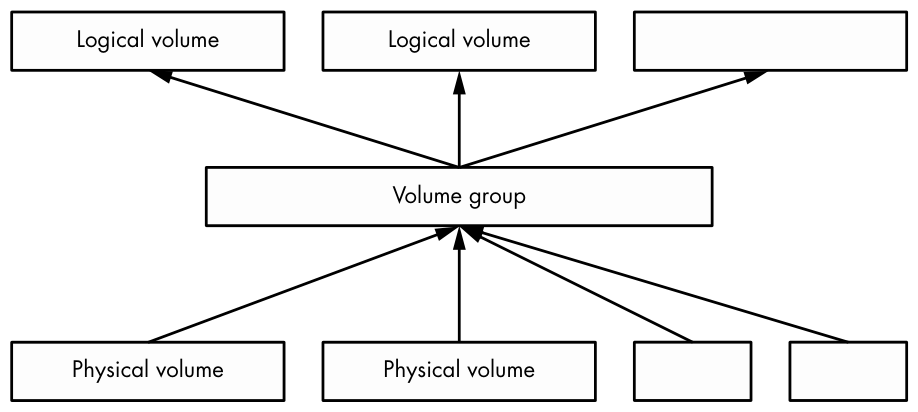
Logical volumes are just block devices, and they typically contain filesystems or swap signatures, so you can think of the relationship between a volume group and its logical volumes as similar to that of a disk and its partitions. The critical difference is that you don’t normally define how the logical volumes are laid out in the volume group—the LVM works all of this out.
The LVM allows some powerful and extremely useful operations, such as:
- Add more PVs (such as another disk) to a volume group, increasing its size.
- Remove PVs as long as there’s enough space remaining to accommodate existing logical volumes inside a volume group.
- Resize logical volumes (and as a consequence, resize filesystems with the
fsadmutility).
You can do all of this without rebooting the machine, and in most cases without unmounting any filesystems. Although adding new physical disk hardware can require a shutdown, cloud computing environments often allow you to add new block storage devices on the fly, making LVM an excellent choice for systems that need this kind of flexibility.
We’re going to explore LVM in a moderate amount of detail. First, we’ll see how to interact with and manipulate logical volumes and their components, and then we’ll take a closer look at how LVM works and the kernel driver that it’s built on. However, the discussion here is not essential to understanding the rest of the book, so if you get too bogged down, feel free to skip ahead to Chapter 5.
4.4.2 Working with LVM
LVM has a number of user-space tools for managing volumes and volume groups. Most of these are based around the lvm command, an interactive general-purpose tool. There are individual commands (which are just symbolic links to LVM) to perform specific tasks. For example, the vgs command has the same effect as typing vgs at the lvm> prompt of the interactive lvm tool, and you’ll find that vgs (usually in /sbin) is a symbolic link to lvm. We’ll use the individual commands in this book.
In the next few sections, we’ll look at the components of a system that uses logical volumes. The first examples come from a standard Ubuntu installation using the LVM partitioning option, so many of the names will contain the word Ubuntu. However, none of the technical details are specific to that distribution.
Listing and Understanding Volume Groups
The vgs command just mentioned shows the volume groups currently configured on the system. The output is fairly concise. Here’s what you might see in our example LVM installation:
# vgs
  VG        #PV #LV #SN Attr   VSize   VFree
  ubuntu-vg   1   2   0 wz--n- <10.00g 36.00m
The first line is a header, with each successive line representing a volume group. The columns are as follows:
VG The volume group name. ubuntu-vg is the generic name that the Ubuntu installer assigns when configuring a system with LVM.
#PV The number of physical volumes that the volume group’s storage comprises.
#LV The number of logical volumes inside the volume group.
#SN The number of logical volume snapshots. We won’t go into detail about these.
Attr A number of status attributes of the volume group. Here, w (writeable), z (resizable), and n (normal allocation policy) are active.
VSize The volume group size.
VFree The amount of unallocated space on the volume group.
This synopsis of a volume group is sufficient for most purposes. If you want to go a little deeper into a volume group, use the vgdisplay command, which is very useful for understanding a volume group’s properties. Here’s the same volume group with vgdisplay:
# vgdisplay
  --- Volume group ---
  VG Name               ubuntu-vg
  System ID
  Format                lvm2
  Metadata Areas        1
  Metadata Sequence No  3
  VG Access             read/write
  VG Status             resizable
  MAX LV                0
  Cur LV                2
  Open LV               2
  Max PV                0
  Cur PV                1
  Act PV                1
  VG Size               <10.00 GiB
  PE Size               4.00 MiB
  Total PE              2559
  Alloc PE / Size       2550 / 9.96 GiB
  Free  PE / Size       9 / 36.00 MiB
  VG UUID               0zs0TV-wnT5-laOy-vJ0h-rUae-YPdv-pPwaAs
You saw some of this before, but there are some new items of note:
Open LV The number of logical volumes currently in use.
Cur PV The number of physical volumes the volume group comprises.
Act LV The number of active physical volumes in the volume group.
VG UUID The volume group’s universally unique identifier. It’s possible to have more than one volume group with the same name on a system; in this case, the UUID can help you isolate a particular one. Most p. 99 LVM tools (such as vgrename, which can help you resolve a situation like this) accept the UUID as an alternative to the volume group name. Be warned that you’re about to see a lot of different UUIDs; every component of LVM has one.
A physical extent (abbreviated as PE in the vgdisplay output) is a piece of a physical volume, much like a block, but on a much larger scale. In this example, the PE size is 4MB. You can see that most of the PEs on this volume group are in use, but that’s not a cause for alarm. This is merely the amount of space on the volume group allocated for the logical partitions (in this case, a filesystem and swap space); it doesn’t reflect the actual usage within the filesystem.
Listing Logical Volumes
Similar to volume groups, the commands to list logical volumes are lvs for a short listing and lvdisplay for more detail. Here’s a sample of lvs:
# lvs
  LV     VG        Attr       LSize   Pool Origin Data%  Meta%  Move Log Cpy%Sync Convert
  root   ubuntu-vg -wi-ao----  <9.01g
  swap_1 ubuntu-vg -wi-ao---- 976.00m
On basic LVM configurations, only the first four columns are important to understand, and the remaining columns may be empty, as is the case here (we won’t cover those). The relevant columns here are:
LV The logical volume name.
VG The volume group where the logical volume resides.
Attr Attributes of the logical volume. Here, they are w (writeable), i (inherited allocation policy), a (active), and o (open). In more advanced volume group configurations, more of these slots are active—in particular, the first, seventh, and ninth.
LSize The size of the logical volume.
Running the more detailed lvdisplay helps to shed some light on where a logical volume fits into your system. Here’s the output for one of our logical volumes:
# lvdisplay /dev/ubuntu-vg/root
  --- Logical volume ---
  LV Path                /dev/ubuntu-vg/root
  LV Name                root
  VG Name                ubuntu-vg
  LV UUID                CELZaz-PWr3-tr3z-dA3P-syC7-KWsT-4YiUW2
  LV Write Access        read/write
  LV Creation host, time ubuntu, 2018-11-13 15:48:20 -0500
  LV Status              available
  # open                 1
  LV Size                <9.01 GiB
  Current LE             2306
  Segments               1
  Allocation             inherit
  Read ahead sectors     auto
  - currently set to     256
  Block device           253:0
There is a lot of interesting stuff here, and most of it is fairly self-explanatory (note that the UUID of the logical volume is different from that of its volume group). Perhaps the most important thing you haven’t seen yet is first: LV Path, the device path of the logical volume. Some systems, but not all, use this as the mount point of the filesystem or swap space (in a systemd mount unit or /etc/fstab).
Even though you can see the major and minor device numbers of the logical volume’s block device (here, 253 and 0), as well as something that looks like a device path, it’s not actually the path that the kernel uses. A quick look at /dev/ubuntu-vg/root reveals that something else is going on:
$ ls -l /dev/ubuntu-vg/root
lrwxrwxrwx 1 root root 7 Nov 14 06:58 /dev/ubuntu-vg/root -> ../dm-0
As you can see, this is just a symbolic link to /dev/dm-0. Let’s look at that briefly.
Using Logical Volume Devices
Once LVM has done its setup work on your system, logical volume block devices are available at /dev/dm-0, /dev/dm-1, and so on, and may be arranged in any order. Due to the unpredictability of these device names, LVM also creates symbolic links to the devices that have stable names based on the volume group and logical volume names. You saw this in the preceding section with /dev/ubuntu-vg/root.
There’s an additional location for symbolic links in most implementations: /dev/mapper. The name format here is also based on the volume group and logical volume, but there’s no directory hierarchy; instead, the links have names like ubuntu--vg-root. Here, udev has transformed the single dash in the volume group into a double dash, and then separated the volume group and logical volume names with a single dash.
Many systems use the links in /dev/mapper in their /etc/fstab, systemd, and boot loader configurations in order to point the system to the logical volumes used for filesystems and swap space.
In any case, these symbolic links point to block devices for the logical volumes, and you can interact with them just as you would any other block device: create filesystems, create swap partitions, and so on.
If you take a look around /dev/mapper, you’ll also see a file named control. You might be wondering about that file, as well as why the real block device files begin with dm-; does this coincide with /dev/mapper somehow? We’ll address these questions at the end of this chapter.
Working with Physical Volumes
The final major piece of LVM to examine is the physical volume (PV). A volume group is built from one or more PVs. Although a PV may seem like a straightforward part of the LVM system, it contains a little more information than meets the eye. Much like volume groups and logical volumes, the LVM commands to view PVs are pvs (for a short list) and pvdisplay (for a more in-depth view). Here’s the pvs display for our example system:
# pvs
  PV         VG        Fmt  Attr PSize   PFree
  /dev/sda1  ubuntu-vg lvm2 a--  <10.00g 36.00m
And here’s pvdisplay:
# pvdisplay
  --- Physical volume ---
  PV Name               /dev/sda1
  VG Name               ubuntu-vg
  PV Size               <10.00 GiB / not usable 2.00 MiB
  Allocatable           yes
  PE Size               4.00 MiB
  Total PE              2559
  Free PE               9
  Allocated PE          2550
  PV UUID               v2Qb1A-XC2e-2G4l-NdgJ-lnan-rjm5-47eMe5
From the previous discussion of volume groups and logical volumes, you should understand most of this output. Here are some notes:
- There’s no special name for the PV other than the block device. There’s no need for one—all of the names required to reference a logical volume are at the volume group level and above. However, the PV does have a UUID, which is required to compose a volume group.
- In this case, the number of PEs matches the usage in the volume group (which we saw earlier), because this is the only PV in the group.
- There’s a tiny amount of space that LVM labels as not usable because it’s not enough to fill a full PE.
- The
ain the attributes of thepvsoutput corresponds toAllocatablein thepvdisplayoutput, and it simply means that if you want to allocate space for a logical volume in the volume group, LVM can choose to use this PV. However, in this case, there are only nine unallocated PEs (a total of 36MB), so not much is available for new logical volumes.
As alluded to earlier, PVs contain more than just information about their own individual contribution to a volume group. Each PV contains physical volume metadata, extensive information about its volume group and its logical volumes. We’ll explore PV metadata shortly, but first let’s get some hands-on experience to see how what we’ve learned fits together.
Constructing a Logical Volume System
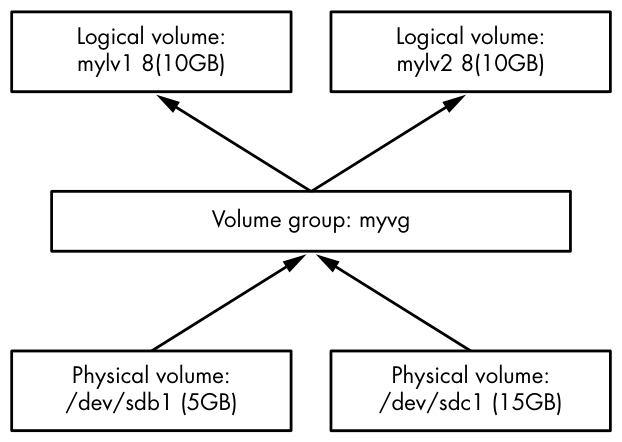
Let’s look at an example of how to create a new volume group and some logical volumes out of two disk devices. We’ll combine two disk devices of 5GB and 15GB into a volume group and then divide this space into two logical volumes of 10GB each—a nearly impossible task without LVM. The example shown here uses VirtualBox disks. Although the capacities are quite small on any contemporary system, they suffice for illustration.
Figure 4-5 shows the volume schematic. The new disks are at /dev/sdb and /dev/sdc, the new volume group will be called myvg, and the two new logical volumes are called mylv1 and mylv2.
The first task is to create a single partition on each of these disks and label it for LVM. Do this with a partitioning program (see Section 4.1.2), using the partition type ID 8e, so that the partition tables look like this:
# parted /dev/sdb print
Model: ATA VBOX HARDDISK (scsi)
Disk /dev/sdb: 5616MB
Sector size (logical/physical): 512B/512B
Partition Table: msdos
Disk Flags:

Number  Start   End     Size    Type     File system  Flags
 1      1049kB  5616MB  5615MB  primary               lvm
# parted /dev/sdc print
Model: ATA VBOX HARDDISK (scsi)
Disk /dev/sdc: 16.0GB
Sector size (logical/physical): 512B/512B
Partition Table: msdos
Disk Flags:

Number  Start   End     Size    Type     File system  Flags
 1      1049kB  16.0GB  16.0GB  primary               lvm
You don’t necessarily need to partition a disk to make it a PV. PVs can be any block device, even entire-disk devices, such as /dev/sdb. However, partitioning enables booting from the disk, and it also provides a means of identifying the block devices as LVM physical volumes.
Creating Physical Volumes and a Volume Group
With the new partitions of /dev/sdb1 and /dev/sdc1 in hand, the first step with LVM is to designate one of the partitions as a PV and assign it to a new volume group. A single command, vgcreate, performs this task. Here’s how to create a volume group called myvg with /dev/sdb1 as the initial PV:
# vgcreate myvg /dev/sdb1
  Physical volume "/dev/sdb1" successfully created.
  Volume group "myvg" successfully created
You can also create a PV first in a separate step with the pvcreate command. However, vgcreate performs this step on a partition if nothing is currently present.
At this point, most systems automatically detect the new volume group; run a command such as vgs to verify (keeping in mind that there may be existing volume groups on your system that show up in addition to the one you just created):
# vgs
  VG   #PV #LV #SN Attr   VSize  VFree
  myvg   1   0   0 wz--n- <5.23g <5.23g
If you don’t see the new volume group, try running pvscan first. If your system doesn’t automatically detect changes to LVM, you’ll need to run pvscan every time you make a change.
Now you can add your second PV at /dev/sdc1 to the volume group with the vgextend command:
# vgextend myvg /dev/sdc1
  Physical volume "/dev/sdc1" successfully created.
  Volume group "myvg" successfully extended
Running vgs now shows two PVs, and the size is that of the two partitions combined:
# vgs
  VG    #PV #LV #SN Attr   VSize   VFree
  my-vg   2   0   0 wz--n- <20.16g <20.16g
Creating Logical Volumes
The final step at the block device level is to create the logical volumes. As mentioned before, we’re going to create two logical volumes of 10GB each, but feel free to experiment with other possibilities, such as one big logical volume or multiple smaller ones.
The lvcreate command allocates a new logical volume in a volume group. The only real complexities in creating simple logical volumes are determining the sizes when there is more than one per volume group, and specifying the type of logical volume. Remember that PVs are divided into extents; the number of PEs available may not quite line up with your desired size. However, it should be close enough so that it doesn’t present a concern, so if this your first time working with the LVM, you don’t really have to pay attention to PEs.
When using lvcreate, you can specify a logical volume’s size by numeric capacity in bytes with the --size option or by number of PEs with the --extents option.
So, to see how this works, and to complete the LVM schematic in Figure 4-5, we’ll create logical volumes named mylv1 and mylv2 using --size:
# lvcreate --size 10g --type linear -n mylv1 myvg
  Logical volume "mylv1" created.
# lvcreate --size 10g --type linear -n mylv2 myvg
  Logical volume "mylv2" created.
The type here is the linear mapping, the simplest type when you don’t need redundancy or any other special features (we won’t work with any other types in this book). In this case, --type linear is optional because it’s the default mapping.
After running these commands, verify that the logical volumes exist with an lvs command, and then take a closer look at the current state of the volume group with vgdisplay:
# vgdisplay myvg
  --- Volume group ---
  VG Name               myvg
  System ID
  Format                lvm2
  Metadata Areas        2
  Metadata Sequence No  4
  VG Access             read/write
  VG Status             resizable
  MAX LV                0
  Cur LV                2
  Open LV               0
  Max PV                0
  Cur PV                2
  Act PV                2
  VG Size               20.16 GiB
  PE Size               4.00 MiB
  Total PE              5162
  Alloc PE / Size       5120 / 20.00 GiB
  Free  PE / Size       42 / 168.00 MiB
  VG UUID               1pHrOe-e5zy-TUtK-5gnN-SpDY-shM8-Cbokf3
Notice how there are 42 free PEs because the sizes that we chose for the logical volumes didn’t quite take up all of the available extents in the volume group.
Manipulating Logical Volumes: Creating Partitions
With the new logical volumes available, you can now make use of them by putting filesystems on the devices and mounting them just like any normal disk partition. As mentioned earlier, there will be symbolic links to the devices in /dev/mapper and (for this case) a /dev/myvg directory for the volume group. So, for example, you might run the following three commands to create a filesystem, mount it temporarily, and see how much actual space you have on a logical volume:
# mkfs -t ext4 /dev/mapper/myvg-mylv1
mke2fs 1.44.1 (24-Mar-2018)
Creating filesystem with 2621440 4k blocks and 655360 inodes
Filesystem UUID: 83cc4119-625c-49d1-88c4-e2359a15a887
Superblock backups stored on blocks:
        32768, 98304, 163840, 229376, 294912, 819200, 884736, 1605632
Allocating group tables: done
Writing inode tables: done
Creating journal (16384 blocks): done
Writing superblocks and filesystem accounting information: done
# mount /dev/mapper/myvg-mylv1 /mnt
# df /mnt
Filesystem             1K-blocks  Used Available Use% Mounted on
/dev/mapper/myvg-mylv1  10255636 36888   9678076   1% /mnt
Removing Logical Volumes
We haven’t yet looked at any operations on the other logical volume, mylv2, so let’s use it to make this example more interesting. Say you find you’re not really using that second logical volume. You decide to remove it and resize the first logical volume to take over the remaining space on the volume group. Figure 4-6 shows our goal.
Assuming you’ve already moved or backed up anything important on the logical volume you’re going to delete, and that it’s not in current system use (that is, you’ve unmounted it), first remove it with lvremove. When manipulating logical volumes with this command, you’ll refer to them using a different syntax—by separating the volume group and logical volume names by a slash (myvg/mylv2):
# lvremove myvg/mylv2
Do you really want to remove and DISCARD active logical volume myvg/mylv2?
[y/n]: y
  Logical volume "mylv2" successfully removed
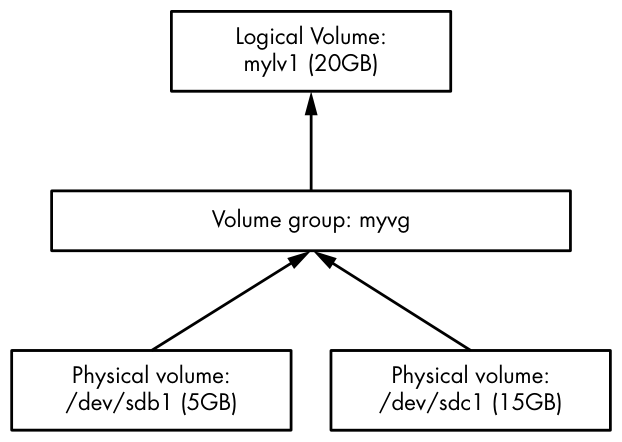
Be careful when you run lvremove. Because you haven’t used this syntax with the other LVM commands you’ve seen so far, you might accidentally use a space instead of the slash. If you make that mistake in this particular case, lvremove assumes that you want to remove all of the logical volumes on the volume groups myvg and mylv2. (You almost certainly don’t have a volume group named mylv2, but that’s not your biggest problem at the moment.) So, if you’re not paying attention, you could remove all of the logical volumes on a volume group, not just one.
As you can see from this interaction, lvremove tries to protect you from blunders by double-checking that you really want to remove each logical volume targeted for removal. It also won’t try to remove a volume that’s in use. But don’t just assume that you should reply y to any question you’re asked.
Resizing Logical Volumes and Filesystems
Now you can resize the first logical volume, mylv1. You can do this even when the volume is in use and its filesystem is mounted. However, it’s important to understand that there are two steps. To use your larger logical volume, you need to resize both it and the filesystem inside it (which you can also do while it’s mounted). But because this is such a common operation, the lvresize command that resizes a logical volume has an option (-r) to perform the filesystem resizing for you also.
For illustration only, let’s use two separate commands to see how this works. There are several ways to specify the change in size to a logical volume, but in this case, the most straightforward method is to add all of the free PEs in the volume group to the logical volume. Recall that you can find that number with vgdisplay; in our running example, it’s 2,602. Here’s the lvresize command to add all of those to mylv1:
# lvresize -l +2602 myvg/mylv1
  Size of logical volume myvg/mylv1 changed from 10.00 GiB (2560 extents) to
20.16 GiB (5162 extents).
  Logical volume myvg/mylv1 successfully resized.
Now you need to resize the filesystem inside. You can do this with the fsadm command. It’s fun to watch it work in verbose mode (use the -v option):
# fsadm -v resize /dev/mapper/myvg-mylv1
fsadm: "ext4" filesystem found on "/dev/mapper/myvg-mylv1".
fsadm: Device "/dev/mapper/myvg-mylv1" size is 21650997248 bytes
fsadm: Parsing tune2fs -l "/dev/mapper/myvg-mylv1"
fsadm: Resizing filesystem on device "/dev/mapper/myvg-mylv1" to 21650997248
bytes (2621440 -> 5285888 blocks of 4096 bytes)
fsadm: Executing resize2fs /dev/mapper/myvg-mylv1 5285888
resize2fs 1.44.1 (24-Mar-2018)
Filesystem at /dev/mapper/myvg-mylv1 is mounted on /mnt; on-line resizing
required
old_desc_blocks = 2, new_desc_blocks = 3
The filesystem on /dev/mapper/myvg-mylv1 is now 5285888 (4k) blocks long.
As you can see from the output, fsadm is just a script that knows how to transform its arguments into the ones used by filesystem-specific tools like resize2fs. By default, if you don’t specify a size, it’ll simply resize to fit the entire device.
Now that you’ve seen the details of resizing volumes, you’re probably looking for shortcuts. The much simpler approach is to use a different syntax for the size and have lvresize perform the partition resizing for you, with this single command:
# lvresize -r -l +100%FREE myvg/mylv1
It’s rather nice that you can expand an ext2/ext3/ext4 filesystem while it’s mounted. Unfortunately, it doesn’t work in reverse. You cannot shrink a filesystem when it’s mounted. Not only must you unmount the filesystem, but the process of shrinking a logical volume requires you to do the steps in reverse. So, when resizing manually, you’d need to resize the partition before the logical volume, making sure that the new logical volume is still big enough to contain the filesystem. Again, it’s much easier to use lvresize with the -r option so that it can coordinate the filesystem and logical volume sizes for you.
4.4.3 The LVM Implementation
With the more practical operational basics of LVM covered, we can now take a brief look at its implementation. As with almost every other topic in this book, LVM contains a number of layers and components, with a fairly careful separation between the parts in kernel and user space.
As you’ll see soon, finding PVs to discover the structure of the volume groups and logical volumes is somewhat complicated, and the Linux kernel would rather not deal with any of it. There’s no reason for any of this to happen in kernel space; PVs are just block devices, and user space has random access to block devices. In fact, LVM (more specifically, LVM2 in current systems) itself is just the name for a suite of user-space utilities that know the LVM structure.
On the other hand, the kernel handles the work of routing a request for a location on a logical volume’s block device to the true location on an actual device. The driver for this is the device mapper (sometimes shortened to devmapper), a new layer sandwiched between normal block devices and the filesystem. As the name suggests, the task the device mapper performs is like following a map; you can almost think of it as translating a street address into an absolute location like global latitude/longitude coordinates. (It’s a form of virtualization; the virtual memory we’ll see elsewhere in the book works on a similar concept.)
There’s some glue between LVM user-space tools and the device mapper: a few utilities that run in user space to manage the device map in the kernel. Let’s look at both the LVM side and the kernel side, starting with LVM.
LVM Utilities and Scanning for Physical Volumes
Before it does anything, an LVM utility must first scan the available block devices to look for PVs. The steps that LVM must perform in user space are roughly as follows:
- Find all of the PVs on the system.
- Find all of the volume groups that the PVs belong to by UUID (this information is contained in the PVs).
- Verify that everything is complete (that is, all necessary PVs that belong to the volume group are present).
- Find all of the logical volumes in the volume groups.
- Figure out the scheme for mapping data from the PVs to the logical volumes.
There’s a header at the beginning of every PV that identifies the volume as well as its volume groups and the logical volumes within. The LVM utilities can put this information together and determine whether all PVs necessary for a volume group (and its logical volumes) are present. If everything checks out, LVM can work on getting the information to the kernel.
If you’re interested in the appearance of the LVM header on a PV, you can run a command such as this:
# dd if=/dev/sdb1 count=1000 | strings | less
In this case, we’re using /dev/sdb1 as the PV. Don’t expect the output to be very pretty, but it does show the information required for LVM.
Any LVM utility, such as pvscan, lvs, or vgcreate, is capable of performing the work of scanning and processing PVs.
The Device Mapper
After LVM has determined the structure of the logical volumes from all of the headers on the PVs, it communicates with the kernel’s device mapper p. 109 driver in order to initialize the block devices for the logical volumes and load their mapping tables. It achieves this with the ioctl(2) system call (a commonly used kernel interface) on the /dev/mapper/control device file. It’s not really practical to try to monitor this interaction, but it’s possible to look at the details of the results with the dmsetup command.
To get an inventory of mapped devices currently serviced by the device mapper, use dmsetup info. Here’s what you might get for one of the logical volumes created earlier in this chapter:
# dmsetup info
Name:              myvg-mylv1
State:             ACTIVE
Read Ahead:        256
Tables present:    LIVE
Open count:        0
Event number:      0
Major, minor:      253, 1
Number of targets: 2
UUID: LVM-1pHrOee5zyTUtK5gnNSpDYshM8Cbokf3OfwX4T0w2XncjGrwct7nwGhpp7l7J5aQ
The major and minor number of the device correspond to the /dev/dm-* device file for the mapped device; the major number for this device mapper is 253. Because the minor number is 1, the device file is named /dev/dm-1. Notice that the kernel has a name and yet another UUID for the mapped device. LVM supplied these to the kernel (the kernel UUID is just a concatenation of the volume group and logical volume UUIDs).
Remember the symbolic links such as /dev/mapper/myvg-mylv1? udev creates those in response to new devices from the device mapper, using a rules file like we saw in Section 3.5.2.
You can also view the table that LVM gave to the device mapper, by issuing the command dmsetup table. Here’s what that looks like for our earlier example when there were two 10GB logical volumes (mylv1 and mylv2) spread across the two physical volumes of 5GB (/dev/sdb1) and 15GB (/dev/sdc1):
# dmsetup table
myvg-mylv2: 0 10960896 linear 8:17 2048
myvg-mylv2: 10960896 10010624 linear 8:33 20973568
myvg-mylv1: 0 20971520 linear 8:33 2048
Each line provides a segment of the map for a given mapped device. For the device myvg-mylv2, there are two pieces, and for myvg-mylv1, there’s a single one. The fields after the name, in order, are:
- The start offset of the mapped device. The units are in 512-byte “sectors,” or the normal block size that you see in many other devices.
- The length of this segment.
- The mapping scheme. Here, it’s the simple one-to-one linear scheme. p. 110
- The major and minor device number pair of a source device—that is, what LVM calls physical volumes. Here 8:17 is /dev/sdb1 and 8:33 is /dev/sdc1.
- A starting offset on the source device.
What’s interesting here is that in our example, LVM chose to use the space in /dev/sdc1 for the first logical volume that we created (mylv1). LVM decided that it wanted to lay out the first 10GB logical volume in a contiguous manner, and the only way to do that was on /dev/sdc1. However, when creating the second logical volume (mylv2), LVM had no choice but to spread it into two segments across the two PVs. Figure 4-7 shows the arrangement.
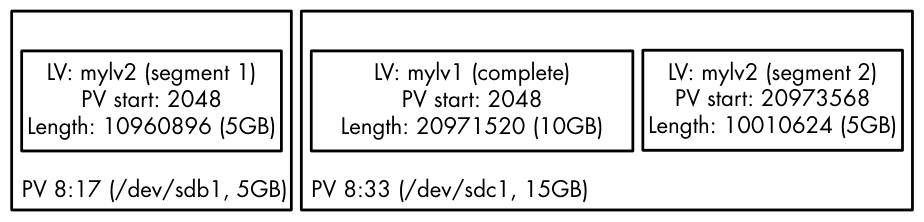
mylv1 and mylv2As a further consequence, when we removed mylv2 and expanded mylv1 to fit the remaining space in the volume group, the original start offset in the PV remained where it was on /dev/sdc1, but everything else changed to include the remainder of the PVs:
# dmsetup table
myvg-mylv1: 0 31326208 linear 8:33 2048
myvg-mylv1: 31326208 10960896 linear 8:17 2048
Figure 4-8 shows the arrangement.
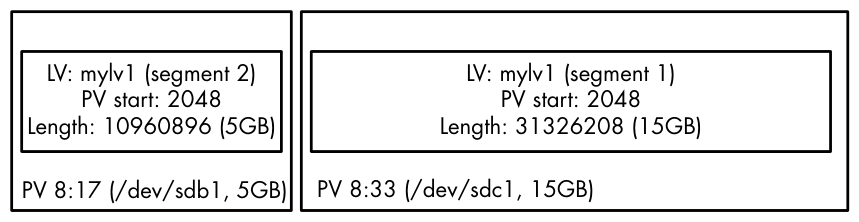
mylv2 and expand mylv1You can experiment with logical volumes and the device mapper to your heart’s content with virtual machines and see how the mappings turn out. Many features, such as software RAID and encrypted disks, are built on the device mapper.
4.5 Looking Forward: Disks and User Space
In disk-related components on a Unix system, the boundaries between user space and the kernel can be difficult to characterize. As you’ve seen, the kernel handles raw block I/O from the devices, and user-space tools can use the block I/O through device files. However, user space typically uses the block I/O only for initializing operations, such as partitioning, filesystem creation, and swap space creation. In normal use, user space uses only the filesystem support that the kernel provides on top of the block I/O. Similarly, the kernel also handles most of the tedious details when dealing with swap space in the virtual memory system.
The remainder of this chapter briefly looks at the innards of a Linux filesystem. This is more advanced material, and you certainly don’t need to know it to proceed with the book. If this is your first time through, skip to the next chapter and start learning about how Linux boots.
4.6 Inside a Traditional Filesystem
A traditional Unix filesystem has two primary components: a pool of data blocks where you can store data and a database system that manages the data pool. The database is centered around the inode data structure. An inode is a set of data that describes a particular file, including its type, permissions, and—perhaps most important—where in the data pool the file data resides. Inodes are identified by numbers listed in an inode table.
Filenames and directories are also implemented as inodes. A directory inode contains a list of filenames and links corresponding to other inodes.
To provide a real-life example, I created a new filesystem, mounted it, and changed the directory to the mount point. Then, I added some files and directories with these commands:
$ mkdir dir_1
$ mkdir dir_2
$ echo a > dir_1/file_1
$ echo b > dir_1/file_2
$ echo c > dir_1/file_3
$ echo d > dir_2/file_4
$ ln dir_1/file_3 dir_2/file_5
Note that I created dir_2/file_5 as a hard link to dir_1/file_3, meaning that these two filenames actually represent the same file (more on this shortly). Feel free to try this yourself. It doesn’t necessarily need to be on a new filesystem.
If you were to explore the directories in this filesystem, its contents would appear as shown in Figure 4-9.
If you try this on your own system, the inode numbers will probably be different, especially if you run the commands to create the files and directories on an existing filesystem. The specific numbers aren’t important; it’s all about the data that they point to.
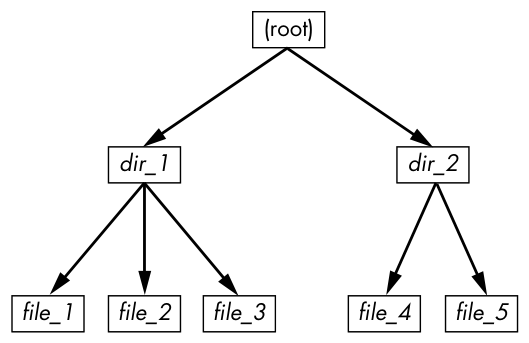
The actual layout of the filesystem as a set of inodes, shown in Figure 4-10, doesn’t look nearly as clean as the user-level representation.
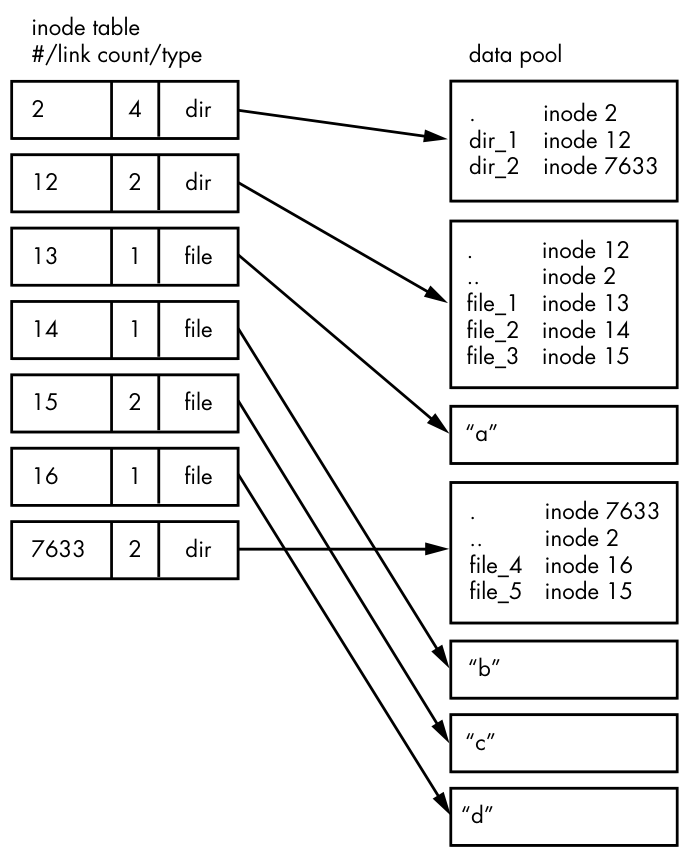
How do we make sense of this? For any ext2/3/4 filesystem, you start at inode number 2, which is the root inode (try not to confuse this with the system root filesystem). From the inode table in Figure 4-10, you can see that this is a directory inode (dir), so you can follow the arrow over to the data pool, where you see the contents of the root directory: two entries p. 113 named dir_1 and dir_2 corresponding to inodes 12 and 7633, respectively. To explore those entries, go back to the inode table and look at either of those inodes.
To examine dir_1/file_2 in this filesystem, the kernel does the following:
- Determines the path’s components: a directory named dir_1, followed by a component named file_2.
- Follows the root inode to its directory data.
- Finds the name dir_1 in inode 2’s directory data, which points to inode number 12.
- Looks up inode 12 in the inode table and verifies that it is a directory inode.
- Follows inode 12’s data link to its directory information (the second box down in the data pool).
- Locates the second component of the path (file_2) in inode 12’s directory data. This entry points to inode number 14.
- Looks up inode 14 in the directory table. This is a file inode.
At this point, the kernel knows the properties of the file and can open it by following inode 14’s data link.
This system, of inodes pointing to directory data structures and directory data structures pointing to inodes, allows you to create the filesystem hierarchy that you’re used to. In addition, notice that the directory inodes contain entries for . (the current directory) and .. (the parent directory, except for the root directory). This makes it easy to get a point of reference and to navigate back down the directory structure.
4.6.1 Inode Details and the Link Count
To view the inode numbers for any directory, use the ls -i command. Here’s what you’d get at the root of this example (for more detailed inode information, use the stat command):
$ ls -i
  12 dir_1  7633 dir_2
You’re probably wondering about the link count in the inode table. You’ve already seen the link count in the output of the common ls -l command, but you likely ignored it. How does the link count relate to the files in Figure 4-9, in particular the “hard-linked” file_5? The link count field is the number of total directory entries (across all directories) that point to an inode. Most of the files have a link count of 1 because they occur only once in the directory entries. This is expected. Most of the time when you create a file, you create a new directory entry and a new inode to go with it. However, inode 15 occurs twice. First it’s created as dir_1/file_3, and then it’s linked to as dir_2/file_5. A hard link is just a manually created entry in a directory to an inode that already exists. The ln command (without the -s option) allows you to create new hard links manually.
This is also why removing a file is sometimes called unlinking. If you run rm dir_1/file_2, the kernel searches for an entry named file_2 in inode 12’s directory entries. Upon finding that file_2 corresponds to inode 14, the kernel removes the directory entry and then subtracts 1 from inode 14’s link count. As a result, inode 14’s link count will be 0, and the kernel will know that there are no longer any names linking to the inode. Therefore, it can now delete the inode and any data associated with it.
However, if you run rm dir_1/file_3, the end result is that the link count of inode 15 goes from 2 to 1 (because dir_2/file_5 still points there), and the kernel knows not to remove the inode.
Link counts work much the same for directories. Note that inode 12’s link count is 2, because there are two inode links there: one for dir_1 in the directory entries for inode 2 and the second a self-reference (.) in its own directory entries. If you create a new directory dir_1/dir_3, the link count for inode 12 would go to 3 because the new directory would include a parent (..) entry that links back to inode 12, much as inode 12’s parent link points to inode 2.
There is one small exception in link counts. The root inode 2 has a link count of 4. However, Figure 4-10 shows only three directory entry links. The “fourth” link is in the filesystem’s superblock because the superblock tells you where to find the root inode.
Don’t be afraid to experiment on your system. Creating a directory structure and then using ls -i or stat to walk through the pieces is harmless. You don’t need to be root (unless you mount and create a new filesystem).
4.6.2 Block Allocation
There’s still one piece missing from our discussion. When allocating data pool blocks for a new file, how does the filesystem know which blocks are in use and which are available? One of the most basic ways is to use an additional management data structure called a block bitmap. In this scheme, the filesystem reserves a series of bytes, with each bit corresponding to one block in the data pool. A value of 0 means that the block is free, and a 1 means that it’s in use. Thus, allocating and deallocating blocks is a matter of flipping bits.
Problems in a filesystem arise when the inode table data doesn’t match the block allocation data or when the link counts are incorrect; for example, this can happen when you don’t cleanly shut down a system. Therefore, when you check a filesystem, as described in Section 4.2.11, the fsck program walks through the inode table and directory structure to generate new link counts and a new block allocation map (such as the block bitmap), and then it compares the newly generated data with the filesystem on the disk. If there are mismatches, fsck must fix the link counts and determine what to do with any inodes and/or data that didn’t come up when it traversed the directory structure. Most fsck programs make these “orphans” new files in the filesystem’s lost+found directory.
4.6.3 Working with Filesystems in User Space
When working with files and directories in user space, you shouldn’t have to worry much about the implementation going on below them. Processes are expected to access the contents of files and directories of a mounted filesystem through kernel system calls. Curiously, though, you do have access to certain filesystem information that doesn’t seem to fit in user space—in particular, the stat() system call returns inode numbers and link counts.
When you’re not maintaining a filesystem, do you have to worry about inode numbers, link counts, and other implementation details? Generally, no. This stuff is accessible to user-mode programs primarily for backward compatibility. Furthermore, not all filesystems available in Linux have these filesystem internals. The VFS interface layer ensures that system calls always return inode numbers and link counts, but those numbers may not necessarily mean anything.
You may not be able to perform traditional Unix filesystem operations on nontraditional filesystems. For example, you can’t use ln to create a hard link on a mounted VFAT filesystem because its directory entry structure, designed for Windows rather than Unix/Linux, does not support that concept.
Fortunately, the system calls available to user space on Linux systems provide enough abstraction for painless file access—you don’t need to know anything about the underlying implementation in order to access files. In addition, filenames are flexible in format and mixed-case names are supported, making it easy to support other hierarchical-style filesystems.
Remember, specific filesystem support does not necessarily need to be in the kernel. For example, in user-space filesystems, the kernel only needs to act as a conduit for system calls.