4.1 Partitioning Disk Devices
There are many kinds of partition tables. There’s nothing special about a partition table—it’s just a bunch of data that says how the blocks on the disk are divided.
The traditional table, dating back to the PC days, is the one found inside the Master Boot Record (MBR), and it has many limitations. Most newer systems use the Globally Unique Identifier Partition Table (GPT).
Here are a few of the many Linux partitioning tools:
parted (“partition editor”) A text-based tool that supports both MBR and GPT.
gparted A graphical version of parted.
fdisk The traditional text-based Linux disk partitioning tool. Recent versions of fdisk support the MBR, GPT, and many other kinds of partition tables, but older versions were limited to MBR support.
Because it has supported both the MBR and GPT for some time, and it’s easy to run single commands to get partition labels, we’ll use parted to display partition tables. However, when creating and altering partition tables, we’ll use fdisk. This will illustrate both interfaces, and why many people prefer the fdisk interface due to its interactive nature and the fact that it doesn’t make any changes to the disk until you’ve had a chance to review them (we’ll discuss this shortly).
There’s a critical difference between partitioning and filesystem manipulation: the partition table defines simple boundaries on the disk, whereas a filesystem is a much more involved data system. For this reason, we’ll use separate tools for partitioning and creating filesystems (see Section 4.2.2).
4.1.1 Viewing a Partition Table
You can view your system’s partition table with parted -l. This sample output shows two disk devices with two different kinds of partition tables:
# parted -l
Model: ATA KINGSTON SM2280S (scsi)
❶ Disk /dev/sda: 240GB
Sector size (logical/physical): 512B/512B
Partition Table: msdos
Disk Flags:

Number  Start   End    Size    Type      File system     Flags
 1      1049kB  223GB  223GB   primary   ext4            boot
 2      223GB   240GB  17.0GB  extended
 5      223GB   240GB  17.0GB  logical   linux-swap(v1)

Model: Generic Flash Disk (scsi)
❷ Disk /dev/sdf: 4284MB
Sector size (logical/physical): 512B/512B
Partition Table: gpt
Disk Flags:

Number  Start   End     Size    File system  Name      Flags
 1      1049kB  1050MB  1049MB               myfirst
 2      1050MB  4284MB  3235MB               mysecond
The first device (/dev/sda) ❶ uses the traditional MBR partition table (which parted calls msdos), and the second (/dev/sdf) ❷ contains a GPT. Notice that the two table types store different sets of parameters. In particular, the MBR table has no Name column because names don’t exist under that scheme. (I arbitrarily chose the names myfirst and mysecond in the GPT.)
Watch out for the unit sizes when reading partition tables. The parted output shows an approximated size based on what parted thinks is easiest to read. On the other hand, fdisk -l shows an exact number, but in most cases, the units are 512-byte “sectors,” which can be confusing because it might look like you’ve doubled the actual sizes of your disk and partitions. A close look at the fdisk partition table view also reveals the sector size information.
MBR Basics
The MBR table in this example contains primary, extended, and logical partitions. A primary partition is a normal subdivision of the disk; partition 1 is an example. The basic MBR has a limit of four primary partitions, so if you want more than four, you must designate one as an extended partition. An extended partition breaks down into logical partitions, which the operating system can then use as it would any other partition. In this example, partition 2 is an extended partition that contains logical partition 5.
The filesystem type that parted lists is not necessarily the same as the system ID field in its MBR entries. The MBR system ID is just a number identifying the partition type; for example, 83 is a Linux partition and 82 is a Linux swap partition. However, parted attempts to be more informative by determining on its own what kind of filesystem is on that partition. If you absolutely must know the system ID for an MBR, use fdisk -l.
LVM Partitions: A Sneak Peek
When viewing your partition table, if you see partitions labeled as LVM (code 8e as the partition type), devices named /dev/dm-*, or references to the “device mapper,” then your system uses LVM. Our discussion will start with traditional direct disk partitioning, which will look slightly different from what’s on a system using LVM.
Just so you know what to expect, let’s take a quick look at some sample parted -l output on a system with LVM (a fresh installation of Ubuntu using LVM on VirtualBox). First, there’s a description of the actual partition table, which looks mostly as you’d expect, except for the lvm flag:
Model: ATA VBOX HARDDISK (scsi)
Disk /dev/sda: 10.7GB
Sector size (logical/physical): 512B/512B
Partition Table: msdos
Disk Flags:

Number  Start   End     Size    Type     File system  Flags
 1      1049kB  10.7GB  10.7GB  primary               boot, lvm
Then there are some devices that look like they should be partitions, but are called disks:
Model: Linux device-mapper (linear) (dm)
Disk /dev/mapper/ubuntu--vg-swap_1: 1023MB
Sector size (logical/physical): 512B/512B
Partition Table: loop
Disk Flags:

Number  Start  End     Size    File system     Flags
 1      0.00B  1023MB  1023MB  linux-swap(v1)

Model: Linux device-mapper (linear) (dm)
Disk /dev/mapper/ubuntu--vg-root: 9672MB
Sector size (logical/physical): 512B/512B
Partition Table: loop
Disk Flags:

Number  Start  End     Size    File system  Flags
 1      0.00B  9672MB  9672MB  ext4
A simple way to think about this is that the partitions have been somehow separated from the partition table. You’ll see what’s actually going on in Section 4.4.
You’ll get much less detailed output with fdisk -l; in the preceding case, you won’t see anything beyond one LVM-labeled physical partition.
Initial Kernel Read
When initially reading the MBR table, the Linux kernel produces debugging output like this (remember that you can view this with journalctl -k):
sda: sda1 sda2 < sda5 >
The sda2 < sda5 > portion of the output indicates that /dev/sda2 is an extended partition containing one logical partition, /dev/sda5. You’ll normally ignore the extended partition itself because you typically care only about accessing the logical partitions it contains.
4.1.2 Modifying Partition Tables
Viewing partition tables is a relatively simple and harmless operation. Altering partition tables is also relatively easy, but making this kind of change to the disk involves risks. Keep the following in mind:
- Changing the partition table makes it quite difficult to recover any data on partitions that you delete or redefine, because doing so can erase the location of the filesystems on those partitions. Make sure you have a backup if the disk you’re partitioning contains critical data.
- Ensure that no partitions on your target disk are currently in use. This is a concern because most Linux distributions automatically mount any detected filesystem. (See Section 4.2.3 for more on mounting and unmounting.)
When you’re ready, choose your partitioning program. If you’d like to use parted, you can use the command-line parted utility or a graphical interface, such as gparted; fdisk is fairly easy to work with on the command line. These utilities all have online help and are easy to learn. (Try using them on a flash device or something similar if you don’t have any spare disks.)
That said, there is a major difference in the way that fdisk and parted work. With fdisk, you design your new partition table before making the actual changes to the disk, and it makes the changes only when you exit the program. But with parted, partitions are created, modified, and removed as you issue the commands. You don’t get the chance to review the partition table before you change it.
These differences are also key to understanding how the two utilities interact with the kernel. Both fdisk and parted modify the partitions entirely in user space; there’s no need to provide kernel support for rewriting a partition table, because user space can read and modify all of a block device.
At some point, though, the kernel must read the partition table in order to present the partitions as block devices so you can use them. The fdisk utility uses a relatively simple method. After modifying the partition table, fdisk issues a single system call to tell the kernel that it should reread the disk’s partition table (you’ll see an example of how to interact with fdisk shortly). The kernel then generates debugging output, which you can view with journalctl -k. For example, if you create two partitions on /dev/sdf, you’ll see this:
sdf: sdf1 sdf2
The parted tools do not use this disk-wide system call; instead, they signal the kernel when individual partitions are altered. After processing a single partition change, the kernel does not produce the preceding debugging output.
There are a few ways to see the partition changes:
- Use
udevadmto watch the kernel event changes. For example, the commandudevadm monitor --kernelwill show the old partition devices being removed and the new ones being added. - Check /proc/partitions for full partition information.
- Check /sys/block/device/ for altered partition system interfaces or /dev for altered partition devices.
If you absolutely must confirm your modifications to a partition table, you can use the blockdev command to perform the old-style system call that fdisk issues. For example, to force the kernel to reload the partition table on /dev/sdf, run this:
# blockdev --rereadpt /dev/sdf
4.1.3 Creating a Partition Table
Let’s apply everything you just learned by creating a new partition table on a new, empty disk. This example shows the following scenario:
- 4GB disk (a small USB flash device, unused; if you want to follow this example, use any size device that you have at hand)
- MBR-style partition table
- Two partitions intended to be populated with an ext4 filesystem: 200MB and 3.8GB
- Disk device at /dev/sdd; you’ll need to find your own device location with
lsblk
You’ll use fdisk to do the work. Recall that this is an interactive command, so after ensuring that nothing on the disk is mounted, you’ll start at the command prompt with the device name:
# fdisk /dev/sdd
You’ll get an introductory message and then a command prompt like this:
Command (m for help):
First, print the current table with the p command (fdisk commands are rather terse). Your interaction will probably look something like this:
Command (m for help): p
Disk /dev/sdd: 4 GiB, 4284481536 bytes, 8368128 sectors
Units: sectors of 1 * 512 = 512 bytes
Sector size (logical/physical): 512 bytes / 512 bytes
I/O size (minimum/optimal): 512 bytes / 512 bytes
Disklabel type: dos
Disk identifier: 0x88f290cc

Device     Boot Start     End Sectors Size Id Type
/dev/sdd1        2048 8368127 8366080   4G  c W95 FAT32 (LBA)
Most devices already contain one FAT-style partition, like this one at /dev/sdd1. Because you want to create new partitions for Linux (and, of course, you’re sure you don’t need anything here), you can delete the existing ones like so:
Command (m for help): d
Selected partition 1
Partition 1 has been deleted.
Remember that fdisk doesn’t make changes until you explicitly write the partition table, so you haven’t yet modified the disk. If you make a mistake you can’t recover from, use the q command to quit fdisk without writing the changes.
Now you’ll create the first 200MB partition with the n command:
Command (m for help): n
Partition type
   p   primary (0 primary, 0 extended, 4 free)
   e   extended (container for logical partitions)
Select (default p): p
Partition number (1-4, default 1): 1
First sector (2048-8368127, default 2048): 2048
Last sector, +sectors or +size{K,M,G,T,P} (2048-8368127, default 8368127): +200M

Created a new partition 1 of type 'Linux' and of size 200 MiB.
Here, fdisk prompts you for the MBR partition style, the partition number, the start of the partition, and its end (or size). The default values are quite often what you want. The only thing changed here is the partition end/size with the + syntax to specify a size and unit.
Creating the second partition works the same way, except you’ll use all default values, so we won’t go over that. When you’re finished laying out the partitions, use the p (print) command to review:
Command (m for help): p
[--snip--]
Device     Boot  Start     End Sectors  Size Id Type
/dev/sdd1         2048  411647  409600  200M 83 Linux
/dev/sdd2       411648 8368127 7956480  3.8G 83 Linux
When you’re ready to write the partition table, use the w command:
Command (m for help): w
The partition table has been altered.
Calling ioctl() to re-read partition table.
Syncing disks.
Note that fdisk doesn’t ask you if you’re sure as a safety measure; it simply does its work and exits.
If you’re interested in additional diagnostic messages, use journalctl -k to see the kernel read messages mentioned earlier, but remember that you’ll get them only if you’re using fdisk.
At this point, you have all the basics to start partitioning disks, but if you’d like more details about disks, read on. Otherwise, skip ahead to Section 4.2 to learn about putting a filesystem on the disk.
4.1.4 Navigating Disk and Partition Geometry
Any device with moving parts introduces complexity into a software system because there are physical elements that resist abstraction. A hard disk is no exception; even though you can think of a hard disk as a block device with random access to any block, there can be serious performance consequences if the system isn’t careful about how it lays out data on the disk. Consider the physical properties of the simple single-platter disk illustrated in Figure 4-3.
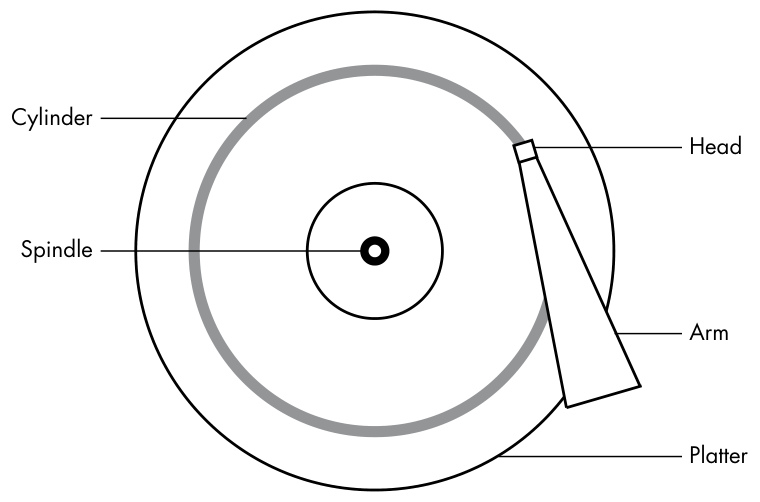
The disk consists of a spinning platter on a spindle, with a head attached to a moving arm that can sweep across the radius of the disk. As the disk spins underneath the head, the head reads data. When the arm is in one position, the head can read data only from a fixed circle. This circle is called a cylinder because larger disks have more than one p. 79 platter, all stacked and spinning around the same spindle. Each platter can have one or two heads, for the top and/or bottom of the platter, and all heads are attached to the same arm and move in concert. Because the arm moves, there are many cylinders on the disk, from small ones around the center to large ones around the periphery of the disk. Finally, you can divide a cylinder into slices called sectors. This way of thinking about the disk geometry is called CHS, for cylinder-head-sector; in older systems, you could find any part of the disk by addressing it with these three parameters.
A track is the part of a cylinder that a single head accesses, so in Figure 4-3, the cylinder is also a track. You don’t need to worry about tracks.
The kernel and the various partitioning programs can tell you what a disk reports as its number of cylinders. However, on any halfway recent hard disk, the reported values are fiction! The traditional addressing scheme that uses CHS doesn’t scale with modern disk hardware, nor does it account for the fact that you can put more data into outer cylinders than inner cylinders. Disk hardware supports Logical Block Addressing (LBA) to address a location on the disk by a block number (this is a much more straightforward interface), but remnants of CHS remain. For example, the MBR partition table contains CHS information as well as LBA equivalents, and some boot loaders are still dumb enough to believe the CHS values (don’t worry—most Linux boot loaders use the LBA values).
The word sector is confusing, because Linux partitioning programs can use it to mean a different value.
The idea of cylinders was once critical to partitioning because cylinders are ideal boundaries for partitions. Reading a data stream from a cylinder is very fast because the head can continuously pick up data as the disk spins. A partition arranged as a set of adjacent cylinders also allows for fast continuous data access because the head doesn’t need to move very far between cylinders.
Although disks look roughly the same as they always have, the notion of precise partition alignment has become obsolete. Some older partitioning programs complain if you don’t place your partitions precisely on cylinder boundaries. Ignore this; there’s little you can do, because the reported CHS values of modern disks simply aren’t true. The disk’s LBA scheme, along with better logic in newer partitioning utilities, ensures that your partitions are laid out in a reasonable manner.
4.1.5 Reading from Solid-State Disks
Storage devices with no moving parts, such as solid-state disks (SSDs), are radically different from spinning disks in terms of their access characteristics. For these, random access isn’t a problem because there’s no head to sweep across a platter, but certain characteristics can change how an SSD performs.
One of the most significant factors affecting the performance of SSDs is partition alignment. When you read data from an SSD, you read it in chunks (called pages, not to be confused with virtual memory pages)—such as 4,096 or 8,192 bytes at a time—and the read must begin at a multiple of that size. This means that if your partition and its data do not lie on a boundary, you may have to do two reads instead of one for small, common operations, such as reading the contents of a directory.
Reasonably new versions of partitioning utilities include logic to put newly created partitions at the proper offsets from the beginning of the disks, so you probably don’t need to worry about improper partition alignment. Partitioning tools currently don’t make any calculations; instead, they just align partitions on 1MB boundaries or, more precisely, 2,048 512-byte blocks. This is a rather conservative approach because the boundary aligns with page sizes of 4,096, 8,192, and so on, all the way up to 1,048,576.
However, if you’re curious or want to make sure that your partitions begin on a boundary, you can easily find this information in the /sys/block directory. Here’s an example for the partition /dev/sdf2:
$ cat /sys/block/sdf/sdf2/start
1953126
The output here is the partition’s offset from the start of the device, in units of 512 bytes (again, confusingly called sectors by the Linux system). If this SSD uses 4,096-byte pages, there are eight of these sectors in a page. All you need to do is see if you can evenly divide the partition offset by 8. In this case, you can’t, so the partition would not attain optimal performance.