4.4 The Logical Volume Manager
So far we’ve looked at direct management and use of disks through partitions, specifying the exact locations on storage devices where certain data should reside. You know that accessing a block device like /dev/sda1 leads you to a place on a particular device according to the partition table on /dev/sda, even if the exact location may be left to the hardware.
This usually works fine, but it does have some disadvantages, especially when it comes to making changes to your disks after installation. For example, if you want to upgrade a disk, you must install the new disk, partition, add filesystems, possibly do some boot loader changes and other tasks, and finally switch over to the new disk. This process can be error-prone and requires several reboots. It’s perhaps worse when you want to install an additional disk to get more capacity—here, you have to pick a new mount point for the filesystem on that disk and hope that you can manually distribute your data between the old and new disks.
The LVM deals with these problems by adding another layer between the physical block devices and the filesystem. The idea is that you select a set of physical volumes (usually just block devices, such as disk partitions) to include into a volume group, which acts as a sort of generic data pool. Then you carve logical volumes out of the volume group.
Figure 4-4 shows a schematic of how these fit together for one volume group. This figure shows several physical and logical volumes, but many LVM-based systems have only one PV and just two logical volumes (for root and swap).
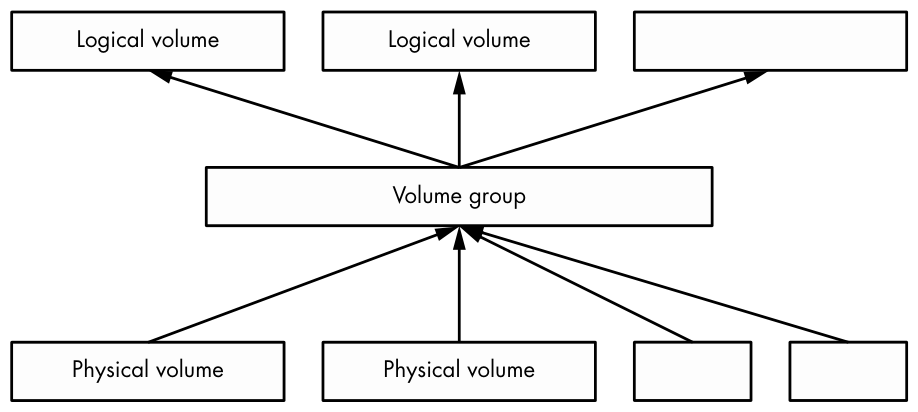
Logical volumes are just block devices, and they typically contain filesystems or swap signatures, so you can think of the relationship between a volume group and its logical volumes as similar to that of a disk and its partitions. The critical difference is that you don’t normally define how the logical volumes are laid out in the volume group—the LVM works all of this out.
The LVM allows some powerful and extremely useful operations, such as:
- Add more PVs (such as another disk) to a volume group, increasing its size.
- Remove PVs as long as there’s enough space remaining to accommodate existing logical volumes inside a volume group.
- Resize logical volumes (and as a consequence, resize filesystems with the
fsadmutility).
You can do all of this without rebooting the machine, and in most cases without unmounting any filesystems. Although adding new physical disk hardware can require a shutdown, cloud computing environments often allow you to add new block storage devices on the fly, making LVM an excellent choice for systems that need this kind of flexibility.
We’re going to explore LVM in a moderate amount of detail. First, we’ll see how to interact with and manipulate logical volumes and their components, and then we’ll take a closer look at how LVM works and the kernel driver that it’s built on. However, the discussion here is not essential to understanding the rest of the book, so if you get too bogged down, feel free to skip ahead to Chapter 5.
4.4.2 Working with LVM
LVM has a number of user-space tools for managing volumes and volume groups. Most of these are based around the lvm command, an interactive general-purpose tool. There are individual commands (which are just symbolic links to LVM) to perform specific tasks. For example, the vgs command has the same effect as typing vgs at the lvm> prompt of the interactive lvm tool, and you’ll find that vgs (usually in /sbin) is a symbolic link to lvm. We’ll use the individual commands in this book.
In the next few sections, we’ll look at the components of a system that uses logical volumes. The first examples come from a standard Ubuntu installation using the LVM partitioning option, so many of the names will contain the word Ubuntu. However, none of the technical details are specific to that distribution.
Listing and Understanding Volume Groups
The vgs command just mentioned shows the volume groups currently configured on the system. The output is fairly concise. Here’s what you might see in our example LVM installation:
# vgs
  VG        #PV #LV #SN Attr   VSize   VFree
  ubuntu-vg   1   2   0 wz--n- <10.00g 36.00m
The first line is a header, with each successive line representing a volume group. The columns are as follows:
VG The volume group name. ubuntu-vg is the generic name that the Ubuntu installer assigns when configuring a system with LVM.
#PV The number of physical volumes that the volume group’s storage comprises.
#LV The number of logical volumes inside the volume group.
#SN The number of logical volume snapshots. We won’t go into detail about these.
Attr A number of status attributes of the volume group. Here, w (writeable), z (resizable), and n (normal allocation policy) are active.
VSize The volume group size.
VFree The amount of unallocated space on the volume group.
This synopsis of a volume group is sufficient for most purposes. If you want to go a little deeper into a volume group, use the vgdisplay command, which is very useful for understanding a volume group’s properties. Here’s the same volume group with vgdisplay:
# vgdisplay
  --- Volume group ---
  VG Name               ubuntu-vg
  System ID
  Format                lvm2
  Metadata Areas        1
  Metadata Sequence No  3
  VG Access             read/write
  VG Status             resizable
  MAX LV                0
  Cur LV                2
  Open LV               2
  Max PV                0
  Cur PV                1
  Act PV                1
  VG Size               <10.00 GiB
  PE Size               4.00 MiB
  Total PE              2559
  Alloc PE / Size       2550 / 9.96 GiB
  Free  PE / Size       9 / 36.00 MiB
  VG UUID               0zs0TV-wnT5-laOy-vJ0h-rUae-YPdv-pPwaAs
You saw some of this before, but there are some new items of note:
Open LV The number of logical volumes currently in use.
Cur PV The number of physical volumes the volume group comprises.
Act LV The number of active physical volumes in the volume group.
VG UUID The volume group’s universally unique identifier. It’s possible to have more than one volume group with the same name on a system; in this case, the UUID can help you isolate a particular one. Most p. 99 LVM tools (such as vgrename, which can help you resolve a situation like this) accept the UUID as an alternative to the volume group name. Be warned that you’re about to see a lot of different UUIDs; every component of LVM has one.
A physical extent (abbreviated as PE in the vgdisplay output) is a piece of a physical volume, much like a block, but on a much larger scale. In this example, the PE size is 4MB. You can see that most of the PEs on this volume group are in use, but that’s not a cause for alarm. This is merely the amount of space on the volume group allocated for the logical partitions (in this case, a filesystem and swap space); it doesn’t reflect the actual usage within the filesystem.
Listing Logical Volumes
Similar to volume groups, the commands to list logical volumes are lvs for a short listing and lvdisplay for more detail. Here’s a sample of lvs:
# lvs
  LV     VG        Attr       LSize   Pool Origin Data%  Meta%  Move Log Cpy%Sync Convert
  root   ubuntu-vg -wi-ao----  <9.01g
  swap_1 ubuntu-vg -wi-ao---- 976.00m
On basic LVM configurations, only the first four columns are important to understand, and the remaining columns may be empty, as is the case here (we won’t cover those). The relevant columns here are:
LV The logical volume name.
VG The volume group where the logical volume resides.
Attr Attributes of the logical volume. Here, they are w (writeable), i (inherited allocation policy), a (active), and o (open). In more advanced volume group configurations, more of these slots are active—in particular, the first, seventh, and ninth.
LSize The size of the logical volume.
Running the more detailed lvdisplay helps to shed some light on where a logical volume fits into your system. Here’s the output for one of our logical volumes:
# lvdisplay /dev/ubuntu-vg/root
  --- Logical volume ---
  LV Path                /dev/ubuntu-vg/root
  LV Name                root
  VG Name                ubuntu-vg
  LV UUID                CELZaz-PWr3-tr3z-dA3P-syC7-KWsT-4YiUW2
  LV Write Access        read/write
  LV Creation host, time ubuntu, 2018-11-13 15:48:20 -0500
  LV Status              available
  # open                 1
  LV Size                <9.01 GiB
  Current LE             2306
  Segments               1
  Allocation             inherit
  Read ahead sectors     auto
  - currently set to     256
  Block device           253:0
There is a lot of interesting stuff here, and most of it is fairly self-explanatory (note that the UUID of the logical volume is different from that of its volume group). Perhaps the most important thing you haven’t seen yet is first: LV Path, the device path of the logical volume. Some systems, but not all, use this as the mount point of the filesystem or swap space (in a systemd mount unit or /etc/fstab).
Even though you can see the major and minor device numbers of the logical volume’s block device (here, 253 and 0), as well as something that looks like a device path, it’s not actually the path that the kernel uses. A quick look at /dev/ubuntu-vg/root reveals that something else is going on:
$ ls -l /dev/ubuntu-vg/root
lrwxrwxrwx 1 root root 7 Nov 14 06:58 /dev/ubuntu-vg/root -> ../dm-0
As you can see, this is just a symbolic link to /dev/dm-0. Let’s look at that briefly.
Using Logical Volume Devices
Once LVM has done its setup work on your system, logical volume block devices are available at /dev/dm-0, /dev/dm-1, and so on, and may be arranged in any order. Due to the unpredictability of these device names, LVM also creates symbolic links to the devices that have stable names based on the volume group and logical volume names. You saw this in the preceding section with /dev/ubuntu-vg/root.
There’s an additional location for symbolic links in most implementations: /dev/mapper. The name format here is also based on the volume group and logical volume, but there’s no directory hierarchy; instead, the links have names like ubuntu--vg-root. Here, udev has transformed the single dash in the volume group into a double dash, and then separated the volume group and logical volume names with a single dash.
Many systems use the links in /dev/mapper in their /etc/fstab, systemd, and boot loader configurations in order to point the system to the logical volumes used for filesystems and swap space.
In any case, these symbolic links point to block devices for the logical volumes, and you can interact with them just as you would any other block device: create filesystems, create swap partitions, and so on.
If you take a look around /dev/mapper, you’ll also see a file named control. You might be wondering about that file, as well as why the real block device files begin with dm-; does this coincide with /dev/mapper somehow? We’ll address these questions at the end of this chapter.
Working with Physical Volumes
The final major piece of LVM to examine is the physical volume (PV). A volume group is built from one or more PVs. Although a PV may seem like a straightforward part of the LVM system, it contains a little more information than meets the eye. Much like volume groups and logical volumes, the LVM commands to view PVs are pvs (for a short list) and pvdisplay (for a more in-depth view). Here’s the pvs display for our example system:
# pvs
  PV         VG        Fmt  Attr PSize   PFree
  /dev/sda1  ubuntu-vg lvm2 a--  <10.00g 36.00m
And here’s pvdisplay:
# pvdisplay
  --- Physical volume ---
  PV Name               /dev/sda1
  VG Name               ubuntu-vg
  PV Size               <10.00 GiB / not usable 2.00 MiB
  Allocatable           yes
  PE Size               4.00 MiB
  Total PE              2559
  Free PE               9
  Allocated PE          2550
  PV UUID               v2Qb1A-XC2e-2G4l-NdgJ-lnan-rjm5-47eMe5
From the previous discussion of volume groups and logical volumes, you should understand most of this output. Here are some notes:
- There’s no special name for the PV other than the block device. There’s no need for one—all of the names required to reference a logical volume are at the volume group level and above. However, the PV does have a UUID, which is required to compose a volume group.
- In this case, the number of PEs matches the usage in the volume group (which we saw earlier), because this is the only PV in the group.
- There’s a tiny amount of space that LVM labels as not usable because it’s not enough to fill a full PE.
- The
ain the attributes of thepvsoutput corresponds toAllocatablein thepvdisplayoutput, and it simply means that if you want to allocate space for a logical volume in the volume group, LVM can choose to use this PV. However, in this case, there are only nine unallocated PEs (a total of 36MB), so not much is available for new logical volumes.
As alluded to earlier, PVs contain more than just information about their own individual contribution to a volume group. Each PV contains physical volume metadata, extensive information about its volume group and its logical volumes. We’ll explore PV metadata shortly, but first let’s get some hands-on experience to see how what we’ve learned fits together.
Constructing a Logical Volume System
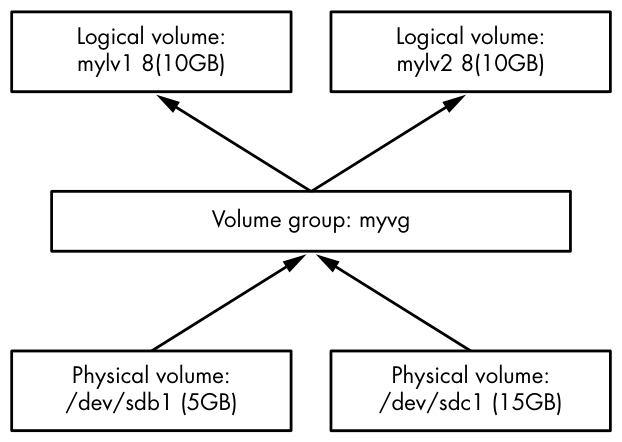
Let’s look at an example of how to create a new volume group and some logical volumes out of two disk devices. We’ll combine two disk devices of 5GB and 15GB into a volume group and then divide this space into two logical volumes of 10GB each—a nearly impossible task without LVM. The example shown here uses VirtualBox disks. Although the capacities are quite small on any contemporary system, they suffice for illustration.
Figure 4-5 shows the volume schematic. The new disks are at /dev/sdb and /dev/sdc, the new volume group will be called myvg, and the two new logical volumes are called mylv1 and mylv2.
The first task is to create a single partition on each of these disks and label it for LVM. Do this with a partitioning program (see Section 4.1.2), using the partition type ID 8e, so that the partition tables look like this:
# parted /dev/sdb print
Model: ATA VBOX HARDDISK (scsi)
Disk /dev/sdb: 5616MB
Sector size (logical/physical): 512B/512B
Partition Table: msdos
Disk Flags:

Number  Start   End     Size    Type     File system  Flags
 1      1049kB  5616MB  5615MB  primary               lvm
# parted /dev/sdc print
Model: ATA VBOX HARDDISK (scsi)
Disk /dev/sdc: 16.0GB
Sector size (logical/physical): 512B/512B
Partition Table: msdos
Disk Flags:

Number  Start   End     Size    Type     File system  Flags
 1      1049kB  16.0GB  16.0GB  primary               lvm
You don’t necessarily need to partition a disk to make it a PV. PVs can be any block device, even entire-disk devices, such as /dev/sdb. However, partitioning enables booting from the disk, and it also provides a means of identifying the block devices as LVM physical volumes.
Creating Physical Volumes and a Volume Group
With the new partitions of /dev/sdb1 and /dev/sdc1 in hand, the first step with LVM is to designate one of the partitions as a PV and assign it to a new volume group. A single command, vgcreate, performs this task. Here’s how to create a volume group called myvg with /dev/sdb1 as the initial PV:
# vgcreate myvg /dev/sdb1
  Physical volume "/dev/sdb1" successfully created.
  Volume group "myvg" successfully created
You can also create a PV first in a separate step with the pvcreate command. However, vgcreate performs this step on a partition if nothing is currently present.
At this point, most systems automatically detect the new volume group; run a command such as vgs to verify (keeping in mind that there may be existing volume groups on your system that show up in addition to the one you just created):
# vgs
  VG   #PV #LV #SN Attr   VSize  VFree
  myvg   1   0   0 wz--n- <5.23g <5.23g
If you don’t see the new volume group, try running pvscan first. If your system doesn’t automatically detect changes to LVM, you’ll need to run pvscan every time you make a change.
Now you can add your second PV at /dev/sdc1 to the volume group with the vgextend command:
# vgextend myvg /dev/sdc1
  Physical volume "/dev/sdc1" successfully created.
  Volume group "myvg" successfully extended
Running vgs now shows two PVs, and the size is that of the two partitions combined:
# vgs
  VG    #PV #LV #SN Attr   VSize   VFree
  my-vg   2   0   0 wz--n- <20.16g <20.16g
Creating Logical Volumes
The final step at the block device level is to create the logical volumes. As mentioned before, we’re going to create two logical volumes of 10GB each, but feel free to experiment with other possibilities, such as one big logical volume or multiple smaller ones.
The lvcreate command allocates a new logical volume in a volume group. The only real complexities in creating simple logical volumes are determining the sizes when there is more than one per volume group, and specifying the type of logical volume. Remember that PVs are divided into extents; the number of PEs available may not quite line up with your desired size. However, it should be close enough so that it doesn’t present a concern, so if this your first time working with the LVM, you don’t really have to pay attention to PEs.
When using lvcreate, you can specify a logical volume’s size by numeric capacity in bytes with the --size option or by number of PEs with the --extents option.
So, to see how this works, and to complete the LVM schematic in Figure 4-5, we’ll create logical volumes named mylv1 and mylv2 using --size:
# lvcreate --size 10g --type linear -n mylv1 myvg
  Logical volume "mylv1" created.
# lvcreate --size 10g --type linear -n mylv2 myvg
  Logical volume "mylv2" created.
The type here is the linear mapping, the simplest type when you don’t need redundancy or any other special features (we won’t work with any other types in this book). In this case, --type linear is optional because it’s the default mapping.
After running these commands, verify that the logical volumes exist with an lvs command, and then take a closer look at the current state of the volume group with vgdisplay:
# vgdisplay myvg
  --- Volume group ---
  VG Name               myvg
  System ID
  Format                lvm2
  Metadata Areas        2
  Metadata Sequence No  4
  VG Access             read/write
  VG Status             resizable
  MAX LV                0
  Cur LV                2
  Open LV               0
  Max PV                0
  Cur PV                2
  Act PV                2
  VG Size               20.16 GiB
  PE Size               4.00 MiB
  Total PE              5162
  Alloc PE / Size       5120 / 20.00 GiB
  Free  PE / Size       42 / 168.00 MiB
  VG UUID               1pHrOe-e5zy-TUtK-5gnN-SpDY-shM8-Cbokf3
Notice how there are 42 free PEs because the sizes that we chose for the logical volumes didn’t quite take up all of the available extents in the volume group.
Manipulating Logical Volumes: Creating Partitions
With the new logical volumes available, you can now make use of them by putting filesystems on the devices and mounting them just like any normal disk partition. As mentioned earlier, there will be symbolic links to the devices in /dev/mapper and (for this case) a /dev/myvg directory for the volume group. So, for example, you might run the following three commands to create a filesystem, mount it temporarily, and see how much actual space you have on a logical volume:
# mkfs -t ext4 /dev/mapper/myvg-mylv1
mke2fs 1.44.1 (24-Mar-2018)
Creating filesystem with 2621440 4k blocks and 655360 inodes
Filesystem UUID: 83cc4119-625c-49d1-88c4-e2359a15a887
Superblock backups stored on blocks:
        32768, 98304, 163840, 229376, 294912, 819200, 884736, 1605632
Allocating group tables: done
Writing inode tables: done
Creating journal (16384 blocks): done
Writing superblocks and filesystem accounting information: done
# mount /dev/mapper/myvg-mylv1 /mnt
# df /mnt
Filesystem             1K-blocks  Used Available Use% Mounted on
/dev/mapper/myvg-mylv1  10255636 36888   9678076   1% /mnt
Removing Logical Volumes
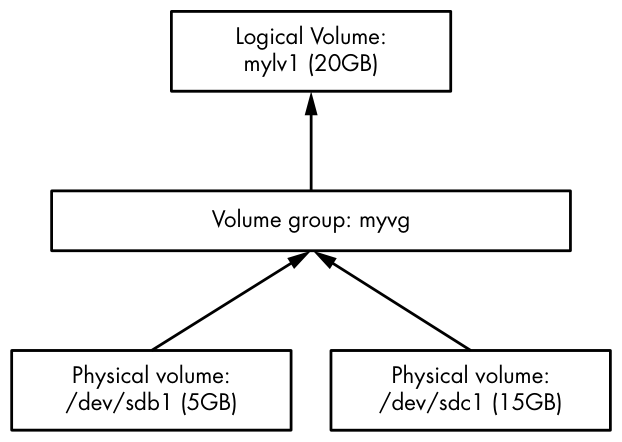
We haven’t yet looked at any operations on the other logical volume, mylv2, so let’s use it to make this example more interesting. Say you find you’re not really using that second logical volume. You decide to remove it and resize the first logical volume to take over the remaining space on the volume group. Figure 4-6 shows our goal.
Assuming you’ve already moved or backed up anything important on the logical volume you’re going to delete, and that it’s not in current system use (that is, you’ve unmounted it), first remove it with lvremove. When manipulating logical volumes with this command, you’ll refer to them using a different syntax—by separating the volume group and logical volume names by a slash (myvg/mylv2):
# lvremove myvg/mylv2
Do you really want to remove and DISCARD active logical volume myvg/mylv2?
[y/n]: y
  Logical volume "mylv2" successfully removed
Be careful when you run lvremove. Because you haven’t used this syntax with the other LVM commands you’ve seen so far, you might accidentally use a space instead of the slash. If you make that mistake in this particular case, lvremove assumes that you want to remove all of the logical volumes on the volume groups myvg and mylv2. (You almost certainly don’t have a volume group named mylv2, but that’s not your biggest problem at the moment.) So, if you’re not paying attention, you could remove all of the logical volumes on a volume group, not just one.
As you can see from this interaction, lvremove tries to protect you from blunders by double-checking that you really want to remove each logical volume targeted for removal. It also won’t try to remove a volume that’s in use. But don’t just assume that you should reply y to any question you’re asked.
Resizing Logical Volumes and Filesystems
Now you can resize the first logical volume, mylv1. You can do this even when the volume is in use and its filesystem is mounted. However, it’s important to understand that there are two steps. To use your larger logical volume, you need to resize both it and the filesystem inside it (which you can also do while it’s mounted). But because this is such a common operation, the lvresize command that resizes a logical volume has an option (-r) to perform the filesystem resizing for you also.
For illustration only, let’s use two separate commands to see how this works. There are several ways to specify the change in size to a logical volume, but in this case, the most straightforward method is to add all of the free PEs in the volume group to the logical volume. Recall that you can find that number with vgdisplay; in our running example, it’s 2,602. Here’s the lvresize command to add all of those to mylv1:
# lvresize -l +2602 myvg/mylv1
  Size of logical volume myvg/mylv1 changed from 10.00 GiB (2560 extents) to
20.16 GiB (5162 extents).
  Logical volume myvg/mylv1 successfully resized.
Now you need to resize the filesystem inside. You can do this with the fsadm command. It’s fun to watch it work in verbose mode (use the -v option):
# fsadm -v resize /dev/mapper/myvg-mylv1
fsadm: "ext4" filesystem found on "/dev/mapper/myvg-mylv1".
fsadm: Device "/dev/mapper/myvg-mylv1" size is 21650997248 bytes
fsadm: Parsing tune2fs -l "/dev/mapper/myvg-mylv1"
fsadm: Resizing filesystem on device "/dev/mapper/myvg-mylv1" to 21650997248
bytes (2621440 -> 5285888 blocks of 4096 bytes)
fsadm: Executing resize2fs /dev/mapper/myvg-mylv1 5285888
resize2fs 1.44.1 (24-Mar-2018)
Filesystem at /dev/mapper/myvg-mylv1 is mounted on /mnt; on-line resizing
required
old_desc_blocks = 2, new_desc_blocks = 3
The filesystem on /dev/mapper/myvg-mylv1 is now 5285888 (4k) blocks long.
As you can see from the output, fsadm is just a script that knows how to transform its arguments into the ones used by filesystem-specific tools like resize2fs. By default, if you don’t specify a size, it’ll simply resize to fit the entire device.
Now that you’ve seen the details of resizing volumes, you’re probably looking for shortcuts. The much simpler approach is to use a different syntax for the size and have lvresize perform the partition resizing for you, with this single command:
# lvresize -r -l +100%FREE myvg/mylv1
It’s rather nice that you can expand an ext2/ext3/ext4 filesystem while it’s mounted. Unfortunately, it doesn’t work in reverse. You cannot shrink a filesystem when it’s mounted. Not only must you unmount the filesystem, but the process of shrinking a logical volume requires you to do the steps in reverse. So, when resizing manually, you’d need to resize the partition before the logical volume, making sure that the new logical volume is still big enough to contain the filesystem. Again, it’s much easier to use lvresize with the -r option so that it can coordinate the filesystem and logical volume sizes for you.
4.4.3 The LVM Implementation
With the more practical operational basics of LVM covered, we can now take a brief look at its implementation. As with almost every other topic in this book, LVM contains a number of layers and components, with a fairly careful separation between the parts in kernel and user space.
As you’ll see soon, finding PVs to discover the structure of the volume groups and logical volumes is somewhat complicated, and the Linux kernel would rather not deal with any of it. There’s no reason for any of this to happen in kernel space; PVs are just block devices, and user space has random access to block devices. In fact, LVM (more specifically, LVM2 in current systems) itself is just the name for a suite of user-space utilities that know the LVM structure.
On the other hand, the kernel handles the work of routing a request for a location on a logical volume’s block device to the true location on an actual device. The driver for this is the device mapper (sometimes shortened to devmapper), a new layer sandwiched between normal block devices and the filesystem. As the name suggests, the task the device mapper performs is like following a map; you can almost think of it as translating a street address into an absolute location like global latitude/longitude coordinates. (It’s a form of virtualization; the virtual memory we’ll see elsewhere in the book works on a similar concept.)
There’s some glue between LVM user-space tools and the device mapper: a few utilities that run in user space to manage the device map in the kernel. Let’s look at both the LVM side and the kernel side, starting with LVM.
LVM Utilities and Scanning for Physical Volumes
Before it does anything, an LVM utility must first scan the available block devices to look for PVs. The steps that LVM must perform in user space are roughly as follows:
- Find all of the PVs on the system.
- Find all of the volume groups that the PVs belong to by UUID (this information is contained in the PVs).
- Verify that everything is complete (that is, all necessary PVs that belong to the volume group are present).
- Find all of the logical volumes in the volume groups.
- Figure out the scheme for mapping data from the PVs to the logical volumes.
There’s a header at the beginning of every PV that identifies the volume as well as its volume groups and the logical volumes within. The LVM utilities can put this information together and determine whether all PVs necessary for a volume group (and its logical volumes) are present. If everything checks out, LVM can work on getting the information to the kernel.
If you’re interested in the appearance of the LVM header on a PV, you can run a command such as this:
# dd if=/dev/sdb1 count=1000 | strings | less
In this case, we’re using /dev/sdb1 as the PV. Don’t expect the output to be very pretty, but it does show the information required for LVM.
Any LVM utility, such as pvscan, lvs, or vgcreate, is capable of performing the work of scanning and processing PVs.
The Device Mapper
After LVM has determined the structure of the logical volumes from all of the headers on the PVs, it communicates with the kernel’s device mapper p. 109 driver in order to initialize the block devices for the logical volumes and load their mapping tables. It achieves this with the ioctl(2) system call (a commonly used kernel interface) on the /dev/mapper/control device file. It’s not really practical to try to monitor this interaction, but it’s possible to look at the details of the results with the dmsetup command.
To get an inventory of mapped devices currently serviced by the device mapper, use dmsetup info. Here’s what you might get for one of the logical volumes created earlier in this chapter:
# dmsetup info
Name:              myvg-mylv1
State:             ACTIVE
Read Ahead:        256
Tables present:    LIVE
Open count:        0
Event number:      0
Major, minor:      253, 1
Number of targets: 2
UUID: LVM-1pHrOee5zyTUtK5gnNSpDYshM8Cbokf3OfwX4T0w2XncjGrwct7nwGhpp7l7J5aQ
The major and minor number of the device correspond to the /dev/dm-* device file for the mapped device; the major number for this device mapper is 253. Because the minor number is 1, the device file is named /dev/dm-1. Notice that the kernel has a name and yet another UUID for the mapped device. LVM supplied these to the kernel (the kernel UUID is just a concatenation of the volume group and logical volume UUIDs).
Remember the symbolic links such as /dev/mapper/myvg-mylv1? udev creates those in response to new devices from the device mapper, using a rules file like we saw in Section 3.5.2.
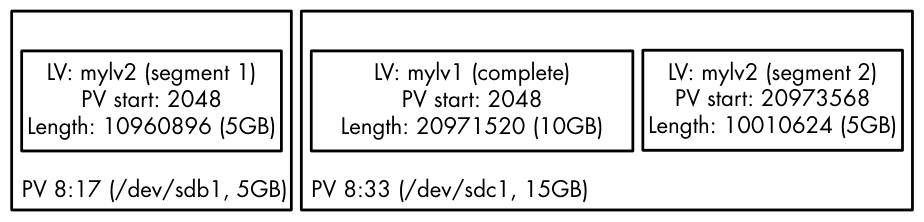
You can also view the table that LVM gave to the device mapper, by issuing the command dmsetup table. Here’s what that looks like for our earlier example when there were two 10GB logical volumes (mylv1 and mylv2) spread across the two physical volumes of 5GB (/dev/sdb1) and 15GB (/dev/sdc1):
# dmsetup table
myvg-mylv2: 0 10960896 linear 8:17 2048
myvg-mylv2: 10960896 10010624 linear 8:33 20973568
myvg-mylv1: 0 20971520 linear 8:33 2048
Each line provides a segment of the map for a given mapped device. For the device myvg-mylv2, there are two pieces, and for myvg-mylv1, there’s a single one. The fields after the name, in order, are:
- The start offset of the mapped device. The units are in 512-byte “sectors,” or the normal block size that you see in many other devices.
- The length of this segment.
- The mapping scheme. Here, it’s the simple one-to-one linear scheme. p. 110
- The major and minor device number pair of a source device—that is, what LVM calls physical volumes. Here 8:17 is /dev/sdb1 and 8:33 is /dev/sdc1.
- A starting offset on the source device.
What’s interesting here is that in our example, LVM chose to use the space in /dev/sdc1 for the first logical volume that we created (mylv1). LVM decided that it wanted to lay out the first 10GB logical volume in a contiguous manner, and the only way to do that was on /dev/sdc1. However, when creating the second logical volume (mylv2), LVM had no choice but to spread it into two segments across the two PVs. Figure 4-7 shows the arrangement.
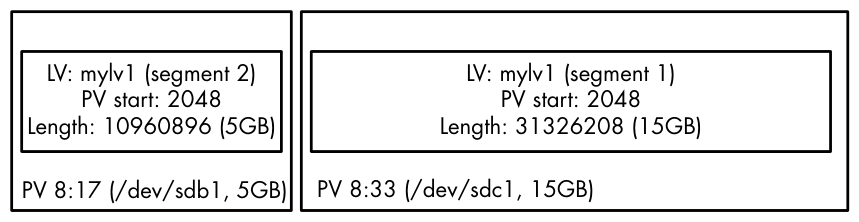
mylv1 and mylv2As a further consequence, when we removed mylv2 and expanded mylv1 to fit the remaining space in the volume group, the original start offset in the PV remained where it was on /dev/sdc1, but everything else changed to include the remainder of the PVs:
# dmsetup table
myvg-mylv1: 0 31326208 linear 8:33 2048
myvg-mylv1: 31326208 10960896 linear 8:17 2048
Figure 4-8 shows the arrangement.
mylv2 and expand mylv1You can experiment with logical volumes and the device mapper to your heart’s content with virtual machines and see how the mappings turn out. Many features, such as software RAID and encrypted disks, are built on the device mapper.