Chapter 7: System Configuration: Logging, System Time, Batch Jobs, and Users
When you first look in the /etc directory to explore your system’s configuration, you might feel a bit overwhelmed. The good news is that although most of the files you see affect a system’s operations to some extent, only a few are fundamental.
This chapter covers the parts of the system that make the infrastructure discussed in Chapter 4 available to the user-space software that we normally interact with, such as the tools covered in Chapter 2. In particular, we’ll look at the following:
- System logging
- Configuration files that the system libraries access to get server and user information p. 168
- A few selected server programs (sometimes called daemons) that run when the system boots
- Configuration utilities that can be used to tweak the server programs and configuration files
- Time configuration
- Periodic task scheduling
The widespread use of systemd has reduced the number of basic, independent daemons found on a typical Linux system. One example is the system logging (syslogd) daemon, whose functionality is now largely provided by a daemon built into systemd (journald). Still, a few traditional daemons remain, such as crond and atd.
As in previous chapters, this chapter includes virtually no networking material because the network is a separate building block of the system. In Chapter 9, you’ll see where the network fits in.
7.1 System Logging
Most system programs write their diagnostic output as messages to the syslog service. The traditional syslogd daemon performs this service by waiting for messages and, upon receiving one, sending it to an appropriate channel, such as a file or a database. On most contemporary systems, journald (which comes with systemd) does most of the work. Though we’ll concentrate on journald in this book, we’ll also cover many aspects of the traditional syslog.
The system logger is one of the most important parts of the system. When something goes wrong and you don’t know where to start, it’s always wise to check the log. If you have journald, you’ll do this with the journalctl command, which we’ll cover in Section 7.1.2. On older systems, you’ll need to check the files themselves. In either case, log messages look like this:
Aug 19 17:59:48 duplex sshd[484]: Server listening on 0.0.0.0 port 22.
A log message typically contains important information such as the process name, process ID, and timestamp. There can also be two other fields: the facility (a general category) and severity (how urgent the message is). We’ll discuss those in more detail later.
Understanding logging in a Linux system can be somewhat challenging due to varied combinations of older and newer software components. Some distributions, such as Fedora, have moved to a journald-only default, while others run a version of the older syslogd (such as rsyslogd) alongside journald. Older distributions and some specialized systems may not use systemd at all and have only one of the syslogd versions. In addition, some software systems bypass standardized logging altogether and write their own.
7.1.1 Checking Your Log Setup
You should inspect your own system to see what sort of logging is installed. Here’s how:
- Check for journald, which you almost certainly have if you’re running systemd. Although you can look for journald in a process listing, the easiest way is to simply run
journalctl. If journald is active on your system, you’ll get a paged list of log messages. - Check for rsyslogd. Look for rsyslogd in a process listing, and look for /etc/rsyslog.conf.
- If you don’t have rsyslogd, check for syslog-ng (another version of syslogd) by looking for a directory called /etc/syslog-ng.
Continue your tour by looking in /var/log for logfiles. If you have a version of syslogd, this directory should contain many files, most created by your syslog daemon. However, there will be a few files here that are maintained by other services; two examples are wtmp and lastlog, the logfiles that utilities such as last and lastlog access in order to get login records.
In addition, there may be further subdirectories in /var/log containing logs. These nearly always come from other services. One of them, /var/log/journal, is where journald stores its (binary) logfiles.
7.1.2 Searching and Monitoring Logs
Unless you have a system without journald or you’re searching a logfile maintained by some other utility, you’ll look through the journal. With no arguments, the journalctl access tool is like a fire hose, giving you all of the messages in the journal, starting with the oldest (just as they would appear in a logfile). Mercifully, journalctl defaults to using a pager such as less to display messages so your terminal won’t be flooded. You can search messages with the pager and reverse the message time order with journalctl -r, but there are much better ways of finding logs.
To get full access to the journal messages, you need to run journalctl either as root or as a user belonging to the adm or systemd-journal groups. The default user on most distributions has access.
In general, you can search individual fields of journals just by adding them to the command line; for example, run journalctl _PID=8792 to search for messages from process ID 8792. However, the most powerful filtering features are more general in nature. You can specify one or more if you need multiple criteria.
Filtering by Time
The -S (since) option is among the most useful in narrowing in on a specific time. Here’s an example of one of the easiest and most effective ways to use it:
$ journalctl -S -4h
The -4h part of this command may look like an option, but in reality, it’s a time specification telling journalctl to search for messages from the past four hours in your current time zone. You can also use a combination of a specific day and/or time:
$ journalctl -S 06:00:00
$ journalctl -S 2020-01-14
$ journalctl -S '2020-01-14 14:30:00'
The -U (until) option works the same way, specifying a time up to which journalctl should retrieve messages. However, it’s often not as useful because you’ll typically page or search through messages until you find what you need, then just quit.
Filtering by Unit
Another quick and effective way to get at relevant logs is to filter by systemd unit. You can do this with the -u option, like this:
$ journalctl -u cron.service
You can normally omit the unit type (.service in this case) when filtering by unit.
If you don’t know the name of a particular unit, try this command to list all units in the journal:
$ journalctl -F _SYSTEMD_UNIT
The -F option shows all values in the journal for a particular field.
Finding Fields
Sometimes you just need to know which field to search. You can list all available fields as follows:
$ journalctl -N
Any field beginning with an underscore (such as _SYSTEMD_UNIT from the previous example) is a trusted field; the client that sends a message cannot alter these fields.
Filtering by Text
A classic method of searching logfiles is to run grep over all of them, hoping to find a relevant line or spot in a file where there might be more information. Similarly, you can search journal messages by regular expression with the -g option, as in this example, which will return messages containing kernel followed somewhere by memory:
$ journalctl -g 'kernel.*memory'
Unfortunately, when you search the journal this way, you get only the messages that match the expression. Often, important information might be nearby in terms of time. Try to pick out the timestamp from a match, and then run journalctl -S with a time just before to see what messages came around the same time.
The -g option requires a build of journalctl with a particular library. Some distributions do not include a version that supports -g.
Filtering by Boot
Often, you’ll find yourself looking through the logs for messages around the time when a machine booted or just before it went down (and rebooted). It’s very easy to get the messages from just one boot, from when the machine started until it stopped. For example, if you’re looking for the start of the current boot, just use the -b option:
$ journalctl -b
You can also add an offset; for example, to start at the previous boot, use an offset of -1.
$ journalctl -b -1
You can quickly check whether the machine shut down cleanly on the last cycle by combining the -b and -r (reverse) options. Try it; if the output looks like the example here, the shutdown was clean:
$ journalctl -r -b -1
-- Logs begin at Wed 2019-04-03 12:29:31 EDT, end at Fri 2019-08-02 19:10:14
EDT. --
Jul 18 12:19:52 mymachine systemd-journald[602]: Journal stopped
Jul 18 12:19:52 mymachine systemd-shutdown[1]: Sending SIGTERM to remaining
processes...
Jul 18 12:19:51 mymachine systemd-shutdown[1]: Syncing filesystems and block
devices.
Instead of an offset like -1, you can also view boots by IDs. Run the following to get the boot IDs:
$ journalctl --list-boots
-1 e598bd09e5c046838012ba61075dccbb Fri 2019-03-22 17:20:01 EDT—Fri 2019-04-12
08:13:52 EDT
 0 5696e69b1c0b42d58b9c57c31d8c89cc Fri 2019-04-12 08:15:39 EDT—Fri 2019-08-02
19:17:01 EDT
Finally, you can display kernel messages (with or without selecting a particular boot) with journalctl -k.
Filtering by Severity/Priority
Some programs produce a large number of diagnostic messages that can obscure important logs. You can filter by the severity level by specifying a value between 0 (most important) and 7 (least important) alongside the -p option. For example, to get the logs from levels 0 through 3, run:
$ journalctl -p 3
If you want only the logs from a specific set of severity levels, use the .. range syntax:
$ journalctl -p 2..3
Filtering by severity sounds like it may save a lot of time, but you might not find much use for it. Most applications don’t generate large amounts of informational data by default, though some include configuration options to enable more verbose logging.
Simple Log Monitoring
One traditional way to monitor logs is to use tail -f or the less follow mode (less +F) on a logfile to see messages as they arrive from the system logger. This isn’t a very effective regular system monitoring practice (it’s too easy to miss something), but it’s useful for examining a service when you’re trying to find a problem, or get a closer look at startup and operation in real time.
Using tail -f doesn’t work with journald because it doesn’t use plaintext files; instead, you can use the -f option to journalctl to produce the same effect of printing logs as they arrive:
$ journalctl -f
This simple invocation is good enough for most needs. However, you may want to add some of the preceding filtering options if your system has a fairly constant stream of log messages not related to what you’re looking for.
7.1.3 Logfile Rotation
When you’re using a syslog daemon, any log message that your system records goes into a logfile somewhere, which means you need to delete old messages occasionally so that they don’t eventually consume all of your storage space. Different distributions do this in different ways, but most use the logrotate utility.
The mechanism is called log rotation. Because a traditional text logfile contains the oldest messages at the beginning and the newest at the end, it’s quite difficult to remove just the older messages from a file to free up some space. Instead, a log maintained by logrotate is divided into many chunks.
Say you have a logfile called auth.log in /var/log containing the most recent log messages. Then there’s an auth.log.1, auth.log.2, and auth.log.3, each with progressively older data. When logrotate decides that it’s time to delete some old data, it “rotates” the files like this:
- Removes the oldest file, auth.log.3.
- Renames auth.log.2 to auth.log.3.
- Renames auth.log.1 to auth.log.2.
- Renames auth.log to auth.log.1.
The names and some details vary across distributions. For example, the Ubuntu configuration specifies that logrotate should compress the file that’s moved from the “1” position to the “2” position, so in the previous example, you would have auth.log.2.gz and auth.log.3.gz. In other distributions, logrotate renames the logfiles with a date suffix, such as -20200529. One advantage of this scheme is that it’s easier to find a logfile from a specific time.
You might be wondering what happens if logrotate performs a rotation around the same time that another utility (such as rsyslogd) wants to add to the logfile. For example, say the logging program opens the logfile for writing but doesn’t close it before logrotate performs the rename. In this somewhat unusual scenario, the log message would be written successfully, because in Linux, once a file is open, the I/O system has no way to know it was renamed. But note that the file the message appears in will be the file with the new name, such as auth.log.1.
If logrotate has already renamed the file before the logging program attempts to open it, the open() system call creates a new logfile (such as auth.log), just as it would if logrotate weren’t running.
7.1.4 Journal Maintenance
The journals stored in /var/log/journal don’t need rotation, because journald itself can identify and remove old messages. Unlike traditional log management, journald normally decides to delete messages based on how much space is left on the journal’s filesystem, how much space the journal should take as a percentage of the filesystem, and what the maximum journal size is set to. There are other options for log management, such as the maximum allowed age of a log message. You’ll find a description of the defaults as well as the other settings in the journald.conf(5) manual page.
7.1.5 A Closer Look at System Logging
Now that you’ve seen some of the operational details of syslog and the journal, it’s time to step back a bit and look at the reasons why and how logging works the way it does. This discussion is more theoretical than hands-on; you can skip to the next topic in the book without a problem.
In the 1980s, a gap was starting to emerge: Unix servers needed a way to record diagnostic information, but there was no standard for doing so. p. 174 When syslog appeared with the sendmail email server, it made enough sense that developers of other services readily adopted it. RFC 3164 describes the evolution of syslog.
The mechanism is fairly simple. A traditional syslogd listens and waits for messages on Unix domain socket /dev/log. One additional powerful feature of syslogd is the ability to listen on a network socket in addition to /dev/log, enabling client machines to send messages across a network.
This makes it possible to consolidate all syslog messages from an entire network onto one logging server, and for this reason, syslog became very popular with network administrators. Many network devices, such as routers and embedded devices, can act as syslog clients, sending their diagnostic messages to a server.
Syslog has a classic client-server architecture, including its own protocol (currently defined in RFC 5424). However, the protocol wasn’t always standard, and earlier versions didn’t accommodate much structure beyond some basics. Programmers using syslog were expected to come up with a descriptive, yet clear and brief, log message format for their own applications. Over time, the protocol added new features while still trying to maintain as much backward compatibility as possible.
Facility, Severity, and Other Fields
Because syslog sends messages of various types from different services to different destinations, it needs a way to classify each message. The traditional method is to use encoded values of facility and severity that were usually (but not always) included in a message. In addition to file output, even very old versions of syslogd were capable of sending important messages to consoles and directly to particular logged-in users based on the messages’ facility and severity—an early tool for system monitoring.
The facility is a general category of service, identifying what sent the message. Facilities include services and system components such as kernel, mail system, and printer.
The severity is the urgency of the log message. There are eight levels, numbered 0 through 7. They’re usually referred to by name, although the names aren’t very consistent and have varied across implementations:
0: emerg       4: warning
1: alert       5: notice
2: crit        6: info
3: err         7: debug
The facility and severity together make up the priority, packaged as one number in the syslog protocol. You can read all about these fields in RFC 5424, learn how to specify them in applications in the syslog(3) manual page, and learn how to match them in the rsyslog.conf(5) manual page. p. 175 However, you might run into some confusion when translating them to the journald world, where the severity is referred to as the priority (for example, when you run journalctl -o json to get machine-readable log output).
Unfortunately, when you start to examine the details of the priority part of the protocol, you’ll find that it hasn’t kept pace with changes and requirements in the rest of the OS. The severity definition still holds up well, but the available facilities are hardwired and include seldom-used services such as UUCP, with no way to define new ones (only a number of generic local0 through local7 slots).
We’ve already talked about some of the other fields in log data, but RFC 5424 also includes a provision for structured data, sets of arbitrary key-value pairs that application programmers can use to define their own fields. Though these can be used with journald with some extra work, it’s much more common to send them to other kinds of databases.
The Relationship Between Syslog and journald
The fact that journald has completely displaced syslog on some systems might have you asking why syslog remains on others. There are two main reasons:
- Syslog has a well-defined means of aggregating logs across many machines. It is much easier to monitor logs when they are on just one machine.
- Versions of syslog such as rsyslogd are modular and capable of output to many different formats and databases (including the journal format). This makes it easier to connect them to analysis and monitoring tools.
By contrast, journald emphasizes collecting and organizing the log output of a single machine into a single format.
When you want to do something more complicated, journald’s capability of feeding its logs into a different logger offers a high degree of versatility. This is especially true when you consider that systemd can collect the output of server units and send them to journald, giving you access to even more log data than what applications send to syslog.
Final Notes on Logging
Logging on Linux systems has changed significantly during its history, and it’s a near-certainty that it will continue to evolve. At the moment, the process of collecting, storing, and retrieving logs on a single machine is well defined, but there are other aspects of logging that aren’t standardized.
First, there’s a dizzying array of options available when you want to aggregate and store logs over a network of machines. Instead of a centralized log server simply storing logs in text files, the logs can now go into databases, and often the centralized server itself is replaced by an internet service.
Next, the nature of how logs are consumed has changed. At one time, logs were not considered to be “real” data; their primary purpose was a resource that the (human) administrator could read when something went wrong. However, as applications have become more complex, logging needs have grown. These new requirements include the capability to search, extract, display, and analyze the data inside the logs. Although we have many ways of storing logs in databases, tools to use the logs in applications are still in their infancy.
Finally, there’s the matter of ensuring that the logs are trustworthy. The original syslog had no authentication to speak of; you simply trusted that whatever application and/or machine sending the log was telling the truth. In addition, the logs were not encrypted, making them vulnerable to snooping on the network. This was a serious risk in networks that required high security. Contemporary syslog servers have standard methods of encrypting a log message and authenticating the machine where it originates. However, when you get down to individual applications, the picture becomes less clear. For example, how can you be sure that the thing that calls itself your web server actually is the web server?
We’ll explore a few somewhat advanced authentication topics later in the chapter. But for now, let’s move on to the basics of how configuration files are organized on the system.
7.2 The Structure of /etc
Most system configuration files on a Linux system are found in /etc. Historically, each program or system service had one or more configuration files there, and due to the large number of components on a Unix system, /etc would accumulate files quickly.
There were two problems with this approach: it was hard to find particular configuration files on a running system, and it was difficult to maintain a system configured this way. For example, if you wanted to change the sudo configuration, you’d have to edit /etc/sudoers. But after your change, an upgrade to your distribution could wipe out your customizations because it would overwrite everything in /etc.
The trend for many years has been to place system configuration files into subdirectories under /etc, as you’ve already seen for systemd, which uses /etc/systemd. There are still a few individual configuration files in /etc, but if you run ls -F /etc, you’ll see that most of the items there are now subdirectories.
To solve the problem of overwriting configuration files, you can now place customizations in separate files in the configuration subdirectories, such as the ones in /etc/grub.d.
What kind of configuration files are found in /etc? The basic guideline is that customizable configurations for a single machine, such as user information (/etc/passwd) and network details (/etc/network), go into /etc. However, general application details, such as a distribution’s defaults for a p. 177 user interface, don’t belong in /etc. System default configuration files not meant to be customized also are usually found elsewhere, as with the prepackaged systemd unit files in /usr/lib/systemd.
You’ve already seen some of the configuration files that pertain to booting. Let’s continue by looking at how users are configured on a system.
7.3 User Management Files
Unix systems allow for multiple independent users. At the kernel level, users are simply numbers (user IDs), but because it’s much easier to remember a name than a number, you’ll normally work instead with usernames (or login names) when managing Linux. Usernames exist only in user space, so any program that works with a username needs to find its corresponding user ID when talking to the kernel.
7.3.1 The /etc/passwd File
The plaintext file /etc/passwd maps usernames to user IDs. It looks like Listing 7-1.
root:x:0:0:Superuser:/root:/bin/sh
daemon:*:1:1:daemon:/usr/sbin:/bin/sh
bin:*:2:2:bin:/bin:/bin/sh
sys:*:3:3:sys:/dev:/bin/sh
nobody:*:65534:65534:nobody:/home:/bin/false
juser:x:3119:1000:J. Random User:/home/juser:/bin/bash
beazley:x:143:1000:David Beazley:/home/beazley:/bin/bash
Listing 7-1: A list of users in /etc/passwd
Each line represents one user and has seven fields separated by colons. The first is the username.
Following this is the user’s encrypted password, or at least what was once the field for the password. On most Linux systems, the password is no longer actually stored in the passwd file, but rather in the shadow file (see Section 7.3.3). The shadow file format is similar to that of passwd, but normal users don’t have read permission for shadow. The second field in passwd or shadow is the encrypted password, and it looks like a bunch of unreadable garbage, such as d1CVEWiB/oppc. Unix passwords are never stored as clear text; in fact, the field is not the password itself, but a derivation of it. In most cases, it’s exceptionally difficult to get the original password from this field (assuming that the password is not easy to guess).
An x in the second passwd file field indicates that the encrypted password is stored in the shadow file (which should be configured on your system). An asterisk (*) indicates that the user cannot log in.
If this password field is blank (that is, you see two colons in a row, like ::), no password is required to log in. Beware of blank passwords like this. You should never have a user able to log in without a password.
The remaining passwd fields are as follows:
- The user ID (UID), which is the user’s representation in the kernel. You can have two entries with the same user ID, but this will confuse you—and possibly your software as well—so keep the user ID unique.
- The group ID (GID), which should be one of the numbered entries in the /etc/group file. Groups determine file permissions and little else. This group is also called the user’s primary group.
- The user’s real name (often called the GECOS field). You’ll sometimes find commas in this field, denoting room and telephone numbers.
- The user’s home directory.
- The user’s shell (the program that runs when the user runs a terminal session).
Figure 7-1 identifies the various fields in one of the entries in Listing 7-1.
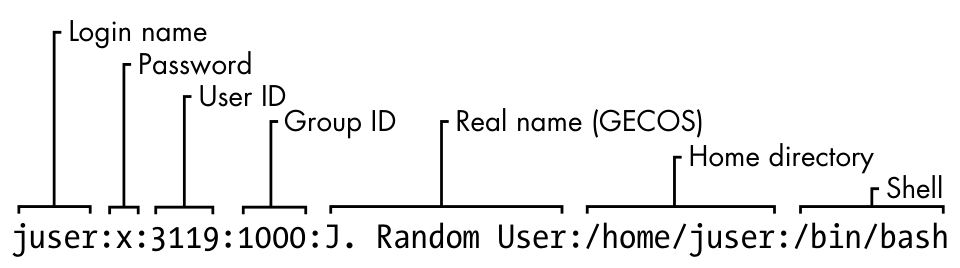
The /etc/passwd file syntax is fairly strict, allowing for no comments or blank lines.
A user in /etc/passwd and a corresponding home directory are collectively known as an account. However, remember that this is a user-space convention. An entry in the passwd file is usually enough to qualify; the home directory doesn’t have to exist in order for most programs to recognize an account. Furthermore, there are ways to add users on a system without explicitly including them in the passwd file; for example, adding users from a network server using something like NIS (Network Information Service) or LDAP (Lightweight Directory Access Protocol) was once common.
7.3.2 Special Users
You’ll find a few special users in /etc/passwd. The superuser (root) always has UID 0 and GID 0, as in Listing 7-1. Some users, such as daemon, have no login privileges. The nobody user is an underprivileged user; some processes run as nobody because it cannot (normally) write to anything on the system.
Users that cannot log in are called pseudo-users. Although they can’t log in, the system can start processes with their user IDs. Pseudo-users such as nobody are usually created for security reasons.
Again, these are all user-space conventions. These users have no special meaning to the kernel; the only user ID that means anything special to the kernel is the superuser’s, 0. It’s possible to give the nobody user access to everything on the system just as you would with any other user.
7.3.3 The /etc/shadow File
The shadow password file (/etc/shadow) on a Linux system normally contains user authentication information, including the encrypted passwords and password expiration information that correspond to the users in /etc/passwd.
The shadow file was introduced to provide a more flexible (and perhaps more secure) way of storing passwords. It included a suite of libraries and utilities, many of which were soon replaced by pieces of PAM (Pluggable Authentication Modules; we’ll cover this advanced topic in Section 7.10). Rather than introduce an entirely new set of files for Linux, PAM uses /etc/shadow, but not certain corresponding configuration files such as /etc/login.defs.
7.3.4 Manipulating Users and Passwords
Regular users interact with /etc/passwd using the passwd command and a few other tools. Use passwd to change your password. You can use chfn and chsh to change the real name and shell, respectively (the shell must be listed in /etc/shells). These are all suid-root executables, because only the superuser can change the /etc/passwd file.
Changing /etc/passwd as the Superuser
Because /etc/passwd is just a normal plaintext file, the superuser is technically allowed to use any text editor to make changes. To add a user, it’s possible to simply add an appropriate line and create a home directory for the user; to delete, you can do the opposite.
However, directly editing passwd like this is a bad idea. Not only is it too easy to make a mistake, but you can also get caught with a concurrency problem if something else is making passwd changes at the same time. It’s much easier (and safer) to make changes to users using separate commands available from the terminal or through the GUI. For example, to set a user’s password, run passwd user as the superuser. Use adduser and userdel to add and remove users, respectively.
However, if you really must edit the file directly (for example, if it’s somehow corrupted), use the vipw program, which backs up and locks /etc/passwd while you’re editing it as an added precaution. To edit /etc/shadow instead of /etc/passwd, use vipw -s. (Hopefully, you’ll never need to do either of these.)
7.3.5 Working with Groups
Groups in Unix offer a way to share files among certain users. The idea is that you can set read or write permission bits for a particular group, excluding everyone else. This feature was once important because many users shared one machine or network, but it’s become less significant in recent years as workstations are shared less often.
The /etc/group file defines the group IDs (such as the ones found in the /etc/passwd file). Listing 7-2 is an example.
root:*:0:juser
daemon:*:1:
bin:*:2:
sys:*:3:
adm:*:4:
disk:*:6:juser,beazley
nogroup:*:65534:
user:*:1000:
Listing 7-2: A sample /etc/group file
As with the /etc/passwd file, each line in /etc/group is a set of fields separated by colons. The fields in each entry are as follows, from left to right:
The group name This appears when you run a command like ls -l.
The group password Unix group passwords are hardly ever used, nor should you use them (a good alternative in most cases is sudo). Use * or any other default value. An x here means that there’s a corresponding entry in /etc/gshadow, and this is also nearly always a disabled password, denoted with a * or !.
The group ID (a number) The GID must be unique within the group file. This number goes into a user’s group field in that user’s /etc/passwd entry.
An optional list of users that belong to the group In addition to the users listed here, users with the corresponding group ID in their passwd file entries also belong to the group.
Figure 7-2 identifies the fields in a group file entry.
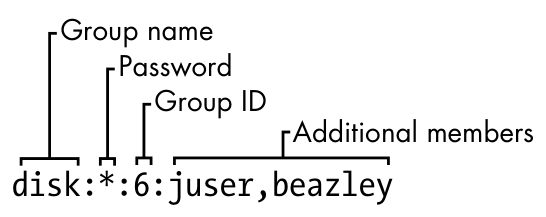
To see the groups you belong to, run groups.
Linux distributions often create a new group for each new user added, with the same name as the user.
7.4 getty and login
The getty program attaches to terminals and displays a login prompt. On most Linux systems, getty is uncomplicated because the system uses it only for logins on virtual terminals. In a process listing, it usually looks something like this (for example, when running on /dev/tty1):
$ ps ao args | grep getty
/sbin/agetty -o -p -- \u --noclear tty1 linux
On many systems, you may not even see a getty process until you access a virtual terminal with something like CTRL-ALT-F1. This example shows agetty, the version that many Linux distributions include by default.
After you enter your login name, getty replaces itself with the login program, which asks for your password. If you enter the correct password, login replaces itself (using exec()) with your shell. Otherwise, you get a “Login incorrect” message. Much of the login program’s real authentication work is handled by PAM (see Section 7.10).
When investigating getty, you may come across a reference to a baud rate such as “38400.” This setting is all but obsolete. Virtual terminals ignore the baud rate; it’s only there for connecting to real serial lines.
You now know what getty and login do, but you’ll probably never need to configure or change them. In fact, you’ll rarely even use them, because most users now log in either through a graphical interface such as gdm or remotely with SSH, neither of which uses getty or login.
7.5 Setting the Time
Unix machines depend on accurate timekeeping. The kernel maintains the system clock, which is the clock consulted when you run commands like date. You can also set the system clock using the date command, but it’s usually a bad idea to do so because you’ll never get the time exactly right. Your system clock should be as close to the correct time as possible.
PC hardware has a battery-backed real-time clock (RTC). The RTC isn’t the best clock in the world, but it’s better than nothing. The kernel usually sets its time based on the RTC at boot time, and you can reset the system clock to the current hardware time with hwclock. Keep your hardware clock in Universal Coordinated Time (UTC) in order to avoid any trouble with time zone or daylight saving time corrections. You can set the RTC to your kernel’s UTC clock using this command:
# hwclock --systohc --utc
Unfortunately, the kernel is even worse at keeping time than the RTC, and because Unix machines often stay up for months or years on a single p. 182 boot, they tend to develop time drift. Time drift is the current difference between the kernel time and the true time (as defined by an atomic clock or another very accurate clock).
You shouldn’t try to fix time drift with hwclock because time-based system events can get lost or mangled. You could run a utility like adjtimex to smoothly update the clock based on the RTC, but usually it’s best to keep your system time correct with a network time daemon (see Section 7.5.2).
7.5.1 Kernel Time Representation and Time Zones
The kernel’s system clock represents the current time as the number of seconds since 12:00 midnight on January 1, 1970, UTC. To see this number at the moment, run:
$ date +%s
To convert this number into something that humans can read, user-space programs change it to local time and compensate for daylight saving time and any other strange circumstances (such as living in Indiana). The local time zone is controlled by the file /etc/localtime. (Don’t bother trying to look at it; it’s a binary file.)
The time zone files on your system are in /usr/share/zoneinfo. You’ll find that this directory contains a lot of time zones and aliases for time zones. To set your system’s time zone manually, either copy one of the files in /usr/share/zoneinfo to /etc/localtime (or make a symbolic link) or change it with your distribution’s time zone tool. The command-line program tzselect may help you identify a time zone file.
To use a time zone other than the system default for just one shell session, set the TZ environment variable to the name of a file in /usr/share/zoneinfo and test the change, like this:
$ export TZ=US/Central
$ date
As with other environment variables, you can also set the time zone for the duration of a single command like this:
$ TZ=US/Central date
7.5.2 Network Time
If your machine is permanently connected to the internet, you can run a Network Time Protocol (NTP) daemon to maintain the time using a remote server. This was once handled by the ntpd daemon, but as with many other services, systemd has replaced this with its own package, named timesyncd. Most Linux distributions include timesyncd, and it’s p. 183 enabled by default. You shouldn’t need to configure it, but if you’re interested in how to do it, the timesyncd.conf(5) manual page can help you. The most common override is to change the remote time server(s).
If you want to run ntpd instead, you’ll need to disable timesyncd if you’ve got it installed. Go to https://www.ntppool.org/ to see the instructions there. This site might also be useful if you still want to use timesyncd with different servers.
If your machine doesn’t have a permanent internet connection, you can use a daemon such as chronyd to maintain the time during disconnections.
You can also set your hardware clock based on the network time in order to help your system maintain time coherency when it reboots. Many distributions do this automatically, but to do it manually, make sure that your system time is set from the network and then run this command:
# hwclock --systohc –-utc
7.6 Scheduling Recurring Tasks with cron and Timer Units
There are two ways to run programs on a repeating schedule: cron, and systemd timer units. This ability is vital to automating system maintenance tasks. One example is logfile rotation utilities to ensure that your hard drive doesn’t fill up with old logfiles (as discussed earlier in the chapter). The cron service has long been the de facto standard for doing this, and we’ll cover it in detail. However, systemd’s timer units are an alternative to cron with advantages in certain cases, so we’ll see how to use them as well.
You can run any program with cron at whatever times suit you. The program running through cron is called a cron job. To install a cron job, you’ll create an entry line in your crontab file, usually by running the crontab command. For example, the following crontab file entry schedules the /home/juser/bin/spmake command daily at 9:15 AM (in the local time zone):
15 09 * * * /home/juser/bin/spmake
The five fields at the beginning of this line, delimited by whitespace, specify the scheduled time (see also Figure 7-3). The fields are as follows, in order:
- Minute (0 through 59). This cron job is set for minute 15.
- Hour (0 through 23). This job is set for the ninth hour.
- Day of month (1 through 31).
- Month (1 through 12).
- Day of week (0 through 7). The numbers 0 and 7 are Sunday.
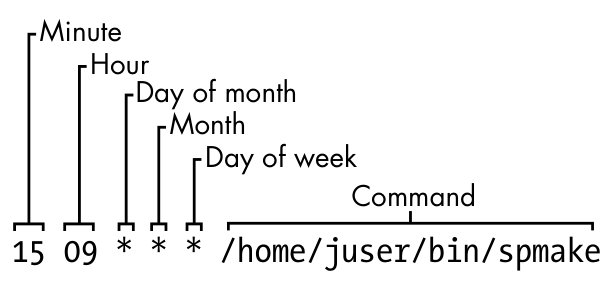
A star (*) in any field means to match every value. The preceding example runs spmake daily because the day of month, month, and day of week fields are all filled with stars, which cron reads as “run this job every day, of every month, of every day of the week.”
To run spmake only on the 14th day of each month, you would use this crontab line:
15 09 14 * * /home/juser/bin/spmake
You can select more than one time for each field. For example, to run the program on the 5th and the 14th day of each month, you could enter 5,14 in the third field:
15 09 5,14 * * /home/juser/bin/spmake
If the cron job generates standard output or an error or exits abnormally, cron should email this information to the owner of the cron job (assuming that email works on your system). Redirect the output to /dev/null or some other logfile if you find the email annoying.
The crontab(5) manual page provides complete information on the crontab format.
7.6.1 Installing Crontab Files
Each user can have their own crontab file, which means that every system may have multiple crontabs, usually found in /var/spool/cron/crontabs. Normal users can’t write to this directory; the crontab command installs, lists, edits, and removes a user’s crontab.
The easiest way to install a crontab is to put your crontab entries into a file and then use crontab file to install file as your current crontab. The crontab command checks the file format to make sure that you haven’t made any mistakes. To list your cron jobs, run crontab -l. To remove the crontab, use crontab -r.
After you’ve created your initial crontab, it can be a bit messy to use temporary files to make further edits. Instead, you can edit and install your p. 185 crontab in one step with the crontab -e command. If you make a mistake, crontab should tell you where the mistake is and ask if you want to try editing again.
7.6.2 System Crontab Files
Many common cron-activated system tasks are run as the superuser. However, rather than editing and maintaining a superuser’s crontab to schedule these, Linux distributions normally have an /etc/crontab file for the entire system. You won’t use crontab to edit this file, and in any case, it’s slightly different in format: before the command to run, there’s an additional field specifying the user that should run the job. (This gives you the opportunity to group system tasks together even if they aren’t all run by the same user.) For example, this cron job defined in /etc/crontab runs at 6:42 AM as the superuser (root ❶):
42 6 * * * root❶ /usr/local/bin/cleansystem > /dev/null 2>&1
Some distributions store additional system crontab files in the /etc/cron.d directory. These files may have any name, but they have the same format as /etc/crontab. There may also be some directories such as /etc/cron.daily, but the files here are usually scripts run by a specific cron job in /etc/crontab or /etc/cron.d. It can sometimes be confusing to track down where the jobs are and when they run.
7.6.3 Timer Units
An alternative to creating a cron job for a periodic task is to build a systemd timer unit. For an entirely new task, you must create two units: a timer unit and a service unit. The reason for two units is that a timer unit doesn’t contain any specifics about the task to perform; it’s just an activation mechanism to run a service unit (or conceptually, another kind of unit, but the most common usage is for service units).
Let’s look at a typical timer/service unit pair, starting with the timer unit. Let’s call this loggertest.timer; as with other custom unit files, we’ll put it in /etc/systemd/system (see Listing 7-3).
[Unit]
Description=Example timer unit

[Timer]
OnCalendar=*-*-* *:00,20,40
Unit=loggertest.service

[Install]
WantedBy=timers.target
Listing 7-3: loggertest.timer
This timer runs every 20 minutes, with the OnCalendar option resembling the cron syntax. In this example, it’s at the top of each hour, as well as 20 and 40 minutes past each hour.
The OnCalendar time format is year-month-day hour:minute:second. The field for seconds is optional. As with cron, a * represents a sort of wildcard, and commas allow for multiple values. The periodic / syntax is also valid; in the preceding example, you could change the *:00,20,40 to *:00/20 (every 20 minutes) for the same effect.
The syntax for times in the OnCalendar field has many shortcuts and variations. See the Calendar Events section of the systemd.time(7) manual page for the full list.
The associated service unit is named loggertest.service (see Listing 7-4). We explicitly named it in the timer with the Unit option, but this isn’t strictly necessary because systemd looks for a .service file with the same base name as the timer unit file. This service unit also goes in /etc/systemd/system, and looks quite similar to the service units that you saw back in Chapter 6.
[Unit]
Description=Example Test Service

[Service]
Type=oneshot
ExecStart=/usr/bin/logger -p local3.debug I\'m a logger
Listing 7-4: loggertest.service
The meat of this is the ExecStart line, which is the command that the service runs when activated. This particular example sends a message to the system log.
Note the use of oneshot as the service type, indicating that the service is expected to run and exit, and that systemd won’t consider the service started until the command specified by ExecStart completes. This has a few advantages for timers:
- You can specify multiple
ExecStartcommands in the unit file. The other service unit styles that we saw in Chapter 6 do not allow this. - It’s easier to control strict dependency order when activating other units using
WantsandBeforedependency directives. - You have better records of start and end times of the unit in the journal.
In this unit example, we’re using logger to send an entry to syslog and the journal. You read in Section 7.1.2 that you can view log messages by unit. However, the unit could finish up before journald has a chance to receive the message. This is a race condition, and in the case that the unit completes too quickly, journald won’t be able to look up the unit associated with the syslog message (this is done by process ID). p. 187 Consequently, the message that gets written in the journal may not include a unit field, rendering a filtering command such as journalctl -f -u loggertest.service incapable of showing the syslog message. This isn’t normally a problem in longer-running services.
7.6.4 cron vs. Timer Units
The cron utility is one of the oldest components of a Linux system; it’s been around for decades (predating Linux itself), and its configuration format hasn’t changed much for many years. When something gets to be this old, it becomes fodder for replacement.
The systemd timer units that you just saw may seem like a logical replacement, and indeed, many distributions have now moved system-level periodic maintenance tasks to timer units. But it turns out that cron has some advantages:
- Simpler configuration
- Compatibility with many third-party services
- Easier for users to install their own tasks
Timer units offer these advantages:
- Superior tracking of processes associated with tasks/units with cgroups
- Excellent tracking of diagnostic information in the journal
- Additional options for activation times and frequencies
- Ability to use systemd dependencies and activation mechanisms
Perhaps someday there will be a compatibility layer for cron jobs in much the same manner as mount units and /etc/fstab. However, configuration alone is a reason why it’s unlikely that the cron format will go away any time soon. As you’ll see in the next section, a utility called systemd-run does allow for creating timer units and associated services without creating unit files, but the management and implementation differ enough that many users would likely prefer cron. You’ll see some of this shortly when we discuss at.
7.7 Scheduling One-Time Tasks with at
To run a job once in the future without using cron, use the at service. For example, to run myjob at 10:30 PM, enter this command:
$ at 22:30
at> myjob
End the input with CTRL-D. (The at utility reads the commands from the standard input.)
To check that the job has been scheduled, use atq. To remove it, use atrm. You can also schedule jobs days into the future by adding the date in DD.MM.YY format—for example, at 22:30 30.09.15.
There isn’t much else to the at command. Though it isn’t used that often, it can be invaluable when the need does arise.
7.7.1 Timer Unit Equivalents
You can use systemd timer units as a substitute for at. These are much easier to create than the periodic timer units that you saw earlier, and can be run on the command line like this:
# systemd-run --on-calendar='2022-08-14 18:00' /bin/echo this is a test
Running timer as unit: run-rbd000cc6ee6f45b69cb87ca0839c12de.timer
Will run service as unit: run-rbd000cc6ee6f45b69cb87ca0839c12de.service
The systemd-run command creates a transient timer unit that you can view with the usual systemctl list-timers command. If you don’t care about a specific time, you can specify a time offset instead with --on-active (for example, --on-active=30m for 30 minutes in the future).
When using --on-calendar, it’s important that you include a (future) calendar date as well as the time. Otherwise, the timer and service units will remain, with the timer running the service every day at the specified time, much as it would if you created a normal timer unit as described earlier. The syntax for this option is the same as the OnCalendar option in timer units.
7.8 Timer Units Running as Regular Users
All of the systemd timer units we’ve seen so far have been run as root. It’s also possible to create a timer unit as a regular user. To do this, add the --user option to systemd-run.
However, if you log out before the unit runs, the unit won’t start; and if you log out before the unit completes, the unit terminates. This happens because systemd has a user manager associated with a logged-in user, and this is necessary to run timer units. You can tell systemd to keep the user manager around after you log out with this command:
$ loginctl enable-linger
As root, you can also enable a manager for another user:
# loginctl enable-linger user
7.9 User Access Topics
The remainder of this chapter covers several topics on how users get the permission to log in, switch to other users, and perform other related tasks. This is somewhat advanced material, and you’re welcome to skip to the next chapter if you’re ready to get your hands dirty with some process internals.
7.9.1 User IDs and User Switching
We’ve discussed how setuid programs such as sudo and su allow you to temporarily change users, and we’ve covered system components like login that control user access. Perhaps you’re wondering how these pieces work and what role the kernel plays in user switching.
When you temporarily switch to another user, all you’re really doing is changing your user ID. There are two ways to do this, and the kernel handles both. The first is with a setuid executable, which was covered in Section 2.17. The second is through the setuid() family of system calls. There are a few different versions of this system call to accommodate the various user IDs associated with a process, as you’ll learn in Section 7.9.2.
The kernel has basic rules about what a process can or can’t do, but here are the three essentials that cover setuid executables and setuid():
- A process can run a setuid executable as long as it has adequate file permissions.
- A process running as root (user ID 0) can use
setuid()to become any other user. - A process not running as root has severe restrictions on how it may use
setuid(); in most cases, it cannot.
As a consequence of these rules, if you want to switch user IDs from a regular user to another user, you often need a combination of the methods. For example, the sudo executable is setuid root, and once running, it can call setuid() to become another user.
At its core, user switching has nothing to do with passwords or usernames. Those are strictly user-space concepts, as you first saw in the /etc/passwd file in Section 7.3.1. You’ll learn more details about how this works in Section 7.9.4.
7.9.2 Process Ownership, Effective UID, Real UID, and Saved UID
Our discussion of user IDs so far has been simplified. In reality, every process has more than one user ID. So far, you are familiar with the effective user ID (effective UID, or euid), which defines the access rights for a process (most significantly, file permissions). A second user ID, the real user ID (real UID, or ruid), indicates who initiated a process. Normally, these IDs are identical, but when you run a setuid program, Linux sets the euid to the program’s owner during execution, but it keeps your original user ID in the ruid.
The difference between the effective and real UIDs is confusing, so much so that a lot of documentation regarding process ownership is incorrect.
Think of the euid as the actor and the ruid as the owner. The ruid defines the user that can interact with the running process—most significantly, which user can kill and send signals to a process. For example, if user A starts a new process that runs as user B (based on setuid permissions), user A still owns the process and can kill it.
We’ve seen that most processes have the same euid and ruid. As a result, the default output for ps and other system diagnostic programs show only the euid. To view both user IDs on your system, try this, but don’t be surprised if you find that the two user ID columns are identical for all processes on your system:
$ ps -eo pid,euser,ruser,comm
To create an exception just so that you can see different values in the columns, try experimenting by creating a setuid copy of the sleep command, running the copy for a few seconds, and then running the preceding ps command in another window before the copy terminates.
To add to the confusion, in addition to the real and effective user IDs, there’s also a saved user ID (which is usually not abbreviated). A process can switch its euid to the ruid or saved user ID during execution. (To make things even more complicated, Linux has yet another user ID: the file system user ID, or fsuid, which defines the user accessing the filesystem but is rarely used.)
Typical Setuid Program Behavior
The idea of the ruid might contradict your previous experience. Why don’t you have to deal with the other user IDs very frequently? For example, after starting a process with sudo, if you want to kill it, you still use sudo; you can’t kill it as your own regular user. Shouldn’t your regular user be the ruid in this case, giving you the correct permissions?
The cause of this behavior is that sudo and many other setuid programs explicitly change the euid and ruid with one of the setuid() system calls. These programs do so because there are often unintended side effects and access problems when all of the user IDs do not match.
If you’re interested in the details and rules regarding user ID switching, read the setuid(2) manual page and check the other manual pages listed in the SEE ALSO section. There are many different system calls for diverse situations.
Some programs don’t like to have an ruid of root. To prevent sudo from changing the ruid, add this line to your /etc/sudoers file (and beware of side effects on other programs you want to run as root!):
Defaults stay_setuid
Security Implications
Because the Linux kernel handles all user switches (and as a result, file access permissions) through setuid programs and subsequent system calls, systems developers and administrators must be extremely careful with two things:
- The number and quality of programs that have setuid permissions
- What those programs do
If you make a copy of the bash shell that is setuid root, any local user can execute it and have complete run of the system. It’s really that simple. Furthermore, even a special-purpose program that is setuid root can pose a danger if it has bugs. Exploiting weaknesses in programs running as root is a primary method of systems intrusion, and there are too many such exploits to count.
Because there are so many ways to break into a system, preventing intrusion is a multifaceted affair. One of the most essential ways to keep unwanted activity off your system is to enforce user authentication with usernames and good passwords.
7.9.3 User Identification, Authentication, and Authorization
A multiuser system must provide basic support for user security in three areas: identification, authentication, and authorization. The identification portion of security answers the question of who users are. The authentication piece asks users to prove that they are who they say they are. Finally, authorization is used to define and limit what users are allowed to do.
When it comes to user identification, the Linux kernel knows only the numeric user IDs for process and file ownership. The kernel knows authorization rules for how to run setuid executables and how user IDs may run the setuid() family of system calls to change from one user to another. However, the kernel doesn’t know anything about authentication: usernames, passwords, and so on. Practically everything related to authentication happens in user space.
We discussed the mapping between user IDs and passwords in Section 7.3.1; now we’ll cover how user processes access this mapping. We’ll begin with an oversimplified case, in which a user process wants to know its username (the name corresponding to the euid). On a traditional Unix system, a process could do something like this to get its username:
- The process asks the kernel for its euid with the
geteuid()system call. - The process opens the /etc/passwd file and starts reading at the beginning.
- The process reads a line of the /etc/passwd file. If there’s nothing left to read, the process has failed to find the username.
- The process parses the line into fields (breaking out everything between the colons). The third field is the user ID for the current line. p. 192
- The process compares the ID from step 4 to the ID from step 1. If they’re identical, the first field in step 4 is the desired username, and the process can stop searching and use this name.
- The process moves on to the next line in /etc/passwd and goes back to step 3.
This is a long procedure, and a real-world implementation is usually even more complicated.
7.9.4 Using Libraries for User Information
If every developer who needed to know the current username had to write all of the code you’ve just seen, the system would be a horrifyingly disjointed, buggy, bloated, and unmaintainable mess. Fortunately, there are often standard libraries we can use to perform repetitive tasks like this; in this case, all you’d normally need to do to get a username is call a function like getpwuid() in the standard library after you have the answer from geteuid(). (See the manual pages for these calls for more on how they work.)
The standard library is shared among the executables on your system, so you can make significant changes to the authentication implementation without changing any program. For example, you can move away from using /etc/passwd for your users and use a network service such as LDAP instead by changing only the system configuration.
This approach has worked well for identifying usernames associated with user IDs, but passwords have proven more troublesome. Section 7.3.1 describes how, traditionally, the encrypted password was part of /etc/passwd, so if you wanted to verify a password that a user entered, you’d encrypt whatever the user typed and compare it to the contents of the /etc/passwd file.
This traditional implementation has many limitations, including:
- It doesn’t allow you to set a system-wide standard for the encryption protocol.
- It assumes that you have access to the encrypted password.
- It assumes that you want to prompt the user for a password every time the user wants to access something that requires authentication (which gets annoying).
- It assumes that you want to use passwords. If you want to use one-time tokens, smart cards, biometrics, or some other form of user authentication, you have to add that support yourself.
Some of these limitations contributed to the development of the shadow password package discussed in Section 7.3.3, which took the first step in allowing system-wide password configuration. But the solution to the bulk of the problems came with the design and implementation of PAM.
7.10 Pluggable Authentication Modules
To accommodate flexibility in user authentication, in 1995 Sun Microsystems proposed a new standard called Pluggable Authentication Modules (PAM), a system p. 193 of shared libraries for authentication (Open Software Foundation RFC 86.0, October 1995). To authenticate a user, an application hands the user to PAM to determine whether the user can successfully identify itself. This way, it’s relatively easy to add support for additional authentication techniques, such as two-factor and physical keys. In addition to authentication mechanism support, PAM also provides a limited amount of authorization control for services (for example, if you’d like to deny a service like cron to certain users).
Because there are many kinds of authentication scenarios, PAM employs a number of dynamically loadable authentication modules. Each module performs a specific task and is a shared object that processes can load dynamically and run in their executable space. For example, pam_unix.so is a module that can check a user’s password.
This is tricky business, to say the least. The programming interface isn’t easy, and it’s not clear that PAM actually solves all of the existing problems. Nevertheless, PAM is supported in nearly every program that requires authentication on a Linux system, and most distributions use PAM. And because it works on top of the existing Unix authentication API, integrating support into a client requires little, if any, extra work.
7.10.1 PAM Configuration
We’ll explore the basics of how PAM works by examining its configuration. You’ll normally find PAM’s application configuration files in the /etc/pam.d directory (older systems may use a single /etc/pam.conf file). Most installations include many files, so you may not know where to start. Some filenames, such as cron and passwd, correspond to parts of the system that you know already.
Because the specific configuration in these files varies significantly between distributions, it can be difficult to find a commonly applicable example. We’ll look at an example configuration line that you might find for chsh (the change shell program):
auth requisite pam_shells.so
This line says that the user’s shell must be listed in /etc/shells in order for the user to successfully authenticate with the chsh program. Let’s see how. Each configuration line has three fields: a function type, control argument, and module, in that order. Here’s what they mean for this example:
Function type The function that a user application asks PAM to perform. Here, it’s auth, the task of authenticating the user.
Control argument This setting controls what PAM does after success or failure of its action for the current line (requisite in this example). We’ll get to this shortly.
Module The authentication module that runs for this line, determining what the line actually does. Here, the pam_shells.so module checks to see whether the user’s current shell is listed in /etc/shells.
PAM configuration is detailed on the pam.conf(5) manual page. Let’s look at a few of the essentials.
Function Types
A user application can ask PAM to perform one of the following four functions:
auth Authenticate a user (see if the user is who they say they are).
account Check user account status (whether the user is authorized to do something, for example).
session Perform something only for the user’s current session (such as displaying a message of the day).
password Change a user’s password or other credentials.
For any configuration line, the module and function together determine PAM’s action. A module can have more than one function type, so when determining the purpose of a configuration line, always remember to consider the function and module as a pair. For example, the pam_unix.so module checks a password when performing the auth function, but it sets a password when performing the password function.
Control Arguments and Stacked Rules
One important feature of PAM is that the rules specified by its configuration lines stack, meaning that you can apply many rules when performing a function. This is why the control argument is important: the success or failure of an action in one line can impact subsequent lines or cause the entire function to succeed or fail.
There are two kinds of control arguments: the simple syntax and a more advanced syntax. Here are the three major simple syntax control arguments that you’ll find in a rule:
sufficient If this rule succeeds, the authentication is successful, and PAM doesn’t need to look at any more rules. If the rule fails, PAM proceeds to additional rules.
requisite If this rule succeeds, PAM proceeds to additional rules. If the rule fails, the authentication is unsuccessful, and PAM doesn’t need to look at any more rules.
required If this rule succeeds, PAM proceeds to additional rules. If the rule fails, PAM proceeds to additional rules but will always return an unsuccessful authentication regardless of the end result of the additional rules.
Continuing with the preceding example, here is an example stack for the chsh authentication function:
auth       sufficient     pam_rootok.so
auth       requisite      pam_shells.so
auth       sufficient     pam_unix.so
auth       required       pam_deny.so
With this configuration, when the chsh command asks PAM to perform the authentication function, PAM does the following (see Figure 7-4 for a flowchart):
- The pam_rootok.so module checks to see if root is the user trying to authenticate. If so, it immediately succeeds and attempts no further authentication. This works because the control argument is set to
sufficient, meaning that success from this action is good enough for PAM to immediately report success back tochsh. Otherwise, it proceeds to step 2.
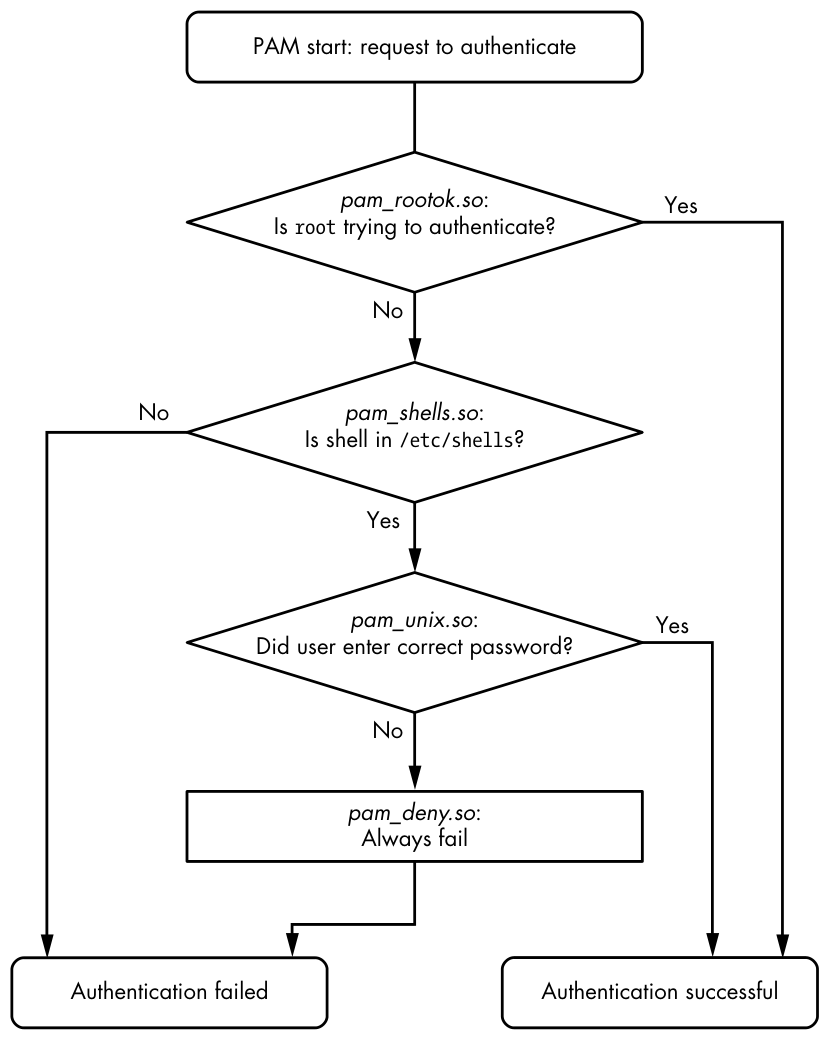
- The pam_shells.so module checks to see if the user’s shell is listed in /etc/shells. If it’s not there, the module returns failure, and the
requisitep. 196 control argument indicates that PAM must immediately report this failure back tochshand attempt no further authentication. Otherwise, the module returns success and fulfills the control flag ofrequisite; proceed to step 3. - The pam_unix.so module asks the user for their password and checks it. The control argument is set to
sufficient, so success from this module (a correct password) is enough for PAM to report success tochsh. If the password is incorrect, PAM continues to step 4. - The pam_deny.so module always fails, and because the control argument is set to
required, PAM reports failure back tochsh. This is a default for when there’s nothing left to try. (Note that arequiredcontrol argument doesn’t cause PAM to fail its function immediately—it will run any lines left on its stack—but PAM will always report failure back to the application.)
Don’t confuse the terms function and action when working with PAM. The function is the high-level goal: what the user application wants PAM to do (authenticate a user, for example). An action is a specific step that PAM takes in order to reach that goal. Just remember that the user application invokes the function first and that PAM takes care of the particulars with actions.
The advanced control argument syntax, denoted inside square brackets ([]), allows you to manually control a reaction based on the specific return value of the module (not just success or failure). For details, see the pam.conf(5) manual page; when you understand the simple syntax, you’ll have no trouble with the advanced syntax.
Module Arguments
PAM modules can take arguments after the module name. You’ll often encounter this example with the pam_unix.so module:
auth sufficient pam_unix.so nullok
The nullok argument here says that the user can have no password (the default would be failure if the user has no password).
7.10.2 Tips on PAM Configuration Syntax
Due to its control flow capability and module argument syntax, the PAM configuration syntax has many features of a programming language and a certain degree of power. We’ve only scratched the surface so far, but here are a few more tips on PAM:
- To find out which PAM modules are present on your system, try
man -k pam_(note the underscore). It can be difficult to track down the location of modules. Try thelocate pam_unix.socommand and see where that leads you. p. 197 - The manual pages contain the functions and arguments for each module.
- Many distributions automatically generate certain PAM configuration files, so it may not be wise to change them directly in /etc/pam.d. Read the comments in your /etc/pam.d files before editing them; if they’re generated files, the comments will tell you where they came from.
- The /etc/pam.d/other configuration file defines the default configuration for any application that lacks its own configuration file. The default is often to deny everything.
- There are different ways to include additional configuration files in a PAM configuration file. The
@includesyntax loads an entire configuration file, but you can also use a control argument to load only the configuration for a particular function. The usage varies among distributions. - PAM configuration doesn’t end with module arguments. Some modules can access additional files in /etc/security, usually to configure per-user restrictions.
7.10.3 PAM and Passwords
Due to the evolution of Linux password verification over the years, there are a number of password configuration artifacts that can cause confusion at times. The first to be aware of is the file /etc/login.defs. This is the configuration file for the original shadow password suite. It contains information about the encryption algorithm used for the /etc/shadow password file, but it’s rarely used on a system with PAM installed, because the PAM configuration contains this information. This said, the encryption algorithm in /etc/login.defs should match the PAM configuration in the rare case that you run into an application that doesn’t support PAM.
Where does PAM get its information about the password encryption scheme? Remember that there are two ways for PAM to interact with passwords: the auth function (for verifying a password) and the password function (for setting a password). It’s easiest to track down the password-setting parameter. The best way is probably just to grep it:
$ grep password.*unix /etc/pam.d/*
The matching lines should contain pam_unix.so and look something like this:
password sufficient pam_unix.so obscure sha512
The arguments obscure and sha512 tell PAM what to do when setting a password. First, PAM checks to see if the password is “obscure” enough (that is, the password isn’t too similar to the old password, among other things), and then PAM uses the SHA512 algorithm to encrypt the new password.
But this happens only when a user sets a password, not when PAM is verifying a password. So how does PAM know which algorithm to use when authenticating? Unfortunately, the configuration won’t tell you anything; there are no encryption arguments for pam_unix.so for the auth function. The manual pages also tell you nothing.
It turns out that (as of this writing) pam_unix.so simply tries to guess the algorithm, usually by asking the libcrypt library to do the dirty work of trying a whole bunch of things until something works or there’s nothing left to try. Therefore, you normally don’t have to worry about the verification encryption algorithm.
7.11 Looking Forward
We’re now at about the midpoint in our progression through this book, having covered many of the vital building blocks of a Linux system. The discussion of logging and users on a Linux system has shown you how it’s possible to divide services and tasks into small, independent chunks that can still interact to a certain extent.
This chapter dealt almost exclusively with user space, and now we need to refine our view of user-space processes and the resources they consume. To do so, we’ll go back into the kernel in Chapter 8.