7.3 User Management Files
Unix systems allow for multiple independent users. At the kernel level, users are simply numbers (user IDs), but because it’s much easier to remember a name than a number, you’ll normally work instead with usernames (or login names) when managing Linux. Usernames exist only in user space, so any program that works with a username needs to find its corresponding user ID when talking to the kernel.
7.3.1 The /etc/passwd File
The plaintext file /etc/passwd maps usernames to user IDs. It looks like Listing 7-1.
root:x:0:0:Superuser:/root:/bin/sh
daemon:*:1:1:daemon:/usr/sbin:/bin/sh
bin:*:2:2:bin:/bin:/bin/sh
sys:*:3:3:sys:/dev:/bin/sh
nobody:*:65534:65534:nobody:/home:/bin/false
juser:x:3119:1000:J. Random User:/home/juser:/bin/bash
beazley:x:143:1000:David Beazley:/home/beazley:/bin/bash
Listing 7-1: A list of users in /etc/passwd
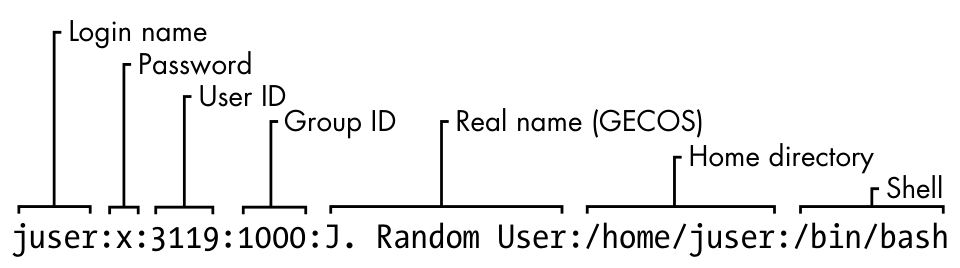
Each line represents one user and has seven fields separated by colons. The first is the username.
Following this is the user’s encrypted password, or at least what was once the field for the password. On most Linux systems, the password is no longer actually stored in the passwd file, but rather in the shadow file (see Section 7.3.3). The shadow file format is similar to that of passwd, but normal users don’t have read permission for shadow. The second field in passwd or shadow is the encrypted password, and it looks like a bunch of unreadable garbage, such as d1CVEWiB/oppc. Unix passwords are never stored as clear text; in fact, the field is not the password itself, but a derivation of it. In most cases, it’s exceptionally difficult to get the original password from this field (assuming that the password is not easy to guess).
An x in the second passwd file field indicates that the encrypted password is stored in the shadow file (which should be configured on your system). An asterisk (*) indicates that the user cannot log in.
If this password field is blank (that is, you see two colons in a row, like ::), no password is required to log in. Beware of blank passwords like this. You should never have a user able to log in without a password.
The remaining passwd fields are as follows:
- The user ID (UID), which is the user’s representation in the kernel. You can have two entries with the same user ID, but this will confuse you—and possibly your software as well—so keep the user ID unique.
- The group ID (GID), which should be one of the numbered entries in the /etc/group file. Groups determine file permissions and little else. This group is also called the user’s primary group.
- The user’s real name (often called the GECOS field). You’ll sometimes find commas in this field, denoting room and telephone numbers.
- The user’s home directory.
- The user’s shell (the program that runs when the user runs a terminal session).
Figure 7-1 identifies the various fields in one of the entries in Listing 7-1.
The /etc/passwd file syntax is fairly strict, allowing for no comments or blank lines.
A user in /etc/passwd and a corresponding home directory are collectively known as an account. However, remember that this is a user-space convention. An entry in the passwd file is usually enough to qualify; the home directory doesn’t have to exist in order for most programs to recognize an account. Furthermore, there are ways to add users on a system without explicitly including them in the passwd file; for example, adding users from a network server using something like NIS (Network Information Service) or LDAP (Lightweight Directory Access Protocol) was once common.
7.3.2 Special Users
You’ll find a few special users in /etc/passwd. The superuser (root) always has UID 0 and GID 0, as in Listing 7-1. Some users, such as daemon, have no login privileges. The nobody user is an underprivileged user; some processes run as nobody because it cannot (normally) write to anything on the system.
Users that cannot log in are called pseudo-users. Although they can’t log in, the system can start processes with their user IDs. Pseudo-users such as nobody are usually created for security reasons.
Again, these are all user-space conventions. These users have no special meaning to the kernel; the only user ID that means anything special to the kernel is the superuser’s, 0. It’s possible to give the nobody user access to everything on the system just as you would with any other user.
7.3.3 The /etc/shadow File
The shadow password file (/etc/shadow) on a Linux system normally contains user authentication information, including the encrypted passwords and password expiration information that correspond to the users in /etc/passwd.
The shadow file was introduced to provide a more flexible (and perhaps more secure) way of storing passwords. It included a suite of libraries and utilities, many of which were soon replaced by pieces of PAM (Pluggable Authentication Modules; we’ll cover this advanced topic in Section 7.10). Rather than introduce an entirely new set of files for Linux, PAM uses /etc/shadow, but not certain corresponding configuration files such as /etc/login.defs.
7.3.4 Manipulating Users and Passwords
Regular users interact with /etc/passwd using the passwd command and a few other tools. Use passwd to change your password. You can use chfn and chsh to change the real name and shell, respectively (the shell must be listed in /etc/shells). These are all suid-root executables, because only the superuser can change the /etc/passwd file.
Changing /etc/passwd as the Superuser
Because /etc/passwd is just a normal plaintext file, the superuser is technically allowed to use any text editor to make changes. To add a user, it’s possible to simply add an appropriate line and create a home directory for the user; to delete, you can do the opposite.
However, directly editing passwd like this is a bad idea. Not only is it too easy to make a mistake, but you can also get caught with a concurrency problem if something else is making passwd changes at the same time. It’s much easier (and safer) to make changes to users using separate commands available from the terminal or through the GUI. For example, to set a user’s password, run passwd user as the superuser. Use adduser and userdel to add and remove users, respectively.
However, if you really must edit the file directly (for example, if it’s somehow corrupted), use the vipw program, which backs up and locks /etc/passwd while you’re editing it as an added precaution. To edit /etc/shadow instead of /etc/passwd, use vipw -s. (Hopefully, you’ll never need to do either of these.)
7.3.5 Working with Groups
Groups in Unix offer a way to share files among certain users. The idea is that you can set read or write permission bits for a particular group, excluding everyone else. This feature was once important because many users shared one machine or network, but it’s become less significant in recent years as workstations are shared less often.
The /etc/group file defines the group IDs (such as the ones found in the /etc/passwd file). Listing 7-2 is an example.
root:*:0:juser
daemon:*:1:
bin:*:2:
sys:*:3:
adm:*:4:
disk:*:6:juser,beazley
nogroup:*:65534:
user:*:1000:
Listing 7-2: A sample /etc/group file
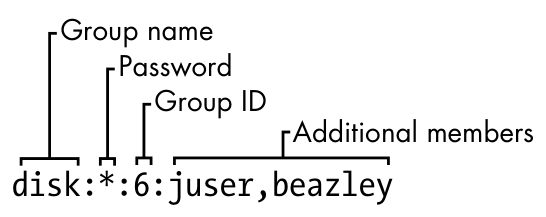
As with the /etc/passwd file, each line in /etc/group is a set of fields separated by colons. The fields in each entry are as follows, from left to right:
The group name This appears when you run a command like ls -l.
The group password Unix group passwords are hardly ever used, nor should you use them (a good alternative in most cases is sudo). Use * or any other default value. An x here means that there’s a corresponding entry in /etc/gshadow, and this is also nearly always a disabled password, denoted with a * or !.
The group ID (a number) The GID must be unique within the group file. This number goes into a user’s group field in that user’s /etc/passwd entry.
An optional list of users that belong to the group In addition to the users listed here, users with the corresponding group ID in their passwd file entries also belong to the group.
Figure 7-2 identifies the fields in a group file entry.
To see the groups you belong to, run groups.
Linux distributions often create a new group for each new user added, with the same name as the user.