Chapter 12: Network File Transfer and Sharing
This chapter surveys options for distributing and sharing files between machines on a network. We’ll start by looking at some ways to copy files other than the scp and sftp utilities that you’ve already seen. Then we’ll discuss true file sharing, where you attach a directory on one machine to another machine.
Because there are so many ways to distribute and share files, here’s a list of scenarios with corresponding solutions:
| Make a file or directory from your Linux machine temporarily available to other machines. | Python SimpleHTTPServer (Section 12.1) |
| Distribute (copy) files across machines, particularly on a regular basis. | rsync (Section 12.2) |
| Regularly share the files on your Linux machine to Windows machines. | Samba (Section 12.4) |
| Mount Windows shares on your Linux machine. | CIFS (Section 12.4) |
| Implement small-scale sharing between Linux machines with minimal setup. | SSHFS (Section 12.5) |
| Mount larger filesystems from an NAS or other server on your trusted local network. | NFS (Section 12.6) |
| Mount cloud storage to your Linux machine. | Various FUSE-based filesystems (Section 12.7) |
Notice that there’s nothing here about large-scale sharing between multiple locations with many users. Though not impossible, such a solution generally requires a fair amount of work, and is not within the scope of this book. We’ll end the chapter by discussing why this is the case.
Unlike many other chapters in this book, the last part of this chapter is not advanced material. In fact, the sections that you might get the most value from are the most “theoretical” ones. Sections 12.3 and 12.8 will help you understand why there are so many options listed here in the first place.
12.1 Quick Copy
Let’s say you want to copy a file (or files) from your Linux machine to another one on your personal network, and you don’t care about copying it back or anything fancy—you just want to get your files there quickly. There’s a convenient way to do this with Python. Just go to the directory containing the file(s) and run:
$ python -m SimpleHTTPServer
This starts a basic web server that makes the current directory available to any browser on the network. By default, it runs on port 8000, so if the machine you run this on is at address 10.1.2.4, point your browser on the destination system to http://10.1.2.4:8000 and you’ll be able to grab what you need.
This method assumes that your local network is secure. Don’t do this on a public network or any other network environment that you do not trust.
12.2 rsync
When you want to start copying more than just a file or two, you can turn to tools that require server support on the destination. For example, you can copy an entire directory structure to another place with scp -r, provided that the remote destination has SSH and SCP server support (this is available for Windows and macOS). We’ve already seen this option in Chapter 10:
$ scp -r directory user@remote_host[:dest_dir]
This method gets the job done but is not very flexible. In particular, after the transfer completes, the remote host may not have an exact copy of the directory. If directory already exists on the remote machine and contains some extraneous files, those files persist after the transfer.
If you expect to do this sort of thing regularly (and especially if you plan to automate the process), you should use a dedicated synchronizer system that can also perform analysis and verification. On Linux, rsync is the standard synchronizer, offering good performance and many useful ways to perform transfers. In this section we’ll cover some of the essential rsync operation modes and look at some of its peculiarities.
12.2.1 Getting Started with rsync
To get rsync working between two hosts, you must install the rsync program on both the source and destination, and you’ll need a way to access one machine from the other. The easiest way to transfer files is to use a remote shell account, and let’s assume that you want to transfer files using SSH access. However, remember that rsync can be handy even for copying files and directories between locations on a single machine, such as from one filesystem to another.
On the surface, the rsync command is not much different from scp. In fact, you can run rsync with the same arguments. For example, to copy a group of files to your home directory on host, enter:
$ rsync file1 file2 ... host:
On any contemporary system, rsync assumes that you’re using SSH to connect to the remote host.
Beware of this error message:
rsync not found
rsync: connection unexpectedly closed (0 bytes read so far)
rsync error: error in rsync protocol data stream (code 12) at io.c(165)
This notice says that your remote shell can’t find rsync on its system. If rsync is on the remote system but isn’t in the command path for the user on that system, use --rsync-path=path to manually specify its location.
If the username is different on the two hosts, add user@ to the remote hostname in the command arguments, where user is your username on host:
$ rsync file1 file2 ... user@host:
Unless you supply extra options, rsync copies only files. In fact, if you specify just the options described so far and you supply a directory dir as an argument, you’ll see this message:
skipping directory dir
To transfer entire directory hierarchies—complete with symbolic links, permissions, modes, and devices—use the -a option. Furthermore, if you want to copy to a directory other than your home directory on the remote host, place its name after the remote host, like this:
$ rsync -a dir host:dest_dir
Copying directories can be tricky, so if you’re not exactly sure what will happen when you transfer the files, use the -nv option combination. The -n option tells rsync to operate in “dry run” mode—that is, to run a trial without actually copying any files. The -v option is for verbose mode, which shows details about the transfer and the files involved:
$ rsync -nva dir host:dest_dir
The output looks like this:
building file list ... done
ml/nftrans/nftrans.html
[more files]
wrote 2183 bytes read 24 bytes 401.27 bytes/sec
12.2.2 Making Exact Copies of a Directory Structure
By default, rsync copies files and directories without considering the previous contents of the destination directory. For example, if you transferred directory d containing the files a and b to a machine that already had a file named d/c, the destination would contain d/a, d/b, and d/c after the rsync.
To make an exact replica of the source directory, you must delete files in the destination directory that do not exist in the source directory, such as d/c in this example. Use the --delete option to do that:
$ rsync -a --delete dir host:dest_dir
This operation can be dangerous, so take the time to inspect the destination directory to see if there’s anything that you’ll inadvertently delete. Remember, if you’re not certain about your transfer, use the -nv option to perform a dry run so that you’ll know exactly when rsync wants to delete a file.
12.2.3 Using the Trailing Slash
Be particularly careful when specifying a directory as the source in an rsync command line. Consider the basic command that we’ve been working with so far:
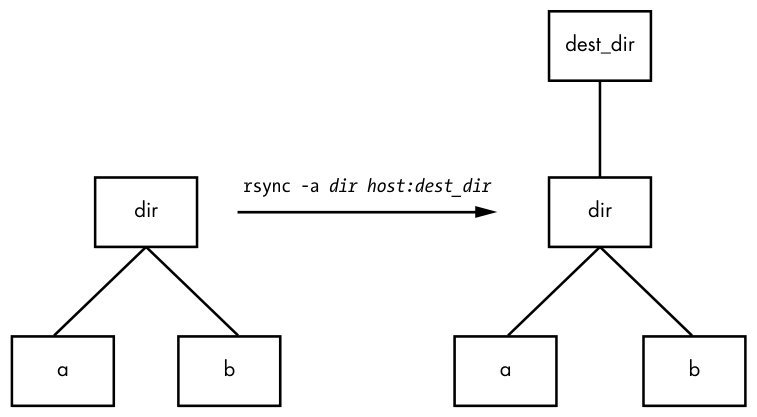
$ rsync -a dir host:dest_dir
Upon completion, you’ll have the directory dir inside dest_dir on host. Figure 12-1 shows an example of how rsync normally handles a directory with files named a and b.
rsync copyHowever, adding a slash (/) to the source name significantly changes the behavior:
$ rsync -a dir/ host:dest_dir
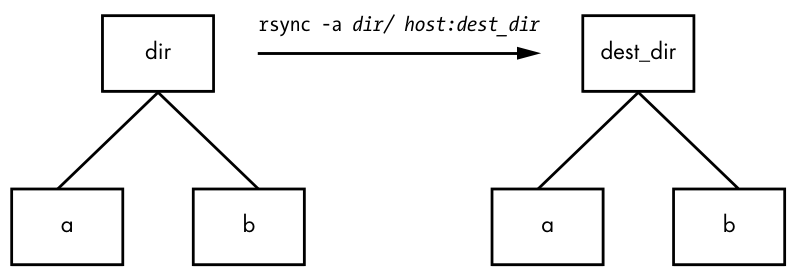
Here, rsync copies everything inside dir to dest_dir on host without actually creating dir on the destination host. Therefore, you can think of a transfer of dir/ as an operation similar to cp dir/* dest_dir on the local filesystem.
For example, say you have a directory dir containing the files a and b (dir/a and dir/b). You run the trailing-slash version of the command to transfer them to the dest_dir directory on host:
$ rsync -a dir/ host:dest_dir
When the transfer completes, dest_dir contains copies of a and b but not dir. If, however, you had omitted the trailing / on dir, dest_dir would have gotten a copy of dir with a and b inside. Then, as a result of the transfer, you’d have files and directories named dest_dir/dir/a and dest_dir/dir/b on the remote host. Figure 12-2 illustrates how rsync handles the directory structure from Figure 12-1 when using a trailing slash.
When transferring files and directories to a remote host, accidentally adding a / after a path would normally be nothing more than a nuisance; you could go to the remote host, add the dir directory, and put all of the p. 320 transferred items back in dir. Unfortunately, there’s a greater potential for disaster when you combine the trailing / with the --delete option; be extremely careful because you can easily remove unrelated files this way.
rsyncBecause of this potential, be wary of your shell’s automatic filename completion feature. Many shells tack trailing slashes onto completed directory names after you press TAB.
12.2.4 Excluding Files and Directories
One important feature of rsync is its ability to exclude files and directories from a transfer operation. For example, say you’d like to transfer a local directory called src to host, but you want to exclude anything named .git. You can do it like this:
$ rsync -a --exclude=.git src host:
Note that this command excludes all files and directories named .git because --exclude takes a pattern, not an absolute filename. To exclude one specific item, specify an absolute path that starts with /, as shown here:
$ rsync -a --exclude=/src/.git src host:
The first / in /src/.git in this command is not the root directory of your system but rather the base directory of the transfer.
Here are a few more tips on how to exclude patterns:
- You can have as many
--excludeparameters as you like. - If you use the same patterns repeatedly, place them in a plaintext file (one pattern per line) and use
--exclude-from=file. - To exclude directories named item but include files with this name, use a trailing slash:
--exclude=item/. - The exclude pattern is based on a full file or directory name component and may contain simple globs (wildcards). For example,
t*smatches this, but it does not match ethers. - If you exclude a directory or filename but find that your pattern is too restrictive, use
--includeto specifically include another file or directory.
12.2.5 Checking Transfers, Adding Safeguards, and Using Verbose Mode
To speed operation, rsync uses a quick check to determine whether any files on the transfer source are already on the destination. The check uses a combination of the file size and its last-modified date. The first time you transfer an entire directory hierarchy to a remote host, rsync sees that none of the files already exist at the destination, and it transfers everything. Testing your transfer with rsync -n verifies this for you.
After running rsync once, run it again using rsync -v. This time you should see that no files show up in the transfer list because the file set exists on both ends, with the same modification dates.
When the files on the source side are not identical to the files on the destination side, rsync transfers the source files and overwrites any files that exist on the remote side. The default behavior may be inadequate, though, because you may need additional reassurance that files are indeed the same before skipping over them in transfers, or you might want to add some extra safeguards. Here are some options that come in handy:
--checksum (abbreviation: -c) Computes checksums (mostly unique signatures) of the files to see if they’re the same. This option consumes a small amount of I/O and CPU resources during transfers, but if you’re dealing with sensitive data or files that often have uniform sizes, this is a must.
--ignore-existing Doesn’t clobber files already on the target side.
--backup (abbreviation: -b) Doesn’t clobber files already on the target but rather renames these existing files by adding a ~ suffix to their names before transferring the new files.
--suffix=s Changes the suffix used with --backup from ~ to s.
--update (abbreviation: -u) Doesn’t clobber any file on the target that has a later date than the corresponding file on the source.
With no special options, rsync operates quietly, producing output only when there’s a problem. However, you can use rsync -v for verbose mode or rsync -vv for even more details. (You can tack on as many v options as you like, but two is probably more than you need.) For a comprehensive summary after the transfer, use rsync --stats.
12.2.6 Compressing Data
Many users like the -z option in conjunction with -a to compress the data before transmission:
$ rsync -az dir host:dest_dir
Compression can improve performance in certain situations, such as when you’re uploading a large amount of data across a slow connection (like a slow upstream link) or when the latency between the two hosts is p. 322 high. However, across a fast local area network, the two endpoint machines can be constrained by the CPU time that it takes to compress and decompress data, so uncompressed transfer may be faster.
12.2.7 Limiting Bandwidth
It’s easy to clog the uplink of internet connections when you’re uploading a large amount of data to a remote host. Even though you won’t be using your (normally large) downlink capacity during such a transfer, your connection will still seem quite slow if you let rsync go as fast as it can, because outgoing TCP packets such as HTTP requests will have to compete with your transfers for bandwidth on your uplink.
To get around this, use --bwlimit to give your uplink a little breathing room. For example, to limit the bandwidth to 100,000Kbps, you might do something like this:
$ rsync --bwlimit=100000 -a dir host:dest_dir
12.2.8 Transferring Files to Your Computer
The rsync command isn’t just for copying files from your local machine to a remote host. You can also transfer files from a remote machine to your local host by placing the remote host and remote source path as the first argument on the command line. For example, to transfer src_dir on the remote system to dest_dir on the local host, run this command:
$ rsync -a host:src_dir dest_dir
As mentioned before, you can use rsync to duplicate directories on your local machine; just omit host: on both arguments.
12.2.9 Further rsync Topics
Whenever you need to copy numerous files, rsync should be one of the first utilities that comes to mind. Running rsync in batch mode is particularly useful for copying the same set of files to multiple hosts, because it speeds up long transfers and makes it possible to resume when interrupted.
You’ll also find rsync useful for making backups. For example, you can attach internet storage, such as Amazon’s S3, to your Linux system and then use rsync --delete to periodically synchronize a filesystem with the network storage to implement a very effective backup system.
There are many more command-line options than those described here. For a rough overview, run rsync --help. You’ll find more detailed information in the rsync(1) manual page as well as at the rsync home page (https://rsync.samba.org/).
12.3 Introduction to File Sharing
Your Linux machine probably doesn’t live alone on your network, and when you have multiple machines on a network, there’s nearly always a reason to share files among them. For the remainder of this chapter, we’ll first look at file sharing between Windows and macOS machines, and you’ll learn more about how Linux adapts to interacting with completely foreign environments. For the purpose of sharing files between Linux machines or accessing files from a Network Area Storage (NAS) device, we’ll wrap up by talking about using SSHFS and the Network File System (NFS) as a client.
12.3.1 File Sharing Usage and Performance
One thing you need to ask yourself when working with any kind of file sharing system is why you’re doing it in the first place. In traditional Unix-based networks, there were two major reasons: convenience and lack of local storage. One user could log in to one of several machines on a network, each with access to the user’s home directory. It was far more economical to concentrate storage on a small number of centralized servers than to buy and maintain a lot of local storage for every machine on the network.
This model’s advantages are overshadowed by one major disadvantage that has remained constant over the years: network storage performance is often poor compared to local storage. Some kinds of data access are okay; for example, contemporary hardware and networks have no problems streaming video and audio data from a server to a media player in part because the data access pattern is very predictable. A server sending the data from a large file or stream can pre-load and buffer the data efficiently, because it knows that the client will likely access data sequentially.
However, if you’re doing more complex manipulation or accessing many different files at once, you’ll find your CPU waiting on the network more often than not. Latency is one of the primary culprits. This is the time it takes to receive data from any random (arbitrary) network file access. Before sending any data to the client, the server must accept and decipher the request, and then locate and load the data. The first steps are often the slowest, and are done for almost every new file access.
The moral of the story is that when you start thinking about network file sharing, ask yourself why you’re doing it. If it’s for large amounts of data not requiring frequent random access, you likely won’t have a problem. But if, for example, you’re editing video or developing a software system of any substantial size, you’ll want to keep all of your files on local storage.
12.3.2 File Sharing Security
Traditionally, security in file sharing protocols has not been treated as a high priority. This has consequences for how and where you want to implement file sharing. If you have any reason to doubt the security of the network(s) p. 324 between the machines sharing files, you’ll want to consider both authorization/authentication and encryption in your configuration. Good authorization and authentication means that only parties with the correct credentials have access to files (and that the server is who it claims to be), and encryption ensures that no one will be able steal file data as it transits to its destination.
The file sharing options that are the easiest to configure are typically the least secure, and unfortunately, there are no standardized ways to secure these types of access. However, if you’re willing to put in the work of connecting the correct pieces, tools such as stunnel, IPSec, and VPNs can secure the layers below basic file sharing protocols.
12.4 Sharing Files with Samba
If you have machines running Windows, you’ll probably want to permit access to your Linux system’s files and printers from those Windows machines using the standard Windows network protocol, Server Message Block (SMB). macOS supports SMB file sharing too, but you can also use SSHFS, described in Section 12.5.
The standard file sharing software suite for Unix is called Samba. Not only does Samba allow your network’s Windows computers to get to your Linux system, but it also works the other way around: you can print and access files on Windows servers from your Linux machine via its Samba client software.
To set up a Samba server, do the following:
- Create an smb.conf file.
- Add file sharing sections to smb.conf.
- Add printer sharing sections to smb.conf.
- Start the Samba daemons
nmbdandsmbd.
When you install Samba from a distribution package, your system should perform these steps using some reasonable defaults for the server. However, it probably won’t be able to determine which particular shares (resources) on your Linux machine you want to offer to clients.
The discussion of Samba in this chapter is not intended to be comprehensive; it’s limited to getting Windows machines on a single subnet to see a standalone Linux machine through the Windows Network Places browser. There are countless ways to configure Samba, because there are many possibilities for access control and network topology. For the gory details on how to configure a large-scale server, see Using Samba, 3rd edition, by Gerald Carter, Jay Ts, and Robert Eckstein (O’Reilly, 2007), which is a much more extensive guide, and visit the Samba website (https://samba.org/).
12.4.1 Server Configuration
The central Samba configuration file is smb.conf, which most distributions place in an etc directory, such as /etc/samba. However, you might have to hunt around to find this file, as it could also be in a lib directory, such as /usr/local/samba/lib.
The smb.conf file format is similar to the XDG style that you’ve seen elsewhere (such as the systemd configuration format) and breaks down into several sections denoted with square brackets such as [global] and [printers]. The [global] section in smb.conf contains general options that apply to the entire server and all shares. These options primarily pertain to network configuration and access control. This sample [global] section shows how to set the server name, description, and workgroup:
[global]
# server name
netbios name = name
# server description
server string = My server via Samba
# workgroup
workgroup = MYNETWORK
These parameters work as follows:
netbios name The server name. If you omit this parameter, Samba uses the Unix hostname. NetBIOS is an API that SMB hosts often employ to talk to one another.
server string A short description of the server. The default is the Samba version number.
workgroup The Windows workgroup name. If you’re on a Windows domain, set this parameter to the name of your domain.
12.4.2 Server Access Control
You can add options to your smb.conf file to limit which machines and users can access your Samba server. Here are a few of the many options that you can set in your [global] section and in the sections that control individual shares (as described later in the chapter):
interfaces Set this to have Samba listen (accept connections) on the given networks or interfaces. For example:
interfaces = 10.23.2.0/255.255.255.0
interfaces = enp0s31f6
bind interfaces only Set this to yes when using the interfaces parameter in order to limit access to only the machines that you can directly reach on those interfaces.
valid users Set this to allow the given users access. For example:
valid users = jruser, bill
guest ok Set this parameter to true to make a share available to anonymous users on the network. Do this only if you’re sure that the network is private.
browseable Set this to make shares viewable by network browsers. If you set this parameter to no for any shares, you’ll still be able to access the shares on the Samba server, but you’ll need to know their exact names in order to be able to access them.
12.4.3 Passwords
In general, you should allow access to your Samba server only with password authentication. Unfortunately, the basic password system on Unix is different from that on Windows, so unless you specify cleartext network passwords or authenticate passwords with a Windows domain server, you must set up an alternative password system. This section shows you how to set up an alternative password system using Samba’s Trivial Database (TDB) backend, which is appropriate for small networks.
First, use these entries in your smb.conf [global] section to define the Samba password database characteristics:
# use the tdb for Samba to enable encrypted passwords
security = user
passdb backend = tdbsam
obey pam restrictions = yes
smb passwd file = /etc/samba/passwd_smb
These lines allow you to manipulate the Samba password database with the smbpasswd command. The obey pam restrictions parameter ensures that any user changing their password with the smbpasswd command must obey any rules that PAM (Pluggable Authentication Modules, covered in Chapter 7) enforces for normal password changes. For the passdb backend parameter, you can optionally specify a pathname for the TDB file after a colon—for example, tdbsam:/etc/samba/private/passwd.tdb.
If you have access to a Windows domain, you can set security = domain to make Samba use the domain’s authentication system and eliminate the need for a password database. However, in order for domain users to access the machine running Samba, each domain user must have a local account with the same username on that machine.
Adding and Deleting Users
The first thing you need to do to give a Windows user access to your Samba server is to add the user to the password database with the smbpasswd -a command:
# smbpasswd -a username
The username parameter to the smbpasswd command must be a valid username on your Linux system.
Like the regular system’s passwd program, smbpasswd asks you to enter the new SMB user’s password twice. After the password passes any necessary security checks, smbpasswd confirms that it has created the new user.
To remove a user, use the -x option to smbpasswd:
# smbpasswd -x username
To just temporarily deactivate the user, use the -d option; the -e option can be used later to reenable the user:
# smbpasswd -d username
# smbpasswd -e username
Changing Passwords
You can change a Samba password as the superuser by using smbpasswd with no options or keywords other than the username:
# smbpasswd username
However, if the Samba server is running, any user can change their own Samba password by entering smbpasswd by itself on the command line.
Finally, here’s one place in your configuration to beware of. If you see a line like this in your smb.conf file, be careful:
unix password sync = yes
This line causes smbpasswd to change a user’s normal password in addition to the Samba password. The result can be very confusing, especially when a user changes their Samba password to something that’s not their Linux password and discovers that they can no longer log in to their Linux system. Some distributions set this parameter by default in their Samba server packages!
12.4.4 Manual Server Startup
Typically, you shouldn’t need to worry about starting the server if you installed Samba from a distribution package. Check the list from systemctl --type=service to verify. However, if you installed it from source code, run nmbd and smbd with the following arguments, where smb_config_file is the full path of your smb.conf file:
# nmbd -D -s smb_config_file
# smbd -D -s smb_config_file
The nmbd daemon is a NetBIOS name server, and smbd does the actual work of handling share requests. The -D option specifies daemon mode. If you alter the smb.conf file while smbd is running, you can notify the daemon p. 328 of the changes with a HUP signal, though it’s almost always for the better if you let systemd supervise the server, in which case you can get systemctl to do the work for you.
12.4.5 Diagnostics and Logfiles
If something goes wrong when a Samba server starts up, an error message appears on the command line. However, runtime diagnostic messages go to the log.nmbd and log.smbd logfiles, which are usually in a /var/log directory, such as /var/log/samba. You’ll also find other logfiles there, such as individual logs for each individual client.
12.4.6 File Share Configuration
To export a directory to SMB clients (that is, to share a directory with a client), add a section like this to your smb.conf file, where label is what you would like to call the share (such as mydocuments) and path is the full directory path:
[label]
path = path
comment = share description
guest ok = no
writable = yes
printable = no
These parameters are useful in directory shares:
guest ok A yes setting here allows guest access to the share. The public parameter is a synonym.
writable A yes or true setting here marks the share as read-write. Do not allow guest access to a read-write share.
printable Obviously, on a directory share, this parameter must be set to no or false.
veto files This parameter prevents the export of any files that match the given patterns. You must enclose each pattern between forward slashes (so that it looks like /pattern/). This example bars object files, as well as any file or directory named bin:
veto files = /*.o/bin/
12.4.7 Home Directories
You can add a section called [homes] to your smb.conf file if you want to export home directories to users. The section should look like this:
[homes]
comment = home directories
browseable = no
writable = yes
By default, Samba reads the logged-in user’s /etc/passwd entry to determine their home directory for [homes]. However, if you don’t want Samba to follow this behavior (that is, you want to keep the Windows home directories in a different place than the regular Linux home directories), you can use the %S substitution in a path parameter. For example, here’s how you would switch a user’s [homes] directory to /u/user:
path = /u/%S
Samba substitutes the current username for the %S.
12.4.8 Printer Sharing
You can export your printers to Windows clients by adding a [printers] section to your smb.conf file. Here’s how the section looks when you’re using CUPS, the standard Unix printing system:
[printers]
comment = Printers
browseable = yes
printing = CUPS
path = cups
printable = yes
writable = no
To use the printing = CUPS parameter, your Samba installation must be configured and linked against the CUPS library.
Depending on your configuration, you may also want to allow guest access to your printers with the guest ok = yes option rather than give a Samba password or account to everyone who needs to access the printers. For example, it’s easy to limit printer access to a single subnet with firewall rules.
12.4.9 The Samba Client
The Samba client program smbclient can print to and access remote Windows shares. This program comes in handy when you’re in an environment where you must interact with Windows servers that don’t offer a Unix-friendly means of communication.
To get started with smbclient, use the -L option to get a list of shares from a remote server named SERVER:
$ smbclient -L -U username SERVER
You don’t need -U username if your Linux username is the same as your username on SERVER.
After you run this command, smbclient asks for a password. To try to access a share as a guest, press ENTER; otherwise, enter your password on SERVER. Upon success, you should get a share list like this:
Sharename   Type        Comment
---------   ----        -------
Software    Disk        Software distribution
Scratch     Disk        Scratch space
IPC$        IPC         IPC Service
ADMIN$      IPC         IPC Service
Printer1    Printer     Printer in room 231A
Printer2    Printer     Printer in basement
Use the Type field to help you make sense of each share, and pay attention only to the Disk and Printer shares (the IPC shares are for remote management). This list has two disk shares and two printer shares. Use the name in the Sharename column to access each share.
Accessing Files as a Client
If you need only casual access to files in a disk share, use the following command (again, you can omit the -U username if your Linux username matches your username on the server):
$ smbclient -U username '\\SERVER\sharename'
Upon success, you will get a prompt like this, indicating that you can now transfer files:
smb: \>
In this file transfer mode, smbclient is similar to the Unix ftp, and you can run these commands:
get file Copies file from the remote server to the current local directory.
put file Copies file from the local machine to the remote server.
cd dir Changes the directory on the remote server to dir.
lcd localdir Changes the current local directory to localdir.
pwd Prints the current directory on the remote server, including the server and share names.
!command Runs command on the local host. Two particularly handy commands are !pwd and !ls to determine directory and file status on the local side.
help Shows a full list of commands.
Using the CIFS Filesystem
If you’d like to have more convenient access to files on a Windows server, you can attach a share directly to your system with mount. The command syntax is as follows (notice the use of SERVER:sharename rather than the normal \\SERVER\sharename format):
# mount -t cifs SERVER:sharename mountpoint -o user=username,pass=password
In order to use mount like this, you must have the Common Internet File System (CIFS) utilities installed on your system. Most distributions offer these as a separate package.
12.5 SSHFS
With Windows file sharing systems out of the way, in this section we’ll discuss file sharing between Linux systems. For scenarios that aren’t particularly complicated, a convenient option to consider is SSHFS. This is nothing more than a user-space filesystem that opens an SSH connection and presents the files on the other side at a mount point on your machine. Most distributions don’t install it by default, so you might need to install your distribution’s SSHFS package.
The syntax for using SSHFS on the command line looks superficially similar to SSH commands that you’ve seen before. Of course, you need to supply the shared directory (on the remote host) and the desired mount point:
$ sshfs username@host:dir mountpoint
Just like in SSH, you can drop the username@ if the username is the same on the remote host, and you can also omit :dir if you just want to mount the home directory on the other side. This command asks for the password on the other side if necessary.
Because this is a user-space filesystem, you have to unmount it with fusermount if you’re running this as a regular user:
$ fusermount -u mountpoint
The superuser can also unmount these filesystems with umount. To ensure consistency of ownership and security, this type of filesystem is usually best mounted as a regular user.
SSHFS has these advantages:
- It has minimal setup. The only requirement on the remote host is that SFTP is enabled, and most SSH servers enable it by default.
- It’s not dependent on any kind of specific network configuration. If you can open an SSH connection, SSHFS will work, regardless if it’s on a secure local network or over an insecure remote network.
The disadvantages of SSHFS are:
- Performance suffers. There is a lot of overhead in encryption, translation, and transport (but it may not be as bad as you expect).
- Multiuser setups are limited.
It’s definitely worth trying SSHFS if you think it might work for you, because it’s so easy to set up.
12.6 NFS
One of the most commonly used traditional systems for file sharing among Unix systems is NFS, and there are many different versions of NFS for different scenarios. You can serve NFS over TCP and UDP, with a large number of authentication and encryption options (very few of which are enabled by default, unfortunately). Because there are so many options, NFS can be a big topic, so we’ll just stick to the bare minimum of coverage.
To mount a remote directory on a server with NFS, use the same basic syntax as for mounting a CIFS directory:
# mount -t nfs server:directory mountpoint
Technically, you don’t need the -t nfs option because mount should figure this out for you, but you may want to investigate the options in the nfs(5) manual page. You’ll find several different options for security using the sec option. Many administrators on small, closed networks use host-based access control. More sophisticated methods, such as Kerberos-based authentication, require additional configuration on other parts of your system.
When you find that you’re making greater use of filesystems over a network, set up the automounter so that your system will mount the filesystems only when you actually try to use them in order to prevent problems with dependencies on boot. The traditional automounting tool was called automount, and there’s a newer version called amd, but much of this functionality has now been supplanted by the automount unit type in systemd.
Setting up an NFS server to share files to other Linux machines is more complicated than configuring the client side. You need to run the server daemons (mountd and nfsd) and set up the /etc/exports file to reflect the directories that you’re sharing. However, we won’t cover NFS servers, primarily because it’s often much more convenient to share storage over a network by simply purchasing an NAS device to handle it for you. Many of these devices are Linux based, p. 333 so they’ll naturally have NFS server support. Vendors add value to their NAS devices by offering their own administration tools to take the pain out of tedious tasks such as setting up RAID configurations and cloud backups.
12.7 Cloud Storage
Speaking of cloud backups, another network file storage option is cloud storage, such as AWS S3 or Google Cloud Storage. These systems don’t have the performance of storage on a local network, but they do offer two significant advantages: you never have to maintain them, and you shouldn’t have to worry about backups.
Aside from the web (and programmatic) interfaces that all cloud storage providers offer, there are ways to mount most kinds of cloud storage on a Linux system. Unlike most of the filesystems that we’ve seen so far, these are nearly all implemented as FUSE (File System in User Space) interfaces. For some popular cloud storage providers such as S3, there are even multiple options. This makes sense, because a FUSE handler is nothing more than a user-space daemon that acts as an intermediary between the data source and the kernel.
This book doesn’t cover the specifics of setting up a cloud storage client, because every one is different.
12.8 The State of Network File Sharing
At this point, you might feel that this discussion of the NFS and file sharing in general seems somewhat incomplete—and it might be, but only as much as the file sharing systems themselves. We discussed performance and security concerns in Sections 12.3.1 and 12.3.2. In particular, the base security level of NFS is quite low, requiring significant extra work to improve. CIFS systems are somewhat better in this regard, as the necessary encryption layers are built into contemporary software. However, performance limitations aren’t easy to overcome, not to mention how badly a system can perform when it is temporarily unable to access its network storage.
There have been several attempts to deal with this issue. Perhaps the most extensive is the Andrew File System (AFS), first designed in the 1980s, which was built around solutions to these problems. So why doesn’t everyone use AFS or something like it?
There is no one answer to this question, but much of it comes down to a certain lack of flexibility in some parts of the design. For example, the security mechanism requires a Kerberos authentication system. Though universally available, it has never been standard on Unix systems, and requires a nontrivial amount of work to set up and maintain (you have to set up a server for it).
For a large institution, fulfilling requirements such as Kerberos isn’t a problem. This is exactly the setting in which AFS has thrived; universities and financial institutions are big AFS sites. But for the small user, it’s simply easier not to do it, preferring simpler options like NFS or CIFS shares. This sort of limitation even extends to Windows; starting with Windows 2000, Microsoft switched to Kerberos as the default authentication on its server product, but small networks don’t tend to be Windows domains with this kind of server.
Aside from the authentication prerequisite, there’s a problem that stems from more technical reasons. Many network filesystem clients have traditionally been kernel code, NFS in particular. Unfortunately, the requirements of network filesystems are complex enough that problems start to occur. The authentication alone has no place in the kernel. A kernel client implementation also severely limits the potential developer base for a network filesystem, hampering the system as a whole. In some cases, client code was in user space, but there was always some sort of kernel customization underneath.
At the moment, we find ourselves without a truly standard means of network file sharing in the Linux/Unix world (at least if you’re not a large site or you aren’t willing to put in a fair amount of work). However, this won’t necessarily always be the case.
When providers started to offer cloud storage, it was clear that the traditional forms of network file sharing wouldn’t be suitable. In the cloud, access methods are built on top of security mechanisms such as TLS that make it possible to access storage without setting up a large system such as Kerberos. As mentioned in the preceding section, there are many options available via FUSE to access cloud storage. We’re no longer dependent on the kernel for any part of the client; any kind of authentication, encryption, or handling can easily be done in user space.
All of this means that the future could very well see some file-sharing designs incorporating more flexibility in security and other areas such as filename translation.