12.2 rsync
When you want to start copying more than just a file or two, you can turn to tools that require server support on the destination. For example, you can copy an entire directory structure to another place with scp -r, provided that the remote destination has SSH and SCP server support (this is available for Windows and macOS). We’ve already seen this option in Chapter 10:
$ scp -r directory user@remote_host[:dest_dir]
This method gets the job done but is not very flexible. In particular, after the transfer completes, the remote host may not have an exact copy of the directory. If directory already exists on the remote machine and contains some extraneous files, those files persist after the transfer.
If you expect to do this sort of thing regularly (and especially if you plan to automate the process), you should use a dedicated synchronizer system that can also perform analysis and verification. On Linux, rsync is the standard synchronizer, offering good performance and many useful ways to perform transfers. In this section we’ll cover some of the essential rsync operation modes and look at some of its peculiarities.
12.2.1 Getting Started with rsync
To get rsync working between two hosts, you must install the rsync program on both the source and destination, and you’ll need a way to access one machine from the other. The easiest way to transfer files is to use a remote shell account, and let’s assume that you want to transfer files using SSH access. However, remember that rsync can be handy even for copying files and directories between locations on a single machine, such as from one filesystem to another.
On the surface, the rsync command is not much different from scp. In fact, you can run rsync with the same arguments. For example, to copy a group of files to your home directory on host, enter:
$ rsync file1 file2 ... host:
On any contemporary system, rsync assumes that you’re using SSH to connect to the remote host.
Beware of this error message:
rsync not found
rsync: connection unexpectedly closed (0 bytes read so far)
rsync error: error in rsync protocol data stream (code 12) at io.c(165)
This notice says that your remote shell can’t find rsync on its system. If rsync is on the remote system but isn’t in the command path for the user on that system, use --rsync-path=path to manually specify its location.
If the username is different on the two hosts, add user@ to the remote hostname in the command arguments, where user is your username on host:
$ rsync file1 file2 ... user@host:
Unless you supply extra options, rsync copies only files. In fact, if you specify just the options described so far and you supply a directory dir as an argument, you’ll see this message:
skipping directory dir
To transfer entire directory hierarchies—complete with symbolic links, permissions, modes, and devices—use the -a option. Furthermore, if you want to copy to a directory other than your home directory on the remote host, place its name after the remote host, like this:
$ rsync -a dir host:dest_dir
Copying directories can be tricky, so if you’re not exactly sure what will happen when you transfer the files, use the -nv option combination. The -n option tells rsync to operate in “dry run” mode—that is, to run a trial without actually copying any files. The -v option is for verbose mode, which shows details about the transfer and the files involved:
$ rsync -nva dir host:dest_dir
The output looks like this:
building file list ... done
ml/nftrans/nftrans.html
[more files]
wrote 2183 bytes read 24 bytes 401.27 bytes/sec
12.2.2 Making Exact Copies of a Directory Structure
By default, rsync copies files and directories without considering the previous contents of the destination directory. For example, if you transferred directory d containing the files a and b to a machine that already had a file named d/c, the destination would contain d/a, d/b, and d/c after the rsync.
To make an exact replica of the source directory, you must delete files in the destination directory that do not exist in the source directory, such as d/c in this example. Use the --delete option to do that:
$ rsync -a --delete dir host:dest_dir
This operation can be dangerous, so take the time to inspect the destination directory to see if there’s anything that you’ll inadvertently delete. Remember, if you’re not certain about your transfer, use the -nv option to perform a dry run so that you’ll know exactly when rsync wants to delete a file.
12.2.3 Using the Trailing Slash
Be particularly careful when specifying a directory as the source in an rsync command line. Consider the basic command that we’ve been working with so far:
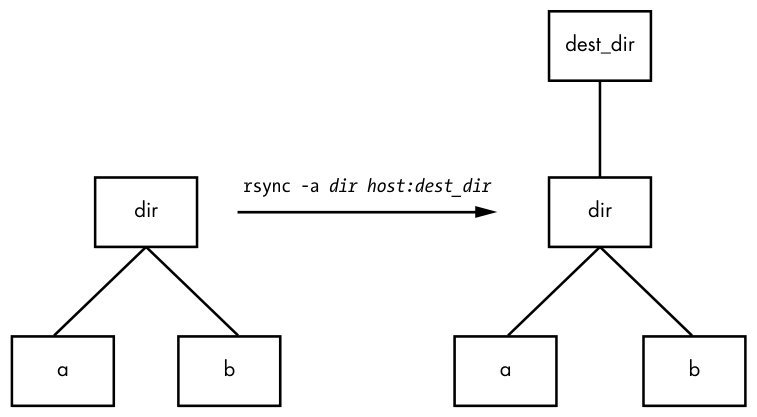
$ rsync -a dir host:dest_dir
Upon completion, you’ll have the directory dir inside dest_dir on host. Figure 12-1 shows an example of how rsync normally handles a directory with files named a and b.
rsync copyHowever, adding a slash (/) to the source name significantly changes the behavior:
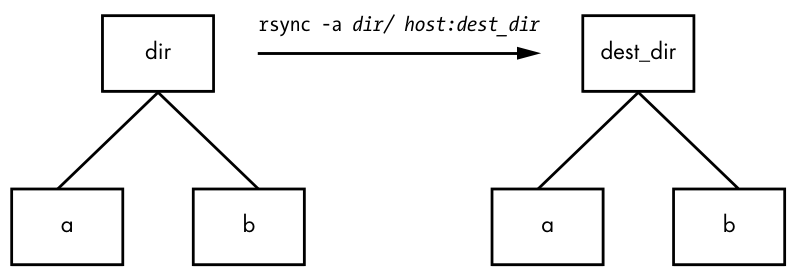
$ rsync -a dir/ host:dest_dir
Here, rsync copies everything inside dir to dest_dir on host without actually creating dir on the destination host. Therefore, you can think of a transfer of dir/ as an operation similar to cp dir/* dest_dir on the local filesystem.
For example, say you have a directory dir containing the files a and b (dir/a and dir/b). You run the trailing-slash version of the command to transfer them to the dest_dir directory on host:
$ rsync -a dir/ host:dest_dir
When the transfer completes, dest_dir contains copies of a and b but not dir. If, however, you had omitted the trailing / on dir, dest_dir would have gotten a copy of dir with a and b inside. Then, as a result of the transfer, you’d have files and directories named dest_dir/dir/a and dest_dir/dir/b on the remote host. Figure 12-2 illustrates how rsync handles the directory structure from Figure 12-1 when using a trailing slash.
When transferring files and directories to a remote host, accidentally adding a / after a path would normally be nothing more than a nuisance; you could go to the remote host, add the dir directory, and put all of the p. 320 transferred items back in dir. Unfortunately, there’s a greater potential for disaster when you combine the trailing / with the --delete option; be extremely careful because you can easily remove unrelated files this way.
rsyncBecause of this potential, be wary of your shell’s automatic filename completion feature. Many shells tack trailing slashes onto completed directory names after you press TAB.
12.2.4 Excluding Files and Directories
One important feature of rsync is its ability to exclude files and directories from a transfer operation. For example, say you’d like to transfer a local directory called src to host, but you want to exclude anything named .git. You can do it like this:
$ rsync -a --exclude=.git src host:
Note that this command excludes all files and directories named .git because --exclude takes a pattern, not an absolute filename. To exclude one specific item, specify an absolute path that starts with /, as shown here:
$ rsync -a --exclude=/src/.git src host:
The first / in /src/.git in this command is not the root directory of your system but rather the base directory of the transfer.
Here are a few more tips on how to exclude patterns:
- You can have as many
--excludeparameters as you like. - If you use the same patterns repeatedly, place them in a plaintext file (one pattern per line) and use
--exclude-from=file. - To exclude directories named item but include files with this name, use a trailing slash:
--exclude=item/. - The exclude pattern is based on a full file or directory name component and may contain simple globs (wildcards). For example,
t*smatches this, but it does not match ethers. - If you exclude a directory or filename but find that your pattern is too restrictive, use
--includeto specifically include another file or directory.
12.2.5 Checking Transfers, Adding Safeguards, and Using Verbose Mode
To speed operation, rsync uses a quick check to determine whether any files on the transfer source are already on the destination. The check uses a combination of the file size and its last-modified date. The first time you transfer an entire directory hierarchy to a remote host, rsync sees that none of the files already exist at the destination, and it transfers everything. Testing your transfer with rsync -n verifies this for you.
After running rsync once, run it again using rsync -v. This time you should see that no files show up in the transfer list because the file set exists on both ends, with the same modification dates.
When the files on the source side are not identical to the files on the destination side, rsync transfers the source files and overwrites any files that exist on the remote side. The default behavior may be inadequate, though, because you may need additional reassurance that files are indeed the same before skipping over them in transfers, or you might want to add some extra safeguards. Here are some options that come in handy:
--checksum (abbreviation: -c) Computes checksums (mostly unique signatures) of the files to see if they’re the same. This option consumes a small amount of I/O and CPU resources during transfers, but if you’re dealing with sensitive data or files that often have uniform sizes, this is a must.
--ignore-existing Doesn’t clobber files already on the target side.
--backup (abbreviation: -b) Doesn’t clobber files already on the target but rather renames these existing files by adding a ~ suffix to their names before transferring the new files.
--suffix=s Changes the suffix used with --backup from ~ to s.
--update (abbreviation: -u) Doesn’t clobber any file on the target that has a later date than the corresponding file on the source.
With no special options, rsync operates quietly, producing output only when there’s a problem. However, you can use rsync -v for verbose mode or rsync -vv for even more details. (You can tack on as many v options as you like, but two is probably more than you need.) For a comprehensive summary after the transfer, use rsync --stats.
12.2.6 Compressing Data
Many users like the -z option in conjunction with -a to compress the data before transmission:
$ rsync -az dir host:dest_dir
Compression can improve performance in certain situations, such as when you’re uploading a large amount of data across a slow connection (like a slow upstream link) or when the latency between the two hosts is p. 322 high. However, across a fast local area network, the two endpoint machines can be constrained by the CPU time that it takes to compress and decompress data, so uncompressed transfer may be faster.
12.2.7 Limiting Bandwidth
It’s easy to clog the uplink of internet connections when you’re uploading a large amount of data to a remote host. Even though you won’t be using your (normally large) downlink capacity during such a transfer, your connection will still seem quite slow if you let rsync go as fast as it can, because outgoing TCP packets such as HTTP requests will have to compete with your transfers for bandwidth on your uplink.
To get around this, use --bwlimit to give your uplink a little breathing room. For example, to limit the bandwidth to 100,000Kbps, you might do something like this:
$ rsync --bwlimit=100000 -a dir host:dest_dir
12.2.8 Transferring Files to Your Computer
The rsync command isn’t just for copying files from your local machine to a remote host. You can also transfer files from a remote machine to your local host by placing the remote host and remote source path as the first argument on the command line. For example, to transfer src_dir on the remote system to dest_dir on the local host, run this command:
$ rsync -a host:src_dir dest_dir
As mentioned before, you can use rsync to duplicate directories on your local machine; just omit host: on both arguments.
12.2.9 Further rsync Topics
Whenever you need to copy numerous files, rsync should be one of the first utilities that comes to mind. Running rsync in batch mode is particularly useful for copying the same set of files to multiple hosts, because it speeds up long transfers and makes it possible to resume when interrupted.
You’ll also find rsync useful for making backups. For example, you can attach internet storage, such as Amazon’s S3, to your Linux system and then use rsync --delete to periodically synchronize a filesystem with the network storage to implement a very effective backup system.
There are many more command-line options than those described here. For a rough overview, run rsync --help. You’ll find more detailed information in the rsync(1) manual page as well as at the rsync home page (https://rsync.samba.org/).