4.6 Inside a Traditional Filesystem
A traditional Unix filesystem has two primary components: a pool of data blocks where you can store data and a database system that manages the data pool. The database is centered around the inode data structure. An inode is a set of data that describes a particular file, including its type, permissions, and—perhaps most important—where in the data pool the file data resides. Inodes are identified by numbers listed in an inode table.
Filenames and directories are also implemented as inodes. A directory inode contains a list of filenames and links corresponding to other inodes.
To provide a real-life example, I created a new filesystem, mounted it, and changed the directory to the mount point. Then, I added some files and directories with these commands:
$ mkdir dir_1
$ mkdir dir_2
$ echo a > dir_1/file_1
$ echo b > dir_1/file_2
$ echo c > dir_1/file_3
$ echo d > dir_2/file_4
$ ln dir_1/file_3 dir_2/file_5
Note that I created dir_2/file_5 as a hard link to dir_1/file_3, meaning that these two filenames actually represent the same file (more on this shortly). Feel free to try this yourself. It doesn’t necessarily need to be on a new filesystem.
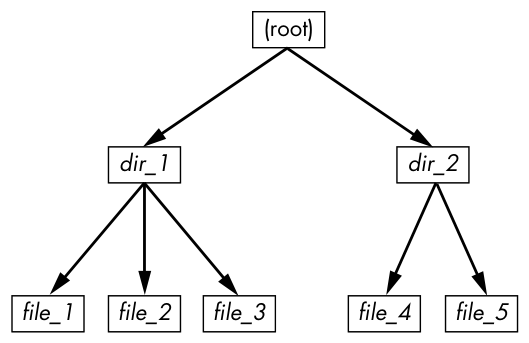
If you were to explore the directories in this filesystem, its contents would appear as shown in Figure 4-9.
If you try this on your own system, the inode numbers will probably be different, especially if you run the commands to create the files and directories on an existing filesystem. The specific numbers aren’t important; it’s all about the data that they point to.
The actual layout of the filesystem as a set of inodes, shown in Figure 4-10, doesn’t look nearly as clean as the user-level representation.
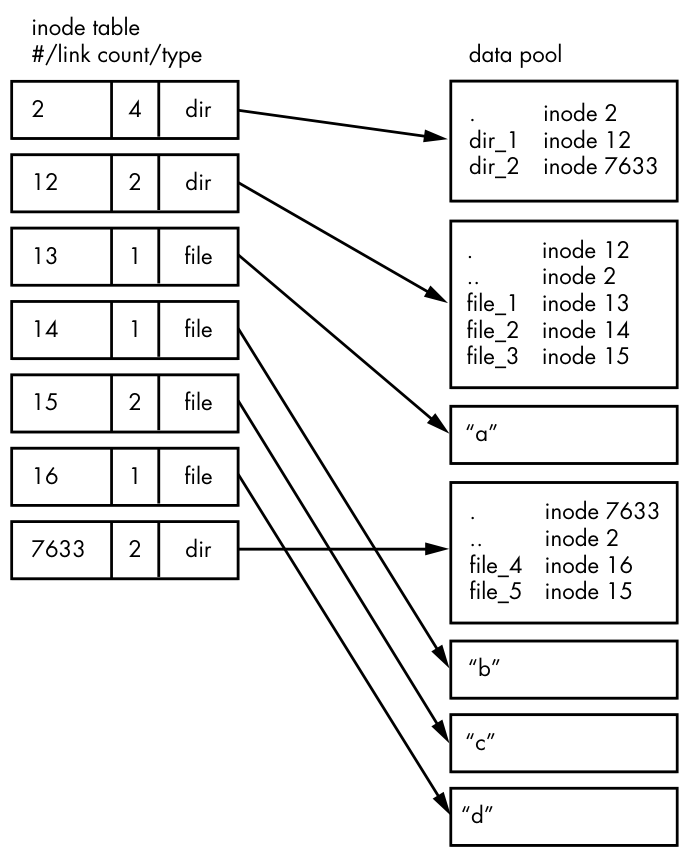
How do we make sense of this? For any ext2/3/4 filesystem, you start at inode number 2, which is the root inode (try not to confuse this with the system root filesystem). From the inode table in Figure 4-10, you can see that this is a directory inode (dir), so you can follow the arrow over to the data pool, where you see the contents of the root directory: two entries p. 113 named dir_1 and dir_2 corresponding to inodes 12 and 7633, respectively. To explore those entries, go back to the inode table and look at either of those inodes.
To examine dir_1/file_2 in this filesystem, the kernel does the following:
- Determines the path’s components: a directory named dir_1, followed by a component named file_2.
- Follows the root inode to its directory data.
- Finds the name dir_1 in inode 2’s directory data, which points to inode number 12.
- Looks up inode 12 in the inode table and verifies that it is a directory inode.
- Follows inode 12’s data link to its directory information (the second box down in the data pool).
- Locates the second component of the path (file_2) in inode 12’s directory data. This entry points to inode number 14.
- Looks up inode 14 in the directory table. This is a file inode.
At this point, the kernel knows the properties of the file and can open it by following inode 14’s data link.
This system, of inodes pointing to directory data structures and directory data structures pointing to inodes, allows you to create the filesystem hierarchy that you’re used to. In addition, notice that the directory inodes contain entries for . (the current directory) and .. (the parent directory, except for the root directory). This makes it easy to get a point of reference and to navigate back down the directory structure.
4.6.1 Inode Details and the Link Count
To view the inode numbers for any directory, use the ls -i command. Here’s what you’d get at the root of this example (for more detailed inode information, use the stat command):
$ ls -i
  12 dir_1  7633 dir_2
You’re probably wondering about the link count in the inode table. You’ve already seen the link count in the output of the common ls -l command, but you likely ignored it. How does the link count relate to the files in Figure 4-9, in particular the “hard-linked” file_5? The link count field is the number of total directory entries (across all directories) that point to an inode. Most of the files have a link count of 1 because they occur only once in the directory entries. This is expected. Most of the time when you create a file, you create a new directory entry and a new inode to go with it. However, inode 15 occurs twice. First it’s created as dir_1/file_3, and then it’s linked to as dir_2/file_5. A hard link is just a manually created entry in a directory to an inode that already exists. The ln command (without the -s option) allows you to create new hard links manually.
This is also why removing a file is sometimes called unlinking. If you run rm dir_1/file_2, the kernel searches for an entry named file_2 in inode 12’s directory entries. Upon finding that file_2 corresponds to inode 14, the kernel removes the directory entry and then subtracts 1 from inode 14’s link count. As a result, inode 14’s link count will be 0, and the kernel will know that there are no longer any names linking to the inode. Therefore, it can now delete the inode and any data associated with it.
However, if you run rm dir_1/file_3, the end result is that the link count of inode 15 goes from 2 to 1 (because dir_2/file_5 still points there), and the kernel knows not to remove the inode.
Link counts work much the same for directories. Note that inode 12’s link count is 2, because there are two inode links there: one for dir_1 in the directory entries for inode 2 and the second a self-reference (.) in its own directory entries. If you create a new directory dir_1/dir_3, the link count for inode 12 would go to 3 because the new directory would include a parent (..) entry that links back to inode 12, much as inode 12’s parent link points to inode 2.
There is one small exception in link counts. The root inode 2 has a link count of 4. However, Figure 4-10 shows only three directory entry links. The “fourth” link is in the filesystem’s superblock because the superblock tells you where to find the root inode.
Don’t be afraid to experiment on your system. Creating a directory structure and then using ls -i or stat to walk through the pieces is harmless. You don’t need to be root (unless you mount and create a new filesystem).
4.6.2 Block Allocation
There’s still one piece missing from our discussion. When allocating data pool blocks for a new file, how does the filesystem know which blocks are in use and which are available? One of the most basic ways is to use an additional management data structure called a block bitmap. In this scheme, the filesystem reserves a series of bytes, with each bit corresponding to one block in the data pool. A value of 0 means that the block is free, and a 1 means that it’s in use. Thus, allocating and deallocating blocks is a matter of flipping bits.
Problems in a filesystem arise when the inode table data doesn’t match the block allocation data or when the link counts are incorrect; for example, this can happen when you don’t cleanly shut down a system. Therefore, when you check a filesystem, as described in Section 4.2.11, the fsck program walks through the inode table and directory structure to generate new link counts and a new block allocation map (such as the block bitmap), and then it compares the newly generated data with the filesystem on the disk. If there are mismatches, fsck must fix the link counts and determine what to do with any inodes and/or data that didn’t come up when it traversed the directory structure. Most fsck programs make these “orphans” new files in the filesystem’s lost+found directory.
4.6.3 Working with Filesystems in User Space
When working with files and directories in user space, you shouldn’t have to worry much about the implementation going on below them. Processes are expected to access the contents of files and directories of a mounted filesystem through kernel system calls. Curiously, though, you do have access to certain filesystem information that doesn’t seem to fit in user space—in particular, the stat() system call returns inode numbers and link counts.
When you’re not maintaining a filesystem, do you have to worry about inode numbers, link counts, and other implementation details? Generally, no. This stuff is accessible to user-mode programs primarily for backward compatibility. Furthermore, not all filesystems available in Linux have these filesystem internals. The VFS interface layer ensures that system calls always return inode numbers and link counts, but those numbers may not necessarily mean anything.
You may not be able to perform traditional Unix filesystem operations on nontraditional filesystems. For example, you can’t use ln to create a hard link on a mounted VFAT filesystem because its directory entry structure, designed for Windows rather than Unix/Linux, does not support that concept.
Fortunately, the system calls available to user space on Linux systems provide enough abstraction for painless file access—you don’t need to know anything about the underlying implementation in order to access files. In addition, filenames are flexible in format and mixed-case names are supported, making it easy to support other hierarchical-style filesystems.
Remember, specific filesystem support does not necessarily need to be in the kernel. For example, in user-space filesystems, the kernel only needs to act as a conduit for system calls.