8.6 Control Groups (cgroups)
So far, you’ve seen how to view and monitor resource usage, but what if you’d like to limit what processes can consume beyond what you saw with the nice p. 217 command? There are several traditional systems for doing so, such as the POSIX rlimit interface, but the most flexible option for most types of resource limits on Linux systems is now the cgroup (control group) kernel feature.
The basic idea is that you place several processes into a cgroup, which allows you to manage the resources that they consume on a group-wide basis. For example, if you want to limit the amount of memory that a set of processes may cumulatively consume, a cgroup can do this.
After creating a cgroup, you can add processes to it, and then use a controller to change how those processes behave. For example, there is a cpu controller allowing you to limit the processor time, a memory controller, and so on.
Although systemd makes extensive use of the cgroup feature and most (if not all) of the cgroups on your system may be managed by systemd, cgroups are in kernel space and do not depend on systemd.
8.6.1 Differentiating Between cgroup Versions
There are two versions of cgroups, 1 and 2, and unfortunately, both are currently in use and can be configured simultaneously on a system, leading to potential confusion. Aside from a somewhat different feature set, the structural differences between the versions can be summed up as follows:
- In cgroups v1, each type of controller (
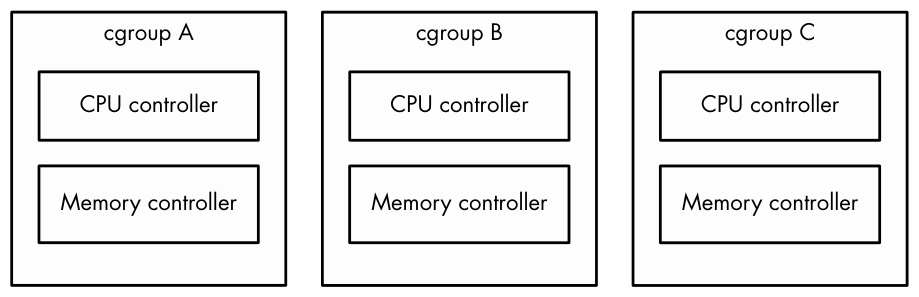
cpu,memory, and so on) has its own set of cgroups. A process can belong to one cgroup per controller, meaning that a process can belong to multiple cgroups. For example, in v1, a process can belong to acpucgroup and amemorycgroup. - In cgroups v2, a process can belong to only one cgroup. You can set up different types of controllers for each cgroup.
To visualize the difference, consider three sets of processes, A, B, and C. We want to use the cpu and memory controllers on each of them. Figure 8-1 shows the schematic for cgroups v1. We need six cgroups total, because each cgroup is limited to a single controller.
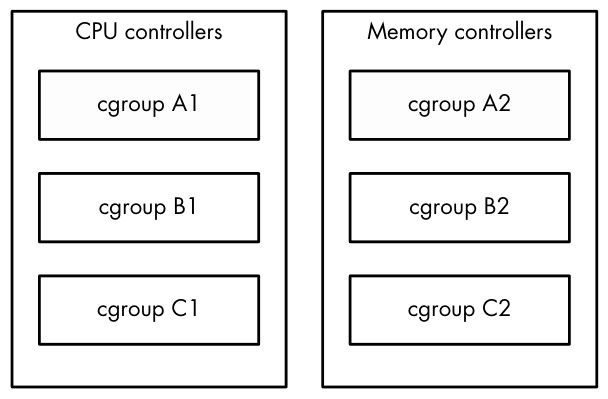
Figure 8-2 shows how to do it in cgroups v2. We need only three cgroups, because we can set up multiple controllers per cgroup.
You can list the v1 and v2 cgroups for any process by looking at its cgroup file in /proc/<pid>. You can start by looking at your shell’s cgroups with this command:
$ cat /proc/self/cgroup
12:rdma:/
11:net_cls,net_prio:/
10:perf_event:/
9:cpuset:/
8:cpu,cpuacct:/user.slice
7:blkio:/user.slice
6:memory:/user.slice
5:pids:/user.slice/user-1000.slice/session-2.scope
4:devices:/user.slice
3:freezer:/
2:hugetlb:/testcgroup ❶
1:name=systemd:/user.slice/user-1000.slice/session-2.scope
0::/user.slice/user-1000.slice/session-2.scope
Don’t be alarmed if the output is significantly shorter on your system; this just means that you probably have only cgroups v2. Every line of output here starts with a number and is a different cgroup. Here are some pointers on how to read it:
- Numbers 2–12 are for cgroups v1. The controllers for those are listed next to the number.
- Number 1 is also for version 1, but it does not have a controller. This cgroup is for management purposes only (in this case, systemd configured it).
- The last line, number 0, is for cgroups v2. No controllers are visible here. On a system that doesn’t have cgroups v1, this will be the only line of output.
- Names are hierarchical and look like parts of file paths. You can see in this example that some of the cgroups are named /user.slice and others /user.slice/user-1000.slice/session-2.scope. p. 219
- The name /testcgroup ❶ was created to show that in cgroups v1, the cgroups for a process can be completely independent.
- Names under user.slice that include session are login sessions, assigned by systemd. You’ll see them when you’re looking at a shell’s cgroups. The cgroups for your system services will be under system.slice.
You may have surmised that cgroups v1 has flexibility in one respect over v2 because you can assign different combinations of cgroups to processes. However, it turns out that no one actually used them this way, and this approach was more complicated to set up and implement than simply having one cgroup per process.
Because cgroups v1 is being phased out, our discussion will focus on cgroups v2 from this point forward. Be aware that if a controller is being used in cgroups v1, the controller cannot be used in v2 at the same time due to potential conflicts. This means that the controller-specific parts of what we’re about to discuss won’t work correctly if your system still uses v1, but you should still be able to follow along with the v1 equivalents if you look in the right place.
8.6.2 Viewing cgroups
Unlike the traditional Unix system call interface for interacting with the kernel, cgroups are accessed entirely through the filesystem, which is usually mounted as a cgroup2 filesystem under /sys/fs/cgroup. (If you’re also running cgroups v1, this will probably be under /sys/fs/cgroup/unified.)
Let’s explore the cgroup setup of a shell. Open a shell and find its cgroup from /proc/self/cgroup (as shown earlier). Then look in /sys/fs/cgroup (or /sys/fs/cgroup/unified). You’ll find a directory with that name; change to it and have a look around:
$ cat /proc/self/cgroup
0::/user.slice/user-1000.slice/session-2.scope
$ cd /sys/fs/cgroup/user.slice/user-1000.slice/session-2.scope/
$ ls
A cgroup name can be quite long on desktop environments that like to create a new cgroup for each new application launched.
Among the many files that can be here, the primary cgroup interface files begin with cgroup. Start by looking at cgroup.procs (using cat is fine), which lists the processes in the cgroup. A similar file, cgroup.threads, also includes threads.
To see the controllers currently in use for the cgroup, look at cgroup .controllers:
$ cat cgroup.controllers
memory pids
Most cgroups used for shells have these two controllers, which can control the amount of memory used and the total number of processes in the cgroup. To interact with a controller, look for the files that match the controller prefix. For example, if you want to see the number of threads running in the cgroup, consult pids.current:
$ cat pids.current
4
To see the maximum amount of memory that the cgroup can consume, take a look at memory.max:
$ cat memory.max
max
A value of max means that this cgroup has no specific limit, but because cgroups are hierarchical, a cgroup back down the subdirectory chain might limit it.
8.6.3 Manipulating and Creating cgroups
Although you probably won’t ever need to alter cgroups, it’s easy to do. To put a process into a cgroup, write its PID to its cgroup.procs file as root:
# echo pid > cgroup.procs
This is how many changes to cgroups work. For example, if you want to limit the maximum number of PIDs of a cgroup (to, say, 3,000 PIDs), do it as follows:
# echo 3000 > pids.max
Creating cgroups is trickier. Technically, it’s as easy as creating a subdirectory somewhere in the cgroup tree; when you do so, the kernel automatically creates the interface files. If a cgroup has no processes, you can remove the cgroup with rmdir even with the interface files present. What can trip you up are the rules governing cgroups, including:
- You can put processes only in outer-level (“leaf”) cgroups. For example, if you have cgroups named /my-cgroup and /my-cgroup/my-subgroup, you can’t put processes in /my-cgroup, but /my-cgroup/my-subgroup is okay. (An exception is if the cgroups have no controllers, but let’s not dig further.)
- A cgroup can’t have a controller that isn’t in its parent cgroup.
- You must explicitly specify controllers for child cgroups. You do this through the cgroup.subtree_control file; for example, if you want a child cgroup to have the
cpuandpidscontrollers, write+cpu +pidsto this file. p. 221 An exception to these rules is the root cgroup found at the bottom
of the hierarchy. You can place processes in this cgroup. One reason you might want to do this is to detach a process from systemd’s control.
8.6.4 Viewing Resource Utilization
In addition to being able to limit resources by cgroup, you can also see the current resource utilization of all processes across their cgroups. Even with no controllers enabled, you can see the CPU usage of a cgroup by looking at its cpu.stat file:
$ cat cpu.stat
usage_usec 4617481
user_usec 2170266
system_usec 2447215
Because this is the accumulated CPU usage over the entire lifespan of the cgroup, you can see how a service consumes processor time even if it spawns many subprocesses that eventually terminate.
You can view other types of utilization if the appropriate controllers are enabled. For example, the memory controller gives access to the memory.current file for current memory use and memory.stat file containing detailed memory data for the lifespan of the cgroup. These files are not available in the root cgroup.
You can get a lot more out of cgroups. The full details for how to use each individual controller, as well as all of the rules for creating cgroups, are available in the kernel documentation; just search online for “cgroups2 documentation” and you should find it.
For now, though, you should have a good idea of how cgroups work. Understanding the basics of their operation helps explain how systemd organizes processes. Later on, when you read about containers, you’ll see how they’re used for a much different purpose.