2.17 File Modes and Permissions
Every Unix file has a set of permissions that determine whether you can read, write, or run the file. Running ls -l displays the permissions. Here’s an example of such a display:
-rw-r--r--❶ 1 juser somegroup 7041 Mar 26 19:34 endnotes.html
The file’s mode ❶ represents the file’s permissions and some extra information. There are four parts to the mode, as illustrated in Figure 2-1.
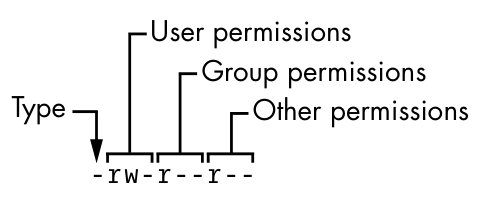
The first character of the mode is the file type. A dash (-) in this position, as in the example, denotes a regular file, meaning that there’s nothing special about the file; it’s just binary or text data. This is by far the most common kind of file. Directories are also common and are indicated by a d in the file type slot. (Section 3.1 lists the remaining file types.)
The rest of a file’s mode contains the permissions, which break down into three sets: user, group, and other, in that order. For example, the rw-characters in the example are the user permissions, the r-- characters that follow are the group permissions, and the final r-- characters are the other permissions.
Each permission set can contain four basic representations:
rmeans that the file is readable.wmeans that the file is writable.xmeans that the file is executable (you can run it as a program).-means “nothing” (more specifically, the permission for that slot in the set has not been granted).
The user permissions (the first set) pertain to the user who owns the file. In the preceding example, that’s juser. The second set, group permissions, are for the file’s group (somegroup in the example). Any user in that group can take advantage of these permissions. (Use the groups command to see what group you’re in, and see Section 7.3.5 for more information.)
Everyone else on the system has access according to the third set, the other permissions, which are sometimes called world permissions.
Each read, write, and execute permission slot is sometimes called a permission bit because the underlying representation in the operating system is a series of bits. Therefore, you may hear people refer to parts of the permissions as “the read bits.”
Some executable files have an s in the user permissions listing instead of an x. This indicates that the executable is setuid, meaning that when you execute the program, it runs as though the file owner is the user instead of you. Many programs use this setuid bit to run as root in order to get the privileges they need to change system files. One example is the passwd program, which needs to change the /etc/passwd file.
2.17.1 Modifying Permissions
To change permissions on a file or directory, use the chmod command. First, pick the set of permissions that you want to change, and then pick the bit to change. For example, to add group (g) and world (o, for “other”) read (r) permissions to file, you could run these two commands:
$ chmod g+r file
$ chmod o+r file
Or you could do it all in one shot:
$ chmod go+r file
To remove these permissions, use go-r instead of go+r.
Obviously, you shouldn’t make files world-writable because doing so enables anyone on your system to change them. But would this also allow anyone connected to the internet to change them? Probably not, unless your system has a network security hole. In that case, file permissions won’t help you anyway.
You may sometimes see people changing permissions with numbers, for example:
$ chmod 644 file
This is called an absolute change because it sets all permission bits at once. To understand how this works, you need to know how to represent the permission bits in octal form (each numeral represents a number in base 8, 0 through 7, and corresponds to a permission set). See the chmod(1) manual page or info manual for more.
You don’t really need to know how to construct absolute modes if you prefer to use them; just memorize the modes that you use most often. Table 2-4 lists the most common ones.
Table 2-4: Absolute Permission Modes
| Mode | Meaning | Used for |
|---|---|---|
644 | user: read/write; group, other: read | files |
600 | user: read/write; group, other: none | files |
755 | user: read/write/execute; group, other: read/execute | directories, programs |
700 | user: read/write/execute; group, other: none | directories, programs |
711 | user: read/write/execute; group, other: execute | directories |
Directories also have permissions. You can list the contents of a directory if it’s readable, but you can only access a file in a directory if the directory is executable. You need both in most cases; one common mistake people make when setting the permissions of directories is to accidentally remove the execute permission when using absolute modes.
Finally, you can specify a set of default permissions with the umask shell command, which applies a predefined set of permissions to any new file you create. In general, use umask 022 if you want everyone to be able to see all of the files and directories that you create, and use umask 077 if you don’t. If you want to make your desired permissions mask apply to new windows and later sessions, you need to put the umask command with the desired mode in one of your startup files, as discussed in Chapter 13.
2.17.2 Working with Symbolic Links
A symbolic link is a file that points to another file or a directory, effectively creating an alias (like a shortcut in Windows). Symbolic links offer quick access to obscure directory paths.
In a long directory listing, symbolic links look like this (notice the l as the file type in the file mode):
lrwxrwxrwx 1 ruser users 11 Feb 27 13:52 somedir -> /home/origdir
If you try to access somedir in this directory, the system gives you /home/origdir instead. Symbolic links are simply filenames that point to other names. Their names and the paths to which they point don’t have to mean anything. In the preceding example, /home/origdir doesn’t need to exist.
In fact, if /home/origdir does not exist, any program that accesses somedir returns an error reporting that somedir doesn’t exist (except for ls somedir, a command that stupidly informs you that somedir is somedir). This can be baffling because you can see something named somedir right in front of your eyes.
This is not the only way that symbolic links can be confusing. Another problem is that you can’t identify the characteristics of a link target just by looking at the name of the link; you must follow the link to see if it goes to a file or directory. Your system may also have links that point to other links, which are called chained symbolic links and can be a nuisance when you’re trying to track them down.
To create a symbolic link from target to linkname, use ln -s as follows:
$ ln -s target linkname
The linkname argument is the name of the symbolic link, the target argument is the path of the file or directory that the link points to, and the -s flag specifies a symbolic link (see the warning that follows).
When making a symbolic link, check the command twice before you run it, because several things can go wrong. For example, if you accidentally reverse the order of the arguments (ln -s linkname target), you’re in for some fun if linkname is a directory that already exists. If this is the case (and it quite often is), ln creates a link named target inside linkname, and the link will point to itself unless linkname is a full path. If something goes wrong when you create a symbolic link to a directory, check that directory for errant symbolic links and remove them.
Symbolic links can also cause headaches when you don’t know that they exist. For example, you can easily edit what you think is a copy of a file but is actually a symbolic link to the original.
Don’t forget the -s option when creating a symbolic link. Without it, ln creates a hard link, giving an additional real filename to a single file. The new filename has the status of the old one; it points (links) directly to the file data instead of to another filename as a symbolic link does. Hard links can be even more confusing than symbolic links. Unless you understand the material in Section 4.6, avoid using them.
With all these warnings about symbolic links, you might be wondering why anyone would want to use them. As it turns out, their pitfalls are significantly outweighed by the power they provide for organizing files and their ability to easily patch up small problems. One common use case is when a program expects to find a particular file or directory that already exists somewhere else on your system. You don’t want to make a copy, and if you can’t change the program, you can just create a symbolic link from it to the actual file or directory location.