6.3 systemd
The systemd init is one of the newest init implementations on Linux. In addition to handling the regular boot process, systemd aims to incorporate the functionality of a number of standard Unix services, such as cron and inetd. It takes some inspiration from Apple’s launchd.
Where systemd really stands out from its predecessors is its advanced service management capabilities. Unlike a traditional init, systemd can track individual service daemons after they start, and group together multiple processes associated with a service, giving you more power and insight into exactly what is running on the system.
systemd is goal-oriented. At the top level, you can think of defining a goal, called a unit, for some system task. A unit can contain instructions for common startup tasks, such as starting a daemon, and it also has dependencies, which are other units. When starting (or activating) a unit, systemd attempts to activate its dependencies and then moves on to the details of the unit.
When starting services, systemd does not follow a rigid sequence; instead, it activates units whenever they are ready. After boot, systemd can react to system events (such as the uevents outlined in Chapter 3) by activating additional units. Let’s start by looking at a top-level view of units, activation, and the initial boot process. Then you’ll be ready to see the specifics of unit configuration and the many varieties of unit dependencies. Along the way, you’ll get a grip on how to view and control a running system.
6.3.1 Units and Unit Types
One way that systemd is more ambitious than previous versions of init is that it doesn’t just operate processes and services; it can also manage filesystem mounts, monitor network connection requests, run timers, and more. Each capability is called a unit type, and each specific function (such as a service) is called a unit. When you turn on a unit, you activate it. Each unit has its own configuration file; we’ll explore those files in Section 6.3.3.
These are the most significant unit types that perform the boot-time tasks on a typical Linux system:
Service units Control the service daemons found on a Unix system.
Target units Control other units, usually by grouping them.
Socket units Represent incoming network connection request locations.
Mount units Represent the attachment of filesystems to the system.
You can find a complete list of unit types in the systemd(1) manual page.
Of these, service and target units are the most common and the easiest to understand. Let’s take a look at how they fit together when you boot a system.
6.3.2 Booting and Unit Dependency Graphs
When you boot a system, you’re activating a default unit, normally a target unit called default.target that groups together a number of service and mount units as dependencies. As a result, it’s somewhat easy to get a partial picture of what’s going to happen when you boot. You might expect the unit dependencies to form a tree—with one unit at the top, branching into several units below for later stages of the boot process—but they actually form a graph. A unit that comes late in the boot process can depend on several previous units, making earlier branches of a dependency tree join back together. You can even create a dependency graph with the systemd-analyze dot command. The entire graph is quite large on a typical system (requiring significant computing power to render), and it’s hard to read, but there are ways to filter units and zero in on individual portions.
Figure 6-1 shows a very small part of the dependency graph for the default.target unit found on a typical system. When you activate that unit, all of the units below it also activate.
On most systems, default.target is a link to some other high-level target unit, such as one that represents a user interface startup. On the system shown in Figure 6-1, default.target groups the units necessary to start a GUI.
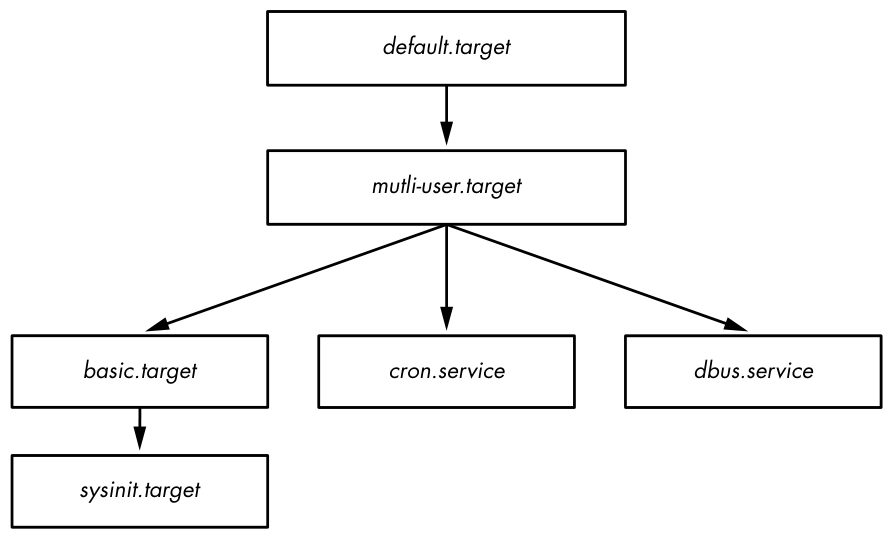
This figure is a greatly simplified view. On your own system, you won’t find it feasible to sketch out the dependencies just by looking at the unit configuration file at the top and working your way down. We’ll take a closer look at how dependencies work in Section 6.3.6.
6.3.3 systemd Configuration
The systemd configuration files are spread among many directories across the system, so you might need to do a little hunting when you’re looking for a particular file. There are two main directories for systemd configuration: the system unit directory (global configuration; usually /lib/systemd/system or /usr/lib/systemd/system) and the system configuration directory (local definitions; usually /etc/systemd/system).
To prevent confusion, stick to this rule: avoid making changes to the system unit directory, because your distribution will maintain it for you. Make your local changes to the system configuration directory. This general rule also applies systemwide. When given the choice between modifying something in /usr and /etc, always change /etc.
You can check the current systemd configuration search path (including precedence) with this command:
$ systemctl -p UnitPath show
UnitPath=/etc/systemd/system.control /run/systemd/system.control /run/systemd/
transient /etc/systemd/system /run/systemd/system /run/systemd/generator /lib/
systemd/system /run/systemd/generator.late
To see the system unit and configuration directories on your system, use the following commands:
$ pkg-config systemd --variable=systemdsystemunitdir
/lib/systemd/system
$ pkg-config systemd --variable=systemdsystemconfdir
/etc/systemd/system
Unit Files
The format for unit files is derived from the XDG Desktop Entry specification (used for .desktop files, which are very similar to .ini files on Microsoft systems), with section names in square brackets ([]) and variable and value assignments (options) in each section.
As an example, consider the dbus-daemon.service unit file for the desktop bus daemon:
[Unit]
Description=D-Bus System Message Bus
Documentation=man:dbus-daemon(1)
Requires=dbus.socket
RefuseManualStart=yes

[Service]
ExecStart=/usr/bin/dbus-daemon --system --address=systemd: --nofork --nopidfile
--systemd-activation --syslog-only
ExecReload=/usr/bin/dbus-send --print-reply --system --type=method_call --dest=
org.freedesktop.DBus / org.freedesktop.DBus.ReloadConfig
There are two sections, [Unit] and [Service]. The [Unit] section gives some details about the unit and contains description and dependency information. In particular, this unit requires the dbus.socket unit as a dependency.
In a service unit such as this, you’ll find the details about the service in the [Service] section, including how to prepare, start, and reload the service. You’ll find a complete listing in the systemd.service(5) and systemd.exec(5) manual pages, as well as in the discussion of process tracking in Section 6.3.5.
Many other unit configuration files are similarly straightforward. For example, the service unit file sshd.service enables remote secure shell logins by starting sshd.
The unit files you find on your system may differ slightly. In this example, you saw that Fedora uses the name dbus-daemon.service, and Ubuntu uses dbus.service. There may be changes in the actual files as well, but they are often superficial.
Variables
You’ll often find variables inside unit files. Here’s a section from a different unit file, this one for the secure shell that you’ll learn about in Chapter 10:
[Service]
EnvironmentFile=/etc/sysconfig/sshd
ExecStartPre=/usr/sbin/sshd-keygen
ExecStart=/usr/sbin/sshd -D $OPTIONS $CRYPTO_POLICY
ExecReload=/bin/kill -HUP $MAINPID
Everything that starts with a dollar sign ($) is a variable. Although these variables have the same syntax, their origins are different. The $OPTIONS and $CRYPTO_POLICY options, which you can pass to sshd upon unit activation, are defined in the file specified by the EnvironmentFile setting. In this particular case, you can look at /etc/sysconfig/sshd to determine if the variables are set and, if so, what their values are.
In comparison, $MAINPID contains the ID of the tracked process of the service (see Section 6.3.5). Upon unit activation, systemd records and stores this PID so that you can use it to manipulate a service-specific process later on. The sshd.service unit file uses $MAINPID to send a hangup (HUP) signal to sshd when you want to reload the configuration (this is a very common technique for dealing with reloads and restarting Unix daemons).
Specifiers
A specifier is a variable-like feature often found in unit files. Specifiers start with a percent sign (%). For example, the %n specifier is the current unit name, and the %H specifier is the current hostname.
You can also use specifiers to create multiple copies of a unit from a single unit file. One example is the set of getty processes that control the login prompts on virtual consoles, such as tty1 and tty2. To use this feature, add an @ symbol to the end of the unit name, before the dot in the unit filename.
For example, the getty unit filename is getty@.service in most distributions, allowing for the dynamic creation of units, such as getty@tty1 and getty@tty2. Anything after the @ is called the instance. When you look at one of these unit files, you may also see a %I or %i specifier. When activating a service from a unit file with instances, systemd replaces the %I or %i specifier with the instance to create the new service name.
6.3.4 systemd Operation
You’ll interact with systemd primarily through the systemctl command, which allows you to activate and deactivate services, list status, reload the configuration, and much more.
The most essential commands help you to obtain unit information. For example, to view a list of active units on your system, issue a list-units command. (This is the default command for systemctl, so technically you don’t need the list-units argument.)
$ systemctl list-units
The output format is typical of a Unix information-listing command. For example, the header and the line for -.mount (the root filesystem) looks like this:
UNIT                      LOAD   ACTIVE SUB       DESCRIPTION
-.mount                   loaded active mounted   Root Mount
By default, systemctl list-units produces a lot of output, because a typical system has numerous active units, but it’s still an abridged form because systemctl truncates any really large unit names. To see the full names of the units, use the --full option, and to see all units (not just those that are active), use the --all option.
A particularly useful systemctl operation is getting the status of a specific unit. For example, here’s a typical status command and some of its output:
$ systemctl status sshd.service
· sshd.service - OpenBSD Secure Shell server
   Loaded: loaded (/usr/lib/systemd/system/sshd.service; enabled; vendor
preset: enabled)
   Active: active (running) since Fri 2021-04-16 08:15:41 EDT; 1 months 1 days
ago
 Main PID: 1110 (sshd)
    Tasks: 1 (limit: 4915)
   CGroup: /system.slice/sshd.service
           ⌙1110 /usr/sbin/sshd -D
A number of log messages may also follow this output. If you’re used to a traditional init system, you might be surprised by the amount of useful information available from this one command. You get not only the state of the unit but also the processes associated with the service, when the unit started, and a number of log messages, if available.
The output for other unit types includes similar useful information; for example, the output from mount units includes when the mount happened, the exact command line used for it, and its exit status.
One interesting piece of the output is the control group (cgroup) name. In the preceding example, the control group is /system.slice/sshd.service, and the processes in the cgroup are shown below it. However, you may also p. 145 see control groups named starting with systemd:/system if the processes of a unit (for example, a mount unit) have already terminated. You can view systemd-related cgroups without the rest of the unit status with the systemd-cgls command. You’ll learn more about how systemd uses cgroups in Section 6.3.5, and how cgroups work in Section 8.6.
The status command also displays only the most recent diagnostic log messages for the unit. You can view all of a unit’s messages like this:
$ journalctl --unit=unit_name
You’ll learn much more about journalctl in Chapter 7.
Depending on your system and user configuration, you might need superuser privileges to run journalctl.
How Jobs Relate to Starting, Stopping, and Reloading Units
To activate, deactivate, and restart units, you use the commands systemctl start, systemctl stop, and systemctl restart. However, if you’ve changed a unit configuration file, you can tell systemd to reload the file in one of two ways:
systemctl reload unit Reloads just the configuration for unit.
systemctl daemon-reload Reloads all unit configurations.
Requests to activate, reactivate, and restart units are called jobs in systemd, and they are essentially unit state changes. You can check the current jobs on a system with:
$ systemctl list-jobs
If a system has been up for some time, you can reasonably expect there to be no active jobs because all activations required to start the system should be complete. However, at boot time, you can sometimes log in fast enough to see jobs for units that start very slowly. For example:
  JOB UNIT                      TYPE            STATE
   1 graphical.target          start           waiting
   2 multi-user.target         start           waiting
  71 systemd-...nlevel.service start           waiting
  75 sm-client.service         start           waiting
  76 sendmail.service          start           running
 120 systemd-...ead-done.timer start           waiting
In this case, job 76, the sendmail.service unit startup, is taking a really long time. The other listed jobs are in a waiting state, most likely because they’re all waiting for job 76. When sendmail.service finishes starting and is fully active, job 76 will complete, the rest of the jobs will also complete, and the job list will be empty.
The term job can be confusing, especially because some other init systems use it to refer to features that are more like systemd units. These jobs also have nothing to do with the shell’s job control.
See Section 6.6 to learn how to shut down and reboot the system.
Adding Units to systemd
Adding units to systemd is primarily a matter of creating, then activating and possibly enabling, unit files. You should normally put your own unit files in the system configuration directory (/etc/systemd/system) so that you won’t confuse them with anything that came with your distribution and so that the distribution won’t overwrite them when you upgrade.
Because it’s easy to create target units that don’t actually do anything or interfere with your system, give it a try. To create two targets, one with a dependency on the other, follow these steps:
-
Create a unit file named test1.target in /etc/systemd/system:
[Unit]Description=test 1 -
Create a test2.target file with a dependency on test1.target:
[Unit]Description=test 2Wants=test1.target
The Wants keyword here defines a dependency that causes test1.target to activate when you activate test2.target. Activate the test2.target unit to see it in action:
# systemctl start test2.target
-
Verify that both units are active:
# systemctl status test1.target test2.target· test1.target - test 1Loaded: loaded (/etc/systemd/system/test1.target; static; vendorpreset: enabled)Active: active since Tue 2019-05-28 14:45:00 EDT; 16s agoMay 28 14:45:00 duplex systemd[1]: Reached target test 1.· test2.target - test 2Loaded: loaded (/etc/systemd/system/test2.target; static; vendorpreset: enabled)Active: active since Tue 2019-05-28 14:45:00 EDT; 17s agop. 147 -
If your unit file has an
[Install]section, you need to “enable” the unit before activating it:# systemctl enable unit
The [Install] section is another way to create a dependency. We’ll look at it (and dependencies as a whole) in more detail in Section 6.3.6.
Removing Units from systemd
To remove a unit, follow these steps:
-
Deactivate the unit if necessary:
# systemctl stop unit -
If the unit has an
[Install]section, disable the unit to remove any symbolic links created by the dependency system:# systemctl disable unitYou can then remove the unit file if you like.
Disabling a unit that is implicitly enabled (that is, does not have an [Install] section) has no effect.
6.3.5 systemd Process Tracking and Synchronization
systemd wants a reasonable amount of information and control over every process it starts. This has been difficult historically. A service can start in different ways; it could fork new instances of itself or even daemonize and detach itself from the original process. There’s also no telling how many subprocesses the server can spawn.
In order to manage activated units easily, systemd uses the previously mentioned cgroups, a Linux kernel feature that allows for finer tracking of a process hierarchy. The use of cgroups also helps minimize the work that a package developer or administrator needs to do in order to create a working unit file. In systemd, you don’t have to worry about accounting for every possible startup behavior; all you need to know is whether a service startup process forks. Use the Type option in your service unit file to indicate startup behavior. There are two basic startup styles:
Type=simple The service process doesn’t fork and terminate; it remains the main service process.
Type=forking The service forks, and systemd expects the original service process to terminate. Upon this termination, systemd assumes the service is ready.
The Type=simple option doesn’t account for the fact that a service may take some time to initiate, and as a result systemd doesn’t know when to start any dependent units that absolutely require such a service to be ready. One way to deal with this is to use delayed startup (see Section 6.3.7). However, some Type startup styles can indicate that the service itself will notify systemd when it’s ready:
Type=notify When ready, the service sends a notification specific to systemd with a special function call.
Type=dbus When ready, the service registers itself on the D-Bus (Desktop Bus).
Another service startup style is specified with Type=oneshot; here the service process terminates completely with no child processes after starting. It’s like Type=simple, except that systemd does not consider the service to be started until the service process terminates. Any strict dependencies (which you’ll see soon) will not start until that termination. A service using Type=oneshot also gets a default RemainAfterExit=yes directive so that systemd regards a service as active even after its processes terminate.
A final option is Type=idle. This works like the simple style, but it instructs systemd not to start the service until all active jobs finish. The idea here is just to delay a service start until other services have started to keep services from stepping on one another’s output. Remember, once a service has started, the systemd job that started it terminates, so waiting for all other jobs to finish ensures that nothing else is starting.
If you’re interested in how cgroups work, we’ll explore them in more detail in Section 8.6.
6.3.6 systemd Dependencies
A flexible system for boot-time and operational dependencies requires some degree of complexity, because overly strict rules can cause poor system performance and instability. For example, say you want to display a login prompt after starting a database server, so you define a strict dependency from the login prompt to the database server. This means if the database server fails, the login prompt will also fail, and you won’t even be able to log in to your machine to fix the issue!
Unix boot-time tasks are fairly fault tolerant and can often fail without causing serious problems for standard services. For example, if you removed a system’s data disk but left its /etc/fstab entry (or mount unit in systemd), the boot-time filesystem mount would fail. Though this failure might affect application servers (such as web servers), it typically wouldn’t affect standard system operation.
To accommodate the need for flexibility and fault tolerance, systemd offers several dependency types and styles. Let’s first look at the basic types, labeled by their keyword syntax:
Requires Strict dependencies. When activating a unit with a Requires dependency unit, systemd attempts to activate the dependency unit. If the dependency unit fails, systemd also deactivates the dependent unit. p. 149 Wants Dependencies for activation only. Upon activating a unit, systemd activates the unit’s Wants dependencies, but it doesn’t care if those dependencies fail.
Requisite Units that must already be active. Before activating a unit with a Requisite dependency, systemd first checks the status of the dependency. If the dependency hasn’t been activated, systemd fails on activation of the unit with the dependency.
Conflicts Negative dependencies. When activating a unit with a Conflict dependency, systemd automatically deactivates the opposing dependency if it’s active. Simultaneous activation of conflicting units fails.
The Wants dependency type is especially significant because it doesn’t propagate failures to other units. The systemd.service(5) manual page states that this is how you should specify dependencies if possible, and it’s easy to see why. This behavior produces a much more robust system, giving you the benefit of a traditional init, where the failure of an earlier startup component doesn’t necessarily prohibit later components from starting.
You can view a unit’s dependencies with the systemctl command, as long as you specify a type of dependency, such as Wants or Requires:
# systemctl show -p type unit
Ordering
So far, the dependency syntax you’ve seen hasn’t explicitly specified order. For example, activating most service units with Requires or Wants dependencies causes these units to start at the same time. This is optimal, because you want to start as many services as possible as quickly as possible to reduce boot time. However, there are situations when one unit must start after another. For instance, in the system that Figure 6-1 is based on, the default.target unit is set to start after multi-user.target (this order distinction is not shown in the figure).
To activate units in a particular order, use the following dependency modifiers:
Before The current unit will activate before the listed unit(s). For example, if Before=bar.target appears in foo.target, systemd activates foo.target before bar.target.
After The current unit activates after the listed unit(s).
When you use ordering, systemd waits until a unit has an active status before activating its dependent units.
Default and Implicit Dependencies
As you explore dependencies (especially with systemd-analyze), you might start to notice that some units acquire dependencies that aren’t explicitly stated in unit files or other visible mechanisms. You’re most likely to encounter this in target units with Wants dependencies—you’ll find that p. 150 systemd adds an After modifier alongside any unit listed as a Wants dependency. These additional dependencies are internal to systemd, calculated at boot time, and not stored in configuration files.
The added After modifier is called a default dependency, an automatic addition to the unit configuration meant to avoid common mistakes and keep unit files small. These dependencies vary according to the type of unit. For example, systemd doesn’t add the same default dependencies for target units as it does for service units. These differences are listed in the DEFAULT DEPENDENCIES sections of the unit configuration manual pages, such as systemd.service(5) and systemd.target(5).
You can disable a default dependency in a unit by adding DefaultDependencies=no to its configuration file.
Conditional Dependencies
You can use several conditional dependency parameters to test various operating system states rather than systemd units. For example:
ConditionPathExists=p True if the (file) path p exists in the system.
ConditionPathIsDirectory=p True if p is a directory.
ConditionFileNotEmpty=p True if p is a file and it’s not zero-length.
If a conditional dependency in a unit is false when systemd tries to activate the unit, the unit does not activate, although this applies only to the unit in which it appears. That is, if you activate a unit that has a conditional dependency and some unit dependencies, systemd attempts to activate those unit dependencies regardless of whether the condition is true or false.
Other dependencies are primarily variations on the preceding ones. For example, the RequiresOverridable dependency is just like Requires when running normally, but it acts like a Wants dependency if a unit is manually activated. For a full list, see the systemd.unit(5) manual page.
The [Install] Section and Enabling Units
So far, we’ve been looking at how to define dependencies in a dependent unit’s configuration file. It’s also possible to do this “in reverse”—that is, by specifying the dependent unit in a dependency’s unit file. You can do this by adding a WantedBy or RequiredBy parameter in the [Install] section. This mechanism allows you to alter when a unit should start without modifying additional configuration files (for example, when you’d rather not edit a system unit file).
To see how this works, consider the example units back in Section 6.3.4. We had two units, test1.target and test2.target, with test2.target having a Wants dependency on test1.target. We can change them so that test1.target looks like this:
[Unit]
Description=test 1
[Install]
WantedBy=test2.target
And test2.target is as follows:
[Unit]
Description=test 2
Because you now have a unit with an [Install] section, you need to enable the unit with systemctl before you can start it. Here’s how that works with test1.target:
# systemctl enable test1.target
Created symlink /etc/systemd/system/test2.target.wants/test1.target → /etc/
systemd/system/test1.target.
Notice the output here—the effect of enabling a unit is to create a symbolic link in a .wants subdirectory corresponding to the dependent unit (test2.target in this case). You can now start both units at the same time with systemctl start test2.target because the dependency is in place.
Enabling a unit does not activate it.
To disable the unit (and remove the symbolic link), use systemctl as follows:
# systemctl disable test1.target
Removed /etc/systemd/system/test2.target.wants/test1.target.
The two units in this example also give you a chance to experiment with different startup scenarios. For example, see what happens when you try to start only test1.target, or when you try to start test2.target without enabling test1.target. Or, try changing WantedBy to RequiredBy. (Remember, you can check the status of a unit with systemctl status.)
During normal operation, systemd ignores the [Install] section in a unit but notes its presence and, by default, considers the unit to be disabled. Enabling a unit survives reboots.
The [Install] section is usually responsible for the .wants and .requires directories in the system configuration directory (/etc/systemd/system). However, the unit configuration directory ([/usr]/lib/systemd/system) also contains .wants directories, and you may also add links that don’t correspond to [Install] sections in the unit files. These manual additions are a simple way to add a dependency without modifying a unit file that may be overwritten in the future (by a software upgrade, for instance), but they’re not particularly encouraged because a manual addition is difficult to trace.
6.3.7 systemd On-Demand and Resource-Parallelized Startup
One of systemd’s features is the ability to delay a unit startup until it is absolutely needed. The setup typically works like this:
- You create a systemd unit (call it Unit A) for the system service you’d like to provide. p. 152
- You identify a system resource, such as a network port/socket, file, or device, that Unit A uses to offer its services.
- You create another systemd unit, Unit R, to represent that resource. These units are classified into types, such as socket units, path units, and device units.
- You define the relationship between Unit A and Unit R. Normally, this is implicit based on the units’ names, but it can also be explicit, as we’ll see shortly.
Once in place, the operation proceeds as follows:
- Upon activation of Unit R, systemd monitors the resource.
- When anything tries to access the resource, systemd blocks the resource, and the input to the resource is buffered.
- systemd activates Unit A.
- When ready, the service from Unit A takes control of the resource, reads the buffered input, and runs normally.
There are a few concerns here:
- You must make sure that your resource unit covers every resource that the service provides. This normally isn’t a problem, because most services have just one point of access.
- You need to make sure your resource unit is tied to the service unit that it represents. This can be implicit or explicit, and in some cases, many options represent different ways for systemd to perform the handoff to the service unit.
- Not all servers know how to interface with the resource units systemd can provide.
If you already know what traditional utilities like inetd, xinetd, and automount do, you’ll see many similarities. Indeed, the concept is nothing new; systemd even includes support for automount units.
An Example Socket Unit and Service
Let’s look at an example, a simple network echo service. This is somewhat advanced material, and you might not fully understand it until you’ve read the discussion of TCP, ports, and listening in Chapter 9 and sockets in Chapter 10, but you should be able to get the basic idea.
The idea of an echo service is to repeat anything that a network client sends after connecting; ours will listen on TCP port 22222. We’ll start building it with a socket unit to represent the port, as shown in the following echo.socket unit file:
[Unit]
Description=echo socket
[Socket]
ListenStream=22222
Accept=true
Note that there’s no mention of the service unit that this socket supports inside the unit file. So, what is that corresponding service unit file?
Its name is echo@.service. The link is established by naming convention; if a service unit file has the same prefix as a .socket file (in this case, echo), systemd knows to activate that service unit when there’s activity on the socket unit. In this case, systemd creates an instance of echo@.service when there’s activity on echo.socket. Here’s the echo@.service unit file:
[Unit]
Description=echo service

[Service]
ExecStart=/bin/cat
StandardInput=socket
If you don’t like the implicit activation of units based on the prefixes, or you need to link units with different prefixes, you can use an explicit option in the unit defining your resource. For example, use Socket=bar.socket inside foo.service to have bar.socket hand its socket to foo.service.
To get this example unit running, you need to start the echo.socket unit:
# systemctl start echo.socket
Now you can test the service by connecting to your local TCP port 22222 with a utility such as telnet. The service repeats what you enter; here’s an example interaction:
$ telnet localhost 22222
Trying 127.0.0.1...
Connected to localhost.
Escape character is '^]'.
Hi there.
Hi there.
When you’re bored with this and want to get back to your shell, press CTRL-] on a line by itself and then press CTRL-D. To stop the service, stop the socket unit like so:
# systemctl stop echo.socket
telnet may not be installed by default on your distribution.
Instances and Handoff
Because the echo@.service unit supports multiple simultaneous instances, there’s an @ in the name (recall that the @ specifier signifies parameterization). Why would you want multiple instances? Say you have more than one network client connecting to the service at the same time, and you want each connection to have its own instance. In this case, the service unit must support multiple instances because we included the Accept=true option in echo.socket. That option instructs systemd not only to listen on the port, but also to accept incoming connections on behalf of the service unit and pass it to them, creating a separate instance for each connection. Each instance reads data from the connection as standard input, but it doesn’t necessarily need to know that the data is coming from a network connection.
Most network connections require more flexibility than just a simple gateway to standard input and output, so don’t expect to be able to create complex network services with a service unit file like the echo@.service unit file shown here.
If a service unit can do the work of accepting a connection, don’t put an @ in its unit filename, and don’t put Accept=true in the socket unit. In this case, the service unit takes complete control of the socket from systemd, which in turn does not attempt to listen on the network port again until the service unit finishes.
The many different resources and options for handoff to service units make it difficult to provide a categorical summary. Not only that, but the documentation for the options is spread out over several manual pages. For the resource-oriented units, check systemd.socket(5), systemd.path(5), and systemd.device(5). One document that’s often overlooked for service units is systemd.exec(5), which contains information about how the service unit can expect to receive a resource upon activation.
Boot Optimization with Auxiliary Units
An overall goal of systemd is to simplify dependency order and speed up boot time. Resource units such as socket units provide a way to do this that’s similar to on-demand startup. We’ll still have a service unit and an auxiliary unit representing the service unit’s offered resource, except that in this case, systemd starts the service unit as soon as it activates the auxiliary unit rather than waiting around for a request.
The reason for this scheme is that essential boot-time service units such as systemd-journald.service take some time to start, and many other units depend on them. However, systemd can offer the essential resource of a unit (such as a socket unit) very quickly, and then it can immediately activate not only the essential unit but also any units that depend on it. Once the essential unit is ready, it takes control of the resource.
Figure 6-2 shows how this might work in a traditional sequential system. In this boot timeline, Service E provides an essential Resource R. Services A, B, and C depend on this resource (but not on each other) and must p. 155 wait until Service E has started. Because the system will not start a new service until it’s done starting the preceding one, it takes quite a long time to get around to starting Service C.
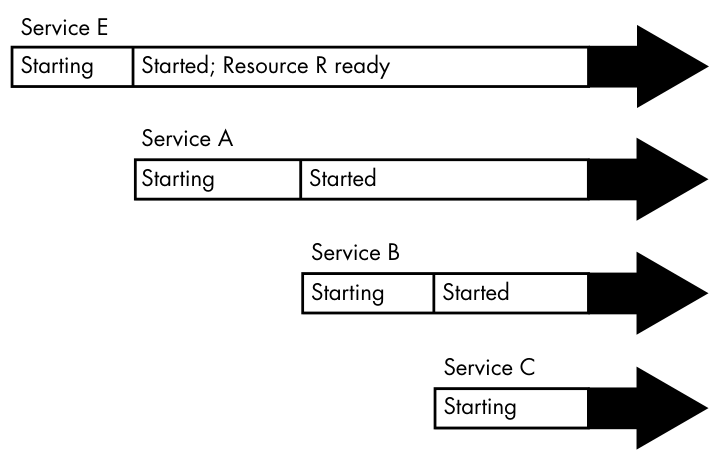
Figure 6-3 shows a possible equivalent systemd boot configuration. The services are represented by Units A, B, C, and E, with a new Unit R representing the resource that Unit E provides. Because systemd can provide an interface for Unit R while Unit E starts, Units A, B, C, and E can all be started at the same time. When ready, Unit E takes over for Unit R. An interesting point here is that Unit A, B, or C may not need to access the resource that Unit R provides before finishing startup. What we’re doing is providing them with the option to start accessing the resource as soon as possible.
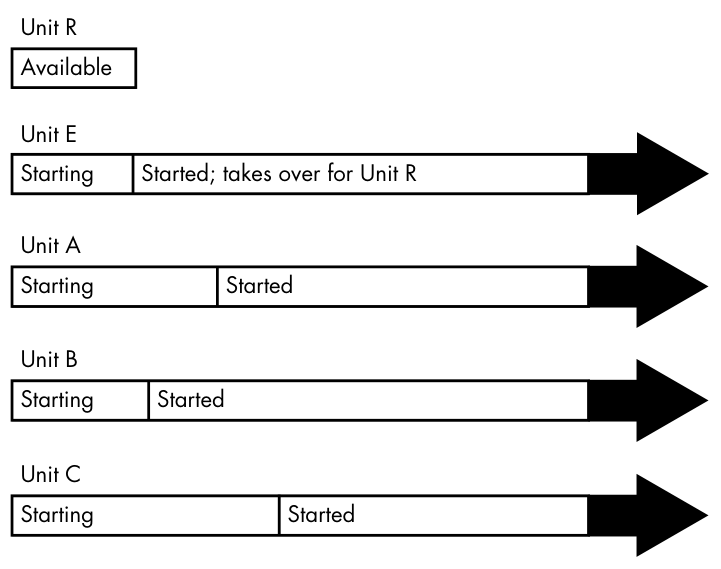
When you parallelize startup like this, there’s a chance that your system will slow down temporarily due to a large number of units starting at once.
The takeaway is that, although you’re not creating an on-demand unit startup in this case, you’re using the same features that make on-demand startup possible. For common real-world examples, see the journald and D-Bus configuration units on a machine running systemd; they’re very likely to be parallelized in this way.
6.3.8 systemd Auxiliary Components
As systemd has grown in popularity, it has grown to include support for a few tasks not related to startup and service management, both directly and through auxiliary compatibility layers. You may notice the numerous programs in /lib/systemd; these are the executables related to those functions.
Here are a few specific system services:
udevd You learned about this in Chapter 3; it’s part of systemd.
journald A logging service that handles a few different logging mechanisms, including the traditional Unix syslog service. You’ll read more about this in Chapter 7.
resolved A name service caching daemon for DNS; you’ll learn about that in Chapter 9.
All of the executables for these services are prefixed with systemd-. For example, the systemd-integrated udevd is called systemd-udevd.
If you dig deeper, you’ll find that some of these programs are relatively simple wrappers. Their function is to run standard system utilities and notify systemd of the results. One example is systemd-fsck.
If you see a program in /lib/systemd that you can’t identify, check for a manual page. There’s a good chance that it will describe not only the utility but also the type of unit it’s meant to augment.