5.5 GRUB Introduction
GRUB stands for Grand Unified Boot Loader. We’ll cover GRUB 2, but there’s also an older version called GRUB Legacy that’s no longer in active use.
One of GRUB’s most important capabilities is filesystem navigation that allows for easy kernel image and configuration selection. One of the best ways to see this in action and to learn about GRUB in general is to look at its menu. The interface is easy to navigate, but there’s a good chance that you’ve never seen it.
To access the GRUB menu, press and hold SHIFT when your BIOS startup screen first appears, or ESC if your system has UEFI. Otherwise, the boot loader configuration may not pause before loading the kernel. Figure 5-1 shows the GRUB menu.
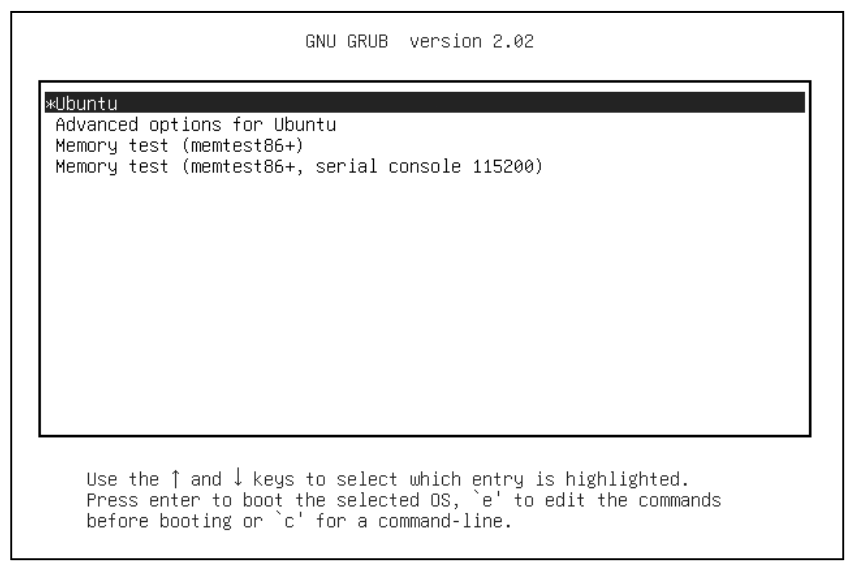
Try the following to explore the boot loader:
- Reboot or power on your Linux system.
- Hold down SHIFT during the BIOS self-test or ESC at the firmware splash screen to get the GRUB menu. (Sometimes these screens are not visible, so you have to guess when to press the button.)
- Press e to view the boot loader configuration commands for the default boot option. You should see something like Figure 5-2 (you might have to scroll down to see all of the details).
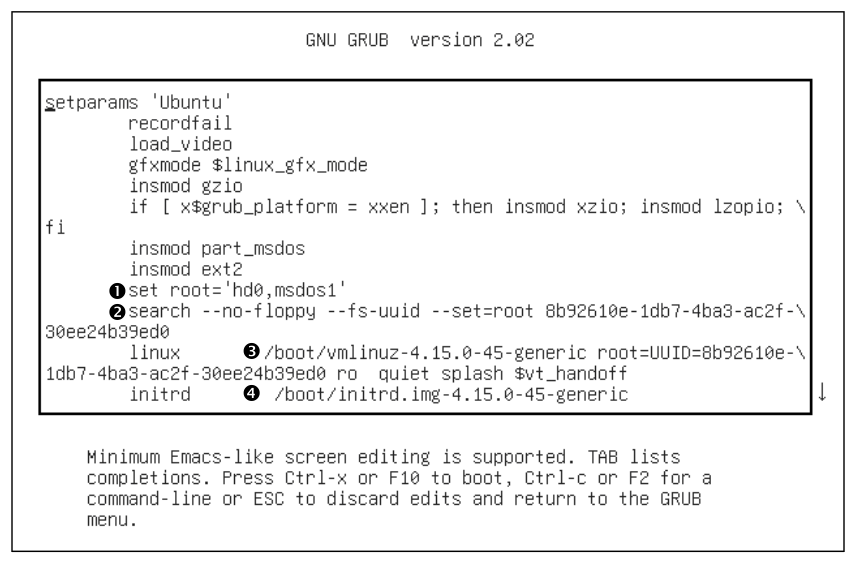
This screen tells us that for this configuration, the root is set with a UUID, the kernel image is /boot/vmlinuz-4.15.0-45-generic, and the kernel parameters include ro, quiet, and splash. The initial RAM filesystem is /boot/initrd.img-4.15.0-45-generic. But if you’ve never seen this sort of configuration before, you might find it somewhat confusing. Why are there multiple references to root, and why are they different? Why is insmod here? If you’ve seen this before, you might remember that it’s a Linux kernel feature normally run by udevd.
The double takes are warranted, because GRUB doesn’t use the Linux kernel (remember, its job is to start the kernel). The configuration you see consists wholly of features and commands internal to GRUB, which exists in its own separate world.
The confusion stems partly from the fact that GRUB borrows terminology from many sources. GRUB has its own “kernel” and its own insmod command to dynamically load GRUB modules, completely independent of the Linux kernel. Many GRUB commands are similar to Unix shell commands; there’s even an ls command to list files.
There’s a GRUB module for LVM that is required to boot systems where the kernel resides on a logical volume. You might see this on your system.
By far, the most confusion results from GRUB’s use of the word root. Normally, you think of root as your system’s root filesystem. In a GRUB configuration, this is a kernel parameter, located somewhere after the image name of the linux command.
Every other reference to root in the configuration is to the GRUB root, which exists only inside of GRUB. The GRUB “root” is the filesystem where GRUB searches for kernel and RAM filesystem image files.
In Figure 5-2, the GRUB root is first set to a GRUB-specific device (hd0,msdos1), a default value for this configuration ❶. In the next command, GRUB then searches for a particular UUID on a partition ❷. If it finds that UUID, it sets the GRUB root to that partition.
To wrap it up, the linux command’s first argument (/boot/vmlinuz-. . .) is the location of the Linux kernel image file ❸. GRUB loads this file from the GRUB root. The initrd command is similar, specifying the file for the initial RAM filesystem covered in Chapter 6 ❹.
You can edit this configuration inside GRUB; doing so is usually the easiest way to temporarily fix an erroneous boot. To permanently fix a boot problem, you’ll need to change the configuration (see Section 5.5.2), but for now, let’s go one step deeper and examine some GRUB internals with the command-line interface.
5.5.1 Exploring Devices and Partitions with the GRUB Command Line
As you can see in Figure 5-2, GRUB has its own device-addressing scheme. For example, the first hard disk found is named hd0, followed by hd1, and so on. Device name assignments are subject to change, but fortunately GRUB can search all partitions for UUIDs to find the one where the kernel resides, as you just saw in Figure 5-2 with the search command.
Listing Devices
To get a feel for how GRUB refers to the devices on your system, access the GRUB command line by pressing c at the boot menu or configuration editor. You should get the GRUB prompt:
grub>
You can enter any command here that you see in a configuration, but to get started, try a diagnostic command instead: ls. With no arguments, the output is a list of devices known to GRUB:
grub> ls
(hd0) (hd0,msdos1)
In this case, there is one main disk device denoted by (hd0) and a single partition (hd0,msdos1). If there were a swap partition on the disk, it would show up as well, such as (hd0,msdos5). The msdos prefix on the partitions tells you that the disk contains an MBR partition table; it would begin with gpt for GPT, found on UEFI systems. (There are even deeper combinations with a third identifier, where a BSD disklabel map resides inside a partition, but you won’t normally have to worry about this unless you’re running multiple operating systems on one machine.)
To get more detailed information, use ls -l. This command can be particularly useful because it displays any UUIDs of the partition filesystems. For example:
grub> ls -l
Device hd0: No known filesystem detected – Sector size 512B - Total size
32009856KiB
        Partition hd0,msdos1: Filesystem type ext* – Last modification time
          2019-02-14 19:11:28 Thursday, UUID 8b92610e-1db7-4ba3-ac2f-
30ee24b39ed0 - Partition start at 1024Kib - Total size 32008192KiB
This particular disk has a Linux ext2/3/4 filesystem on the first MBR partition. Systems using a swap partition will show another partition, but you won’t be able to tell its type from the output.
File Navigation
Now let’s look at GRUB’s filesystem navigation capabilities. Determine the GRUB root with the echo command (recall that this is where GRUB expects to find the kernel):
grub> echo $root
hd0,msdos1
To use GRUB’s ls command to list the files and directories in that root, you can append a forward slash to the end of the partition:
grub> ls (hd0,msdos1)/
Because it’s inconvenient to type the actual root partition, you can substitute the root variable to save yourself some time:
grub> ls ($root)/
The output is a short list of file and directory names on that partition’s filesystem, such as etc/, bin/, and dev/. This is now a completely different function of the GRUB ls command. Before, you were listing devices, partition tables, and perhaps some filesystem header information. Now you’re actually looking at the contents of filesystems.
You can take a deeper look into the files and directories on a partition in a similar manner. For example, to inspect the /boot directory, start with the following:
grub> ls ($root)/boot
Use the up and down arrow keys to flip through the GRUB command history and the left and right arrows to edit the current command line. The standard readline keys (CTRL-N, CTRL-P, and so on) also work.
You can also view all currently set GRUB variables with the set command:
grub> set
?=0
color_highlight=black/white
color_normal=white/black
--snip--
prefix=(hd0,msdos1)/boot/grub
root=hd0,msdos1
One of the most important of these variables is $prefix, the filesystem and directory where GRUB expects to find its configuration and auxiliary support. We’ll discuss GRUB configuration next.
Once you’ve finished with the GRUB command-line interface, you can press ESC to return to the GRUB menu. Alternatively, if you’ve set all of the necessary configuration for boot (including the linux and possibly initrd variables), you can enter the boot command to boot that configuration. In any case, boot your system. We’re going to explore the GRUB configuration, and that’s best done when you have your full system available.
5.5.2 GRUB Configuration
The GRUB configuration directory is usually /boot/grub or /boot/grub2. It contains the central configuration file, grub.cfg, an architecture-specific directory such as i386-pc containing loadable modules with a .mod suffix, and a few other items such as fonts and localization information. We won’t modify grub.cfg directly; instead, we’ll use the grub-mkconfig command (or grub2-mkconfig on Fedora).
Reviewing grub.cfg
First, take a quick look at grub.cfg to see how GRUB initializes its menu and kernel options. You’ll see that the file consists of GRUB commands, which usually begin with a number of initialization steps followed by a series of menu entries for different kernel and boot configurations. The initialization isn’t complicated, but there are a lot of conditionals at the beginning that might lead you to believe otherwise. This first part just consists of a bunch of function definitions, default values, and video setup commands such as this:
if loadfont $font ; then
  set gfxmode=auto
  load_video
  insmod gfxterm
  --snip--
Many variables such as $font originate from a load_env call near the beginning of grub.cfg.
Later in the configuration file, you’ll find the available boot configurations, each beginning with the menuentry command. You should be able to read and understand this example based on what you learned in the preceding section:
menuentry 'Ubuntu' --class ubuntu --class gnu-linux --class gnu --class os $menuentry_id_option
'gnulinux-simple-8b92610e-1db7-4ba3-ac2f-30ee24b39ed0' {
        recordfail
        load_video
        gfxmode $linux_gfx_mode
        insmod gzio
        if [ x$grub_platform = xxen ]; then insmod xzio; insmod lzopio; fi
        insmod part_msdos
        insmod ext2
        set root='hd0,msdos1'
        search --no-floppy --fs-uuid --set=root 8b92610e-1db7-4ba3-ac2f-30ee24b39ed0
        linux   /boot/vmlinuz-4.15.0-45-generic root=UUID=8b92610e-1db7-4ba3-ac2f-30ee24b39ed0
ro quiet splash $vt_handoff
        initrd  /boot/initrd.img-4.15.0-45-generic
}
Examine your grub.cfg file for submenu commands containing multiple menuentry commands. Many distributions use the submenu command for older versions of the kernel so that they don’t crowd the GRUB menu.
Generating a New Configuration File
If you want to make changes to your GRUB configuration, don’t edit your grub.cfg file directly, because it’s automatically generated and the system occasionally overwrites it. You’ll set up your new configuration elsewhere and then run grub-mkconfig to generate the new configuration.
To see how the configuration generation works, look at the very beginning of grub.cfg. There should be comment lines such as this:
### BEGIN /etc/grub.d/00_header ###
Upon further inspection, you’ll find that nearly every file in /etc/grub.d is a shell script that produces a piece of the grub.cfg file. The grub-mkconfig command itself is a shell script that runs everything in /etc/grub.d. Keep in mind that GRUB itself does not run these scripts at boot time; we run the scripts in user space to generate the grub.cfg file that GRUB runs.
Try it yourself as root. Don’t worry about overwriting your current configuration. This command by itself simply prints the configuration to the standard output.
# grub-mkconfig
What if you want to add menu entries and other commands to the GRUB configuration? The short answer is that you should put your customizations into a new custom.cfg file in your GRUB configuration directory (usually /boot/grub/custom.cfg).
The long answer is a little more complicated. The /etc/grub.d configuration directory gives you two options: 40_custom and 41_custom. The first, 40_custom, is a script that you can edit yourself, but it’s the least stable; a package upgrade is likely to destroy any changes you make. The 41_custom script is simpler; it’s just a series of commands that load custom.cfg when GRUB starts. If you choose this second option, your changes won’t appear when you generate your configuration file because GRUB does all of the work at boot time.
The numbers in front of the filenames affect the processing order; lower numbers come first in the configuration file.
The two options for custom configuration files aren’t particularly extensive, and there’s nothing stopping you from adding your own scripts to generate configuration data. You might see some additions specific to your particular distribution in the /etc/grub.d directory. For example, Ubuntu adds memory tester boot options (memtest86+) to the configuration.
To write and install a newly generated GRUB configuration file, you can write the configuration to your GRUB directory with the -o option to grub-mkconfig, like this:
# grub-mkconfig -o /boot/grub/grub.cfg
As usual, back up your old configuration and make sure that you’re installing to the correct directory.
Now we’re going to get into some of the more technical details of GRUB and boot loaders. If you’re tired of hearing about boot loaders and the kernel, skip to Chapter 6.
5.5.3 GRUB Installation
Installing GRUB is more involved than configuring it. Fortunately, you won’t normally have to worry about installation because your distribution should handle it for you. However, if you’re trying to duplicate or restore a bootable disk, or preparing your own boot sequence, you might need to install it on your own.
Before proceeding, read Section 5.4 to get an idea of how PCs boot and determine whether you’re using MBR or UEFI boot. Next, build the GRUB software set and determine where your GRUB directory will be; the default is /boot/grub. You may not need to build GRUB if your distribution does it for you, but if you do, see Chapter 16 for how to build software from source code. Make sure that you build the correct target: it’s different for MBR or UEFI boot (and there are even differences between 32-bit and 64-bit EFI).
Installing GRUB on Your System
Installing the boot loader requires that you or an installer program determine the following:
- The target GRUB directory as seen by your currently running system. As just mentioned, that’s usually /boot/grub, but it might be different if you’re installing GRUB on another disk for use on another system.
- The current device of the GRUB target disk.
- For UEFI booting, the current mount point of the EFI system partition (usually /boot/efi).
Remember that GRUB is a modular system, but in order to load modules, it must read the filesystem that contains the GRUB directory. Your task is to construct a version of GRUB capable of reading that filesystem so that it can load the rest of its configuration (grub.cfg) and any required modules. On Linux, this usually means building a version of GRUB with its ext2.mod module (and possibly lvm.mod) preloaded. Once you have this version, all you need to do is place it on the bootable part of the disk and place the rest of the required files into /boot/grub.
Fortunately, GRUB comes with a utility called grub-install (not to be confused with install-grub, which you might find on some older systems), which performs most of the work of installing the GRUB files and configuration for you. For example, if your current disk is at /dev/sda and you want to install GRUB on that disk’s MBR with your current /boot/grub directory, use this command:
# grub-install /dev/sda
Incorrectly installing GRUB may break the bootup sequence on your system, so don’t take this command lightly. If you’re concerned, research how to back up your MBR with dd, back up any other currently installed GRUB directory, and make sure that you have an emergency bootup plan.
Installing GRUB Using MBR on an External Storage Device
To install GRUB on a storage device outside the current system, you must manually specify the GRUB directory on that device as your current system now sees it. For example, say you have a target device of /dev/sdc and that device’s root filesystem containing /boot (for example, /dev/sdc1) is mounted on /mnt of your current system. This implies that when you install GRUB, your current system will see the GRUB files in /mnt/boot/grub. When running grub-install, tell it where those files should go as follows:
# grub-install --boot-directory=/mnt/boot /dev/sdc
On most MBR systems, /boot is a part of the root filesystem, but some installations put /boot into its own separate filesystem. Make sure that you know where your target /boot resides.
Installing GRUB with UEFI
UEFI installation is supposed to be easier, because all you have to do is copy the boot loader into place. But you also need to “announce” the boot loader to the firmware—that is, save the loader configuration to the NVRAM—with the efibootmgr command. The grub-install command runs this if it’s available, so normally you can install GRUB on a UEFI system like this:
# grub-install --efi-directory=efi_dir –-bootloader-id=name
Here, efi_dir is where the UEFI directory appears on your current system (usually /boot/efi/EFI, because the UEFI partition is typically mounted at /boot/efi) and name is an identifier for the boot loader.
Unfortunately, many problems can crop up when you’re installing a UEFI boot loader. For example, if you’re installing to a disk that will eventually end up in another system, you have to figure out how to announce that boot loader to the new system’s firmware. And there are differences in the install procedure for removable media.
But one of the biggest problems is UEFI secure boot.