17.2 Containers
Virtual machines are great for insulating an entire operating system and its set of running applications, but sometimes you need a lighter-weight alternative. Container technology is now a popular way to fulfill this need. Before we go into the details, let’s take a step back to see its evolution.
The traditional way of operating computer networks was to run multiple services on the same physical machine; for example, a name server could also act as an email server and perform other tasks. However, you shouldn’t really trust any software, including servers, to be secure or stable. To enhance the security of the system and to keep services from interfering with one another, there are some basic ways to put up barriers around server daemons, especially when you don’t trust one of them very much.
One method of service isolation is using the chroot() system call to change the root directory to something other than the actual system root. A program can change its root to something like /var/spool/my_service and no longer be able to access anything outside that directory. In fact, there is a chroot program that allows you to run a program with a new root directory. This type of isolation is sometimes called a chroot jail because processes can’t (normally) escape it.
Another type of restriction is the resource limit (rlimit) feature of the kernel, which restricts how much CPU time a process can consume or how big its files can be.
These are the ideas that containers are built on: you’re altering the environment and restricting the resources with which processes run. Although there’s no single defining feature, a container can be loosely defined as a restricted runtime environment for a set of processes, the implication being that those processes can’t touch anything on the system outside that environment. In general, this is called operating system–level virtualization.
It’s important to keep in mind that a machine running one or more containers still has only one underlying Linux kernel. However, the processes inside a container can use the user-space environment from a Linux distribution different than the underlying system.
The restrictions in containers are built with a number of kernel features. Some of the important aspects of processes running in a container are:
- They have their own cgroups.
- They have their own devices and filesystem.
- They cannot see or interact with any other processes on the system.
- They have their own network interfaces.
Pulling all of those things together is a complicated task. It’s possible to alter everything manually, but it can be challenging; just getting a handle on the cgroups for a process is tricky. To help you along, many tools can perform the necessary subtasks of creating and managing effective containers. Two of the most popular are Docker and LXC. This chapter focuses on Docker, but we’ll also touch on LXC to see how it differs.
17.2.1 Docker, Podman, and Privileges
To run the examples in this book, you need a container tool. The examples here are built with Docker, which you can normally install with a distribution package without any trouble.
There is an alternative to Docker called Podman. The primary difference between the two tools is that Docker requires a server to be running when using containers, while Podman does not. This affects the way the two systems set up containers. Most Docker configurations require superuser privileges to access the kernel features used by its containers, and the p. 407 dockerd daemon does the relevant work. In contrast, you can run Podman as a normal user, called rootless operation. When run this way, it uses different techniques to achieve isolation.
You can also run Podman as the superuser, causing it to switch over to some of the isolation techniques that Docker uses. Conversely, newer versions of dockerd support a rootless mode.
Fortunately, Podman is command line–compatible with Docker. This means you can substitute podman for docker in the examples here, and they’ll still work. However, there are differences in the implementations, especially when you’re running Podman in rootless mode, so those will be noted where applicable.
17.2.2 A Docker Example
The easiest way to familiarize yourself with containers is to get hands-on. The Docker example here illustrates the principal features that make containers work, but providing an in-depth user manual is beyond the scope of this book. You should have no trouble understanding the online documentation after reading this, and if you’re looking for an extensive guide, try Nigel Poulton’s Docker Deep Dive (author, 2016).
First you need to create an image, which comprises the filesystem and a few other defining features for a container to run with. Your images will nearly always be based on prebuilt ones downloaded from a repository on the internet.
It’s easy to confuse images and containers. You can think of an image as the container’s filesystem; processes don’t run in an image, but they do run in containers. This is not quite accurate (in particular, when you change the files in a Docker container, you aren’t making changes to the image), but it’s close enough for now.
Install Docker on your system (your distribution’s add-on package is probably fine), make a new directory somewhere, change to that directory, and create a file called Dockerfile containing these lines:
FROM alpine:latest
RUN apk add bash
CMD ["/bin/bash"]
This configuration uses the lightweight Alpine distribution. The only change we’re making is adding the bash shell, which we’re doing not just for an added measure of interactive usability but also to create a unique image and see how that procedure works. It’s possible (and common) to use public images and make no changes to them whatsoever. In that case, you don’t need a Dockerfile.
Build the image with the following command, which reads the Dockerfile in the current directory and applies the identifier hlw_test to the image:
$ docker build -t hlw_test .
You might need to add yourself to the docker group on your system to be able to run Docker commands as a regular user.
Be prepared for a lot of output. Don’t ignore it; reading through it this first time will help you understand how Docker works. Let’s break it up into the steps that correspond to the lines of the Dockerfile. The first task is to retrieve the latest version of the Alpine distribution container from the Docker registry:
Sending build context to Docker daemon  2.048kB
Step 1/3 : FROM alpine:latest
latest: Pulling from library/alpine
cbdbe7a5bc2a: Pull complete
Digest: sha256:9a839e63dad54c3a6d1834e29692c8492d93f90c59c978c1ed79109ea4b9a54
Status: Downloaded newer image for alpine:latest
 ---> f70734b6a266
Notice the heavy use of SHA256 digests and shorter identifiers. Get used to them; Docker needs to track many little pieces. In this step, Docker has created a new image with the identifier f70734b6a266 for the basic Alpine distribution image. You can refer to that specific image later, but you probably won’t need to, because it’s not the final image. Docker will build more on top of it later. An image that isn’t intended to be a final product is called an intermediate image.
The output is different when you’re using Podman, but the steps are the same.
The next part of our configuration is the bash shell package installation in Alpine. As you read the following, you’ll probably recognize output that results from the apk add bash command (shown in bold):
Step 2/3 : RUN apk add bash
 ---> Running in 4f0fb4632b31
fetch http://dl-cdn.alpinelinux.org/alpine/v3.11/main/x86_64/APKINDEX.tar.gz
fetch http://dl-cdn.alpinelinux.org/alpine/v3.11/community/x86_64/APKINDEX.
tar.gz
(1/4) Installing ncurses-terminfo-base (6.1_p20200118-r4)
(2/4) Installing ncurses-libs (6.1_p20200118-r4)
(3/4) Installing readline (8.0.1-r0)
(4/4) Installing bash (5.0.11-r1)
Executing bash-5.0.11-r1.post-install
Executing busybox-1.31.1-r9.trigger
OK: 8 MiB in 18 packages
Removing intermediate container 4f0fb4632b31
 ---> 12ef4043c80a
What’s not so obvious is how that’s happening. When you think about it, you probably aren’t running Alpine on your own machine here. So how can you run the apk command that belongs to Alpine already?
The key is the line that says Running in 4f0fb4632b31. You haven’t asked for a container yet, but Docker has set up a new container with the intermediate Alpine image from the previous step. Containers have identifiers as well; unfortunately, they look no different from image identifiers. To add to the confusion, Docker calls the temporary container an intermediate container, which differs from an intermediate image. Intermediate images stay around after a build; intermediate containers do not.
After setting up the (temporary) container with ID 4f0fb4632b31, Docker ran the apk command inside that container to install bash, and then saved the resulting changes to the filesystem into a new intermediate image with the ID 12ef4043c80a. Notice that Docker also removes the container after completion.
Finally, Docker makes the final changes required to run a bash shell when starting a container from the new image:
Step 3/3 : CMD ["/bin/bash"]
 ---> Running in fb082e6a0728
Removing intermediate container fb082e6a0728
 ---> 1b64f94e5a54
Successfully built 1b64f94e5a54
Successfully tagged hlw_test:latest
Anything done with the RUN command in a Dockerfile happens during the image build, not afterward, when you start a container with the image. The CMD command is for the container runtime; this is why it occurs at the end.
In this example, you now have a final image with the ID 1b64f94e5a54, but because you tagged it (in two separate steps), you can also refer to it as hlw_test or hlw_test:latest. Run docker images to verify that your image and the Alpine image are present:
$ docker images
REPOSITORY          TAG                 IMAGE ID            CREATED             SIZE
hlw_test            latest              1b64f94e5a54        1 minute ago        9.19MB
alpine              latest              f70734b6a266        3 weeks ago         5.61MB
Running Docker Containers
You’re now ready to start a container. There are two basic ways to run something in a container with Docker: you can either create the container and then run something inside it (in two separate steps), or you can simply create and run in one step. Let’s jump right into it and start one with the image that you just built:
$ docker run -it hlw_test
You should get a bash shell prompt where you can run commands in the container. That shell will run as the root user.
If you forget the -it options (interactive, connect a terminal), you won’t get a prompt, and the container will terminate almost immediately. These options are somewhat unusual in everyday use (especially -t).
If you’re the curious type, you’ll probably want to take a look around the container. Run some commands, such as mount and ps, and explore the filesystem in general. You’ll quickly notice that although most things look like a typical Linux system, others do not. For example, if you run a complete process listing, you’ll get just two entries:
# ps aux
PID   USER     TIME  COMMAND
    1 root      0:00 /bin/bash
    6 root      0:00 ps aux
Somehow, in the container, the shell is process ID 1 (remember, on a normal system, this is init), and nothing else is running except for the process listing that you’re executing.
At this point, it’s important to remember that these processes are simply ones that you can see on your normal (host) system. If you open another shell window on your host system, you can find a container process in a listing, though it will require a little searching. It should look like this:
root 20189 0.2 0.0 2408 2104 pts/0 Ss+ 08:36 0:00 /bin/bash
This is our first encounter with one of the kernel features used for containers: Linux kernel namespaces specifically for process IDs. A process can create a whole new set of process IDs for itself and its children, starting at PID 1, and then they are able to see only those.
Overlay Filesystems
Next, explore the filesystem in your container. You’ll find it’s somewhat minimal; this is because it’s based on the Alpine distribution. We’re using Alpine not just because it’s small, but also because it’s likely to be different from what you’re used to. However, when you take a look at the way the root filesystem is mounted, you’ll see it’s very different from a normal device-based mount:
overlay on / type overlay (rw,relatime,lowerdir=/var/lib/docker/overlay2/l/
C3D66CQYRP4SCXWFFY6HHF6X5Z:/var/lib/docker/overlay2/l/K4BLIOMNRROX3SS5GFPB
7SFISL:/var/lib/docker/overlay2/l/2MKIOXW5SUB2YDOUBNH4G4Y7KF❶,upperdir=/
var/lib/docker/overlay2/d064be6692c0c6ff4a45ba9a7a02f70e2cf5810a15bcb2b728b00
dc5b7d0888c/diff,workdir=/var/lib/docker/overlay2/d064be6692c0c6ff4a45ba9a7a02
f70e2cf5810a15bcb2b728b00dc5b7d0888c/work)
This is an overlay filesystem, a kernel feature that allows you to create a filesystem by combining existing directories as layers, with changes stored p. 411 in a single spot. If you look on your host system, you’ll see it (and have access to the component directories), and you’ll also find where Docker attached the original mount.
In rootless mode, Podman uses the FUSE version of the overlay filesystem. In this case, you won’t see this detailed information from the filesystem mounts, but you can get similar information by examining the fuse-overlayfs processes on the host system.
In the mount output, you’ll see the lowerdir, upperdir, and workdir directory parameters. The lower directory is actually a colon-separated series of directories, and if you look them up on your host system, you’ll find that the last one ❶ is the base Alpine distribution that was set up in the first step of the image build (just look inside; you’ll see the distribution root directory). If you follow the two preceding directories, you’ll see they correspond to the other two build steps. Therefore, these directories “stack” on top of each other in order from right to left.
The upper directory goes on top of those, and it’s also where any changes to the mounted filesystem appear. It doesn’t have to be empty when you mount it, but for containers, it doesn’t make much sense to put anything there to start. The work directory is a place for the filesystem driver to do its work before writing changes to the upper directory, and it must be empty upon mount.
As you can imagine, container images with many build steps have quite a few layers. This is sometimes a problem, and there are various strategies to minimize the number of layers, such as combining RUN commands and multistage builds. We won’t go into details about those here.
Networking
Although you can choose to have a container run in the same network as the host machine, you normally want some kind of isolation in the network stack for safety. There are several ways to achieve this in Docker, but the default (and most common) is called a bridge network, using another kind of namespace—the network namespace (netns). Before running anything, Docker creates a new network interface (usually docker0) on the host system, typically assigned to a private network such as 172.17.0.0/16, so the interface in this case would be assigned to 172.17.0.1. This network is for communication between the host machine and its containers.
Then, when creating a container, Docker creates a new network namespace, which is almost completely empty. At first, the new namespace (which will be the one in the container) contains only a new, private loopback (lo) interface. To prepare the namespace for actual use, Docker creates a virtual interface on the host, which simulates a link between two actual network interfaces (each with its own device) and places one of those devices in the new namespace. With a network configuration using an address on the Docker network (172.17.0.0/16 in our case) on the device in the new namespace, processes can send packets on that network and be received on p. 412 the host. This can be confusing, because different interfaces in different namespaces can have the same name (for example, the container’s can be eth0, as well as the host machine).
Because this uses a private network (and a network administrator probably wouldn’t want to route anything to and from these containers blindly), if left this way, the container processes using that namespace couldn’t reach the outside world. To make it possible to reach outside hosts, the Docker network on the host configures NAT.
Figure 17-1 shows a typical setup. It includes the physical layer with the interfaces, as well as the internet layer of the Docker subnet and the NAT linking this subnet to the rest of the host machine and its outside connections.
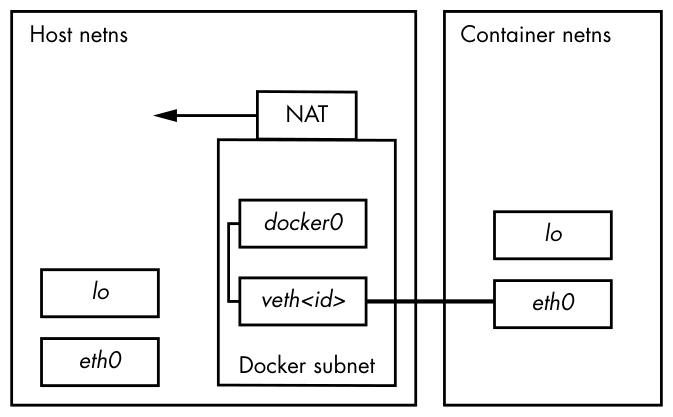
virtual interface pair bond.
You might need to examine the subnet of your Docker interface network. There can sometimes be clashes between it and the NAT-based network assigned by router hardware from telecommunications companies.
Rootless operation networking in Podman is different because setting up virtual interfaces requires superuser access. Podman still uses a new network namespace, but it needs an interface that can be set up to operate in user space. This is a TAP interface (usually at tap0), and in conjunction with a forwarding daemon called slirp4netns, container processes can reach the outside world. This is less capable; for example, containers cannot connect to one another.
There’s a lot more to networking, including how to expose ports in the container’s network stack for external services to use, but the network topology is the most important thing to understand.
Docker Operation
At this point, we could continue with a discussion of the various other kinds of isolation and restrictions that Docker enables, but it would take a long p. 413 time and you probably get the point by now. Containers don’t come from one particular feature, but rather a collection of them. A consequence is that Docker must keep track of all of the things we do when creating a container and must also be able to clean them up.
Docker defines a container as “running” as long as it has a process running. You can show the currently running containers with docker ps:
$ docker ps
CONTAINER ID   IMAGE       COMMAND       CREATED       STATUS      PORTS    NAMES
bda6204cecf7   hlw_test    "/bin/bash"   8 hours ago   Up 8 hours           boring_lovelace
8a48d6e85efe   hlw_test    "/bin/bash"   20 hours ago  Up 20 hours          awesome_elion
As soon as all of its processes terminate, Docker puts them in an exit state, but it still keeps the containers (unless you start with the --rm option). This includes the changes made to the filesystem. You can easily access the filesystem with docker export.
You need to be aware of this, because docker ps doesn’t show exited containers by default; you have to use the -a option to see everything. It’s really easy to accumulate a large pile of exited containers, and if the application running in the container creates a lot of data, you can run out of disk space and not know why. Use docker rm to remove a terminated container.
This also applies to old images. Developing an image tends to be a repetitive process, and when you tag an image with the same tag as an existing image, Docker doesn’t remove the original image. The old image simply loses that tag. If you run docker images to show all the images on your system, you can see all of the images. Here’s an example showing a previous version of an image without a tag:
$ docker images
REPOSITORY          TAG                 IMAGE ID            CREATED             SIZE
hlw_test            latest              1b64f94e5a54        43 hours ago        9.19MB
<none>              <none>              d0461f65b379        46 hours ago        9.19MB
alpine              latest              f70734b6a266        4 weeks ago         5.61MB
Use docker rmi to remove an image. This also removes any unnecessary intermediate images that the image builds on. If you don’t remove images, they can add up over time. Depending on what’s in the images and how they are built, this can consume a significant amount of storage space on your system.
In general, Docker does a lot of meticulous versioning and checkpointing. This layer of management reflects a particular philosophy compared to tools like LXC, which you’ll see soon.
Docker Service Process Models
One potentially confusing aspect of Docker containers is the lifecycle of the processes inside them. Before a process can completely terminate, its parent is supposed to collect (“reap”) its exit code with the wait() system call. However, in a container, there are some situations in which dead processes can remain because their parents don’t know how to react. Along with the p. 414 way that many images are configured, this might lead you to conclude that you’re not supposed to run multiple processes or services inside a Docker container. This is not correct.
You can have many processes in a container. The shell we ran in our example starts a new child process when you run a command. The only thing that really matters is that when you have child processes, the parent cleans up upon their exit. Most parents do this, but in certain circumstances, you might run into a situation where one does not, especially if it doesn’t know that it has children. This can happen when there are multiple levels of process spawning, and the PID 1 inside the container ends up being the parent of a child that it doesn’t know about.
To remedy this, if you have a simple single-minded service that just spawns some processes and seems to leave lingering processes even when a container is supposed to terminate, you can add the --init option to docker run. This creates a very simple init process to run as PID 1 in the container and act as a parent that knows what to do when a child process terminates.
However, if you’re running multiple services or tasks inside a container (such as multiple workers for some job server), instead of starting them with a script, you might consider using a process management daemon such as Supervisor (supervisord) to start and monitor them. This not only provides the necessary system functionality, but also gives you more control over service processes.
On that note, if you’re thinking about this kind of model for a container, there’s a different option that you might consider, and it doesn’t involve Docker.
17.2.3 LXC
Our discussion has revolved around Docker not only because it’s the most popular system for building container images, but also because it makes it very easy to get started and jump into the layers of isolation that containers normally provide. However, there are other packages for creating containers, and they take different approaches. Of these, LXC is one of the oldest. In fact, the first versions of Docker were built on LXC. If you understood the discussion of how Docker does its work, you won’t have trouble with LXC technical concepts, so we won’t go over any examples. Instead, we’ll just explore some of the practical differences.
The term LXC is sometimes used to refer to the set of kernel features that make containers possible, but most people use it to refer specifically to a library and package containing a number of utilities for creating and manipulating Linux containers. Unlike Docker, LXC involves a fair amount of manual setup. For example, you have to create your own container network interface, and you need to provide user ID mappings.
Originally, LXC was intended to be as much of an entire Linux system as possible inside the container—init and all. After installing a special version of a distribution, you could install everything you needed for whatever you were running inside the container. That part isn’t too different from what you’ve seen with Docker, but there is more setup to do; with Docker, you just download a bunch of files and you’re ready to go.
Therefore, you might find LXC more flexible in adapting to different needs. For example, by default, LXC doesn’t use the overlay filesystem that you saw with Docker, although you can add one. Because LXC is built on a C API, you can use this granularity in your own software application if necessary.
An accompanying management package called LXD can help you work through some of LXC’s finer, manual points (such as network creation and image management) and offers a REST API that you can use to access LXC instead of the C API.
17.2.4 Kubernetes
Speaking of management, containers have become popular for many kinds of web servers, because you can start a bunch of containers from a single image across multiple machines, providing excellent redundancy. Unfortunately, this can be difficult to manage. You need to perform tasks such as the following:
- Track which machines are able to run containers.
- Start, monitor, and restart containers on those machines.
- Configure container startup.
- Configure the container networking as required.
- Load new versions of container images and update all running containers gracefully.
That isn’t a complete list, nor does it properly convey the complexity of each task. Software was begging to be developed for it, and among the solutions that appeared, Google’s Kubernetes has become dominant. Perhaps one of the largest contributing factors for this is its ability to run Docker container images.
Kubernetes has two basic sides, much like any client-server application. The server involves the machine(s) available to run containers, and the client is primarily a set of command-line utilities that launch and manipulate sets of containers. The configuration files for containers (and the groups they form) can be extensive, and you’ll quickly find that most of the work involved on the client side is creating the appropriate configuration.
You can explore the configuration on your own. If you don’t want to deal with setting up the servers yourself, use the Minikube tool to install a virtual machine running a Kubernetes cluster on your own machine.
17.2.5 Pitfalls of Containers
If you think about how a service like Kubernetes works, you’ll also realize that a system utilizing containers is not without its costs. At minimum, you still need one or more machines on which to run your containers, and this has to be a full-fledged Linux machine, whether it’s on real hardware or a virtual machine. There’s still a maintenance cost here, although it might be simpler to maintain this core infrastructure than a configuration that requires many custom software installations.
That cost can take several forms. If you choose to administer your own infrastructure, that’s a significant investment of time, and still has hardware, hosting, and maintenance costs. If you instead opt to use a container service like a Kubernetes cluster, you’ll be paying the monetary cost of having someone else do the work for you.
When thinking of the containers themselves, keep in mind the following:
- Containers can be wasteful in terms of storage. In order for any application to function inside a container, the container must include all the necessary support of a Linux operating system, such as shared libraries. This can become quite large, especially if you don’t pay particular attention to the base distribution that you choose for your containers. Then, consider your application itself: how big is it? This situation is mitigated somewhat when you’re using an overlay filesystem with several copies of the same container, because they share the same base files. However, if your application creates a lot of runtime data, the upper layers of all of those overlays can grow large.
- You still have to think about other system resources, such as CPU time. You can configure limits on how much containers can consume, but you’re still constrained by how much the underlying system can handle. There’s still a kernel and block devices. If you overload stuff, then your containers, the system underneath, or both will suffer.
- You might need to think differently about where you store your data. In container systems such as Docker that use overlay filesystems, the changes made to the filesystem during runtime are thrown away after the processes terminate. In many applications, all of the user data goes into a database, and then that problem is reduced to database administration. But what about your logs? Those are necessary for a well-functioning server application, and you still need a way to store them. A separate log service is a must for any substantial scale of production.
- Most container tools and operation models are geared toward web servers. If you’re running a typical web server, you’ll find a great deal of support and information about running web servers in containers. Kubernetes, in particular, has a lot of safety features for preventing runaway server code. This can be an advantage, because it compensates for how (frankly) poorly written most web applications are. However, when you’re trying to run another kind of service, it can sometimes feel like you’re trying to drive a square peg into a round hole.
- Careless container builds can lead to bloat, configuration problems, and malfunction. The fact that you’re creating an isolated environment doesn’t shield you from making mistakes in that environment. You might not have to worry so much about the intricacies of systemd, but plenty of other things still can go wrong. When problems arise in any kind of system, inexperienced users tend to add things in an attempt to make the problem go away, often haphazardly. This can continue (often blindly) until at last there’s a somewhat functional system—with many additional issues. You need to understand the changes you make. p. 417
- Versioning can be problematic. We used the
latesttag for the examples in this book. This is supposed to be the latest (stable) release of a container, but it also means that when you build a container based on the latest release of a distribution or package, something underneath can change and break your application. One standard practice is to use a specific version tag of a base container. - Trust can be an issue. This applies particularly to images built with Docker. When you base your containers on those in the Docker image repository, you’re placing trust in an additional layer of management that they haven’t been altered to introduce even more security problems than usual, and that they’ll be there when you need them. This contrasts with LXC, where you’re encouraged to build your own to a certain degree.
When considering these issues, you might think that containers have a lot of disadvantages compared to other ways of managing system environments. However, that’s not the case. No matter what approach you choose, these problems are present in some degree and form—and some of them are easier to manage in containers. Just remember that containers won’t solve every problem. For example, if your application takes a long time to start on a normal system (after booting), it will also start slowly in a container.